
App
6 Best Screen Time Tracking Apps in 2026
6 Best Screen Time Tracking Apps in 2026

The average person underestimates their daily screen time by about two hours. That gap matters because you cannot change a habit you have not accurately measured. The first step is finding out where your digital hours actually go.
But most screen time tracking apps stop at the data. They show you a pie chart of your app usage and leave the rest to you. The better ones go further: they set limits, block distractions, or, in the case of the best option on this list, rearrange your whole day around your actual energy curve so you spend your peak hours on deep work instead of scrolling.
We tested six screen time tracking apps across iOS, Android, and desktop, evaluating each for tracking accuracy, how well they change behavior (not just report it), cross-device coverage, and what happens after you see your data. Here is what we found.
Key Takeaways
Lifestack is the strongest overall pick if you want to act on your screen time data. It reads your energy from wearables and builds your schedule around your real capacity, not just your intentions.
RescueTime is the best pure automatic tracker for desktop heavy users who need detailed activity logs across apps and websites with minimal setup.
Freedom and Opal are the top blockers when your problem is distractions rather than visibility. Forest is the best pick if gamification is what gets you moving.
Quick Guide
Lifestack: Best overall. Energy-aware planner that turns screen time insight into a smarter schedule.
RescueTime: Best automatic desktop tracker. Logs every app and website with zero manual input.
Opal: Best iOS blocker. Intelligent app limits with deep iOS integration.
Freedom: Best cross-platform blocker. Schedule distraction blocks across all your devices simultaneously.
Forest: Best for gamification. Grow virtual trees by staying off your phone.
Screen Time (iOS): Best free option. Solid built-in tracking for iPhone and iPad users.
How We Evaluated
We looked at six criteria when comparing screen time tracking apps:
Tracking accuracy across apps, websites, and device types
Whether the data leads to real behavior change or just awareness
Cross-device coverage (iOS, Android, Mac, Windows, browser)
Setup effort and how much manual input is required
Integration with calendars, tasks, and other productivity tools
Value relative to cost
1. Lifestack
Best overall screen time tracking app for people who want to actually change their schedule, not just observe it.

Most screen time apps tell you what happened. Lifestack changes what happens next. It reads real-time data from your wearable (Apple Watch, Oura Ring, Garmin, or WHOOP) and uses that information to auto-schedule your task list around your actual energy peaks and valleys. The result is a day where your most demanding work lands in your sharpest windows, not whenever it happens to float to the top of your inbox.
That is a fundamentally different approach to the screen time problem. Time audits are useful for understanding where hours go. But understanding is not the bottleneck for most people. The bottleneck is translating that insight into a schedule that protects focus time before distractions fill it. Lifestack closes that gap automatically.
It integrates with Google Calendar and Outlook, runs on iOS and Android, and surfaces a daily view that shows your tasks, meetings, and energy forecast in one place. If you have been trying to protect deep work blocks manually and failing, this is what automated scheduling built around your biology looks like.
Wearable-powered energy scheduling (Apple Watch, Oura, Garmin, WHOOP)
Auto-schedules tasks to your peak focus windows
Calendar integration with Google and Outlook
iOS and Android apps
Daily planner view combining tasks, meetings, and energy data
What Works: The energy-aware scheduling genuinely reduces the number of times you have to manually decide when to do hard things. Once your wearable data starts informing the schedule, tracking your fluctuating energy becomes actionable rather than just interesting.
Limitations: Less useful if you do not have a wearable device. It is a planner first, and does not generate the kind of detailed per-app usage reports that RescueTime does.
Pricing: $7/month, $50/year (7-day free trial), or $120 lifetime.
Best for: Anyone who has already identified their screen time problem and wants a tool that actively fixes their schedule rather than just reporting the damage.
2. RescueTime
Best automatic time tracker for desktop-heavy professionals who need detailed activity data across apps and websites.
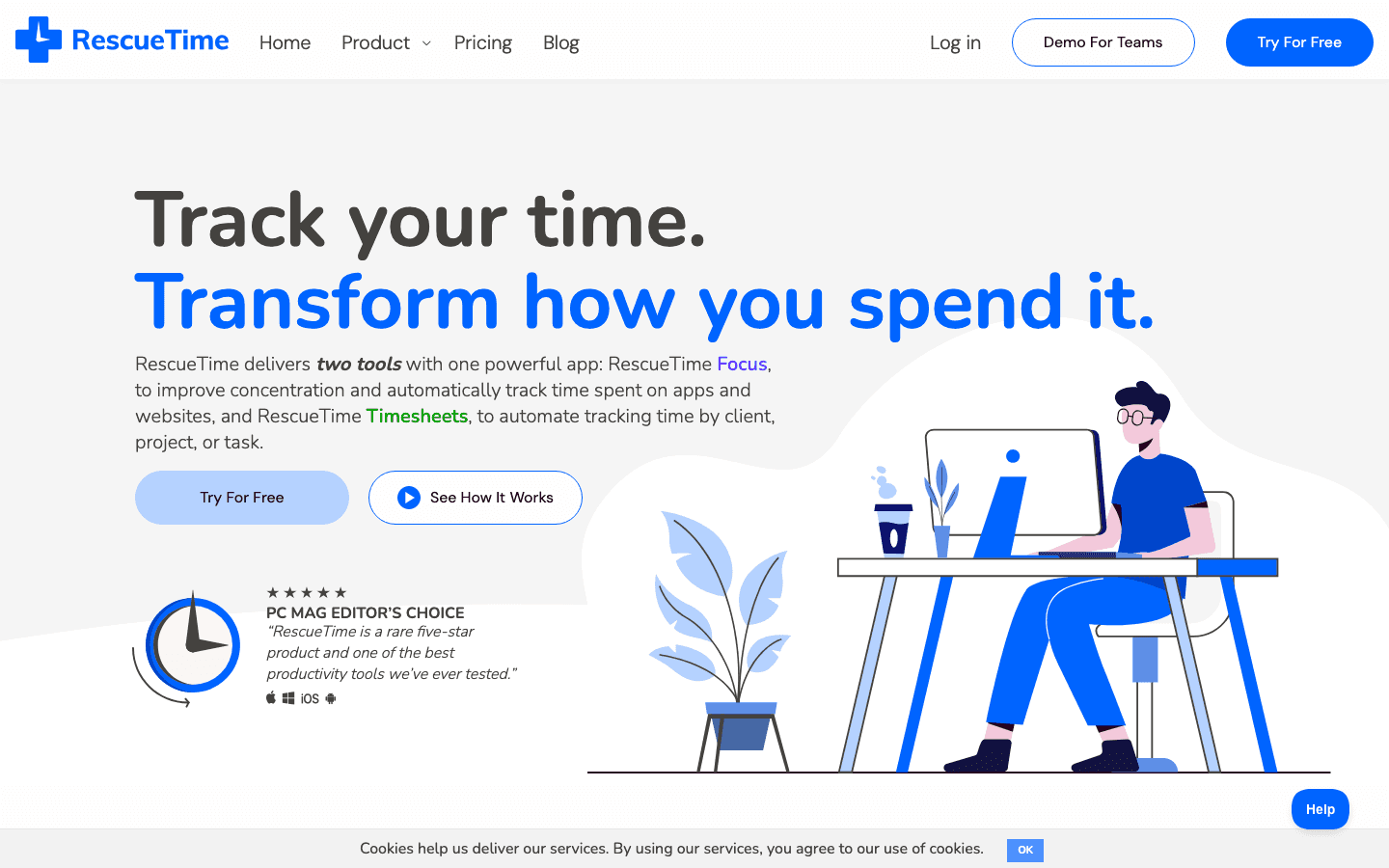
RescueTime runs silently in the background on Mac, Windows, and Android, logging every app and website you touch without any manual input. By the end of the week you have a detailed breakdown of how many hours went to email, Slack, code editors, social media, and everything else. It is the most accurate passive tracker on this list.
The Focus sessions feature locks you into a distraction-free mode and automatically logs your productive time. Goals and alerts fire when you hit or miss targets. For someone who wants hard data to challenge their self-perception, RescueTime is the most thorough option available.
Automatic app and website tracking on desktop and Android
Detailed productivity score and daily reports
Focus sessions with distraction blocking
Goals, alerts, and weekly email digest
Limitations: iOS tracking is limited compared to desktop. The dashboard can feel overwhelming at first. No energy-awareness or wearable integration.
Pricing: Free (Lite) plan available. Focus plan is $7/month ($84/year); Solo+ is $12/month ($144/year). 14-day free trial on paid plans.
Best for: Remote workers, freelancers, and knowledge workers who live primarily on a Mac or Windows machine and want the most complete picture of where their digital hours go.
3. Opal
Best screen time app for iOS users who need intelligent app limits with serious blocking built in.
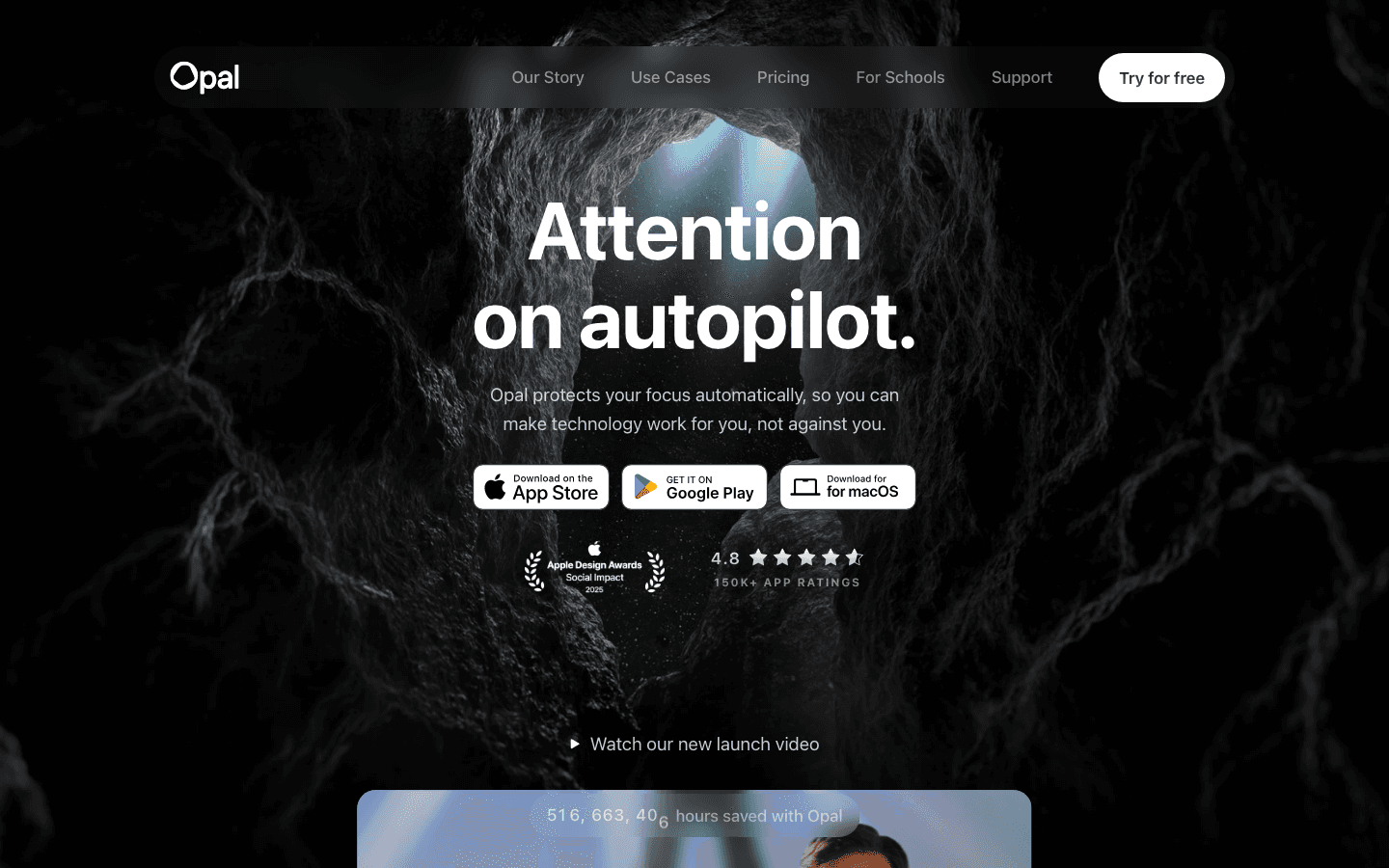
Opal takes a different angle than trackers like RescueTime. Rather than showing you historical data, it focuses on protecting the present moment. You set rules that block specific apps or categories, and Opal enforces them at the system level, making it significantly harder to bypass than Apple's built-in Screen Time limits.
The app also scores your daily focus quality with an Opal Score, giving you a single metric to improve over time. Rules can be scheduled to activate automatically, so your social apps go dark every morning without you having to remember to flip a switch. For iPhone-first users who struggle with willpower over limits they know they can override, Opal adds genuine friction.
System-level app blocking (harder to bypass than Screen Time)
Scheduled rules that activate automatically
Opal Score for daily focus quality
Available on iOS, Android, and Mac
Limitations: The free plan limits you to one rule, which is not enough for most users. Pro is priced higher than most alternatives. No wearable integration or task scheduling.
Pricing: Free (1 rule). Pro is $8.29/month ($99.99/year) or $19.99/month. Lifetime option at $399.
Best for: iPhone users who have tried and failed to respect Apple Screen Time limits and need a harder enforcement layer.
4. Freedom
Best cross-platform blocker for people who need to kill distractions across every device at the same time.
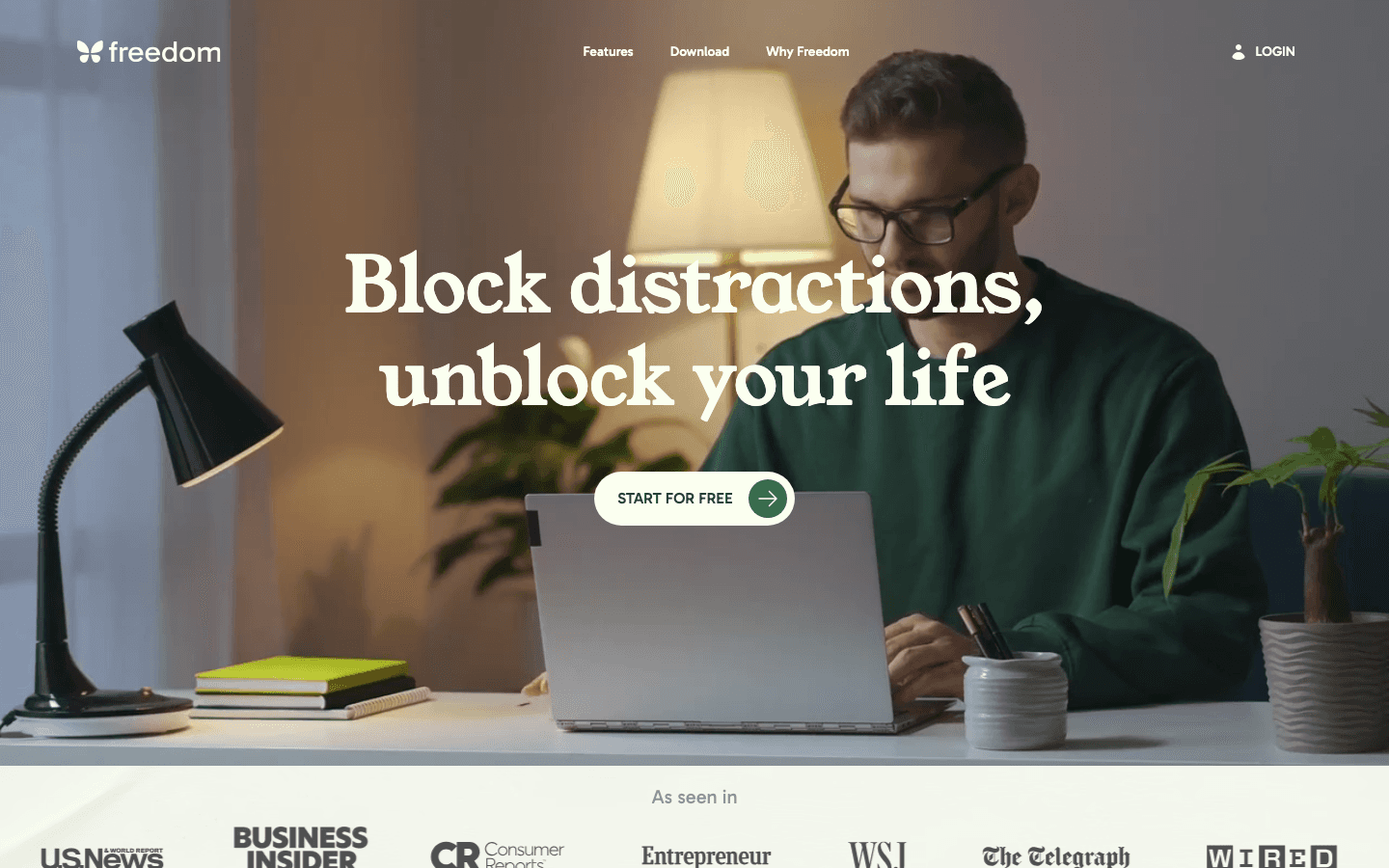
Freedom works across Mac, Windows, iOS, Android, and Chrome simultaneously, meaning a single session blocks the same sites and apps everywhere you work. This is the gap that most blockers leave open: you block Twitter on your laptop, then pick up your phone.
Sessions can be scheduled in advance or started on demand. The Locked Mode makes them impossible to cancel mid-session, which is the feature that converts casual users into committed ones. Freedom is less about tracking where your time goes and more about removing the option to go there at all.
Limitations: No time tracking or energy-based scheduling. Works best as a complement to a tracker like RescueTime, not a standalone screen time solution. The Locked Mode has a learning curve.
Pricing: Free (basic). Premium is $3.33/month ($40/year) or $8.99/month. Lifetime at $99.50. 7-day free trial.
Best for: Anyone whose distraction problem crosses devices and needs a single switch to turn off the internet everywhere at once. Pairs well with task batching and time-blocking workflows.
5. Forest
Best gamified screen time app for users who respond better to positive reinforcement than hard limits.

Forest takes a completely different approach: when you want to focus, you plant a virtual tree. If you leave the app before your timer ends, the tree dies. Over time you grow a forest representing your accumulated focused time, and the app donates to real tree planting through its paid tier.
It is not the most rigorous screen time tracker, and it does not block apps at the system level. But for people who are self-motivated by streaks and visual progress, it works well. The friction of killing a virtual tree turns out to be a surprisingly effective deterrent for impulsive phone checking.
Limitations: No detailed usage reports. No cross-platform blocking. Relies entirely on self-policing once you leave the app. More of a focus timer than a true screen time tracker.
Pricing: Free (Android, web extension). iOS app is a one-time $1.99 purchase. No subscription required.
Best for: Students, light users, and anyone who wants a gentle, low-stakes way to build better phone habits without strict enforcement.
6. Screen Time (iOS Built-In)
Best free option for iPhone users who want basic tracking and limits without installing anything extra.
Apple's built-in Screen Time tool gives you a weekly breakdown of app usage by category, daily average, and most-used apps. You can set downtime windows, app limits, and communication restrictions without downloading anything. For most users, this is the natural starting point before investing in a paid tool.
The honest limitation is that limits are easy to override with a passcode you set yourself. And the data is useful for awareness but does not connect to any scheduling or task management system. Screen Time shows you the problem. What you do next requires something else.
Pricing: Free. Built into every iPhone running iOS 12 and later.
Best for: iPhone users who want a free baseline measurement before committing to a paid screen time app. A good first step; not a complete solution.
Which Screen Time Tracking App Is Right for You?
You want to act on your data, not just see it: Lifestack turns screen time awareness into a rescheduled, energy-optimized day.
You work primarily on a computer and want detailed activity logs: RescueTime is the most complete passive tracker for desktop users.
You keep breaking your own iPhone limits: Opal provides system-level enforcement that is genuinely harder to bypass.
Your distraction problem spans laptop, phone, and tablet simultaneously: Freedom blocks everything everywhere with a single session.
You respond to gamification and streaks: Forest. Simple, positive, and cheap.
You want to start measuring before spending anything: Screen Time (iOS). Free, built-in, good enough for a first look.
If you are serious about fixing your focus rather than just measuring it, the combination that works best is a tracker for visibility (RescueTime or Screen Time) paired with a planner that acts on the data (energy-based planning via Lifestack). Tracking alone rarely changes behavior. A schedule that protects your best hours does.
Frequently Asked Questions
What is a screen time tracking app?
A screen time tracking app measures how much time you spend on your phone, computer, or specific apps. Some only track and report usage. Others add limits, blockers, or scheduling features to help you change behavior, not just observe it.
Is the built-in Screen Time on iPhone good enough?
For basic awareness, yes. Apple's Screen Time shows daily app usage, weekly averages, and lets you set limits. Its main weakness is that you can override any limit with the passcode you set yourself, which makes it easy to ignore. Opal or Freedom offer stronger enforcement if you need it.
Which screen time app works on both iPhone and Android?
Freedom and Forest both have apps on iOS and Android. Lifestack also runs on both platforms. RescueTime covers Android but has limited iOS tracking due to Apple's privacy restrictions.
Can a screen time tracking app improve productivity?
Tracking alone rarely does. Knowing you spent three hours on social media does not automatically reduce it the next day. The apps that improve productivity pair tracking data with structural changes: blocking distractions (Freedom, Opal), building focus habits (Forest), or rescheduling your entire day around your cognitive capacity (Lifestack).
How does Lifestack differ from regular screen time apps?
Traditional screen time apps are reactive. They show you what happened after the fact. Lifestack is proactive: it reads your energy levels from a wearable device and auto-schedules your tasks so that hard, focused work lands in your peak windows before anything can fill that space. It is less of a tracker and more of a planner that is informed by your biology. Managing work-life balance starts with knowing when your brain is actually ready to work.
What should I look for in a screen time tracking app?
Start with coverage (does it track the devices you actually use?) and behavior change (does it help you act on what you learn?). Tracking data you never act on is just a guilt report. The best apps either create friction around distracting behavior or help you protect focus time before the distractions show up.
The average person underestimates their daily screen time by about two hours. That gap matters because you cannot change a habit you have not accurately measured. The first step is finding out where your digital hours actually go.
But most screen time tracking apps stop at the data. They show you a pie chart of your app usage and leave the rest to you. The better ones go further: they set limits, block distractions, or, in the case of the best option on this list, rearrange your whole day around your actual energy curve so you spend your peak hours on deep work instead of scrolling.
We tested six screen time tracking apps across iOS, Android, and desktop, evaluating each for tracking accuracy, how well they change behavior (not just report it), cross-device coverage, and what happens after you see your data. Here is what we found.
Key Takeaways
Lifestack is the strongest overall pick if you want to act on your screen time data. It reads your energy from wearables and builds your schedule around your real capacity, not just your intentions.
RescueTime is the best pure automatic tracker for desktop heavy users who need detailed activity logs across apps and websites with minimal setup.
Freedom and Opal are the top blockers when your problem is distractions rather than visibility. Forest is the best pick if gamification is what gets you moving.
Quick Guide
Lifestack: Best overall. Energy-aware planner that turns screen time insight into a smarter schedule.
RescueTime: Best automatic desktop tracker. Logs every app and website with zero manual input.
Opal: Best iOS blocker. Intelligent app limits with deep iOS integration.
Freedom: Best cross-platform blocker. Schedule distraction blocks across all your devices simultaneously.
Forest: Best for gamification. Grow virtual trees by staying off your phone.
Screen Time (iOS): Best free option. Solid built-in tracking for iPhone and iPad users.
How We Evaluated
We looked at six criteria when comparing screen time tracking apps:
Tracking accuracy across apps, websites, and device types
Whether the data leads to real behavior change or just awareness
Cross-device coverage (iOS, Android, Mac, Windows, browser)
Setup effort and how much manual input is required
Integration with calendars, tasks, and other productivity tools
Value relative to cost
1. Lifestack
Best overall screen time tracking app for people who want to actually change their schedule, not just observe it.
Most screen time apps tell you what happened. Lifestack changes what happens next. It reads real-time data from your wearable (Apple Watch, Oura Ring, Garmin, or WHOOP) and uses that information to auto-schedule your task list around your actual energy peaks and valleys. The result is a day where your most demanding work lands in your sharpest windows, not whenever it happens to float to the top of your inbox.
That is a fundamentally different approach to the screen time problem. Time audits are useful for understanding where hours go. But understanding is not the bottleneck for most people. The bottleneck is translating that insight into a schedule that protects focus time before distractions fill it. Lifestack closes that gap automatically.
It integrates with Google Calendar and Outlook, runs on iOS and Android, and surfaces a daily view that shows your tasks, meetings, and energy forecast in one place. If you have been trying to protect deep work blocks manually and failing, this is what automated scheduling built around your biology looks like.
Wearable-powered energy scheduling (Apple Watch, Oura, Garmin, WHOOP)
Auto-schedules tasks to your peak focus windows
Calendar integration with Google and Outlook
iOS and Android apps
Daily planner view combining tasks, meetings, and energy data
What Works: The energy-aware scheduling genuinely reduces the number of times you have to manually decide when to do hard things. Once your wearable data starts informing the schedule, tracking your fluctuating energy becomes actionable rather than just interesting.
Limitations: Less useful if you do not have a wearable device. It is a planner first, and does not generate the kind of detailed per-app usage reports that RescueTime does.
Pricing: $7/month, $50/year (7-day free trial), or $120 lifetime.
Best for: Anyone who has already identified their screen time problem and wants a tool that actively fixes their schedule rather than just reporting the damage.
2. RescueTime
Best automatic time tracker for desktop-heavy professionals who need detailed activity data across apps and websites.
RescueTime runs silently in the background on Mac, Windows, and Android, logging every app and website you touch without any manual input. By the end of the week you have a detailed breakdown of how many hours went to email, Slack, code editors, social media, and everything else. It is the most accurate passive tracker on this list.
The Focus sessions feature locks you into a distraction-free mode and automatically logs your productive time. Goals and alerts fire when you hit or miss targets. For someone who wants hard data to challenge their self-perception, RescueTime is the most thorough option available.
Automatic app and website tracking on desktop and Android
Detailed productivity score and daily reports
Focus sessions with distraction blocking
Goals, alerts, and weekly email digest
Limitations: iOS tracking is limited compared to desktop. The dashboard can feel overwhelming at first. No energy-awareness or wearable integration.
Pricing: Free (Lite) plan available. Focus plan is $7/month ($84/year); Solo+ is $12/month ($144/year). 14-day free trial on paid plans.
Best for: Remote workers, freelancers, and knowledge workers who live primarily on a Mac or Windows machine and want the most complete picture of where their digital hours go.
3. Opal
Best screen time app for iOS users who need intelligent app limits with serious blocking built in.
Opal takes a different angle than trackers like RescueTime. Rather than showing you historical data, it focuses on protecting the present moment. You set rules that block specific apps or categories, and Opal enforces them at the system level, making it significantly harder to bypass than Apple's built-in Screen Time limits.
The app also scores your daily focus quality with an Opal Score, giving you a single metric to improve over time. Rules can be scheduled to activate automatically, so your social apps go dark every morning without you having to remember to flip a switch. For iPhone-first users who struggle with willpower over limits they know they can override, Opal adds genuine friction.
System-level app blocking (harder to bypass than Screen Time)
Scheduled rules that activate automatically
Opal Score for daily focus quality
Available on iOS, Android, and Mac
Limitations: The free plan limits you to one rule, which is not enough for most users. Pro is priced higher than most alternatives. No wearable integration or task scheduling.
Pricing: Free (1 rule). Pro is $8.29/month ($99.99/year) or $19.99/month. Lifetime option at $399.
Best for: iPhone users who have tried and failed to respect Apple Screen Time limits and need a harder enforcement layer.
4. Freedom
Best cross-platform blocker for people who need to kill distractions across every device at the same time.
Freedom works across Mac, Windows, iOS, Android, and Chrome simultaneously, meaning a single session blocks the same sites and apps everywhere you work. This is the gap that most blockers leave open: you block Twitter on your laptop, then pick up your phone.
Sessions can be scheduled in advance or started on demand. The Locked Mode makes them impossible to cancel mid-session, which is the feature that converts casual users into committed ones. Freedom is less about tracking where your time goes and more about removing the option to go there at all.
Limitations: No time tracking or energy-based scheduling. Works best as a complement to a tracker like RescueTime, not a standalone screen time solution. The Locked Mode has a learning curve.
Pricing: Free (basic). Premium is $3.33/month ($40/year) or $8.99/month. Lifetime at $99.50. 7-day free trial.
Best for: Anyone whose distraction problem crosses devices and needs a single switch to turn off the internet everywhere at once. Pairs well with task batching and time-blocking workflows.
5. Forest
Best gamified screen time app for users who respond better to positive reinforcement than hard limits.
Forest takes a completely different approach: when you want to focus, you plant a virtual tree. If you leave the app before your timer ends, the tree dies. Over time you grow a forest representing your accumulated focused time, and the app donates to real tree planting through its paid tier.
It is not the most rigorous screen time tracker, and it does not block apps at the system level. But for people who are self-motivated by streaks and visual progress, it works well. The friction of killing a virtual tree turns out to be a surprisingly effective deterrent for impulsive phone checking.
Limitations: No detailed usage reports. No cross-platform blocking. Relies entirely on self-policing once you leave the app. More of a focus timer than a true screen time tracker.
Pricing: Free (Android, web extension). iOS app is a one-time $1.99 purchase. No subscription required.
Best for: Students, light users, and anyone who wants a gentle, low-stakes way to build better phone habits without strict enforcement.
6. Screen Time (iOS Built-In)
Best free option for iPhone users who want basic tracking and limits without installing anything extra.
Apple's built-in Screen Time tool gives you a weekly breakdown of app usage by category, daily average, and most-used apps. You can set downtime windows, app limits, and communication restrictions without downloading anything. For most users, this is the natural starting point before investing in a paid tool.
The honest limitation is that limits are easy to override with a passcode you set yourself. And the data is useful for awareness but does not connect to any scheduling or task management system. Screen Time shows you the problem. What you do next requires something else.
Pricing: Free. Built into every iPhone running iOS 12 and later.
Best for: iPhone users who want a free baseline measurement before committing to a paid screen time app. A good first step; not a complete solution.
Which Screen Time Tracking App Is Right for You?
You want to act on your data, not just see it: Lifestack turns screen time awareness into a rescheduled, energy-optimized day.
You work primarily on a computer and want detailed activity logs: RescueTime is the most complete passive tracker for desktop users.
You keep breaking your own iPhone limits: Opal provides system-level enforcement that is genuinely harder to bypass.
Your distraction problem spans laptop, phone, and tablet simultaneously: Freedom blocks everything everywhere with a single session.
You respond to gamification and streaks: Forest. Simple, positive, and cheap.
You want to start measuring before spending anything: Screen Time (iOS). Free, built-in, good enough for a first look.
If you are serious about fixing your focus rather than just measuring it, the combination that works best is a tracker for visibility (RescueTime or Screen Time) paired with a planner that acts on the data (energy-based planning via Lifestack). Tracking alone rarely changes behavior. A schedule that protects your best hours does.
Frequently Asked Questions
What is a screen time tracking app?
A screen time tracking app measures how much time you spend on your phone, computer, or specific apps. Some only track and report usage. Others add limits, blockers, or scheduling features to help you change behavior, not just observe it.
Is the built-in Screen Time on iPhone good enough?
For basic awareness, yes. Apple's Screen Time shows daily app usage, weekly averages, and lets you set limits. Its main weakness is that you can override any limit with the passcode you set yourself, which makes it easy to ignore. Opal or Freedom offer stronger enforcement if you need it.
Which screen time app works on both iPhone and Android?
Freedom and Forest both have apps on iOS and Android. Lifestack also runs on both platforms. RescueTime covers Android but has limited iOS tracking due to Apple's privacy restrictions.
Can a screen time tracking app improve productivity?
Tracking alone rarely does. Knowing you spent three hours on social media does not automatically reduce it the next day. The apps that improve productivity pair tracking data with structural changes: blocking distractions (Freedom, Opal), building focus habits (Forest), or rescheduling your entire day around your cognitive capacity (Lifestack).
How does Lifestack differ from regular screen time apps?
Traditional screen time apps are reactive. They show you what happened after the fact. Lifestack is proactive: it reads your energy levels from a wearable device and auto-schedules your tasks so that hard, focused work lands in your peak windows before anything can fill that space. It is less of a tracker and more of a planner that is informed by your biology. Managing work-life balance starts with knowing when your brain is actually ready to work.
What should I look for in a screen time tracking app?
Start with coverage (does it track the devices you actually use?) and behavior change (does it help you act on what you learn?). Tracking data you never act on is just a guilt report. The best apps either create friction around distracting behavior or help you protect focus time before the distractions show up.



FOLLOW ON
FOLLOW ON
FOLLOW ON



Copyright 2026 © Lifestack. All rights reserved
Copyright 2026 © Lifestack. All rights reserved

