
App
Best Drag and Drop Calendar Planners in 2026: 6 Tested
Best Drag and Drop Calendar Planners in 2026: 6 Tested
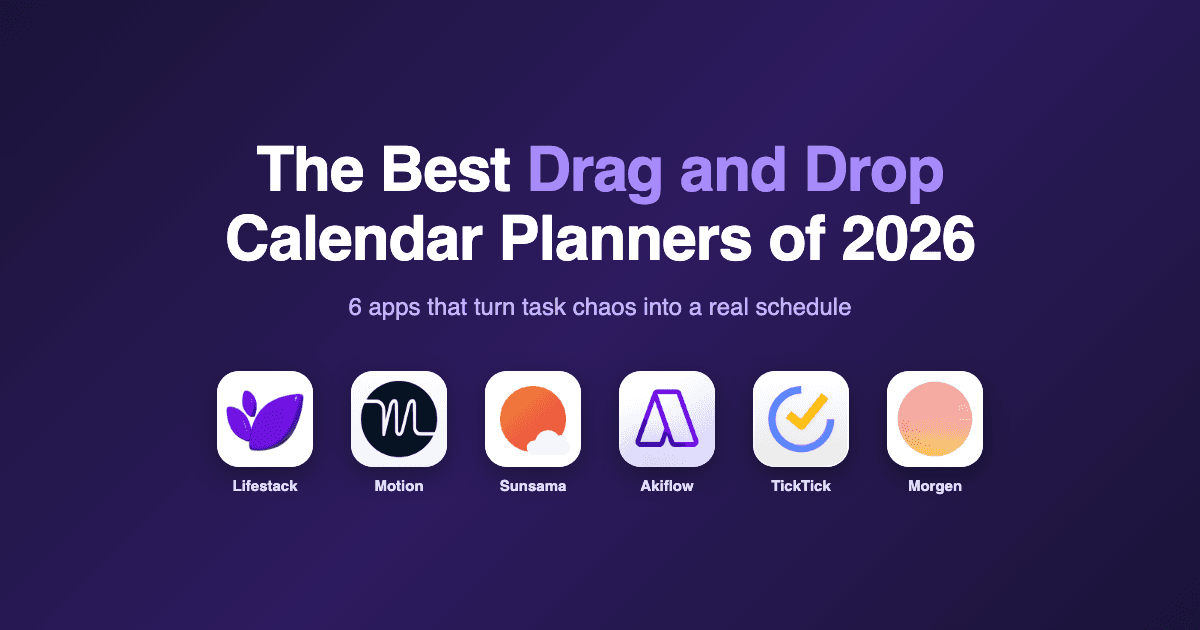
A drag and drop calendar planner lets you turn a messy task list into a real day by pulling tasks onto your calendar with your cursor or finger. No retyping. No copying times. You drop, the block lands, and your day starts to look like something you can actually do.
The shift matters because the gap between "I have things to do" and "I have a plan" is usually where the day falls apart. Drag and drop closes that gap in seconds. The right app makes the drop feel natural and the block stick at a time that fits your real energy, not just an empty slot.
We tested six drag and drop calendar planners across a normal work week. Each one had to handle a daily task list with at least 12 items, a real calendar with meetings, and rescheduling when the day shifted. Here is what stood out.
Key Takeaways
Lifestack is the only app that uses your sleep and energy data to suggest when each dropped task should go, not just where there is open time.
Most apps still treat drag and drop as visual scheduling. Two of the six actually reschedule everything when one block moves.
Free tiers are rare. TickTick is the only app on this list with a real free plan.
Quick Guide: The 6 Apps
Lifestack: Energy-aware drag and drop, the only one that reads your body data.
Motion: AI auto-scheduling that runs after every drop.
Sunsama: Calm daily ritual, drag tasks from connected tools into your day.
Akiflow: Universal inbox plus calendar, fastest drop-to-schedule loop.
TickTick: Free option with a usable calendar view.
Morgen: Multi-calendar view with manual drag scheduling.
How We Evaluated Each Planner
We focused on the parts of the workflow that actually matter day to day:
Drop-to-block speed and friction
What happens when one task moves and the day needs to reflow
Calendar integrations (Google, Outlook, Apple)
Task source integrations (Todoist, Notion, Asana, etc.)
Mobile drag and drop quality
Whether the app considers anything beyond open time slots
Pricing and free-tier honesty
1. Lifestack: Energy-Aware Drag and Drop Planning
The only planner that drops your task into the slot your body can actually handle.

Lifestack reads sleep, recovery, and focus signals from your wearable (Oura, Whoop, Apple Watch, Garmin, Fitbit) and turns them into an energy curve. When you drag a task to your calendar, it does not just check whether the slot is open. It checks whether you have the brain for that kind of work at that hour.
You can drop a deep-focus block at 9am, and if your morning energy reads low after a bad night of sleep, Lifestack will quietly suggest moving it to 11am or to tomorrow. You stay in control. The system is a second opinion, not a boss.
Key Features
Drag tasks from a side panel directly onto your calendar
Energy curve that updates each morning based on wearable data
Auto-rescheduling when meetings get added mid-day
Works with Google Calendar, Outlook, and Apple Calendar
Todoist and Notion sync for pulling in your existing tasks
What Works
The energy layer changes which tasks you do, not just when
Drag interactions are smooth on both desktop and mobile
Honest about what is realistic for the day, not just what fits
Limitations
No permanent free tier (7-day trial only)
Wearable data is the strongest signal, so users without one get a lighter version
Pricing: $7 per month, or about $4.17 per month billed annually.
Best for: Anyone tired of dropping a task on the calendar and then crashing through it at the wrong hour. Read more about why energy-based planning beats time blocking if this approach is new to you.
2. Motion: AI Auto-Schedules Every Drop
Drop a task, Motion picks the time.
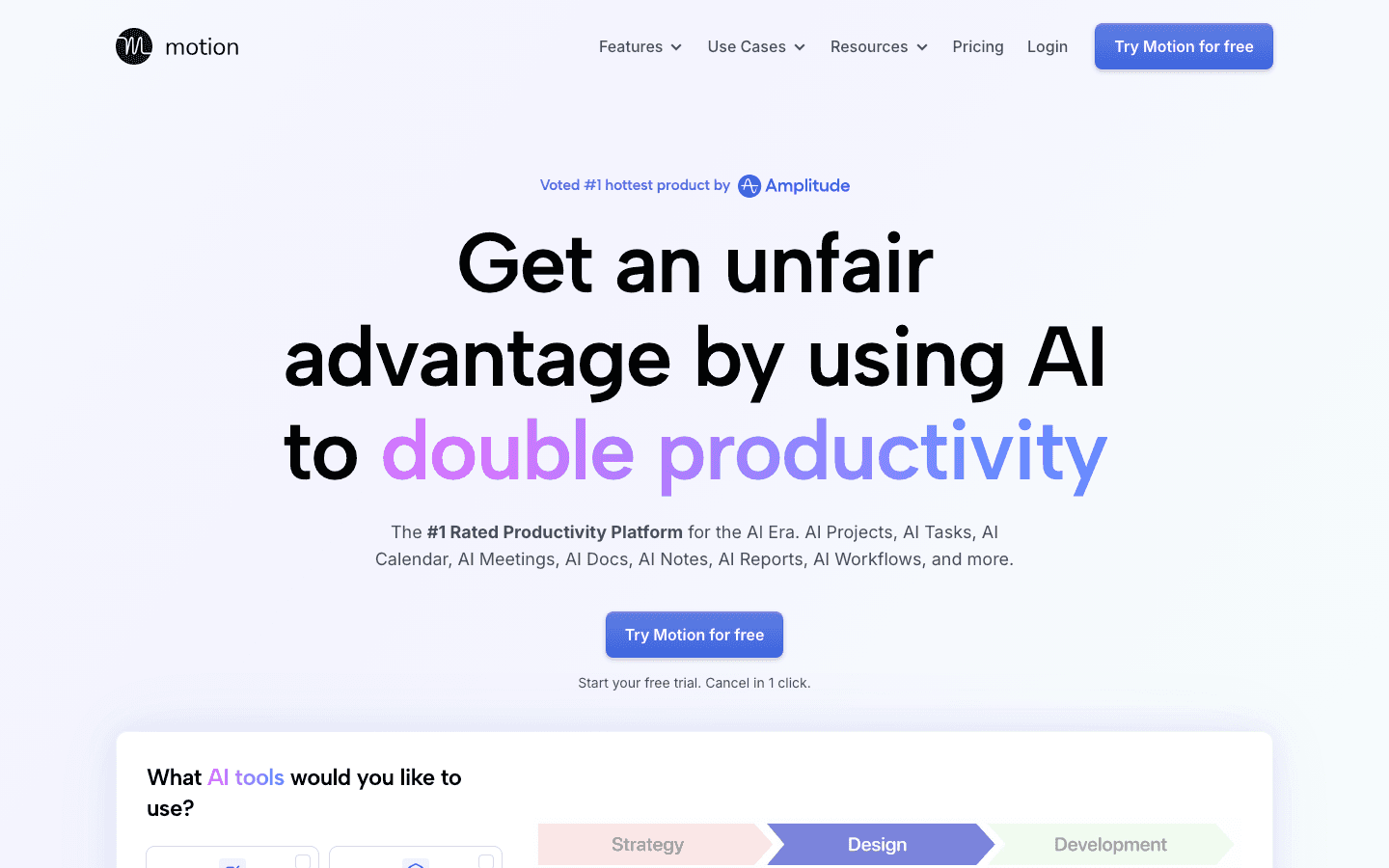
Motion sits at the more aggressive end of automation. You add a task with a deadline and a duration, and the AI slots it into a calendar that already includes meetings, recurring blocks, and other tasks. Drag a block to a new time and the rest of the day reshuffles around it within a second.
This is the right tool if you want the calendar to do work for you. The tradeoff is control. You can pin tasks, but the default mood of the app is "trust the optimizer." Some users love that. Others hate watching their carefully placed blocks move when they sit down to drink coffee.
Key Features
AI auto-scheduling on every change
Project view with deadlines and dependencies
Meeting scheduler with availability sharing
Native iOS and Android apps
What Works
Fastest path from a task list to a fully populated calendar
Handles deadline math better than most planners
Useful for project work with many small tasks
Limitations
No energy awareness, only open time
Auto-reshuffling can feel disorienting if you like a fixed plan
Pricey relative to the rest of this list
Pricing: $19 per seat per month, dropping to roughly $12.71 per month on annual billing.
Best for: Solo operators and small teams running on deadlines. See our full Motion alternatives comparison if the price or the auto-shuffling is not for you.
3. Sunsama: Calm Daily Planning Ritual
Slower by design, with a strong drag-from-anywhere flow.
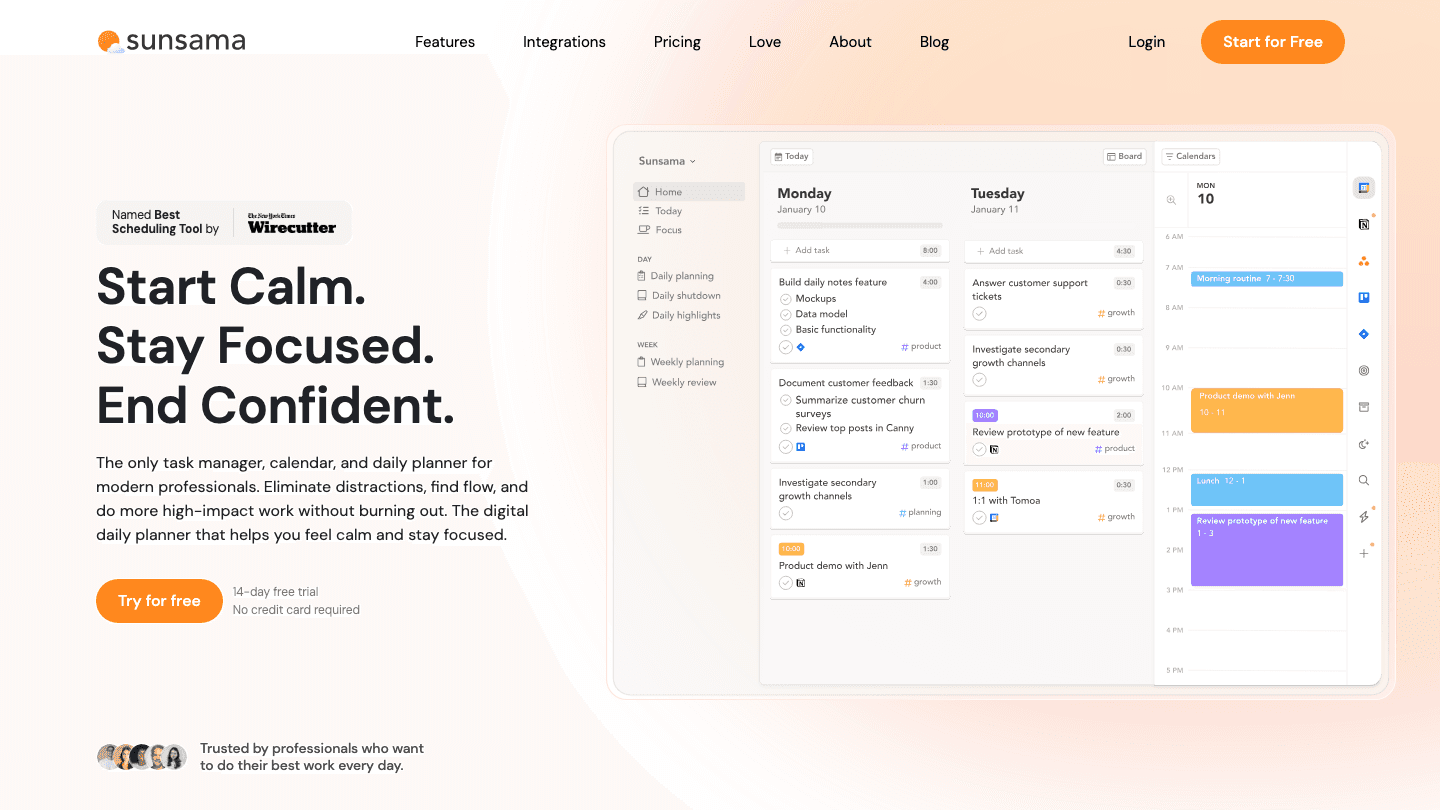
Sunsama wants you to plan the day once, in the morning, and then close the planning app. You pull tasks from Asana, Trello, Notion, Linear, Gmail, and Slack into a daily list, then drag each one onto a timeline. The app asks you to assign an estimated duration and a channel, which forces you to be honest about what fits.
Drag and drop here is less about quick scheduling and more about deliberate ordering. If you keep dragging more onto the day than you can do, Sunsama tells you. That single nudge is the reason long-time users stay.
Key Features
Pull tasks in from 15+ tools via integrations
Daily and weekly planning rituals with prompts
Time tracking on each task block
Calm UI that hides the calendar after planning
What Works
Pushes back when the day is overloaded
Integrations are deep, not surface level
Strong async planning for distributed teams
Limitations
Manual scheduling only, no auto-fill
No energy awareness
Expensive for what is essentially a structured to-do plus calendar
Pricing: $22 per month, or $17 per month billed annually.
Best for: People who already know how to plan a day and want the app to slow them down, not speed them up.
4. Akiflow: Universal Inbox With Drag-to-Calendar
Pull tasks from everywhere, drop them onto your timeline.
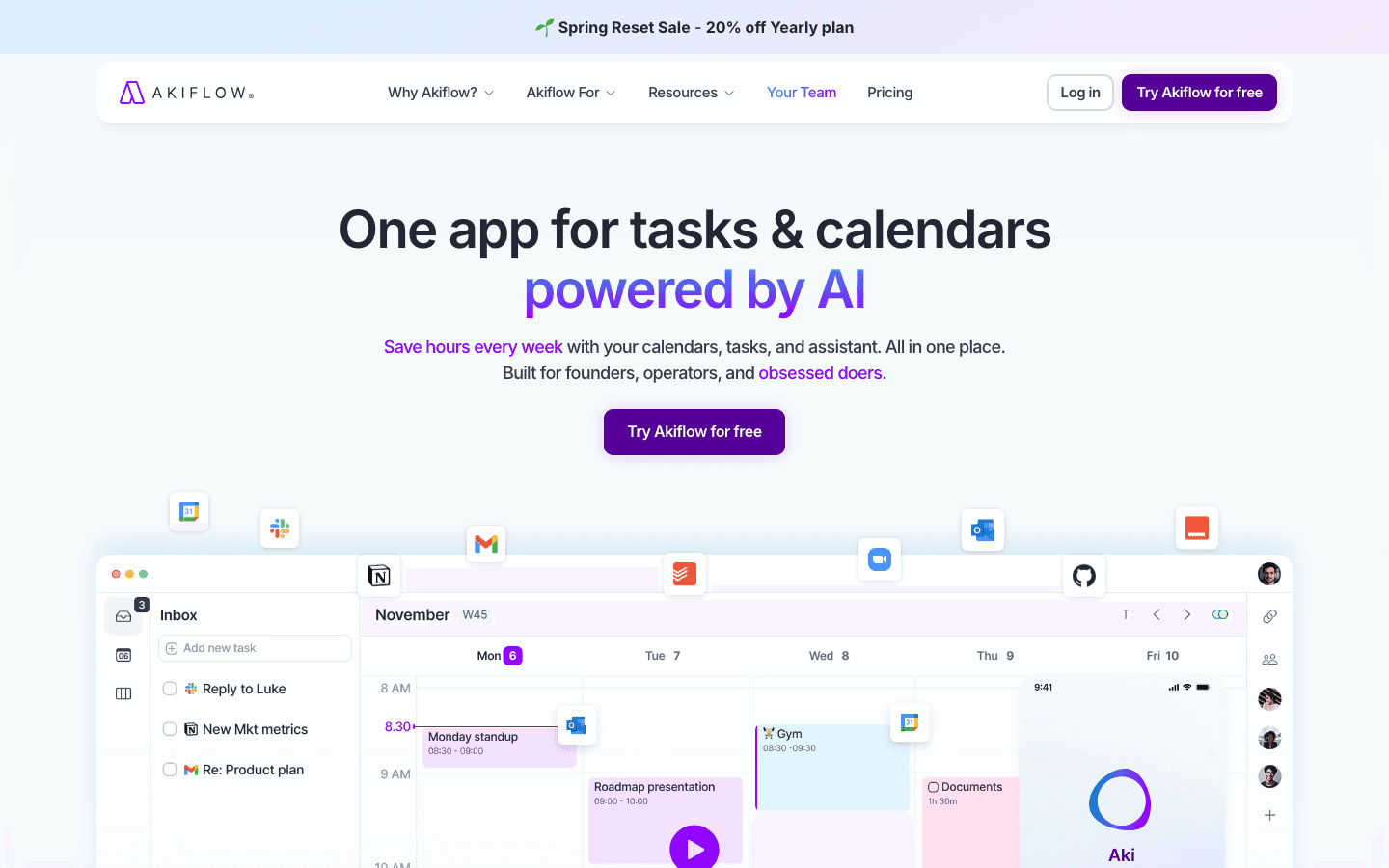
Akiflow sits between Sunsama and Motion. It collects tasks from Gmail, Slack, Notion, Todoist, Asana, Linear, and a dozen others into a single inbox panel on the left of your calendar. You drag each item from the inbox onto your day. Tasks that already have a duration estimate snap in cleanly.
The reason Akiflow scores well on drag speed is the inbox itself. You are never hunting for a task in another app. Everything lands in one place, ready to be dropped onto a time slot. Keyboard shortcuts make the loop even faster for power users.
Key Features
Universal inbox aggregating tasks from many tools
Keyboard-driven scheduling with custom shortcuts
Meeting scheduler and time-blocking features
Native macOS, Windows, iOS, and Android apps
What Works
The inbox-to-calendar flow is the fastest on this list
Polished desktop apps, not just a web wrapper
Good for inbox-zero-style task management
Limitations
No energy awareness or biological signal layer
Pricing has crept up recently
Mobile drag and drop is less smooth than desktop
Pricing: $34 per month, or $19 per month billed annually.
Best for: Knowledge workers who live in five tools and want one place to triage them. We also cover other options in our Akiflow alternatives roundup.
5. TickTick: Free Drag and Drop With Calendar View
The only real free option, with a usable calendar mode.
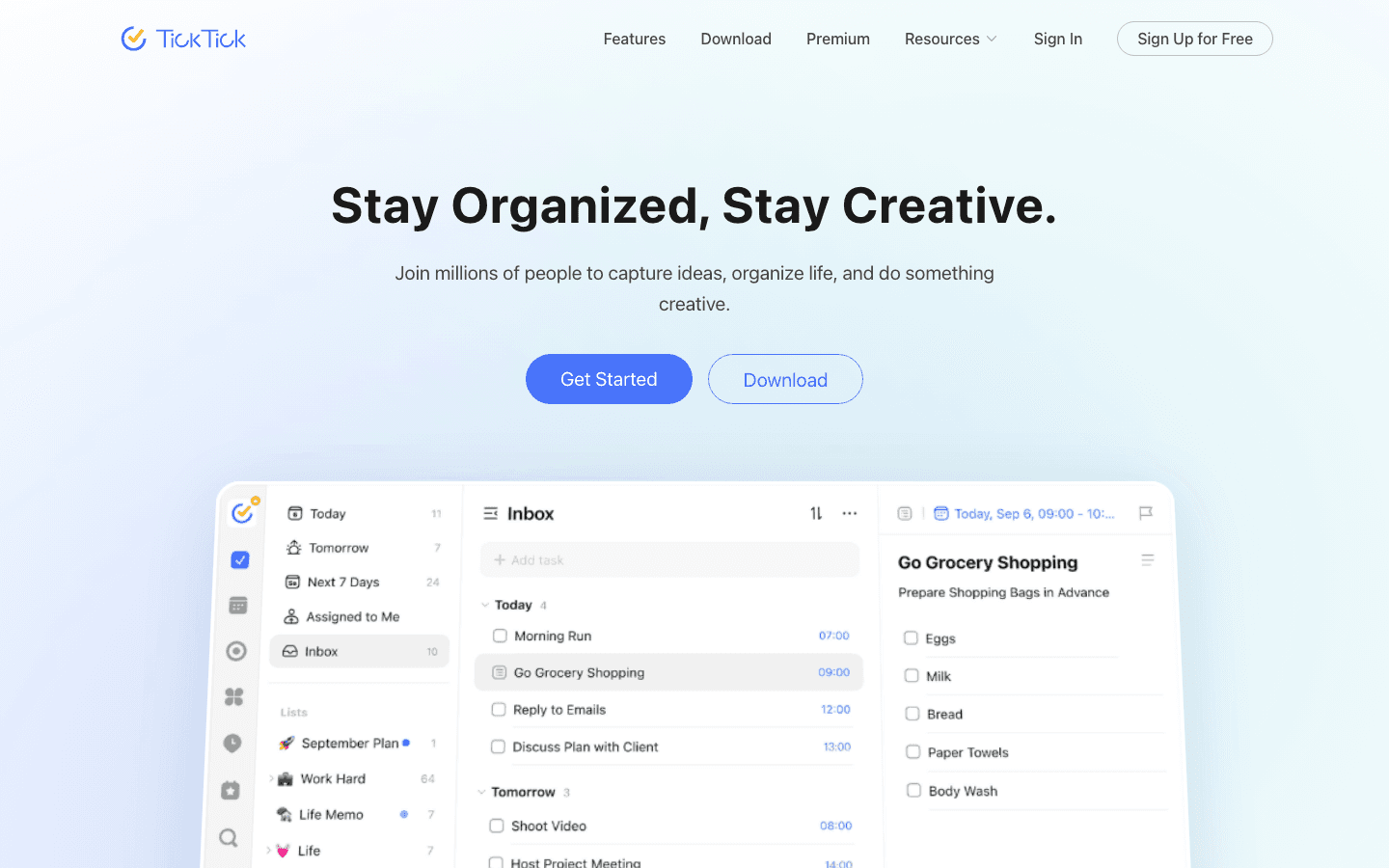
TickTick is best known as a task manager, but the calendar view in Premium turns it into a real drag and drop planner. You see your tasks alongside your events, drag a task onto a time slot, and TickTick creates a calendar block synced with your Google or Apple Calendar. The free tier covers the basics. Premium unlocks the calendar view and longer history.
It will not auto-schedule for you, and it will not warn you when the day is overloaded. What it offers is a clean planner you can use without paying anything, plus a tighter calendar mode if you upgrade.
Key Features
Free tier with full task management
Drag-to-calendar view in Premium
Pomodoro timer and habit tracker built in
Cross-platform sync across mobile, desktop, and web
What Works
Genuinely useful free version
Habit and timer features keep you in one app
Calendar mode is fast to learn
Limitations
No auto-scheduling
No energy awareness
Drag and drop is manual, every block placed by hand
Pricing: Free tier available. Premium is about $35.99 per year (roughly $3 per month).
Best for: Anyone who wants a no-cost starting point that still handles real planning.
6. Morgen: Multi-Calendar Drag and Drop
One view for every calendar, plus drag-to-schedule on top.
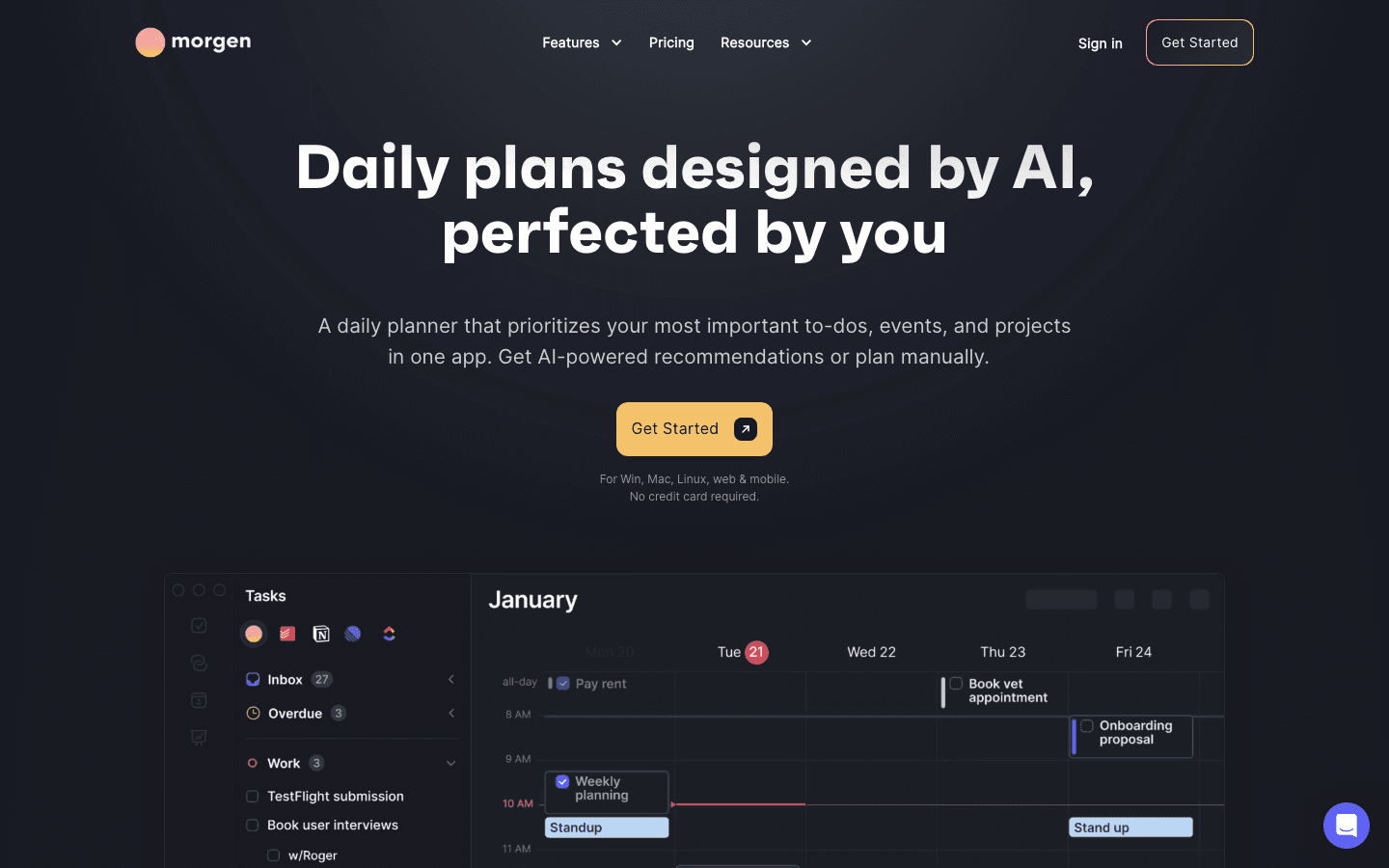
Morgen pulls every calendar you own into a single view. Google, Outlook, iCloud, CalDAV, and Fastmail all sit on the same timeline. You drag tasks from a side panel onto any of them. If you live across personal and work calendars, this is the cleanest setup we tested.
Drag and drop in Morgen is manual but smooth. It will not move other blocks when you change one, and it has no native auto-scheduling. The strength is visibility. You see the whole picture at once instead of toggling between apps.
Key Features
Unified multi-calendar view
Drag-and-drop scheduling from a task panel
Workflows that automate booking, reminders, and follow-ups
Native apps for Mac, Windows, Linux, iOS, Android, and web
What Works
Best multi-calendar handling on this list
Privacy-first stance with no third-party tracking
Strong Linux support, which is rare in this category
Limitations
No auto-scheduling
No energy or biological signal layer
UI can feel dense at first
Pricing: $30 per month, or $15 per month billed annually.
Best for: People juggling many calendars who want one timeline.
Which Drag and Drop Calendar Planner Is Right for You?
Pick Lifestack if you wear a smart ring or watch and want your plan to follow your energy.
Pick Motion if you want the AI to handle scheduling for you.
Pick Sunsama if your day suffers from overload and you want the app to push back.
Pick Akiflow if you live in five different tools and need a single inbox.
Pick TickTick if you want a free starting point with a real calendar view.
Pick Morgen if you juggle four calendars across work and personal life.
Frequently Asked Questions
What is a drag and drop calendar planner?
A drag and drop calendar planner is a tool that lets you turn tasks into calendar blocks by dragging them onto a timeline. Instead of typing in a start and end time, you visually drop the task where you want it. Some apps also auto-schedule around your existing meetings.
Are there any free drag and drop calendar planners?
TickTick has a real free tier with task management, and its Premium plan unlocks a full calendar view for about $35.99 per year. Most other apps in this category offer a free trial only.
Which drag and drop calendar planner has the best AI scheduling?
Motion has the most aggressive AI scheduling. It will reshuffle every task block on the calendar after each change. Lifestack takes a softer approach, suggesting when each task fits your energy without taking control away from you. Read more in our best AI planner apps roundup.
Can I use a drag and drop planner with Google Calendar?
Yes. Every app in this list integrates with Google Calendar in both directions. Drops you make in the planner show up on your Google Calendar, and meetings on your Google Calendar show up in the planner so the time is not double-booked.
Do drag and drop calendar planners work on mobile?
Mobile drag and drop works in all six apps, but the experience varies. Lifestack, Motion, and TickTick have the smoothest touch interactions. Akiflow and Sunsama feel built for desktop first, with mobile as a companion.
What makes Lifestack different from the others?
Lifestack is the only planner here that reads your sleep, recovery, and focus data from a wearable and uses it to recommend when to schedule each task. The other apps look at open calendar slots. Lifestack looks at whether you can actually do the work in those slots. See task management for ADHD for an example of why this matters.
A drag and drop calendar planner lets you turn a messy task list into a real day by pulling tasks onto your calendar with your cursor or finger. No retyping. No copying times. You drop, the block lands, and your day starts to look like something you can actually do.
The shift matters because the gap between "I have things to do" and "I have a plan" is usually where the day falls apart. Drag and drop closes that gap in seconds. The right app makes the drop feel natural and the block stick at a time that fits your real energy, not just an empty slot.
We tested six drag and drop calendar planners across a normal work week. Each one had to handle a daily task list with at least 12 items, a real calendar with meetings, and rescheduling when the day shifted. Here is what stood out.
Key Takeaways
Lifestack is the only app that uses your sleep and energy data to suggest when each dropped task should go, not just where there is open time.
Most apps still treat drag and drop as visual scheduling. Two of the six actually reschedule everything when one block moves.
Free tiers are rare. TickTick is the only app on this list with a real free plan.
Quick Guide: The 6 Apps
Lifestack: Energy-aware drag and drop, the only one that reads your body data.
Motion: AI auto-scheduling that runs after every drop.
Sunsama: Calm daily ritual, drag tasks from connected tools into your day.
Akiflow: Universal inbox plus calendar, fastest drop-to-schedule loop.
TickTick: Free option with a usable calendar view.
Morgen: Multi-calendar view with manual drag scheduling.
How We Evaluated Each Planner
We focused on the parts of the workflow that actually matter day to day:
Drop-to-block speed and friction
What happens when one task moves and the day needs to reflow
Calendar integrations (Google, Outlook, Apple)
Task source integrations (Todoist, Notion, Asana, etc.)
Mobile drag and drop quality
Whether the app considers anything beyond open time slots
Pricing and free-tier honesty
1. Lifestack: Energy-Aware Drag and Drop Planning
The only planner that drops your task into the slot your body can actually handle.
Lifestack reads sleep, recovery, and focus signals from your wearable (Oura, Whoop, Apple Watch, Garmin, Fitbit) and turns them into an energy curve. When you drag a task to your calendar, it does not just check whether the slot is open. It checks whether you have the brain for that kind of work at that hour.
You can drop a deep-focus block at 9am, and if your morning energy reads low after a bad night of sleep, Lifestack will quietly suggest moving it to 11am or to tomorrow. You stay in control. The system is a second opinion, not a boss.
Key Features
Drag tasks from a side panel directly onto your calendar
Energy curve that updates each morning based on wearable data
Auto-rescheduling when meetings get added mid-day
Works with Google Calendar, Outlook, and Apple Calendar
Todoist and Notion sync for pulling in your existing tasks
What Works
The energy layer changes which tasks you do, not just when
Drag interactions are smooth on both desktop and mobile
Honest about what is realistic for the day, not just what fits
Limitations
No permanent free tier (7-day trial only)
Wearable data is the strongest signal, so users without one get a lighter version
Pricing: $7 per month, or about $4.17 per month billed annually.
Best for: Anyone tired of dropping a task on the calendar and then crashing through it at the wrong hour. Read more about why energy-based planning beats time blocking if this approach is new to you.
2. Motion: AI Auto-Schedules Every Drop
Drop a task, Motion picks the time.
Motion sits at the more aggressive end of automation. You add a task with a deadline and a duration, and the AI slots it into a calendar that already includes meetings, recurring blocks, and other tasks. Drag a block to a new time and the rest of the day reshuffles around it within a second.
This is the right tool if you want the calendar to do work for you. The tradeoff is control. You can pin tasks, but the default mood of the app is "trust the optimizer." Some users love that. Others hate watching their carefully placed blocks move when they sit down to drink coffee.
Key Features
AI auto-scheduling on every change
Project view with deadlines and dependencies
Meeting scheduler with availability sharing
Native iOS and Android apps
What Works
Fastest path from a task list to a fully populated calendar
Handles deadline math better than most planners
Useful for project work with many small tasks
Limitations
No energy awareness, only open time
Auto-reshuffling can feel disorienting if you like a fixed plan
Pricey relative to the rest of this list
Pricing: $19 per seat per month, dropping to roughly $12.71 per month on annual billing.
Best for: Solo operators and small teams running on deadlines. See our full Motion alternatives comparison if the price or the auto-shuffling is not for you.
3. Sunsama: Calm Daily Planning Ritual
Slower by design, with a strong drag-from-anywhere flow.
Sunsama wants you to plan the day once, in the morning, and then close the planning app. You pull tasks from Asana, Trello, Notion, Linear, Gmail, and Slack into a daily list, then drag each one onto a timeline. The app asks you to assign an estimated duration and a channel, which forces you to be honest about what fits.
Drag and drop here is less about quick scheduling and more about deliberate ordering. If you keep dragging more onto the day than you can do, Sunsama tells you. That single nudge is the reason long-time users stay.
Key Features
Pull tasks in from 15+ tools via integrations
Daily and weekly planning rituals with prompts
Time tracking on each task block
Calm UI that hides the calendar after planning
What Works
Pushes back when the day is overloaded
Integrations are deep, not surface level
Strong async planning for distributed teams
Limitations
Manual scheduling only, no auto-fill
No energy awareness
Expensive for what is essentially a structured to-do plus calendar
Pricing: $22 per month, or $17 per month billed annually.
Best for: People who already know how to plan a day and want the app to slow them down, not speed them up.
4. Akiflow: Universal Inbox With Drag-to-Calendar
Pull tasks from everywhere, drop them onto your timeline.
Akiflow sits between Sunsama and Motion. It collects tasks from Gmail, Slack, Notion, Todoist, Asana, Linear, and a dozen others into a single inbox panel on the left of your calendar. You drag each item from the inbox onto your day. Tasks that already have a duration estimate snap in cleanly.
The reason Akiflow scores well on drag speed is the inbox itself. You are never hunting for a task in another app. Everything lands in one place, ready to be dropped onto a time slot. Keyboard shortcuts make the loop even faster for power users.
Key Features
Universal inbox aggregating tasks from many tools
Keyboard-driven scheduling with custom shortcuts
Meeting scheduler and time-blocking features
Native macOS, Windows, iOS, and Android apps
What Works
The inbox-to-calendar flow is the fastest on this list
Polished desktop apps, not just a web wrapper
Good for inbox-zero-style task management
Limitations
No energy awareness or biological signal layer
Pricing has crept up recently
Mobile drag and drop is less smooth than desktop
Pricing: $34 per month, or $19 per month billed annually.
Best for: Knowledge workers who live in five tools and want one place to triage them. We also cover other options in our Akiflow alternatives roundup.
5. TickTick: Free Drag and Drop With Calendar View
The only real free option, with a usable calendar mode.
TickTick is best known as a task manager, but the calendar view in Premium turns it into a real drag and drop planner. You see your tasks alongside your events, drag a task onto a time slot, and TickTick creates a calendar block synced with your Google or Apple Calendar. The free tier covers the basics. Premium unlocks the calendar view and longer history.
It will not auto-schedule for you, and it will not warn you when the day is overloaded. What it offers is a clean planner you can use without paying anything, plus a tighter calendar mode if you upgrade.
Key Features
Free tier with full task management
Drag-to-calendar view in Premium
Pomodoro timer and habit tracker built in
Cross-platform sync across mobile, desktop, and web
What Works
Genuinely useful free version
Habit and timer features keep you in one app
Calendar mode is fast to learn
Limitations
No auto-scheduling
No energy awareness
Drag and drop is manual, every block placed by hand
Pricing: Free tier available. Premium is about $35.99 per year (roughly $3 per month).
Best for: Anyone who wants a no-cost starting point that still handles real planning.
6. Morgen: Multi-Calendar Drag and Drop
One view for every calendar, plus drag-to-schedule on top.
Morgen pulls every calendar you own into a single view. Google, Outlook, iCloud, CalDAV, and Fastmail all sit on the same timeline. You drag tasks from a side panel onto any of them. If you live across personal and work calendars, this is the cleanest setup we tested.
Drag and drop in Morgen is manual but smooth. It will not move other blocks when you change one, and it has no native auto-scheduling. The strength is visibility. You see the whole picture at once instead of toggling between apps.
Key Features
Unified multi-calendar view
Drag-and-drop scheduling from a task panel
Workflows that automate booking, reminders, and follow-ups
Native apps for Mac, Windows, Linux, iOS, Android, and web
What Works
Best multi-calendar handling on this list
Privacy-first stance with no third-party tracking
Strong Linux support, which is rare in this category
Limitations
No auto-scheduling
No energy or biological signal layer
UI can feel dense at first
Pricing: $30 per month, or $15 per month billed annually.
Best for: People juggling many calendars who want one timeline.
Which Drag and Drop Calendar Planner Is Right for You?
Pick Lifestack if you wear a smart ring or watch and want your plan to follow your energy.
Pick Motion if you want the AI to handle scheduling for you.
Pick Sunsama if your day suffers from overload and you want the app to push back.
Pick Akiflow if you live in five different tools and need a single inbox.
Pick TickTick if you want a free starting point with a real calendar view.
Pick Morgen if you juggle four calendars across work and personal life.
Frequently Asked Questions
What is a drag and drop calendar planner?
A drag and drop calendar planner is a tool that lets you turn tasks into calendar blocks by dragging them onto a timeline. Instead of typing in a start and end time, you visually drop the task where you want it. Some apps also auto-schedule around your existing meetings.
Are there any free drag and drop calendar planners?
TickTick has a real free tier with task management, and its Premium plan unlocks a full calendar view for about $35.99 per year. Most other apps in this category offer a free trial only.
Which drag and drop calendar planner has the best AI scheduling?
Motion has the most aggressive AI scheduling. It will reshuffle every task block on the calendar after each change. Lifestack takes a softer approach, suggesting when each task fits your energy without taking control away from you. Read more in our best AI planner apps roundup.
Can I use a drag and drop planner with Google Calendar?
Yes. Every app in this list integrates with Google Calendar in both directions. Drops you make in the planner show up on your Google Calendar, and meetings on your Google Calendar show up in the planner so the time is not double-booked.
Do drag and drop calendar planners work on mobile?
Mobile drag and drop works in all six apps, but the experience varies. Lifestack, Motion, and TickTick have the smoothest touch interactions. Akiflow and Sunsama feel built for desktop first, with mobile as a companion.
What makes Lifestack different from the others?
Lifestack is the only planner here that reads your sleep, recovery, and focus data from a wearable and uses it to recommend when to schedule each task. The other apps look at open calendar slots. Lifestack looks at whether you can actually do the work in those slots. See task management for ADHD for an example of why this matters.



FOLLOW ON
FOLLOW ON
FOLLOW ON


Copyright 2026 © Lifestack. All rights reserved
Copyright 2026 © Lifestack. All rights reserved

