
App
Best MacBook Productivity Apps in 2026
Best MacBook Productivity Apps in 2026

Your MacBook ships with a solid default set of apps, but the difference between a productive setup and a scattered one usually comes down to a handful of third-party tools that fill the gaps. After testing dozens of apps across scheduling, notes, task management, and system utilities, these seven consistently deliver real workflow improvements rather than just features.
This list covers different needs: AI-aware scheduling, keyboard-driven launching, deep note-taking, task capture, calendar management, and writing. You don't need all seven. Pick the categories where your current setup is weakest.
All prices are verified as of 2026. We've included Lifestack at #1 because its energy-aware scheduling approach is genuinely different from everything else on this list. For the specific problem of figuring out what to work on and when, it's the most effective tool available for individuals.
Key Takeaways
Lifestack stands out for energy-aware AI scheduling. No other app on this list adjusts your plan based on your sleep, recovery, and energy data.
Things 3 and Bear are premium one-time purchases that set the standard for their categories on Mac. If you're paying a subscription for a task manager or notes app, these are worth comparing.
Raycast is the highest-value free tool on this list. Most users never need to upgrade to Pro.
Quick Guide
1. Lifestack: AI scheduler that plans your day around your energy levels
2. Notion: all-in-one workspace for notes, docs, databases, and projects
3. Things 3: the best-designed task manager on Mac, one-time purchase
4. Raycast: keyboard launcher that replaces Spotlight and adds AI, scripts, and integrations
5. Fantastical: the most powerful calendar app on macOS
6. Obsidian: local-first knowledge base and linked notes
7. Bear: focused writing and notes app with Markdown and tags
How We Evaluated These Apps
Actual productivity impact (not just feature count)
Mac-native design and performance (not just web wrappers)
Value relative to price
Stability and active development
Whether the free tier is genuinely usable or just a trial
1. Lifestack: Best AI Scheduler for Mac
Smart daily planner built around your energy

Lifestack reads your sleep data, recovery metrics, and focus patterns from your health integrations, then builds a daily schedule that puts demanding work in your peak energy windows and routine tasks in your low-energy slots. It's not just another AI assistant. It's a scheduler that uses your biological state as an input.
The Chrome extension brings the schedule into your browser, keeping your plan visible without switching apps. The iOS app syncs your schedule across devices. For anyone doing time blocking, Lifestack automates the hardest part: figuring out where in your day a task actually belongs based on how you're likely to feel.
Energy-aware scheduling based on sleep and recovery data
AI task prioritization and daily plan generation
Calendar integration and time block recommendations
Chrome extension for browser-based workflow
Health data integration (Apple Health, Garmin, Whoop, Oura)
What Works: The energy-aware scheduling is the differentiator. When it works, you stop manually rearranging your day and trust the plan. The iOS companion app keeps the schedule accessible everywhere.
Limitations: Primarily focused on individual scheduling, not team project management. Requires health data connections to get the most out of energy-aware features.
Pricing: $7/month, $50/year, or $120 lifetime. 7-day free trial on annual plan.
Best for: Individuals who want their daily schedule to adapt to how they actually feel, not just what's on their calendar.
2. Notion: Best All-in-One Workspace
Your second brain for notes, projects, and team wikis
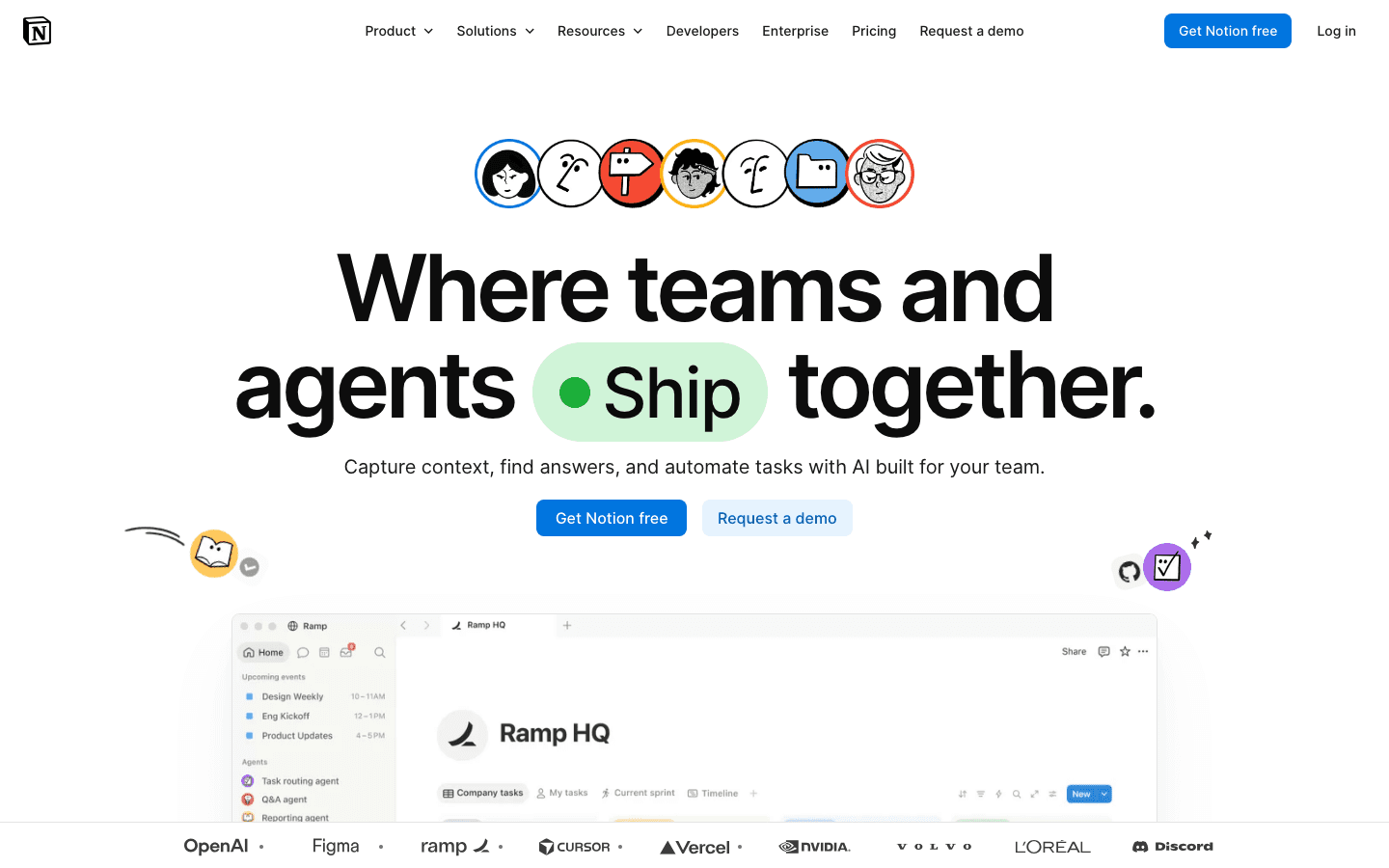
Notion is the most flexible workspace app on Mac. It handles personal notes, project databases, team wikis, kanban boards, and shared docs in a single tool. The AI layer, which landed as a paid add-on, can summarize long documents, generate first drafts, and help navigate large knowledge bases.
The Mac desktop app performs well and supports offline editing. For solo users, the free plan is genuinely functional. For teams, it becomes a central coordination tool.
Flexible pages with text, databases, embeds, and boards
Team collaboration and permissions
AI writing and summarization (paid add-on)
API for building integrations
What Works: Flexibility. Notion molds to almost any workflow. The database views (table, kanban, calendar, gallery) are the best in class for a notes-based tool.
Limitations: Can become slow and disorganized without a maintenance habit. The free AI tier is limited. Not ideal as a pure task manager.
Pricing: Free for personal use. Plus plan at $10/user/month (billed annually).
Best for: Knowledge workers who want one tool for notes, projects, and documentation.
3. Things 3: Best Task Manager for Mac
The task manager every Mac user should try at least once
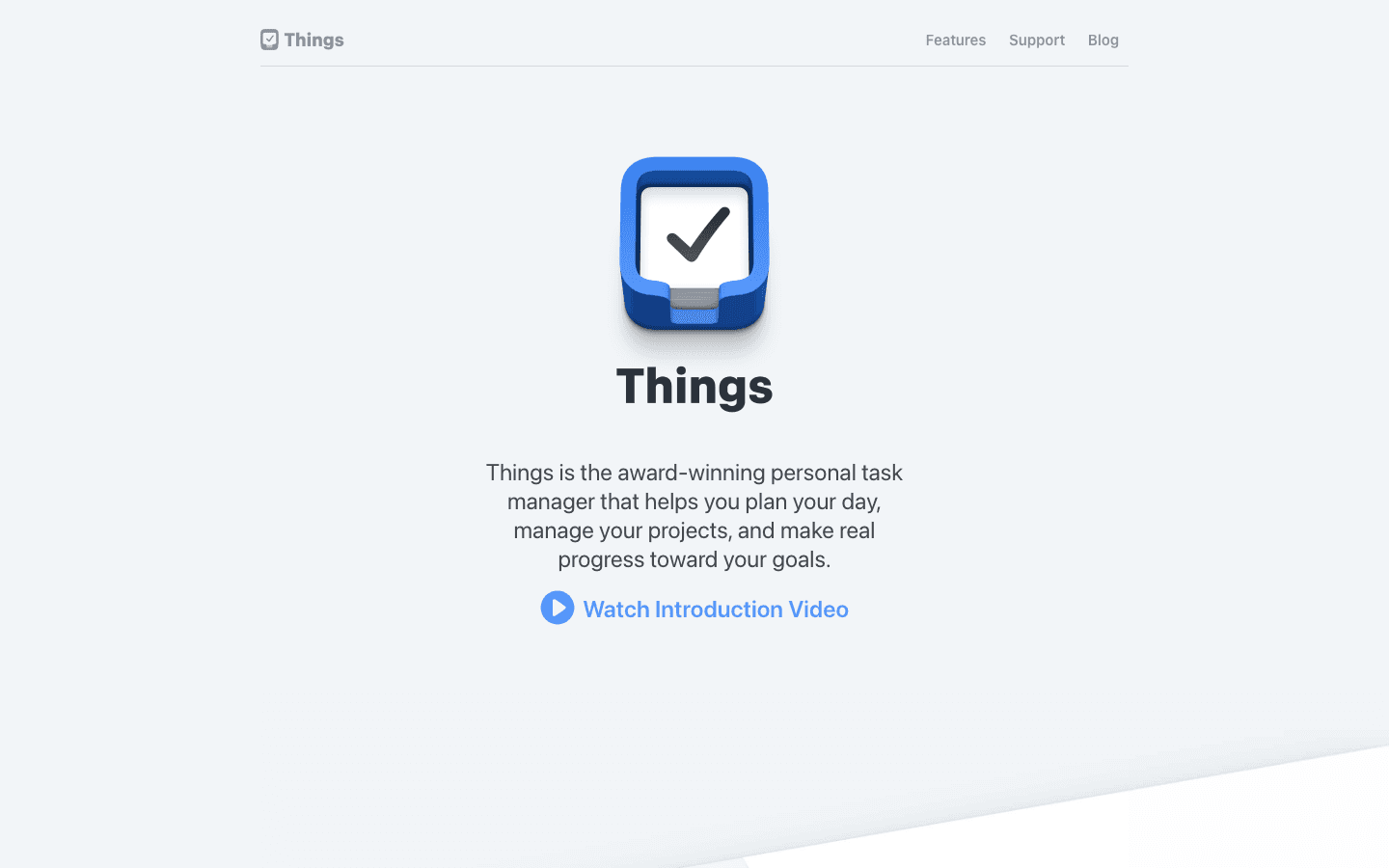
Things 3 by Cultured Code is the most polished task manager available on macOS. It uses a clean three-level hierarchy (areas, projects, tasks) with a today view, upcoming view, and logbook that make it genuinely satisfying to use. No bloat, no per-month fees after purchase.
The interaction design rewards users who invest time in it. Time blocking integrations with calendar apps make it a practical daily planner rather than just a list keeper. The Quick Entry shortcut (Ctrl + Space) captures thoughts instantly from any app.
Areas, projects, and task hierarchy
Today view and upcoming planning
Calendar integration for deadline awareness
Quick Entry global shortcut
Logbook for reviewing completed work
What Works: The design. Nothing else on Mac feels as carefully crafted. The Today view is the best daily planning view in the category. No energy awareness, so pair it with Lifestack if you want scheduling intelligence.
Limitations: No collaboration. No recurring task with subtasks. Limited customization compared to ClickUp or Notion.
Pricing: One-time purchase. Check the Mac App Store for current price in your region.
Best for: Mac-first users who want a polished personal task manager with no recurring fees.
4. Raycast: Best Mac Launcher
Spotlight replacement that earns every keyboard shortcut
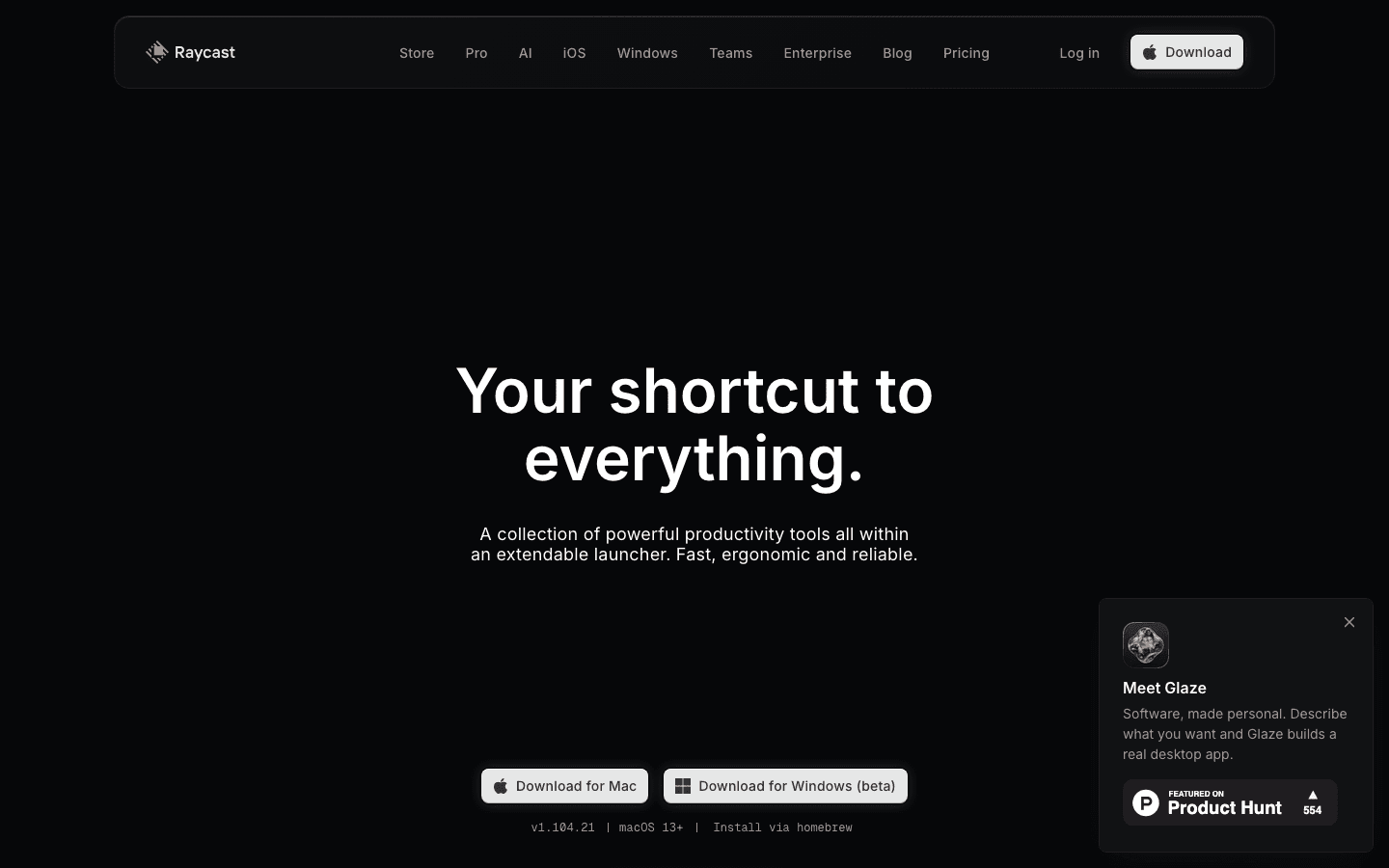
Raycast replaces macOS Spotlight with a dramatically faster and more capable launcher. Hit the shortcut, start typing, and you can open apps, search files, run scripts, manage clipboard history, check system stats, and now get AI responses, all without touching your mouse.
The extension ecosystem is what separates Raycast from Alfred. Thousands of community-built extensions add integrations with GitHub, Linear, Notion, Slack, and dozens of other tools. Context switching drops significantly when you can trigger anything with a keystroke instead of clicking through apps.
App launching, file search, and clipboard history
AI chat and summarization (Pro)
Thousands of community extensions
Snippets, floating notes, and window management
Script commands for custom automation
What Works: The extension library is unmatched. Free tier covers everything most users need. The clipboard history manager alone replaces several dedicated apps.
Limitations: Mac-only (Windows beta available). Pro AI features add cost. Some integrations require separate service subscriptions.
Pricing: Free. Pro at $8/month (billed annually).
Best for: Power users who want full keyboard-driven control over their Mac workflow.
5. Fantastical: Best Mac Calendar
Calendar and tasks in the most powerful interface on Mac
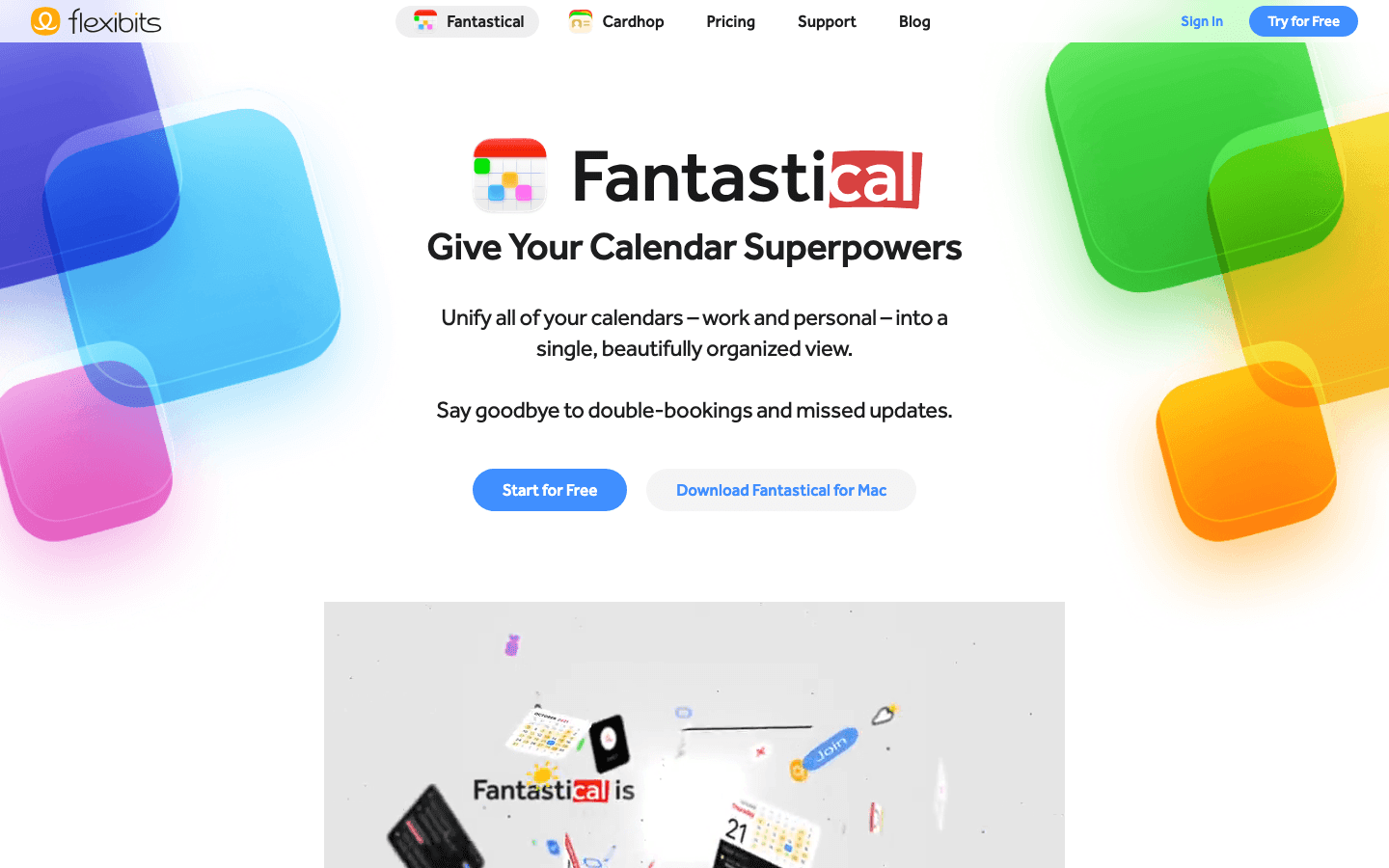
Fantastical takes what Apple Calendar provides and significantly improves on it. Natural language entry ("Meeting with Sarah Thursday 3pm" becomes an event automatically), beautiful multi-view layouts, and built-in task management make it the default calendar choice for Mac power users.
The menu bar mini-calendar gives quick access to your schedule without opening the full app. Energy management benefits from better calendar visibility: seeing the week's load clearly helps distribute demanding work across days more intentionally.
Natural language event creation
Multi-account calendar unification
Built-in tasks and reminders integration
Menu bar calendar access
Scheduling page for shared availability
What Works: Natural language input and the multi-calendar view. The scheduling page feature (Fantastical Scheduling) is a Calendly alternative built into the app.
Limitations: Premium features require a subscription. The free tier is limited to basic calendar functions. No AI scheduling intelligence.
Pricing: Free tier available. Individual Premium at $6.99/month or $56.99/year.
Best for: Mac users who use their calendar heavily and want the best interface available.
6. Obsidian: Best Knowledge Base App
Local-first notes with a graph of everything you know
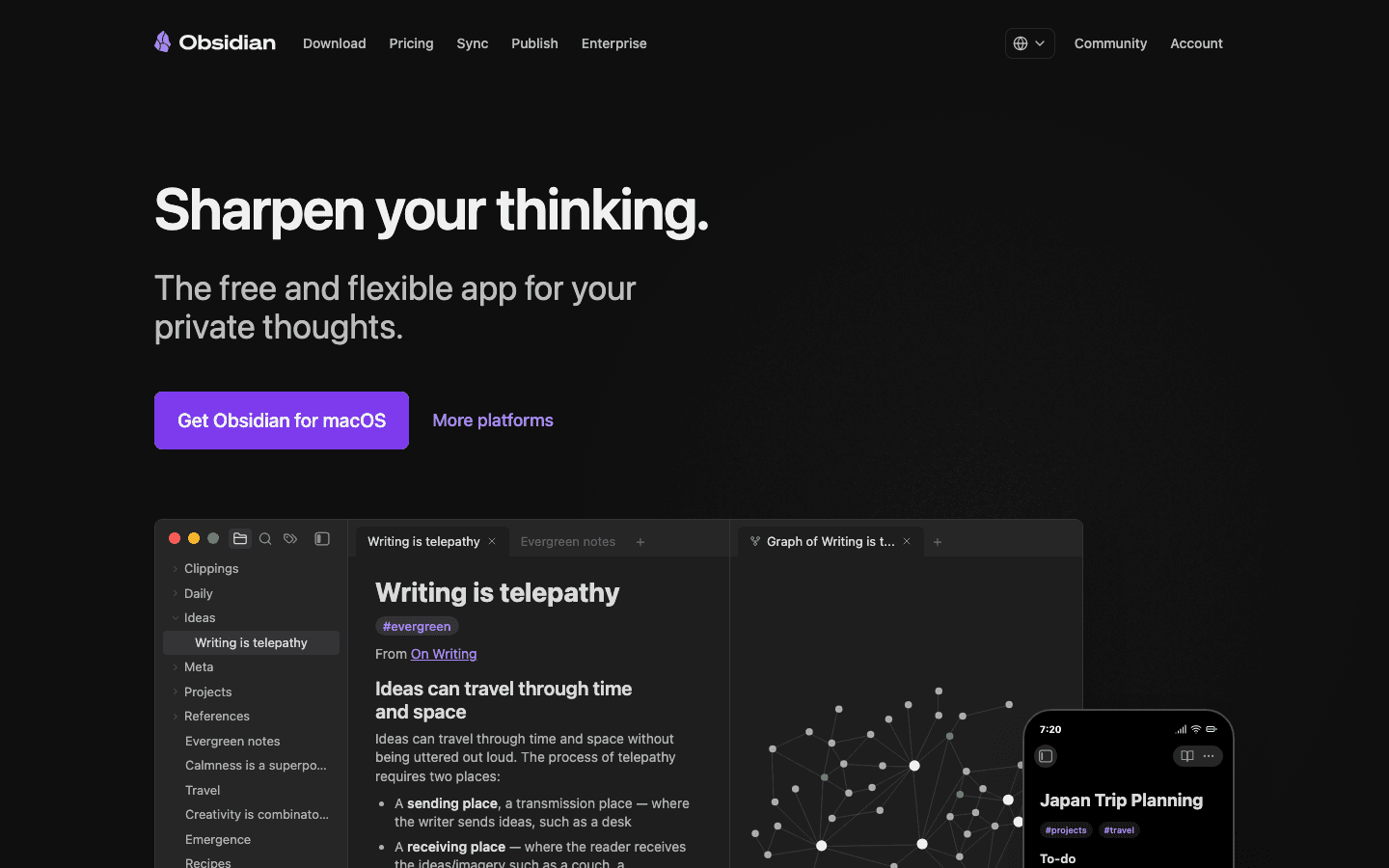
Obsidian stores everything as plain Markdown files on your device. No vendor lock-in, no subscription required for the base app. The bidirectional link system lets you connect notes the way ideas actually relate to each other, building a personal knowledge graph over time.
It's the tool for long-term knowledge building rather than quick capture. Brain dumps, research notes, project documentation, reading summaries: Obsidian makes them all searchable and interconnected. The plugin ecosystem (1,200+ community plugins) extends it to cover almost anything.
Local Markdown files with no proprietary format
Bidirectional links and knowledge graph view
1,200+ community plugins
Canvas for visual note mapping
Powerful search and backlink discovery
What Works: The longevity and ownership model. Your notes are files on your Mac that will outlast any app. The plugin ecosystem covers almost any workflow.
Limitations: Steep learning curve compared to simpler note apps. Sync across devices requires the paid Obsidian Sync add-on.
Pricing: Free for personal use. Sync add-on at $10/month or $96/year.
Best for: Researchers, writers, and knowledge workers building a long-term personal knowledge base.
7. Bear: Best Writing and Notes App
Markdown notes with beautiful design and tags-based organization
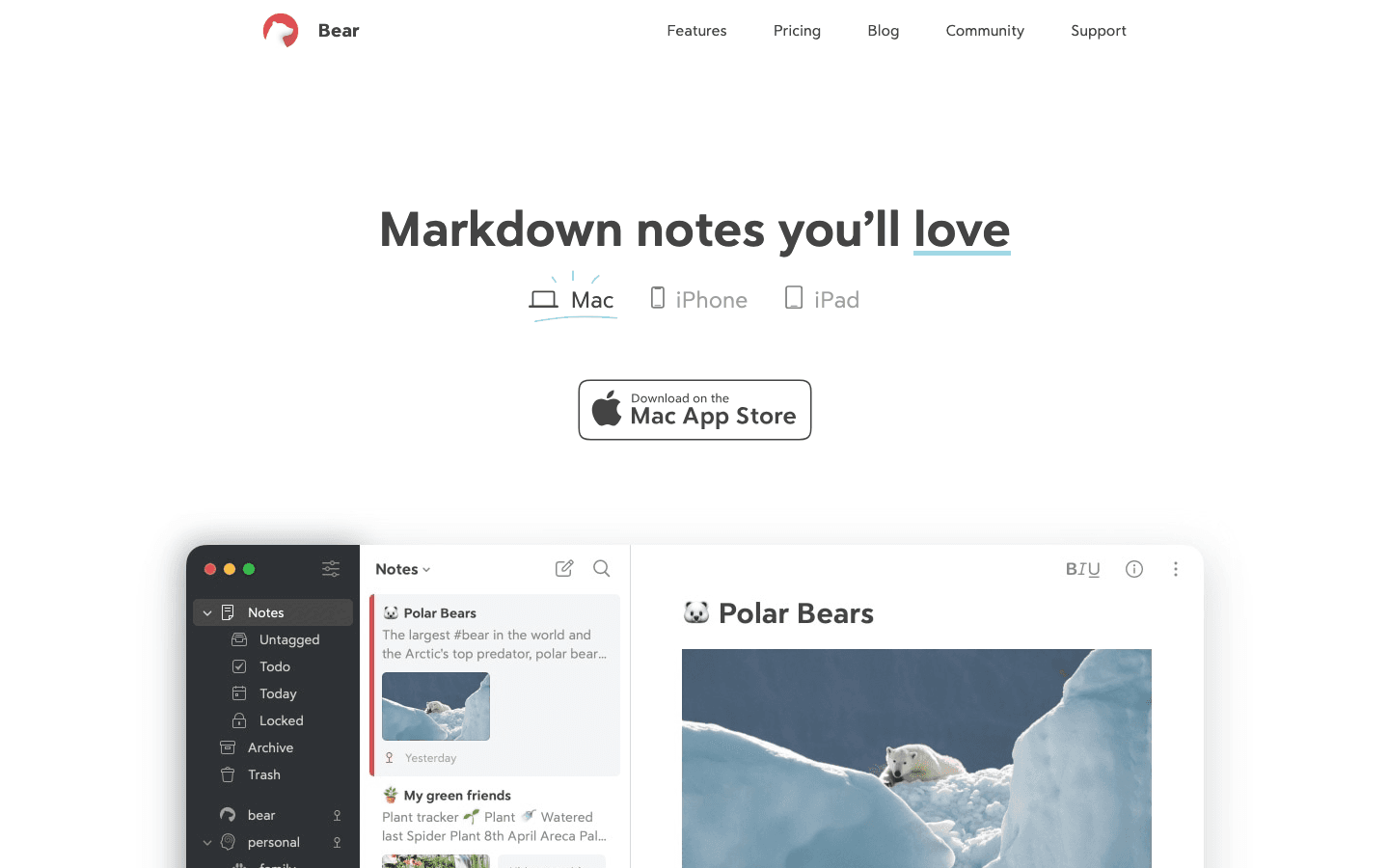
Bear hits the sweet spot between simple note-taking and a full knowledge base. Markdown support, a fast editor, and a tag-based organizational system that avoids the friction of folders make it the go-to app for writers and anyone who takes a lot of notes without wanting to manage a complex system.
The distraction-free writing mode and 28+ themes make writing in Bear notably pleasant. For Mac users in the Apple ecosystem, the sync across Mac, iPhone, and iPad is fast and reliable with Bear Pro. It's a solid choice for anyone who found productivity apps like Notion too complex.
Rich Markdown editor with inline rendering
Tag-based note organization (no folders required)
Multiple export formats (PDF, Word, HTML, and more)
28+ themes and distraction-free writing mode
Fast search across all notes
What Works: The writing experience. Bear feels better to write in than almost anything else on Mac. The tag system keeps notes discoverable without demanding up-front organization.
Limitations: Sync requires Bear Pro subscription. No collaboration features. Less powerful than Obsidian for large knowledge bases.
Pricing: Free tier (local only). Bear Pro at $2.99/month or $29.99/year.
Best for: Writers and note-takers who want a focused, beautiful app without the complexity of a full knowledge management system.
Which MacBook Productivity App Is Right for You?
You need AI-aware daily scheduling: Lifestack. Nothing else adapts to your energy patterns.
You need a team workspace: Notion. The flexibility and collaboration features are unmatched for this use case.
You want the best personal task manager: Things 3. One-time cost, best design in the category.
You want to speed up every repetitive Mac action: Raycast. Free tier covers most users completely.
You want the best calendar experience: Fantastical. Natural language entry alone justifies the subscription for heavy calendar users.
You're building a long-term knowledge base: Obsidian. Local files, bidirectional links, and no lock-in.
You want the best writing and note-taking experience: Bear. Markdown-first, beautifully designed, Apple ecosystem-native.
Frequently Asked Questions
What are the best free productivity apps for Mac?
Raycast is the best completely free productivity app for Mac. Its launcher, clipboard manager, and extensions deliver significant workflow improvements at no cost. Obsidian is also free for personal use. Notion and Fantastical both have usable free tiers, though with meaningful feature limitations.
What is the best task manager for MacBook?
Things 3 is the best-designed task manager on Mac for personal use. If you need team collaboration, Notion or Asana work better. If you want AI scheduling that tells you not just what to do but when to do it based on your energy, pair Things 3 with Lifestack.
Is Notion worth it on Mac?
Yes, if you use it as a workspace rather than just notes. Notion's value increases with the complexity of your information and the number of people you're sharing it with. For purely personal notes with no team component, Bear or Obsidian offer a better experience for less money. The free tier is sufficient for solo users who aren't heavy database users.
What MacBook apps do power users use?
Most Mac power users combine a launcher (Raycast or Alfred), a task manager (Things 3, OmniFocus, or Todoist), a notes/knowledge app (Obsidian or Notion), and a calendar app (Fantastical or Cron). Adding Lifestack to this stack gives you the AI scheduling layer that connects calendar, tasks, and energy awareness into a single daily plan.
Does MacBook have good built-in productivity apps?
The native apps (Calendar, Reminders, Notes, Spotlight) are functional starting points but have meaningful limitations. Calendar lacks natural language input and smart scheduling. Reminders is basic compared to Things 3. Notes works but lacks the organizational depth of Bear or Obsidian. Spotlight is significantly less capable than Raycast. The native apps are fine for light use; third-party apps reward investment.
Your MacBook ships with a solid default set of apps, but the difference between a productive setup and a scattered one usually comes down to a handful of third-party tools that fill the gaps. After testing dozens of apps across scheduling, notes, task management, and system utilities, these seven consistently deliver real workflow improvements rather than just features.
This list covers different needs: AI-aware scheduling, keyboard-driven launching, deep note-taking, task capture, calendar management, and writing. You don't need all seven. Pick the categories where your current setup is weakest.
All prices are verified as of 2026. We've included Lifestack at #1 because its energy-aware scheduling approach is genuinely different from everything else on this list. For the specific problem of figuring out what to work on and when, it's the most effective tool available for individuals.
Key Takeaways
Lifestack stands out for energy-aware AI scheduling. No other app on this list adjusts your plan based on your sleep, recovery, and energy data.
Things 3 and Bear are premium one-time purchases that set the standard for their categories on Mac. If you're paying a subscription for a task manager or notes app, these are worth comparing.
Raycast is the highest-value free tool on this list. Most users never need to upgrade to Pro.
Quick Guide
1. Lifestack: AI scheduler that plans your day around your energy levels
2. Notion: all-in-one workspace for notes, docs, databases, and projects
3. Things 3: the best-designed task manager on Mac, one-time purchase
4. Raycast: keyboard launcher that replaces Spotlight and adds AI, scripts, and integrations
5. Fantastical: the most powerful calendar app on macOS
6. Obsidian: local-first knowledge base and linked notes
7. Bear: focused writing and notes app with Markdown and tags
How We Evaluated These Apps
Actual productivity impact (not just feature count)
Mac-native design and performance (not just web wrappers)
Value relative to price
Stability and active development
Whether the free tier is genuinely usable or just a trial
1. Lifestack: Best AI Scheduler for Mac
Smart daily planner built around your energy
Lifestack reads your sleep data, recovery metrics, and focus patterns from your health integrations, then builds a daily schedule that puts demanding work in your peak energy windows and routine tasks in your low-energy slots. It's not just another AI assistant. It's a scheduler that uses your biological state as an input.
The Chrome extension brings the schedule into your browser, keeping your plan visible without switching apps. The iOS app syncs your schedule across devices. For anyone doing time blocking, Lifestack automates the hardest part: figuring out where in your day a task actually belongs based on how you're likely to feel.
Energy-aware scheduling based on sleep and recovery data
AI task prioritization and daily plan generation
Calendar integration and time block recommendations
Chrome extension for browser-based workflow
Health data integration (Apple Health, Garmin, Whoop, Oura)
What Works: The energy-aware scheduling is the differentiator. When it works, you stop manually rearranging your day and trust the plan. The iOS companion app keeps the schedule accessible everywhere.
Limitations: Primarily focused on individual scheduling, not team project management. Requires health data connections to get the most out of energy-aware features.
Pricing: $7/month, $50/year, or $120 lifetime. 7-day free trial on annual plan.
Best for: Individuals who want their daily schedule to adapt to how they actually feel, not just what's on their calendar.
2. Notion: Best All-in-One Workspace
Your second brain for notes, projects, and team wikis
Notion is the most flexible workspace app on Mac. It handles personal notes, project databases, team wikis, kanban boards, and shared docs in a single tool. The AI layer, which landed as a paid add-on, can summarize long documents, generate first drafts, and help navigate large knowledge bases.
The Mac desktop app performs well and supports offline editing. For solo users, the free plan is genuinely functional. For teams, it becomes a central coordination tool.
Flexible pages with text, databases, embeds, and boards
Team collaboration and permissions
AI writing and summarization (paid add-on)
API for building integrations
What Works: Flexibility. Notion molds to almost any workflow. The database views (table, kanban, calendar, gallery) are the best in class for a notes-based tool.
Limitations: Can become slow and disorganized without a maintenance habit. The free AI tier is limited. Not ideal as a pure task manager.
Pricing: Free for personal use. Plus plan at $10/user/month (billed annually).
Best for: Knowledge workers who want one tool for notes, projects, and documentation.
3. Things 3: Best Task Manager for Mac
The task manager every Mac user should try at least once
Things 3 by Cultured Code is the most polished task manager available on macOS. It uses a clean three-level hierarchy (areas, projects, tasks) with a today view, upcoming view, and logbook that make it genuinely satisfying to use. No bloat, no per-month fees after purchase.
The interaction design rewards users who invest time in it. Time blocking integrations with calendar apps make it a practical daily planner rather than just a list keeper. The Quick Entry shortcut (Ctrl + Space) captures thoughts instantly from any app.
Areas, projects, and task hierarchy
Today view and upcoming planning
Calendar integration for deadline awareness
Quick Entry global shortcut
Logbook for reviewing completed work
What Works: The design. Nothing else on Mac feels as carefully crafted. The Today view is the best daily planning view in the category. No energy awareness, so pair it with Lifestack if you want scheduling intelligence.
Limitations: No collaboration. No recurring task with subtasks. Limited customization compared to ClickUp or Notion.
Pricing: One-time purchase. Check the Mac App Store for current price in your region.
Best for: Mac-first users who want a polished personal task manager with no recurring fees.
4. Raycast: Best Mac Launcher
Spotlight replacement that earns every keyboard shortcut
Raycast replaces macOS Spotlight with a dramatically faster and more capable launcher. Hit the shortcut, start typing, and you can open apps, search files, run scripts, manage clipboard history, check system stats, and now get AI responses, all without touching your mouse.
The extension ecosystem is what separates Raycast from Alfred. Thousands of community-built extensions add integrations with GitHub, Linear, Notion, Slack, and dozens of other tools. Context switching drops significantly when you can trigger anything with a keystroke instead of clicking through apps.
App launching, file search, and clipboard history
AI chat and summarization (Pro)
Thousands of community extensions
Snippets, floating notes, and window management
Script commands for custom automation
What Works: The extension library is unmatched. Free tier covers everything most users need. The clipboard history manager alone replaces several dedicated apps.
Limitations: Mac-only (Windows beta available). Pro AI features add cost. Some integrations require separate service subscriptions.
Pricing: Free. Pro at $8/month (billed annually).
Best for: Power users who want full keyboard-driven control over their Mac workflow.
5. Fantastical: Best Mac Calendar
Calendar and tasks in the most powerful interface on Mac
Fantastical takes what Apple Calendar provides and significantly improves on it. Natural language entry ("Meeting with Sarah Thursday 3pm" becomes an event automatically), beautiful multi-view layouts, and built-in task management make it the default calendar choice for Mac power users.
The menu bar mini-calendar gives quick access to your schedule without opening the full app. Energy management benefits from better calendar visibility: seeing the week's load clearly helps distribute demanding work across days more intentionally.
Natural language event creation
Multi-account calendar unification
Built-in tasks and reminders integration
Menu bar calendar access
Scheduling page for shared availability
What Works: Natural language input and the multi-calendar view. The scheduling page feature (Fantastical Scheduling) is a Calendly alternative built into the app.
Limitations: Premium features require a subscription. The free tier is limited to basic calendar functions. No AI scheduling intelligence.
Pricing: Free tier available. Individual Premium at $6.99/month or $56.99/year.
Best for: Mac users who use their calendar heavily and want the best interface available.
6. Obsidian: Best Knowledge Base App
Local-first notes with a graph of everything you know
Obsidian stores everything as plain Markdown files on your device. No vendor lock-in, no subscription required for the base app. The bidirectional link system lets you connect notes the way ideas actually relate to each other, building a personal knowledge graph over time.
It's the tool for long-term knowledge building rather than quick capture. Brain dumps, research notes, project documentation, reading summaries: Obsidian makes them all searchable and interconnected. The plugin ecosystem (1,200+ community plugins) extends it to cover almost anything.
Local Markdown files with no proprietary format
Bidirectional links and knowledge graph view
1,200+ community plugins
Canvas for visual note mapping
Powerful search and backlink discovery
What Works: The longevity and ownership model. Your notes are files on your Mac that will outlast any app. The plugin ecosystem covers almost any workflow.
Limitations: Steep learning curve compared to simpler note apps. Sync across devices requires the paid Obsidian Sync add-on.
Pricing: Free for personal use. Sync add-on at $10/month or $96/year.
Best for: Researchers, writers, and knowledge workers building a long-term personal knowledge base.
7. Bear: Best Writing and Notes App
Markdown notes with beautiful design and tags-based organization
Bear hits the sweet spot between simple note-taking and a full knowledge base. Markdown support, a fast editor, and a tag-based organizational system that avoids the friction of folders make it the go-to app for writers and anyone who takes a lot of notes without wanting to manage a complex system.
The distraction-free writing mode and 28+ themes make writing in Bear notably pleasant. For Mac users in the Apple ecosystem, the sync across Mac, iPhone, and iPad is fast and reliable with Bear Pro. It's a solid choice for anyone who found productivity apps like Notion too complex.
Rich Markdown editor with inline rendering
Tag-based note organization (no folders required)
Multiple export formats (PDF, Word, HTML, and more)
28+ themes and distraction-free writing mode
Fast search across all notes
What Works: The writing experience. Bear feels better to write in than almost anything else on Mac. The tag system keeps notes discoverable without demanding up-front organization.
Limitations: Sync requires Bear Pro subscription. No collaboration features. Less powerful than Obsidian for large knowledge bases.
Pricing: Free tier (local only). Bear Pro at $2.99/month or $29.99/year.
Best for: Writers and note-takers who want a focused, beautiful app without the complexity of a full knowledge management system.
Which MacBook Productivity App Is Right for You?
You need AI-aware daily scheduling: Lifestack. Nothing else adapts to your energy patterns.
You need a team workspace: Notion. The flexibility and collaboration features are unmatched for this use case.
You want the best personal task manager: Things 3. One-time cost, best design in the category.
You want to speed up every repetitive Mac action: Raycast. Free tier covers most users completely.
You want the best calendar experience: Fantastical. Natural language entry alone justifies the subscription for heavy calendar users.
You're building a long-term knowledge base: Obsidian. Local files, bidirectional links, and no lock-in.
You want the best writing and note-taking experience: Bear. Markdown-first, beautifully designed, Apple ecosystem-native.
Frequently Asked Questions
What are the best free productivity apps for Mac?
Raycast is the best completely free productivity app for Mac. Its launcher, clipboard manager, and extensions deliver significant workflow improvements at no cost. Obsidian is also free for personal use. Notion and Fantastical both have usable free tiers, though with meaningful feature limitations.
What is the best task manager for MacBook?
Things 3 is the best-designed task manager on Mac for personal use. If you need team collaboration, Notion or Asana work better. If you want AI scheduling that tells you not just what to do but when to do it based on your energy, pair Things 3 with Lifestack.
Is Notion worth it on Mac?
Yes, if you use it as a workspace rather than just notes. Notion's value increases with the complexity of your information and the number of people you're sharing it with. For purely personal notes with no team component, Bear or Obsidian offer a better experience for less money. The free tier is sufficient for solo users who aren't heavy database users.
What MacBook apps do power users use?
Most Mac power users combine a launcher (Raycast or Alfred), a task manager (Things 3, OmniFocus, or Todoist), a notes/knowledge app (Obsidian or Notion), and a calendar app (Fantastical or Cron). Adding Lifestack to this stack gives you the AI scheduling layer that connects calendar, tasks, and energy awareness into a single daily plan.
Does MacBook have good built-in productivity apps?
The native apps (Calendar, Reminders, Notes, Spotlight) are functional starting points but have meaningful limitations. Calendar lacks natural language input and smart scheduling. Reminders is basic compared to Things 3. Notes works but lacks the organizational depth of Bear or Obsidian. Spotlight is significantly less capable than Raycast. The native apps are fine for light use; third-party apps reward investment.



FOLLOW ON
FOLLOW ON
FOLLOW ON


Copyright 2026 © Lifestack. All rights reserved
Copyright 2026 © Lifestack. All rights reserved

