
App
Best Apps to Use With Trello in 2026
Best Apps to Use With Trello in 2026
Trello is excellent at organizing work into boards, lists, and cards. It is visual, flexible, and easy for any team to pick up. What it does not do is tell you when to work on those cards, how long each one actually takes, or where team conversations are supposed to happen while the cards move across the board.
The apps that fill those gaps are what make a Trello setup actually functional. The right stack adds personal scheduling, time tracking, communication, and documentation around Trello without replacing what makes Trello good.
These five apps to use with Trello cover the most common missing pieces: when to work on tasks, how long things take, where team conversations happen, where supporting documents live, and whether your Trello deadlines show up on your calendar.
Key Takeaways
Lifestack fills Trello's biggest blind spot: it tells you when to actually work on your tasks based on your energy levels and schedule, not just what is in the queue
Clockify is the most popular free time tracker that integrates directly with Trello, letting you log time on cards without leaving the board
Notion and Google Calendar both offer free Trello integrations that handle documentation and deadline visibility at no cost
Quick Guide: Best Apps to Use With Trello
1. Lifestack: Best for scheduling when you work on Trello tasks
2. Slack: Best for team communication tied to Trello boards
3. Clockify: Best free time tracker for Trello
4. Notion: Best for documentation alongside Trello
5. Google Calendar: Best for syncing Trello deadlines to your calendar
How We Evaluated These Trello Companion Apps
How directly each app integrates with Trello (native Power-Up, Zapier, or manual)
What gap it fills that Trello cannot handle on its own
Quality of the free tier and total cost
Mobile app availability and cross-platform support
Ease of setup alongside an existing Trello workspace
1. Lifestack: Best for Scheduling Your Trello Tasks
Tells you when to work on your Trello tasks based on your actual energy
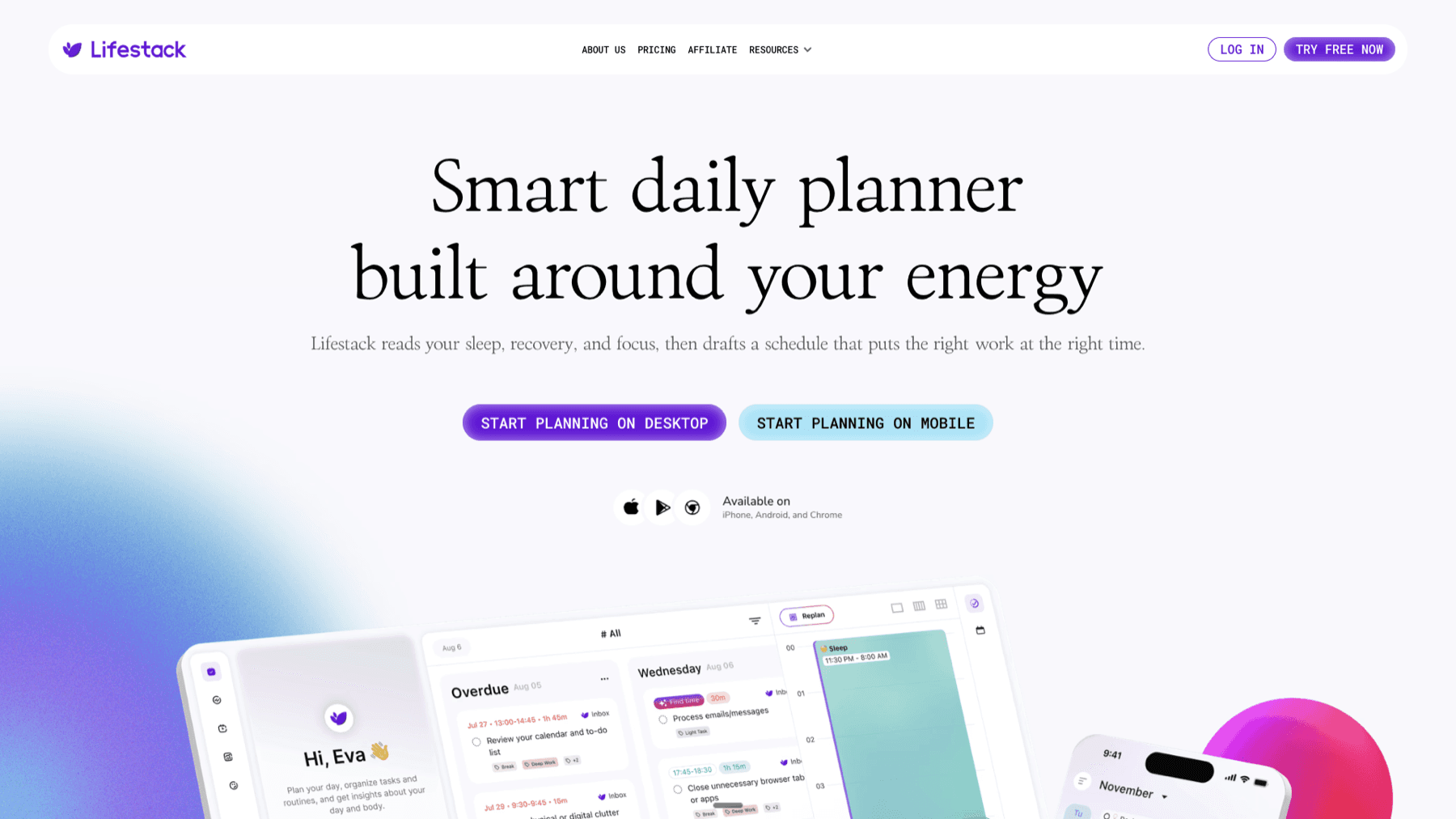
Lifestack solves the part of task management that Trello cannot: deciding when to work on things. Trello tells you what needs to be done. Lifestack tells you when to do it. It reads your sleep and recovery data from wearables like Oura Ring, WHOOP, Garmin, and Fitbit, then auto-schedules your tasks during your actual energy peaks rather than just any open calendar slot.
For Trello users, this means your board's tasks get placed on your calendar automatically based on deadlines, energy levels, and existing commitments. You are not manually deciding where to fit Trello work into your week. As the best scheduling app for energy-aware users, Lifestack pairs with Trello the way a personal planner pairs with a project board.
Key Features
Energy-aware task scheduling using wearable data (Oura, WHOOP, Garmin, Fitbit, Apple Watch)
Auto-builds your daily calendar from task list and energy windows
Adjusts when priorities or meetings change
iOS, Android, and Chrome extension
What Works
Removes the decision fatigue of "when should I work on this Trello card"
Matches your most demanding tasks to your actual focus peaks
Pricing is lower than most AI schedulers on the market
Limitations
Full energy-matching requires a compatible wearable device
Direct Trello card import is not yet native; works best when you manage a task list in Lifestack alongside your Trello board
Pricing: $7/month | $50/year with 7-day free trial | $120 lifetime
Best for: Trello users who need their card work scheduled into their day automatically, especially those tracking energy with a wearable.
2. Slack: Best for Team Communication With Trello
Keep team conversations tied to Trello boards without losing context
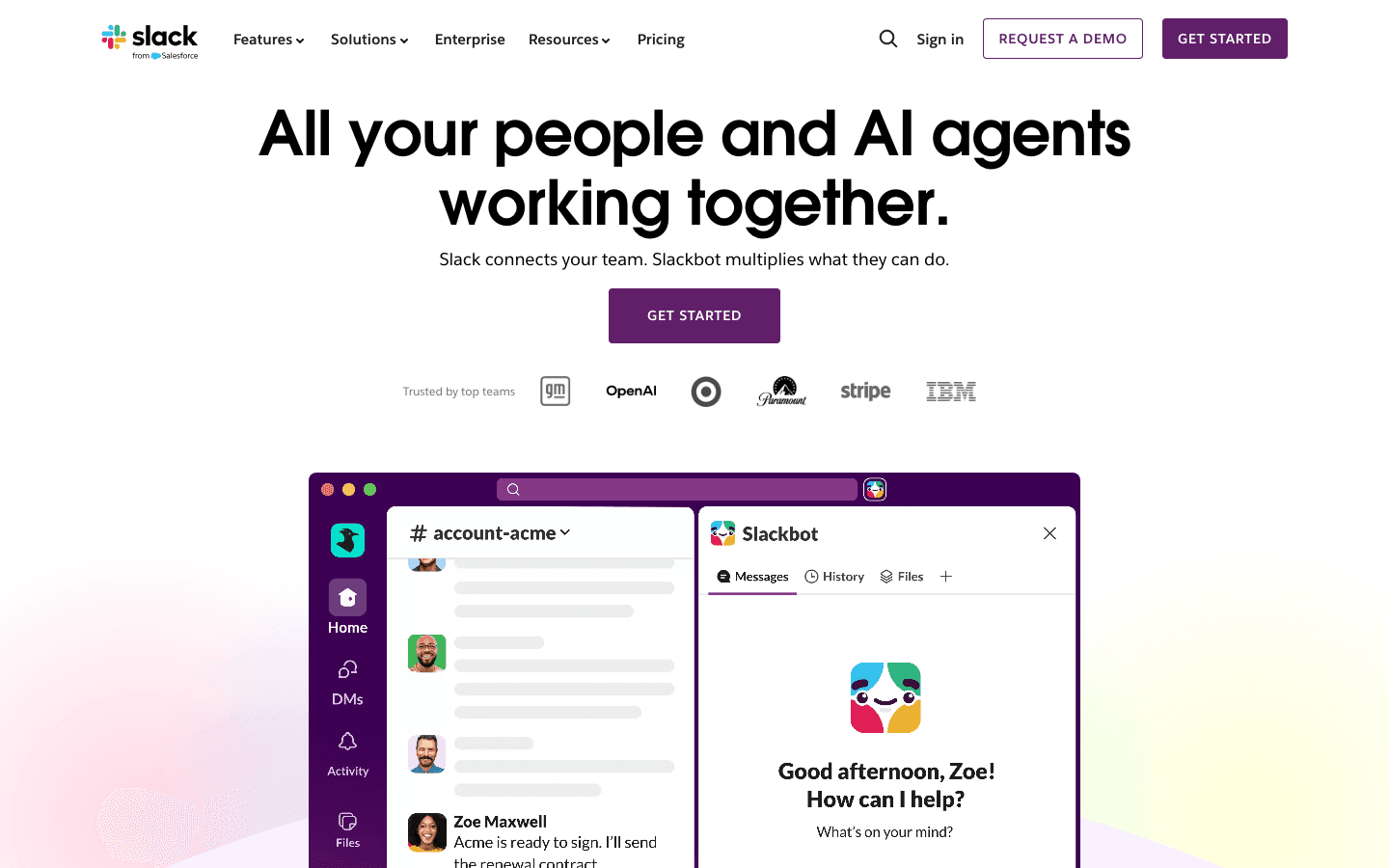
Slack and Trello have a native integration that connects the two without any extra tools. You can get card notifications pushed to Slack channels, create new Trello cards directly from Slack messages, and link specific boards to specific project channels. The result is that decisions happen in Slack and get logged to Trello cards without the manual copy-paste that normally happens between communication tools and task boards.
For teams that need both a project board and a place to talk about that project, this pairing removes a significant amount of context switching.
Key Features
Trello notifications delivered directly to Slack channels
Create Trello cards from Slack messages with one click
Link Trello boards to relevant Slack channels
AI-powered search, huddles, and workflow automation
What Works
Keeps task discussion close to the task without switching apps
Free plan is functional for small teams and basic Trello notification use
Widely adopted, so new team members usually already know it
Limitations
Free plan limits message history to 90 days
Paid plans are priced per seat, which adds up for larger teams
Pricing: Free | $7.25/month per user billed annually | $8.75/month per user billed monthly
Best for: Teams using Trello for project management who want communication and task updates in the same place.
3. Clockify: Best Free Time Tracker for Trello
Track how long your Trello cards actually take, at no cost
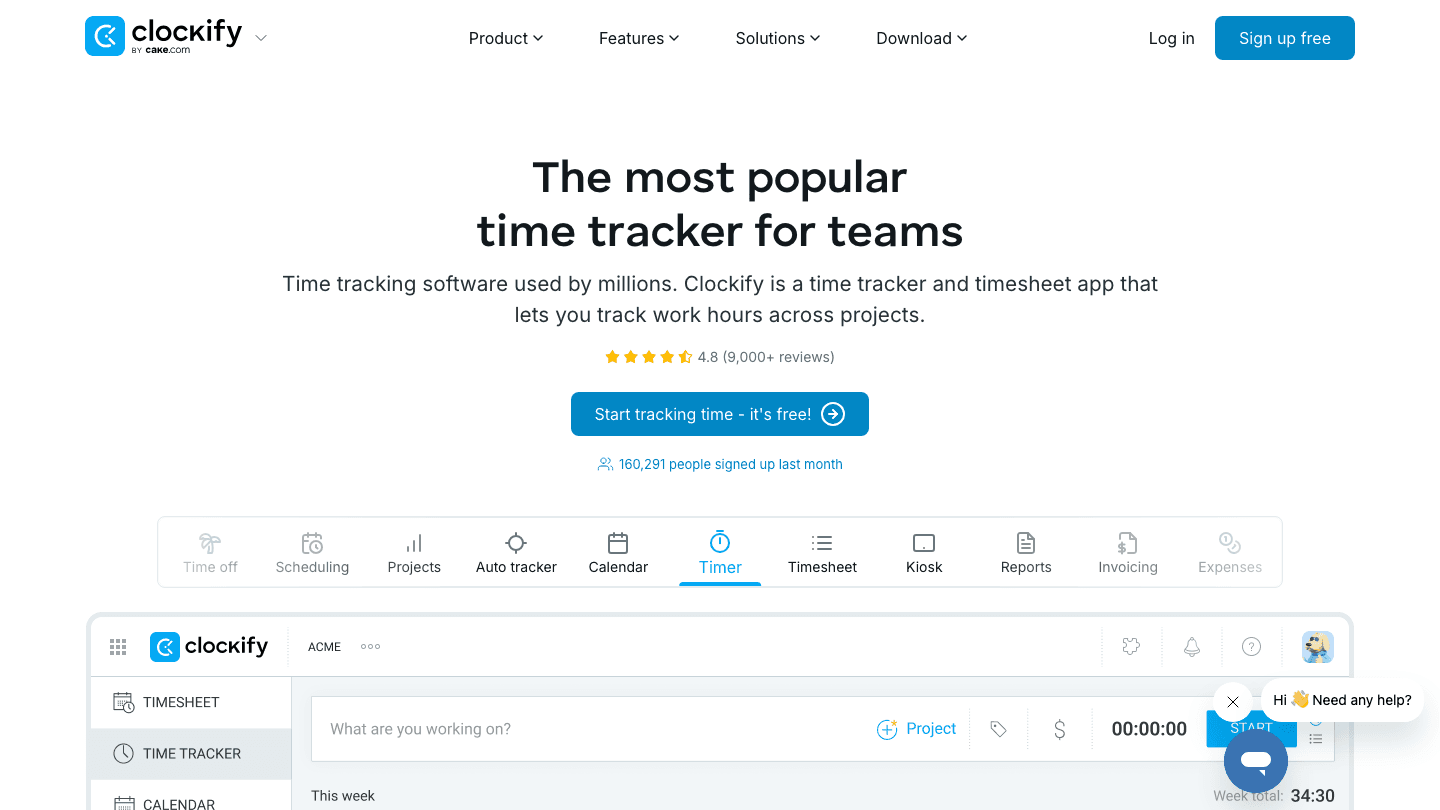
Clockify has a Trello Power-Up that adds a timer button directly to each card. You click Start when you begin working on a card, click Stop when you finish, and Clockify logs the time entry to the correct project automatically. No separate app required while you are working in Trello. It is the most widely used free time tracker for Trello, and the free plan has no meaningful limits for individuals or small teams.
Over time, the data tells you where work hours are actually going across your Trello boards, which is useful for both personal planning and client billing.
Key Features
Trello Power-Up adds a timer to every card
Free for up to 5 users with no time entry limits
Timesheets, project-level reports, and exportable time logs
iOS, Android, and browser extension
What Works
Free plan is genuinely functional for solo users and small teams
Trello Power-Up removes friction from starting a timer
Reports show actual versus estimated time across the board
Limitations
Advanced billing rates and detailed reporting require paid plans
Time tracking is still a manual action; it does not automatically detect which card you are working on
Pricing: Free (up to 5 users) | paid plans from $3.99/seat/month billed annually
Best for: Anyone using Trello who wants to know how long each card takes without paying for a time tracking subscription.
4. Notion: Best for Documentation Alongside Trello
Product specs, meeting notes, and team wikis linked directly to your Trello cards
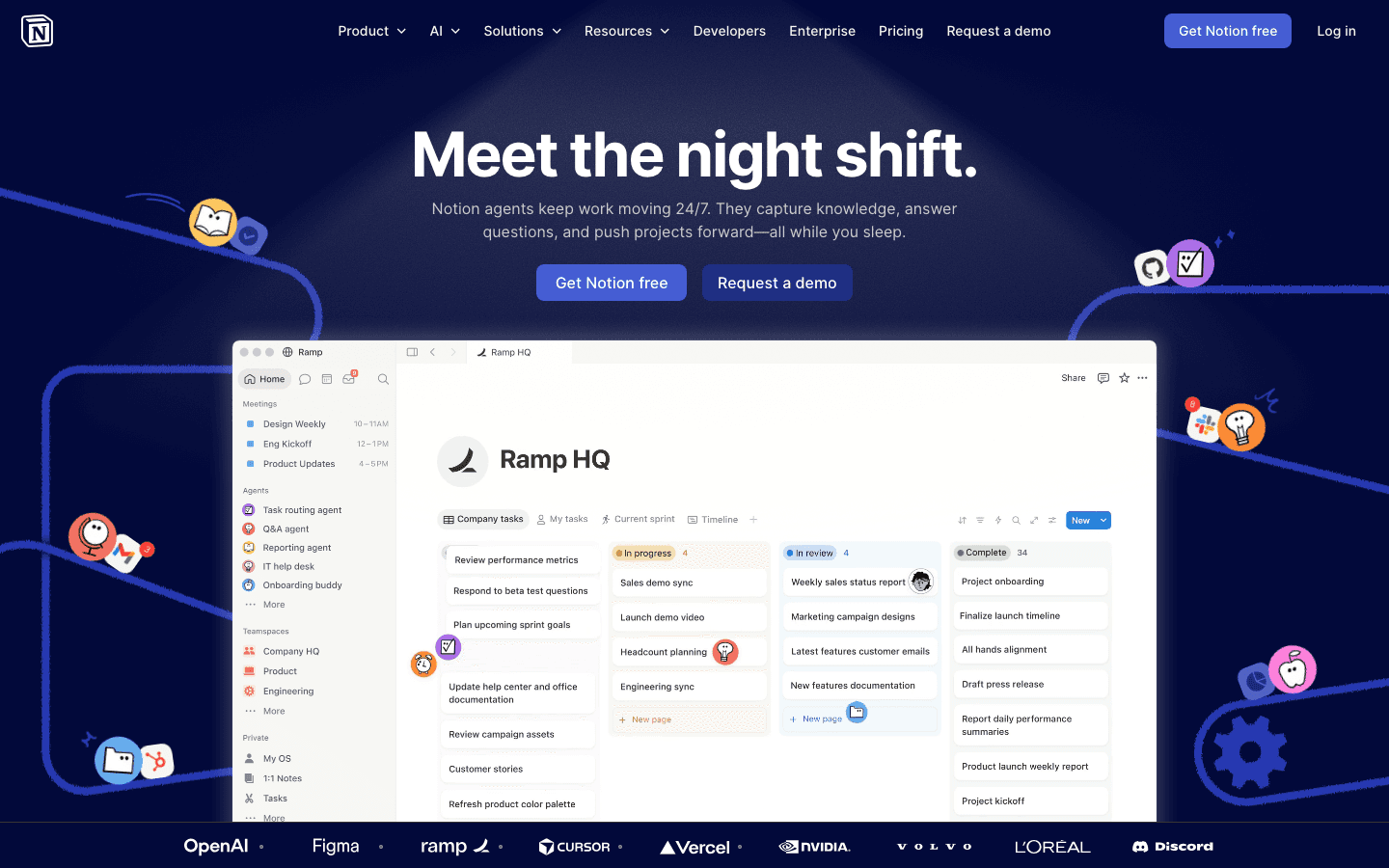
Notion handles what Trello cannot: freeform documentation. Product requirements, research notes, meeting summaries, onboarding guides, and project wikis all live in Notion and can be linked to Trello cards via the Notion Power-Up. The two tools complement each other because Trello excels at visual task flow and Notion excels at everything that needs to be written down.
For teams already pairing task apps with documentation tools, Notion is the most flexible option at the lowest starting cost.
Key Features
Trello Power-Up for linking Notion pages directly to cards
Unlimited pages and blocks on the free plan
Databases, calendars, wikis, and AI writing tools on higher tiers
Web, desktop, iOS, and Android
What Works
Free plan is genuinely useful for individuals and small teams
One tool covers docs, wikis, and light project management alongside Trello
Students get the Plus plan free with a school email
Limitations
Can require significant setup time to build out a useful workspace
AI features are gated behind Plus and Business tiers
$10/month per user on Plus adds up for larger teams
Pricing: Free | $10/month per user (Plus) | $20/month per user (Business) | annual plans save up to 20%
Best for: Trello users who need a documentation hub where specs, notes, and research live alongside their project boards.
5. Google Calendar: Best for Trello Deadline Visibility
Sync Trello card due dates to your existing calendar in five minutes
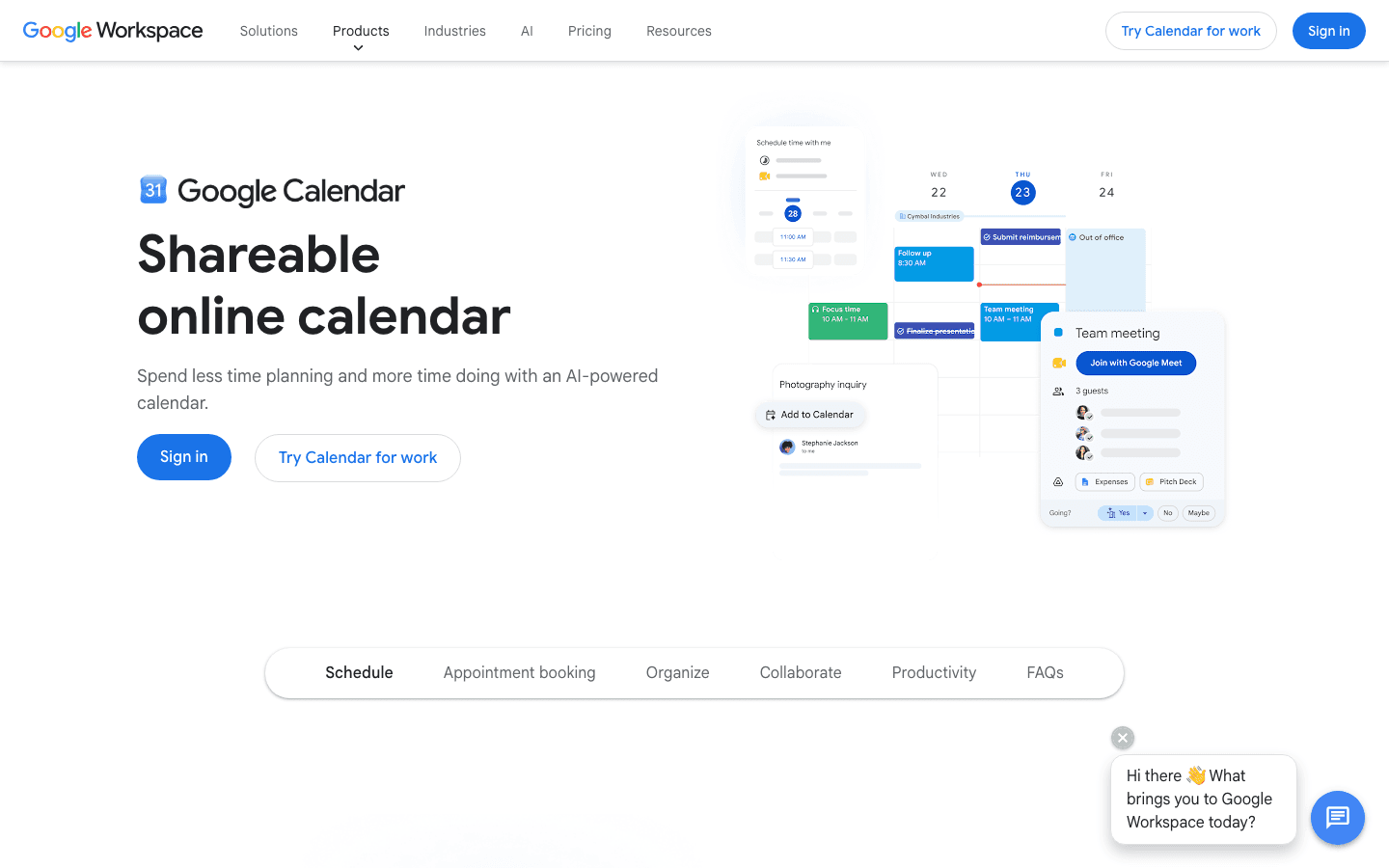
Google Calendar integrates with Trello through a Power-Up that generates an iCal feed for your board's due dates. You subscribe to that feed in Google Calendar and your Trello deadlines appear alongside your meetings automatically. No manual entry, no ongoing maintenance. Free. It works with any calendar that supports iCal, including Outlook and Apple Calendar.
This is the simplest Trello integration on this list. If the only problem you are solving is "I cannot see my Trello deadlines on my calendar," this is the answer.
Key Features
Free via the Trello Power-Up
Syncs Trello card due dates to Google Calendar automatically
Works with Outlook, Apple Calendar, and any iCal-compatible tool
Updates automatically as Trello card dates change
What Works
Takes five minutes to set up
Free with no ongoing cost or subscription
Deadlines become visible in the tool you already check every day
Limitations
Read-only; you cannot edit Trello cards from Google Calendar
Shows due dates only, not card descriptions, comments, or status changes
Pricing: Free
Best for: Anyone who needs Trello card deadlines visible on their calendar without extra tools or subscriptions.
Which App to Use With Trello Is Right for You?
You want Trello tasks scheduled into your day automatically: Lifestack. It is the only option that builds your schedule around your energy levels, not just what is open on the calendar. Read more on why energy-based planning outperforms time blocking.
Your team needs a communication layer tied to the board: Slack. The native integration keeps card updates and team discussion in one place.
You want to track time spent on cards for free: Clockify. The Trello Power-Up adds a timer to every card at no cost.
You need somewhere to put project documentation: Notion. The free plan covers most use cases and the Trello integration is clean.
You just need Trello deadlines on your calendar: Google Calendar. Set it up once, forget about it, and your due dates are always visible.
If you are building a personal planning system around Trello rather than a team setup, pairing it with a smart AI planner like Lifestack handles the scheduling gaps that Trello leaves open. See also apps to use with TickTick for a similar approach with a task-first tool.
Frequently Asked Questions
What apps work well with Trello?
The most useful apps to use with Trello are Lifestack (scheduling when to work on cards), Slack (team communication with card notifications), Clockify (free time tracking on cards), Notion (documentation linked to boards), and Google Calendar (syncing due dates). Each fills a gap that Trello does not cover natively.
Does Trello have a time tracking integration?
Yes. Clockify has an official Trello Power-Up that adds a timer button directly to each card. It is free for up to 5 users and lets you log time without leaving your Trello board. Other time trackers like Harvest also offer Trello integrations, but Clockify's free plan is the most accessible starting point.
Can Slack connect to Trello?
Yes. Trello and Slack have a native integration available through the Slack App Directory. Once connected, you can receive Trello card notifications in Slack channels, create new cards from Slack messages, and link boards to relevant channels. No third-party automation tool required.
How do I add Trello due dates to Google Calendar?
Enable the Google Calendar Power-Up in your Trello board settings. It generates an iCal subscription link for that board's due dates. Add that link to Google Calendar under "Other calendars," and your Trello deadlines will appear on your calendar automatically, updating whenever you change dates in Trello.
What is the best Trello companion for personal scheduling?
Lifestack. Trello organizes your tasks; Lifestack schedules when to work on them. It reads your energy levels from wearables and places your tasks during your actual focus windows, which removes the manual effort of deciding when each Trello card gets worked on. See the full breakdown in the Lifestack introduction.
Is there a free time tracker that works with Trello?
Yes. Clockify is free for up to 5 users and has a native Trello Power-Up. It adds a timer button to each card and logs time entries automatically. The free plan covers the core time tracking features with no usage limits for individuals.
Trello is excellent at organizing work into boards, lists, and cards. It is visual, flexible, and easy for any team to pick up. What it does not do is tell you when to work on those cards, how long each one actually takes, or where team conversations are supposed to happen while the cards move across the board.
The apps that fill those gaps are what make a Trello setup actually functional. The right stack adds personal scheduling, time tracking, communication, and documentation around Trello without replacing what makes Trello good.
These five apps to use with Trello cover the most common missing pieces: when to work on tasks, how long things take, where team conversations happen, where supporting documents live, and whether your Trello deadlines show up on your calendar.
Key Takeaways
Lifestack fills Trello's biggest blind spot: it tells you when to actually work on your tasks based on your energy levels and schedule, not just what is in the queue
Clockify is the most popular free time tracker that integrates directly with Trello, letting you log time on cards without leaving the board
Notion and Google Calendar both offer free Trello integrations that handle documentation and deadline visibility at no cost
Quick Guide: Best Apps to Use With Trello
1. Lifestack: Best for scheduling when you work on Trello tasks
2. Slack: Best for team communication tied to Trello boards
3. Clockify: Best free time tracker for Trello
4. Notion: Best for documentation alongside Trello
5. Google Calendar: Best for syncing Trello deadlines to your calendar
How We Evaluated These Trello Companion Apps
How directly each app integrates with Trello (native Power-Up, Zapier, or manual)
What gap it fills that Trello cannot handle on its own
Quality of the free tier and total cost
Mobile app availability and cross-platform support
Ease of setup alongside an existing Trello workspace
1. Lifestack: Best for Scheduling Your Trello Tasks
Tells you when to work on your Trello tasks based on your actual energy
Lifestack solves the part of task management that Trello cannot: deciding when to work on things. Trello tells you what needs to be done. Lifestack tells you when to do it. It reads your sleep and recovery data from wearables like Oura Ring, WHOOP, Garmin, and Fitbit, then auto-schedules your tasks during your actual energy peaks rather than just any open calendar slot.
For Trello users, this means your board's tasks get placed on your calendar automatically based on deadlines, energy levels, and existing commitments. You are not manually deciding where to fit Trello work into your week. As the best scheduling app for energy-aware users, Lifestack pairs with Trello the way a personal planner pairs with a project board.
Key Features
Energy-aware task scheduling using wearable data (Oura, WHOOP, Garmin, Fitbit, Apple Watch)
Auto-builds your daily calendar from task list and energy windows
Adjusts when priorities or meetings change
iOS, Android, and Chrome extension
What Works
Removes the decision fatigue of "when should I work on this Trello card"
Matches your most demanding tasks to your actual focus peaks
Pricing is lower than most AI schedulers on the market
Limitations
Full energy-matching requires a compatible wearable device
Direct Trello card import is not yet native; works best when you manage a task list in Lifestack alongside your Trello board
Pricing: $7/month | $50/year with 7-day free trial | $120 lifetime
Best for: Trello users who need their card work scheduled into their day automatically, especially those tracking energy with a wearable.
2. Slack: Best for Team Communication With Trello
Keep team conversations tied to Trello boards without losing context
Slack and Trello have a native integration that connects the two without any extra tools. You can get card notifications pushed to Slack channels, create new Trello cards directly from Slack messages, and link specific boards to specific project channels. The result is that decisions happen in Slack and get logged to Trello cards without the manual copy-paste that normally happens between communication tools and task boards.
For teams that need both a project board and a place to talk about that project, this pairing removes a significant amount of context switching.
Key Features
Trello notifications delivered directly to Slack channels
Create Trello cards from Slack messages with one click
Link Trello boards to relevant Slack channels
AI-powered search, huddles, and workflow automation
What Works
Keeps task discussion close to the task without switching apps
Free plan is functional for small teams and basic Trello notification use
Widely adopted, so new team members usually already know it
Limitations
Free plan limits message history to 90 days
Paid plans are priced per seat, which adds up for larger teams
Pricing: Free | $7.25/month per user billed annually | $8.75/month per user billed monthly
Best for: Teams using Trello for project management who want communication and task updates in the same place.
3. Clockify: Best Free Time Tracker for Trello
Track how long your Trello cards actually take, at no cost
Clockify has a Trello Power-Up that adds a timer button directly to each card. You click Start when you begin working on a card, click Stop when you finish, and Clockify logs the time entry to the correct project automatically. No separate app required while you are working in Trello. It is the most widely used free time tracker for Trello, and the free plan has no meaningful limits for individuals or small teams.
Over time, the data tells you where work hours are actually going across your Trello boards, which is useful for both personal planning and client billing.
Key Features
Trello Power-Up adds a timer to every card
Free for up to 5 users with no time entry limits
Timesheets, project-level reports, and exportable time logs
iOS, Android, and browser extension
What Works
Free plan is genuinely functional for solo users and small teams
Trello Power-Up removes friction from starting a timer
Reports show actual versus estimated time across the board
Limitations
Advanced billing rates and detailed reporting require paid plans
Time tracking is still a manual action; it does not automatically detect which card you are working on
Pricing: Free (up to 5 users) | paid plans from $3.99/seat/month billed annually
Best for: Anyone using Trello who wants to know how long each card takes without paying for a time tracking subscription.
4. Notion: Best for Documentation Alongside Trello
Product specs, meeting notes, and team wikis linked directly to your Trello cards
Notion handles what Trello cannot: freeform documentation. Product requirements, research notes, meeting summaries, onboarding guides, and project wikis all live in Notion and can be linked to Trello cards via the Notion Power-Up. The two tools complement each other because Trello excels at visual task flow and Notion excels at everything that needs to be written down.
For teams already pairing task apps with documentation tools, Notion is the most flexible option at the lowest starting cost.
Key Features
Trello Power-Up for linking Notion pages directly to cards
Unlimited pages and blocks on the free plan
Databases, calendars, wikis, and AI writing tools on higher tiers
Web, desktop, iOS, and Android
What Works
Free plan is genuinely useful for individuals and small teams
One tool covers docs, wikis, and light project management alongside Trello
Students get the Plus plan free with a school email
Limitations
Can require significant setup time to build out a useful workspace
AI features are gated behind Plus and Business tiers
$10/month per user on Plus adds up for larger teams
Pricing: Free | $10/month per user (Plus) | $20/month per user (Business) | annual plans save up to 20%
Best for: Trello users who need a documentation hub where specs, notes, and research live alongside their project boards.
5. Google Calendar: Best for Trello Deadline Visibility
Sync Trello card due dates to your existing calendar in five minutes
Google Calendar integrates with Trello through a Power-Up that generates an iCal feed for your board's due dates. You subscribe to that feed in Google Calendar and your Trello deadlines appear alongside your meetings automatically. No manual entry, no ongoing maintenance. Free. It works with any calendar that supports iCal, including Outlook and Apple Calendar.
This is the simplest Trello integration on this list. If the only problem you are solving is "I cannot see my Trello deadlines on my calendar," this is the answer.
Key Features
Free via the Trello Power-Up
Syncs Trello card due dates to Google Calendar automatically
Works with Outlook, Apple Calendar, and any iCal-compatible tool
Updates automatically as Trello card dates change
What Works
Takes five minutes to set up
Free with no ongoing cost or subscription
Deadlines become visible in the tool you already check every day
Limitations
Read-only; you cannot edit Trello cards from Google Calendar
Shows due dates only, not card descriptions, comments, or status changes
Pricing: Free
Best for: Anyone who needs Trello card deadlines visible on their calendar without extra tools or subscriptions.
Which App to Use With Trello Is Right for You?
You want Trello tasks scheduled into your day automatically: Lifestack. It is the only option that builds your schedule around your energy levels, not just what is open on the calendar. Read more on why energy-based planning outperforms time blocking.
Your team needs a communication layer tied to the board: Slack. The native integration keeps card updates and team discussion in one place.
You want to track time spent on cards for free: Clockify. The Trello Power-Up adds a timer to every card at no cost.
You need somewhere to put project documentation: Notion. The free plan covers most use cases and the Trello integration is clean.
You just need Trello deadlines on your calendar: Google Calendar. Set it up once, forget about it, and your due dates are always visible.
If you are building a personal planning system around Trello rather than a team setup, pairing it with a smart AI planner like Lifestack handles the scheduling gaps that Trello leaves open. See also apps to use with TickTick for a similar approach with a task-first tool.
Frequently Asked Questions
What apps work well with Trello?
The most useful apps to use with Trello are Lifestack (scheduling when to work on cards), Slack (team communication with card notifications), Clockify (free time tracking on cards), Notion (documentation linked to boards), and Google Calendar (syncing due dates). Each fills a gap that Trello does not cover natively.
Does Trello have a time tracking integration?
Yes. Clockify has an official Trello Power-Up that adds a timer button directly to each card. It is free for up to 5 users and lets you log time without leaving your Trello board. Other time trackers like Harvest also offer Trello integrations, but Clockify's free plan is the most accessible starting point.
Can Slack connect to Trello?
Yes. Trello and Slack have a native integration available through the Slack App Directory. Once connected, you can receive Trello card notifications in Slack channels, create new cards from Slack messages, and link boards to relevant channels. No third-party automation tool required.
How do I add Trello due dates to Google Calendar?
Enable the Google Calendar Power-Up in your Trello board settings. It generates an iCal subscription link for that board's due dates. Add that link to Google Calendar under "Other calendars," and your Trello deadlines will appear on your calendar automatically, updating whenever you change dates in Trello.
What is the best Trello companion for personal scheduling?
Lifestack. Trello organizes your tasks; Lifestack schedules when to work on them. It reads your energy levels from wearables and places your tasks during your actual focus windows, which removes the manual effort of deciding when each Trello card gets worked on. See the full breakdown in the Lifestack introduction.
Is there a free time tracker that works with Trello?
Yes. Clockify is free for up to 5 users and has a native Trello Power-Up. It adds a timer button to each card and logs time entries automatically. The free plan covers the core time tracking features with no usage limits for individuals.

FOLLOW ON
FOLLOW ON
FOLLOW ON


Copyright 2026 © Lifestack. All rights reserved
Copyright 2026 © Lifestack. All rights reserved

