
App
Best Chrome Extensions for Productivity in 2026
Best Chrome Extensions for Productivity in 2026

Chrome extensions are one of the easiest wins in productivity. The right ones run silently in the background, add features to sites you already use, and take about ten seconds to install. The wrong ones clutter your toolbar, slow down your browser, and never get opened again.
We tested dozens of extensions across task management, writing, security, and planning. The five below are genuinely useful, actively maintained, and worth keeping in your browser in 2026.
Key Takeaways
Lifestack's Chrome extension connects your daily task plan to whatever you're working on in the browser.
Grammarly and 1Password work silently across every site you visit, making them among the highest-value installs per minute of effort.
Todoist and Notion Web Clipper are most useful if you already use those apps on desktop or mobile.
Quick Guide: Best Chrome Extensions for Productivity
Lifestack: Best for energy-aware daily planning
Todoist: Best for quick task capture from any page
Grammarly: Best for writing assistance everywhere
1Password: Best for password management and autofill
Notion Web Clipper: Best for saving anything to Notion
How We Evaluated
Genuine utility: Does the extension change how you work, or is it just a shortcut to open a website?
Reliability: Does it work consistently across different sites, or break on half of them?
Performance: Extensions that add noticeable load time or memory use are a real cost.
Mobile companion: The best extensions pair with iOS and Android apps so your data follows you.
Pricing: A useful free tier matters. Extensions you pay for should deliver enough value to justify a subscription.
1. Lifestack
Best for: energy-aware daily planning right from your browser

Lifestack is a daily planner that connects your wearable data to your calendar and task list. The Chrome extension puts that plan a click away while you work. Instead of context-switching to a separate app to check what you should be doing next, your prioritized task list is always one keystroke away from whatever you're browsing.
The real differentiator is energy-based scheduling. Lifestack reads your sleep and recovery data from Oura Ring, Apple Watch, or Garmin, and schedules your tasks at the times you're most capable of doing them well. The Chrome extension makes that intelligence visible while you're in the browser, so you stay connected to your plan even when you're mid-research or mid-email.
What Works: Quick access to your daily task plan from any Chrome tab. Energy-aware scheduling means your most important work lands at the right time. Strong mobile companion apps on iOS and Android.
Limitations: Built for individual planning. If you need a shared team task board, look at Todoist or Notion instead.
Pricing: $7/month, $50/year, or $120 lifetime. Free trial available.
Best for: Anyone who wants their day managed intelligently, not just tracked
2. Todoist
Best for: capturing tasks from any webpage in under five seconds
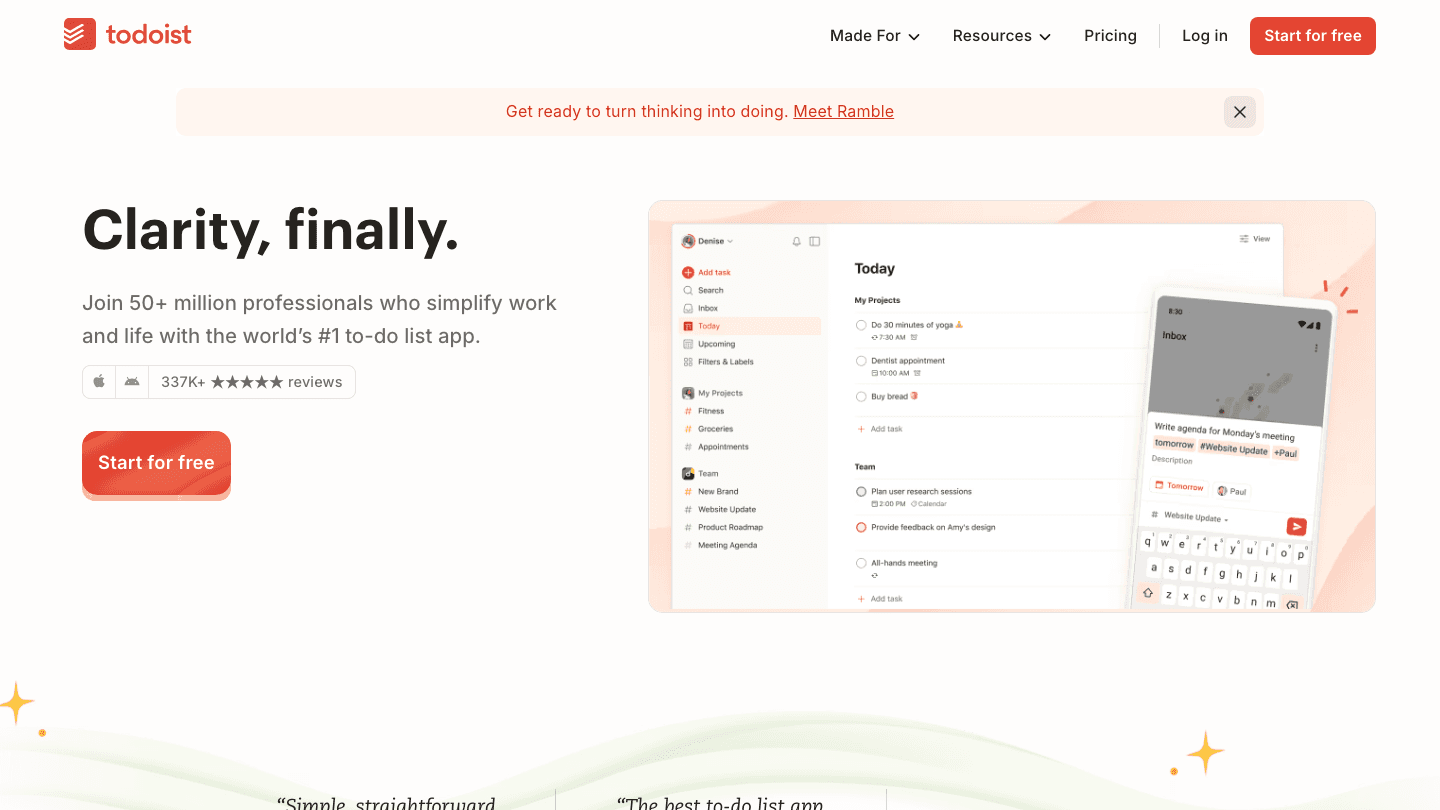
Todoist is one of the most popular task managers available, and its Chrome extension earns its place in the toolbar. Click it to add a task with the current page linked automatically. You can set due dates, assign priorities, and choose a project without leaving the browser.
For anyone who generates tasks while browsing (articles to read, issues to file, follow-ups from emails), the Todoist extension removes the friction of capturing those tasks properly. If you pair Todoist with Lifestack, captured tasks feed directly into your energy-aware daily schedule.
What Works: Lightning-fast task capture with page link auto-attached. Natural language date parsing. Reliable performance across sites. Strong free tier.
Limitations: No energy awareness. Scheduling is manual. Getting the most out of it requires a system for organizing captured tasks.
Pricing: Free plan available. Pro at $5/user/month ($60/year). Business at $8/user/month ($96/year).
Best for: Power users who need fast, reliable task capture while browsing
3. Grammarly
Best for: writing assistance across every text field in Chrome

Grammarly works in the background on every text field you type into. Emails, Slack messages, Google Docs, web forms, Twitter. It catches errors in real time and offers suggestions without requiring you to open a separate editor. The free tier handles spelling, grammar, and punctuation. The Pro tier adds rewriting suggestions, tone adjustments, and clarity improvements.
Among all the extensions on this list, Grammarly has the highest passive value: it runs silently and only surfaces when something is worth fixing. Most users find it pays for itself in professional email quality alone.
What Works: Works everywhere you type. Real-time feedback is fast and unobtrusive. Free tier is genuinely useful. Strong mobile keyboard app for iOS/Android.
Limitations: Pro tier is $12/month, which is more than some task managers. Suggestions can occasionally be off-brand if you have a specific writing voice.
Pricing: Free plan available. Pro at $12/month ($144/year).
Best for: Anyone writing professionally in the browser, especially via email and Slack
4. 1Password
Best for: autofilling passwords and managing credentials across every site
1Password is the desktop productivity tool most people put off installing until they've locked themselves out of something important. The Chrome extension autofills saved passwords on any site, generates strong unique passwords when you create accounts, and stores credit cards and secure notes for fast retrieval.
At $2.99/month for individuals (billed annually), it's the cheapest tool on this list, and the case for it is straightforward: reusing passwords is a security risk. 1Password removes the friction of using unique, complex passwords everywhere.
What Works: Autofill works reliably across sites. Password generator is excellent. Companion apps on iOS, Android, Mac, and Windows. Travel Mode hides sensitive vaults at border crossings.
Limitations: No free plan (only a 14-day trial). Some users find the initial vault setup takes time.
Pricing: Individual at $2.99/month ($35.88/year). Families at $4.49/month. Business at $7.99/user/month.
Best for: Anyone who wants to stop reusing passwords without the mental overhead of remembering dozens of them
5. Notion Web Clipper
Best for: saving web content directly to your Notion workspace
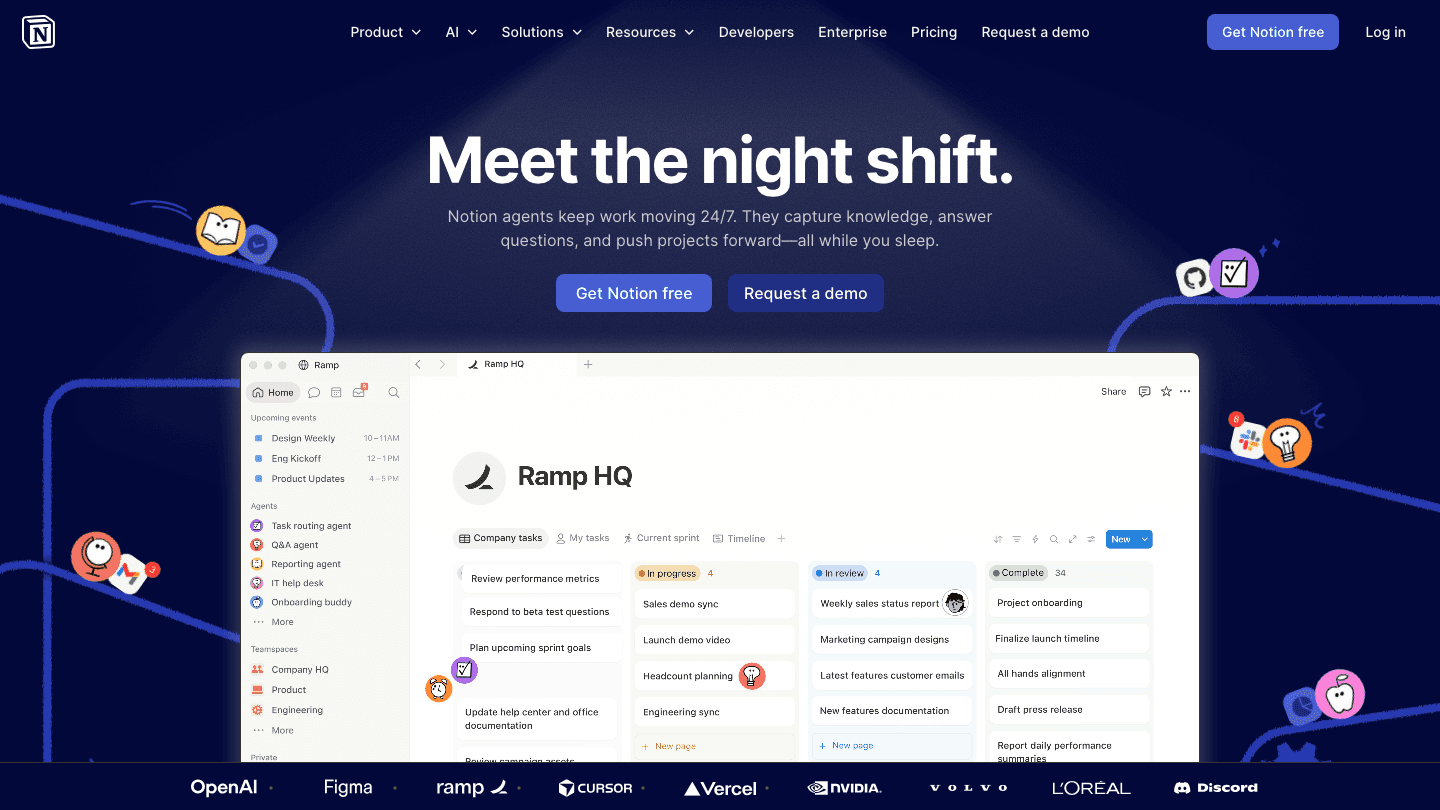
Notion's Web Clipper extension saves any webpage, article, or selected text to a specified Notion page with one click. For teams and individuals that use Notion as their primary knowledge base, the extension removes the gap between "I found this useful thing" and "this is now in my notes where I can actually find it."
The Web Clipper is free for anyone with a Notion account, which makes it a zero-cost addition for existing users. For teams that use Notion extensively, it pays for itself in research organization alone. Unlike browser bookmarks, clipped content is searchable and can be tagged, linked, and organized inside Notion's database system.
What Works: Simple and reliable. Clips full pages or selections. Integrates directly with your existing Notion workspace. Free with any Notion account.
Limitations: Only useful if you use Notion. No offline access for clipped content. Formatting sometimes needs cleanup after clipping complex pages.
Pricing: Free with Notion account. Notion plans: Free tier, Plus at $10/member/month, Business at $20/member/month.
Best for: Teams and individuals already using Notion who want to capture web content without leaving Chrome
Which Chrome Extension Is Right for You?
You want your day managed intelligently: Start with Lifestack.
You spend too much time tracking down tasks you meant to capture: Todoist extension.
You write professionally and want real-time feedback: Grammarly.
You're still reusing passwords or copy-pasting from a notes app: 1Password.
Your knowledge base lives in Notion: Web Clipper is an obvious install.
All five are worth having. They don't conflict with each other, and each covers a different layer of your browser workflow.
FAQ
What are the best Chrome extensions for productivity?
The best productivity Chrome extensions depend on your biggest friction point. For daily planning and task management, Lifestack and Todoist lead the category. For writing quality, Grammarly is the standard. For password security, 1Password. For knowledge capture, the Notion Web Clipper.
Are Chrome extensions safe?
Extensions from well-known companies listed on the Chrome Web Store with many users and recent updates are generally safe. Risks come from obscure extensions with few reviews, extensions that request excessive permissions (access to all data on all sites), or abandoned extensions that haven't been updated in years. All five extensions on this list are from established companies and are actively maintained.
Does Lifestack have a Chrome extension?
Yes. Lifestack's Chrome extension gives you quick access to your daily task plan from any tab. It connects to your main Lifestack account, so the energy-aware schedule you've built is visible while you're working in the browser, without switching apps.
Do Chrome extensions slow down your browser?
Some do. Extensions that inject scripts into every page or run heavy background processes add memory and CPU load. The extensions on this list are generally lightweight. 1Password and Grammarly run passively and have minimal performance impact. If you're running dozens of extensions, an audit with Chrome's built-in task manager (Shift + Esc) will show you which ones are consuming the most memory.
Can I use Chrome extensions on mobile?
Chrome on iOS and Android does not support extensions. For mobile productivity, use the companion apps for each service. Lifestack, Todoist, Grammarly, 1Password, and Notion all have dedicated iOS and Android apps that carry over your data from the Chrome extensions.
Chrome extensions are one of the easiest wins in productivity. The right ones run silently in the background, add features to sites you already use, and take about ten seconds to install. The wrong ones clutter your toolbar, slow down your browser, and never get opened again.
We tested dozens of extensions across task management, writing, security, and planning. The five below are genuinely useful, actively maintained, and worth keeping in your browser in 2026.
Key Takeaways
Lifestack's Chrome extension connects your daily task plan to whatever you're working on in the browser.
Grammarly and 1Password work silently across every site you visit, making them among the highest-value installs per minute of effort.
Todoist and Notion Web Clipper are most useful if you already use those apps on desktop or mobile.
Quick Guide: Best Chrome Extensions for Productivity
Lifestack: Best for energy-aware daily planning
Todoist: Best for quick task capture from any page
Grammarly: Best for writing assistance everywhere
1Password: Best for password management and autofill
Notion Web Clipper: Best for saving anything to Notion
How We Evaluated
Genuine utility: Does the extension change how you work, or is it just a shortcut to open a website?
Reliability: Does it work consistently across different sites, or break on half of them?
Performance: Extensions that add noticeable load time or memory use are a real cost.
Mobile companion: The best extensions pair with iOS and Android apps so your data follows you.
Pricing: A useful free tier matters. Extensions you pay for should deliver enough value to justify a subscription.
1. Lifestack
Best for: energy-aware daily planning right from your browser
Lifestack is a daily planner that connects your wearable data to your calendar and task list. The Chrome extension puts that plan a click away while you work. Instead of context-switching to a separate app to check what you should be doing next, your prioritized task list is always one keystroke away from whatever you're browsing.
The real differentiator is energy-based scheduling. Lifestack reads your sleep and recovery data from Oura Ring, Apple Watch, or Garmin, and schedules your tasks at the times you're most capable of doing them well. The Chrome extension makes that intelligence visible while you're in the browser, so you stay connected to your plan even when you're mid-research or mid-email.
What Works: Quick access to your daily task plan from any Chrome tab. Energy-aware scheduling means your most important work lands at the right time. Strong mobile companion apps on iOS and Android.
Limitations: Built for individual planning. If you need a shared team task board, look at Todoist or Notion instead.
Pricing: $7/month, $50/year, or $120 lifetime. Free trial available.
Best for: Anyone who wants their day managed intelligently, not just tracked
2. Todoist
Best for: capturing tasks from any webpage in under five seconds
Todoist is one of the most popular task managers available, and its Chrome extension earns its place in the toolbar. Click it to add a task with the current page linked automatically. You can set due dates, assign priorities, and choose a project without leaving the browser.
For anyone who generates tasks while browsing (articles to read, issues to file, follow-ups from emails), the Todoist extension removes the friction of capturing those tasks properly. If you pair Todoist with Lifestack, captured tasks feed directly into your energy-aware daily schedule.
What Works: Lightning-fast task capture with page link auto-attached. Natural language date parsing. Reliable performance across sites. Strong free tier.
Limitations: No energy awareness. Scheduling is manual. Getting the most out of it requires a system for organizing captured tasks.
Pricing: Free plan available. Pro at $5/user/month ($60/year). Business at $8/user/month ($96/year).
Best for: Power users who need fast, reliable task capture while browsing
3. Grammarly
Best for: writing assistance across every text field in Chrome
Grammarly works in the background on every text field you type into. Emails, Slack messages, Google Docs, web forms, Twitter. It catches errors in real time and offers suggestions without requiring you to open a separate editor. The free tier handles spelling, grammar, and punctuation. The Pro tier adds rewriting suggestions, tone adjustments, and clarity improvements.
Among all the extensions on this list, Grammarly has the highest passive value: it runs silently and only surfaces when something is worth fixing. Most users find it pays for itself in professional email quality alone.
What Works: Works everywhere you type. Real-time feedback is fast and unobtrusive. Free tier is genuinely useful. Strong mobile keyboard app for iOS/Android.
Limitations: Pro tier is $12/month, which is more than some task managers. Suggestions can occasionally be off-brand if you have a specific writing voice.
Pricing: Free plan available. Pro at $12/month ($144/year).
Best for: Anyone writing professionally in the browser, especially via email and Slack
4. 1Password
Best for: autofilling passwords and managing credentials across every site
1Password is the desktop productivity tool most people put off installing until they've locked themselves out of something important. The Chrome extension autofills saved passwords on any site, generates strong unique passwords when you create accounts, and stores credit cards and secure notes for fast retrieval.
At $2.99/month for individuals (billed annually), it's the cheapest tool on this list, and the case for it is straightforward: reusing passwords is a security risk. 1Password removes the friction of using unique, complex passwords everywhere.
What Works: Autofill works reliably across sites. Password generator is excellent. Companion apps on iOS, Android, Mac, and Windows. Travel Mode hides sensitive vaults at border crossings.
Limitations: No free plan (only a 14-day trial). Some users find the initial vault setup takes time.
Pricing: Individual at $2.99/month ($35.88/year). Families at $4.49/month. Business at $7.99/user/month.
Best for: Anyone who wants to stop reusing passwords without the mental overhead of remembering dozens of them
5. Notion Web Clipper
Best for: saving web content directly to your Notion workspace
Notion's Web Clipper extension saves any webpage, article, or selected text to a specified Notion page with one click. For teams and individuals that use Notion as their primary knowledge base, the extension removes the gap between "I found this useful thing" and "this is now in my notes where I can actually find it."
The Web Clipper is free for anyone with a Notion account, which makes it a zero-cost addition for existing users. For teams that use Notion extensively, it pays for itself in research organization alone. Unlike browser bookmarks, clipped content is searchable and can be tagged, linked, and organized inside Notion's database system.
What Works: Simple and reliable. Clips full pages or selections. Integrates directly with your existing Notion workspace. Free with any Notion account.
Limitations: Only useful if you use Notion. No offline access for clipped content. Formatting sometimes needs cleanup after clipping complex pages.
Pricing: Free with Notion account. Notion plans: Free tier, Plus at $10/member/month, Business at $20/member/month.
Best for: Teams and individuals already using Notion who want to capture web content without leaving Chrome
Which Chrome Extension Is Right for You?
You want your day managed intelligently: Start with Lifestack.
You spend too much time tracking down tasks you meant to capture: Todoist extension.
You write professionally and want real-time feedback: Grammarly.
You're still reusing passwords or copy-pasting from a notes app: 1Password.
Your knowledge base lives in Notion: Web Clipper is an obvious install.
All five are worth having. They don't conflict with each other, and each covers a different layer of your browser workflow.
FAQ
What are the best Chrome extensions for productivity?
The best productivity Chrome extensions depend on your biggest friction point. For daily planning and task management, Lifestack and Todoist lead the category. For writing quality, Grammarly is the standard. For password security, 1Password. For knowledge capture, the Notion Web Clipper.
Are Chrome extensions safe?
Extensions from well-known companies listed on the Chrome Web Store with many users and recent updates are generally safe. Risks come from obscure extensions with few reviews, extensions that request excessive permissions (access to all data on all sites), or abandoned extensions that haven't been updated in years. All five extensions on this list are from established companies and are actively maintained.
Does Lifestack have a Chrome extension?
Yes. Lifestack's Chrome extension gives you quick access to your daily task plan from any tab. It connects to your main Lifestack account, so the energy-aware schedule you've built is visible while you're working in the browser, without switching apps.
Do Chrome extensions slow down your browser?
Some do. Extensions that inject scripts into every page or run heavy background processes add memory and CPU load. The extensions on this list are generally lightweight. 1Password and Grammarly run passively and have minimal performance impact. If you're running dozens of extensions, an audit with Chrome's built-in task manager (Shift + Esc) will show you which ones are consuming the most memory.
Can I use Chrome extensions on mobile?
Chrome on iOS and Android does not support extensions. For mobile productivity, use the companion apps for each service. Lifestack, Todoist, Grammarly, 1Password, and Notion all have dedicated iOS and Android apps that carry over your data from the Chrome extensions.



FOLLOW ON
FOLLOW ON
FOLLOW ON



Copyright 2026 © Lifestack. All rights reserved
Copyright 2026 © Lifestack. All rights reserved

