
App
7 Best Apps to Use with Notion in 2026
7 Best Apps to Use with Notion in 2026
Notion is one of the most flexible productivity tools on the market. It can be a personal wiki, a project tracker, a content calendar, a CRM, and a knowledge base all at once. That flexibility is exactly why it needs companions: Notion is excellent at organizing information, but it wasn't designed to schedule your day, automate your workflows, or handle async video communication.
The apps on this list fill those gaps. They either integrate directly with Notion to add capabilities it lacks, or they pair naturally with how Notion-heavy teams and solopreneurs work. Some have native Notion connections. Others sit alongside it so naturally that most people end up using them together without thinking about it as an "integration."
We focused on tools that add something Notion genuinely can't do on its own: AI scheduling, daily planning with Notion tasks, reading workflows, async video, automation, and team communication. These are the apps that consistently show up in the stacks of people who use Notion seriously.
Key Takeaways
Lifestack is the best companion if you track tasks in Notion but need those tasks turned into an actual scheduled day, with AI that accounts for your energy levels.
Sunsama is the best option if you want to pull tasks from Notion databases directly into a daily planning ritual.
Zapier is the most powerful for automation, connecting Notion to hundreds of other tools with no code required.
Quick Guide: Best Apps to Use with Notion
1. Lifestack: Best for AI-powered scheduling alongside Notion task management
2. Sunsama: Best for pulling Notion tasks into a focused daily plan
3. Notion Calendar: Best official calendar companion, free for all Notion users
4. Readwise: Best for capturing reading highlights and syncing them to Notion
5. Loom: Best for recording and embedding videos directly in Notion pages
6. Zapier: Best for automating Notion workflows with other apps
7. Slack: Best for connecting Notion-based work to real-time team communication
How We Evaluated
Quality of Notion integration: does it connect natively, or require workarounds?
What it adds: does it solve something Notion genuinely can't do alone?
Ease of setup: how fast can you get the two tools working together?
Pricing: is there a free tier or trial to test the combination before committing?
Use case fit: solo user vs. team, knowledge work vs. project management
1. Lifestack: Best AI Scheduler for Notion Users
Turn your Notion tasks into a real schedule, automatically.
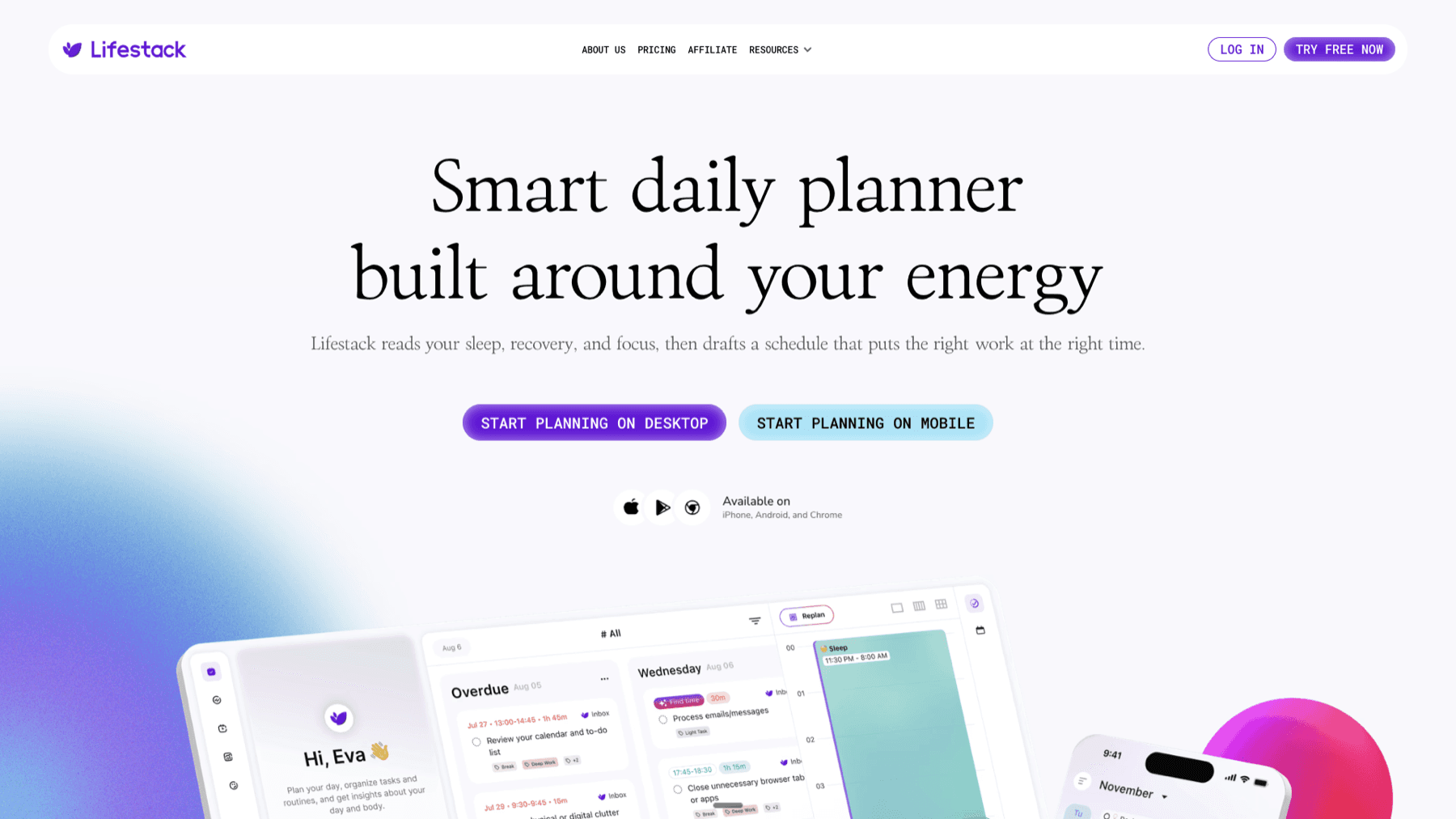
The most common frustration for Notion power users: you have a beautifully organized task database, but it never tells you what to work on today or when. Notion is excellent at storing and tracking; it's not a daily planner. Lifestack is the missing piece.
Lifestack is an AI planner app that reads your calendars and task list, then builds your daily schedule automatically. It schedules deep work during your peak energy windows and lighter tasks during natural low-focus periods. For Notion users who maintain their tasks in a Notion database and then export or manually re-enter them elsewhere to get a daily plan, Lifestack eliminates that friction. You capture in Notion; Lifestack turns the output into a scheduled day.
The energy-aware scheduling is what sets it apart from other scheduling apps. It's not filling calendar slots based on availability alone. It's matching task type to the kind of focus the task actually requires.
AI auto-scheduling that builds your full day from your task list
Energy-aware time-blocking: deep work goes to peak hours, admin to low-energy slots
Syncs with Google Calendar, Outlook, and Apple Calendar
Available on iOS, Android, and Chrome
What Works: The combination of Notion for task capture and Lifestack for daily scheduling is one of the cleanest two-tool stacks available. Notion handles the complexity of your project structure; Lifestack handles the daily execution puzzle.
Limitations: No direct Notion API integration yet. You capture tasks in Notion and manage your active task queue in Lifestack or your connected calendar. For many users, this workflow is actually cleaner than a tight integration would be.
Pricing: $7/mo or $50/yr. Annual plan includes a 7-day free trial.
Best for: Notion users who need AI to convert their task databases into a real, energy-aware daily schedule.
2. Sunsama: Best for Notion Task-Driven Daily Planning
Your Notion tasks, pulled into a focused daily ritual.
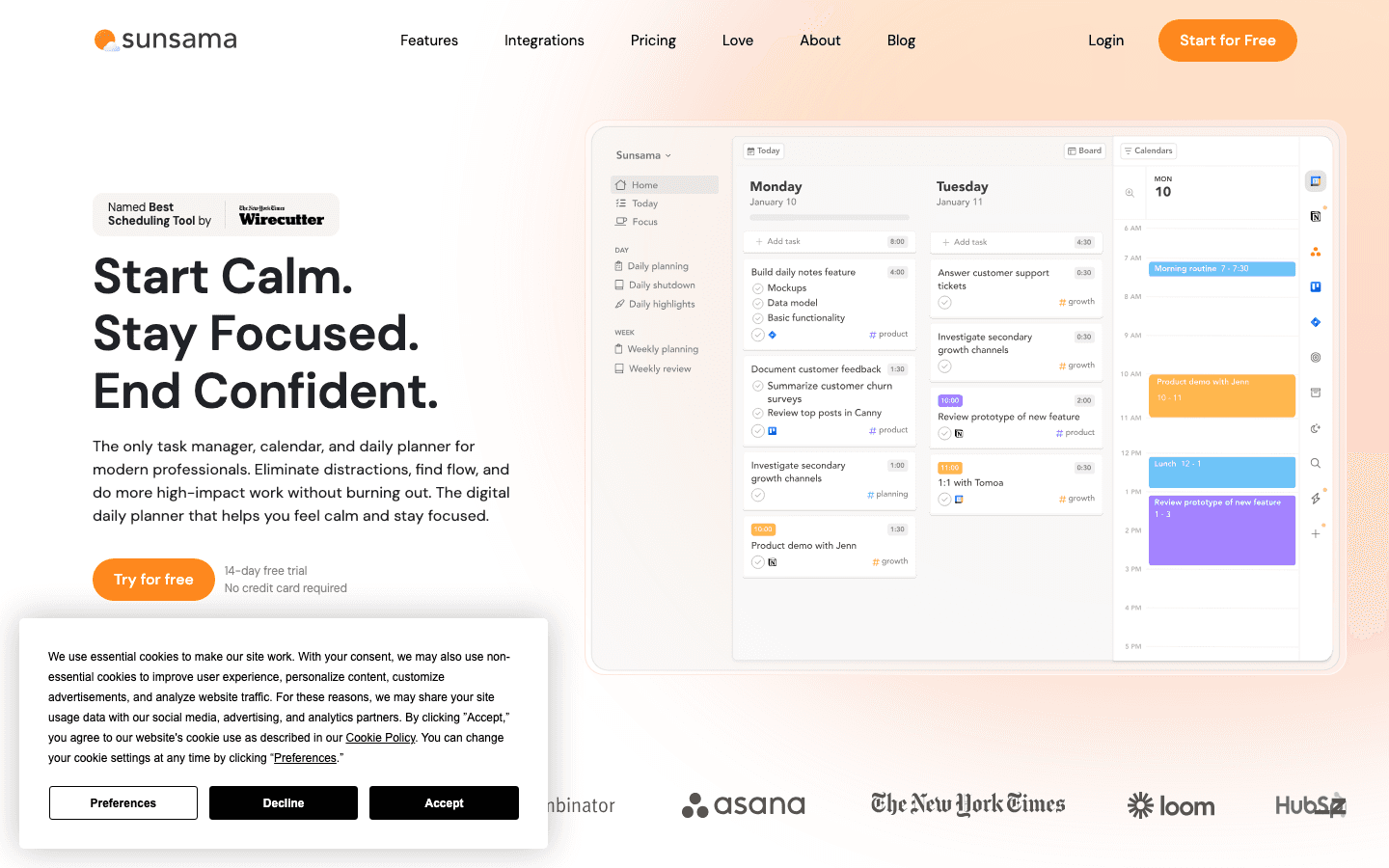
Sunsama has a native Notion integration that pulls tasks from your Notion databases directly into its daily planning interface. Each morning, Sunsama walks you through choosing what to work on that day, and your Notion tasks appear as options to add to your plan. When you complete a task in Sunsama, the status updates back in Notion.
That bidirectional sync is genuinely useful for anyone who uses Notion as their primary project database. Instead of switching between Notion for tracking and a separate calendar for scheduling, Sunsama surfaces the right Notion tasks at the right moment in your morning planning ritual.
The daily planning ritual itself is Sunsama's core differentiator: a guided, intentional process of selecting your priorities, time-boxing them, and shutting down at the end of the day. For Notion users who feel like they have great organization but poor daily execution, this is the tool most often recommended.
Native Notion integration with bidirectional task status sync
Guided daily planning and shutdown ritual
Pulls from Asana, Jira, Linear, GitHub, Gmail, and more alongside Notion
14-day free trial, no credit card required
What Works: The Notion integration is one of the best on the market. Tasks pull cleanly, statuses sync back, and the daily planning ritual gives structure to what would otherwise be a passive task list.
Limitations: No AI auto-scheduling. You still manually choose what goes into your day. At $22/mo, it's the most expensive app on this list. The ritual requires consistent daily buy-in to deliver value.
Pricing: $22/mo or $17/mo billed annually ($204/yr). 14-day free trial.
Best for: Notion users who want their database tasks to drive a structured, intentional daily planning practice.
3. Notion Calendar: Best Free Scheduling Companion
The official Notion calendar, free for everyone.
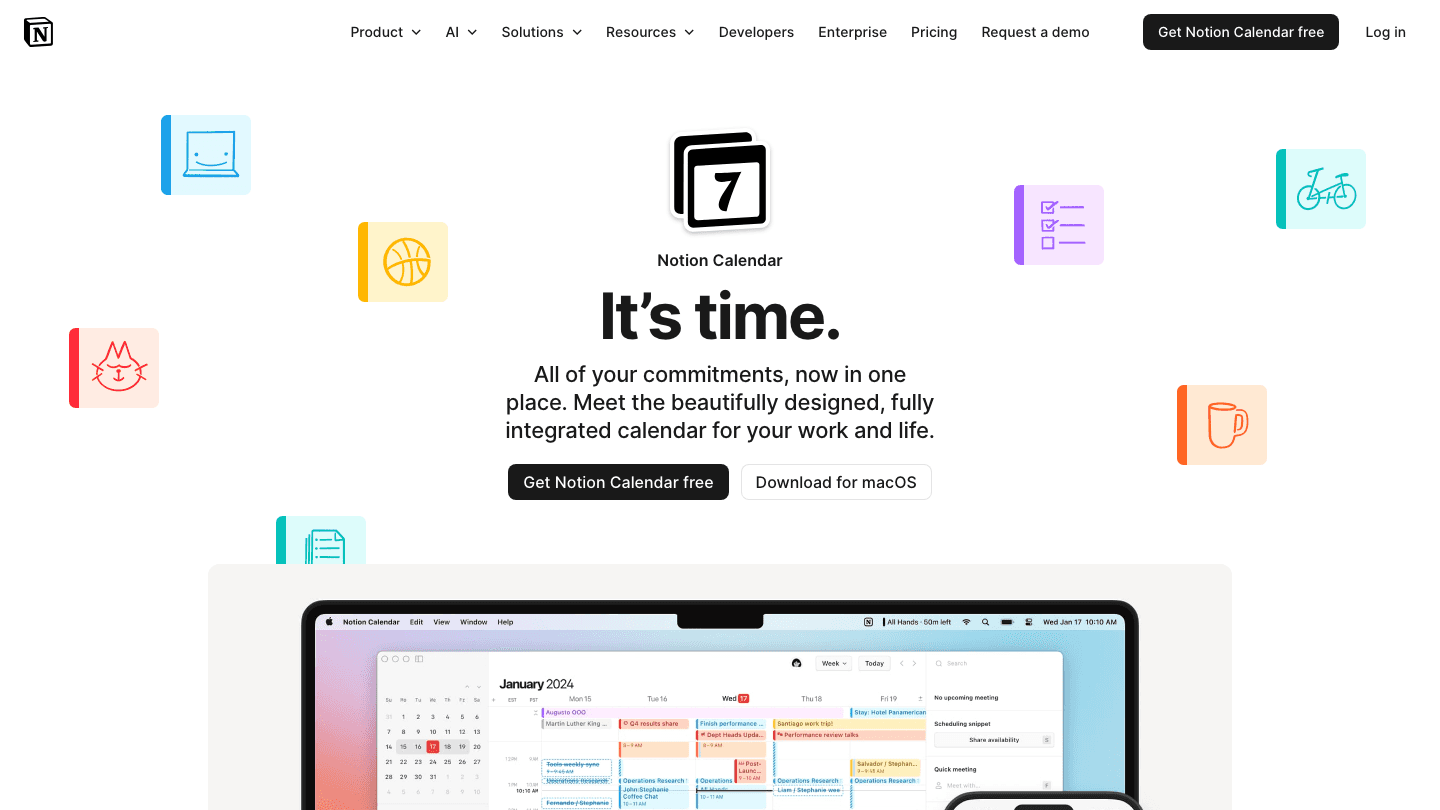
Notion Calendar is Notion's own standalone calendar app, built from the Cron acquisition. It connects directly to your Notion workspace and shows Notion database events (meetings, deadlines, project milestones) alongside your Google Calendar events in a single view.
The native integration works cleanly in a way that third-party calendar connections rarely do. Notion database entries that have a date property appear automatically in the calendar. You can also create Notion database entries directly from the calendar, which is particularly useful for project-tracked meetings or events.
For calendar management that stays inside the Notion ecosystem, this is the obvious starting point. It's free, it installs in minutes, and it eliminates the disconnect between your Notion project dates and your actual calendar.
Native Notion workspace integration with automatic date property sync
Google Calendar integration in the same view
Create Notion database entries directly from the calendar
Available on Mac, iOS, and web
What Works: Zero configuration for Notion database date sync. It just works. The free pricing makes it the default recommendation for any Notion user who also needs a calendar view of their projects.
Limitations: More calendar than daily planner. No AI scheduling, no task management features beyond what Notion provides. If you need deeper scheduling automation, pair it with Lifestack or Sunsama.
Pricing: Free for all Notion users.
Best for: Any Notion user who wants their project dates visible in a real calendar without leaving the Notion ecosystem.
4. Readwise: Best for Building a Notion Knowledge Base
Every highlight you save, automatically exported to Notion.
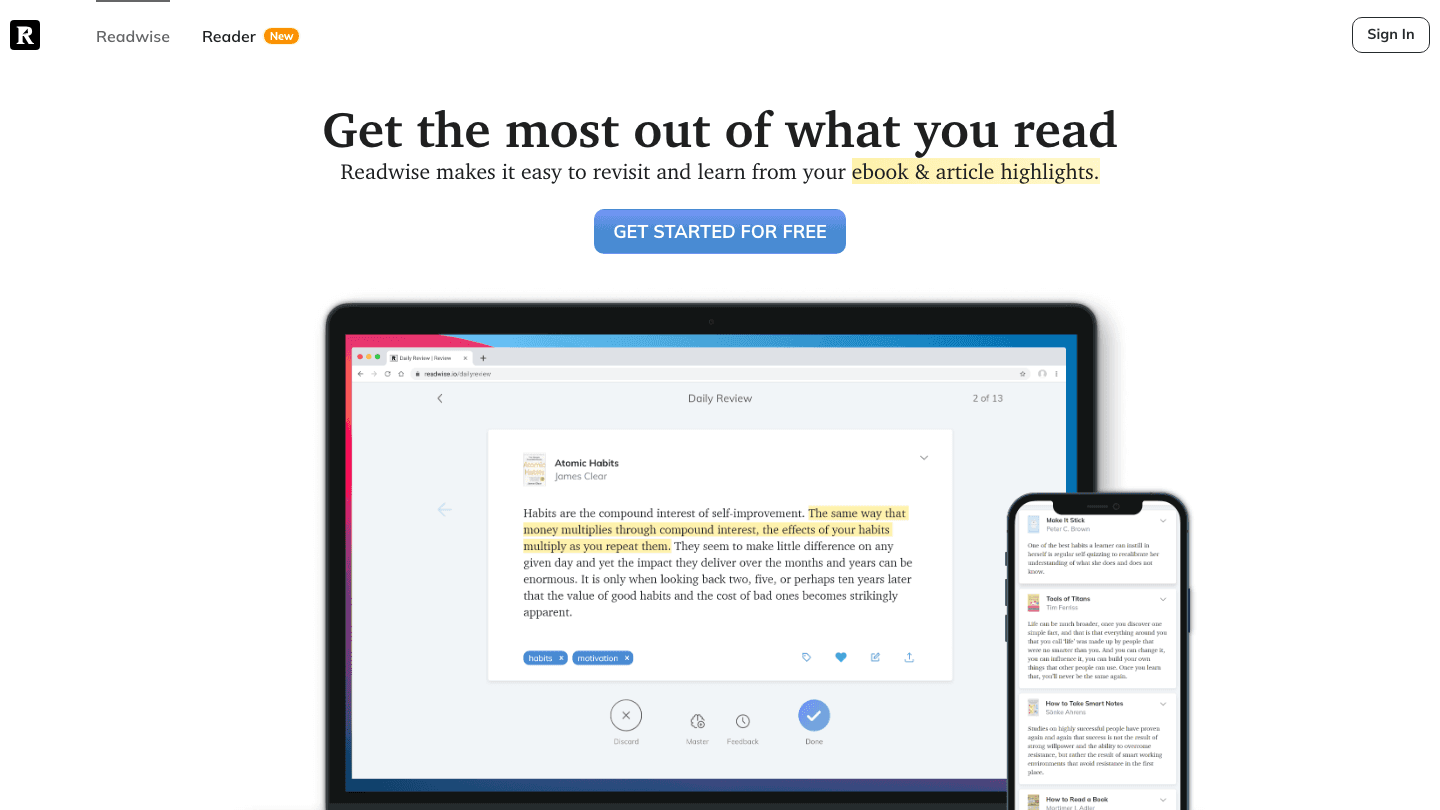
Readwise captures your highlights from books (Kindle, physical), articles, newsletters, PDFs, and podcasts, then sends them to Notion automatically. Each source gets its own Notion page, organized with tags, notes, and the full metadata. If you're building a knowledge base in Notion and doing serious reading, Readwise is the tool that connects those two activities.
The daily review feature sends you a small batch of past highlights each morning by email or in-app, using a spaced repetition algorithm to surface things you're likely to have forgotten. Combined with Notion, this creates a reading system where highlights land in your workspace automatically and resurface regularly enough to actually stick.
Captures highlights from Kindle, Apple Books, PDFs, articles, and podcasts
Native Notion export with automatic organization by source and tag
Daily review with spaced repetition for retention
Readwise Reader included in the Full plan
What Works: The Notion export is excellent. Highlights land cleanly in dedicated database pages, tagged and searchable. For anyone doing research, writing, or learning in Notion, this eliminates manual copy-pasting entirely.
Limitations: No free tier after the 30-day trial. The Lite plan (no Notion export) is less useful for this specific use case; you'll need the Full plan.
Pricing: 30-day free trial; Lite $5.59/mo (annual); Full $9.99/mo (annual, includes Notion export and Readwise Reader).
Best for: Researchers, writers, and knowledge workers who read heavily and want their highlights organized in their Notion workspace automatically.
5. Loom: Best for Async Video in Notion Pages
Record a two-minute video instead of writing a five-paragraph explanation.
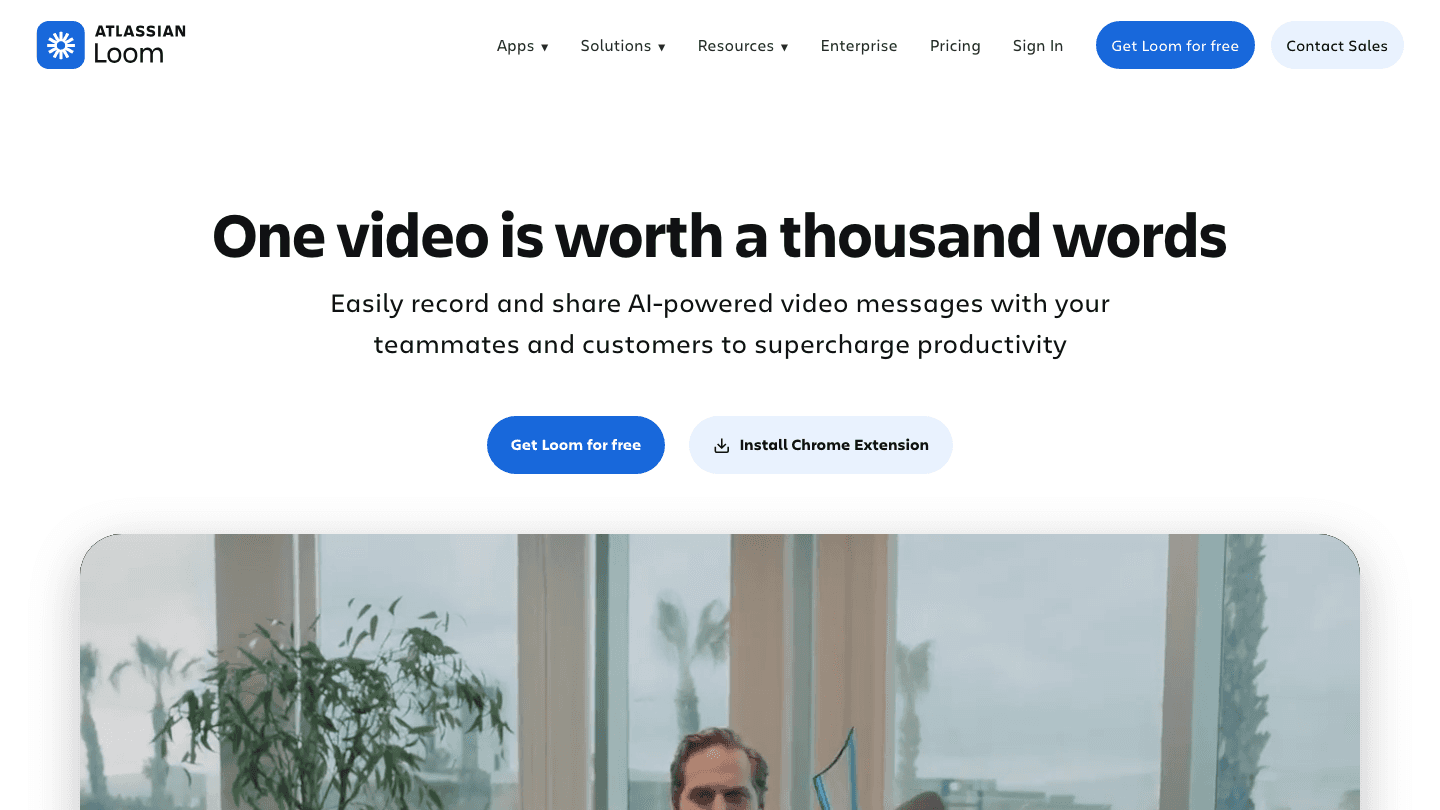
Loom (now part of Atlassian) lets you record your screen, camera, or both, then share the video via a link. Notion pages accept embedded Loom links natively, which means you can add a Loom recording directly to any page as a visual explanation, walkthrough, or update. The video plays inline without leaving Notion.
This combination is useful for teams running projects or documentation in Notion. Instead of writing out a complex process in a Notion page, you can record a 90-second walkthrough and embed it. Viewers can comment on specific timestamps directly in Loom, and you can link those responses back to the Notion page.
The free tier is generous enough for light use. If you're doing weekly team video updates or occasional process documentation, the 25-video limit with a 5-minute cap covers most of what you'd need.
Embeds directly in Notion pages as inline playable video
Screen recording, camera recording, or both simultaneously
Timestamp commenting for async feedback
AI features for transcription, summaries, and filler word removal (Business+ AI)
What Works: The Notion embed is frictionless. Paste a Loom link into a Notion page and it becomes an embedded player automatically. For async-first teams or solopreneurs sending client deliverables, Loom inside Notion is a genuinely better communication channel than long written explanations.
Limitations: The free tier caps videos at 5 minutes. AI features require the $24/user/mo Business+ AI plan, which adds up quickly for larger teams.
Pricing: Free (25 videos, 5-min cap); Business $18/user/mo; Business + AI $24/user/mo.
Best for: Teams using Notion for documentation or project management who want async video as part of their communication workflow.
6. Zapier: Best for Automating Notion Workflows
Connect Notion to thousands of other apps without writing code.
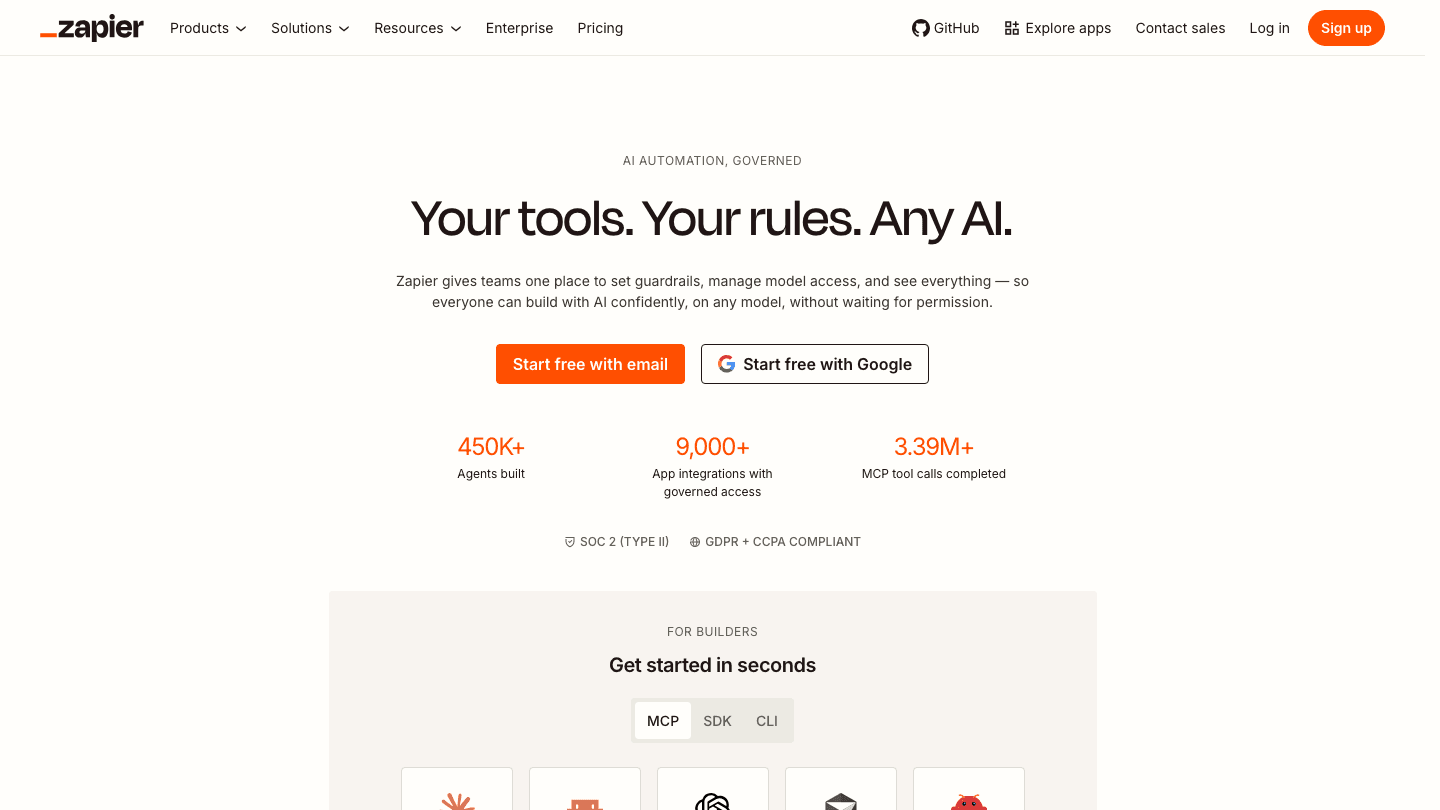
Zapier connects Notion to over 7,000 other apps through simple trigger-and-action automations called Zaps. When something happens in one app, Zapier does something in another. New row in your Notion database: send a Slack message. Form submission via Typeform: create a new Notion database entry. New Notion task assigned: add it to a Google Sheet and send a confirmation email.
The Notion integration is one of Zapier's most popular, and for good reason: Notion's own automation features are limited, and many real-world workflows require data moving between Notion and other systems. Zapier fills that gap without requiring any programming knowledge.
Connects Notion to 7,000+ apps including Slack, Gmail, Google Sheets, Airtable, and more
Trigger-and-action automations with no code required
Free tier includes 100 tasks/month and two-step Zaps
Multi-step Zaps available on paid plans for more complex workflows
What Works: The Notion integration handles both reads (triggering on new database entries) and writes (creating or updating Notion entries from other apps) well. The visual Zap builder makes it accessible even for non-technical users.
Limitations: The free tier's 100 tasks/month goes quickly if you're automating high-volume workflows. Multi-step Zaps (which most serious automations require) need a paid plan from $19.99/mo.
Pricing: Free (100 tasks/mo, two-step Zaps); Professional from $19.99/mo (annual). 14-day free trial of Professional.
Best for: Anyone who wants Notion to talk to other tools automatically, especially teams with recurring workflows that currently require manual data entry.
7. Slack: Best for Connecting Notion to Real-Time Team Chat
Surface Notion content in your team's daily conversation.
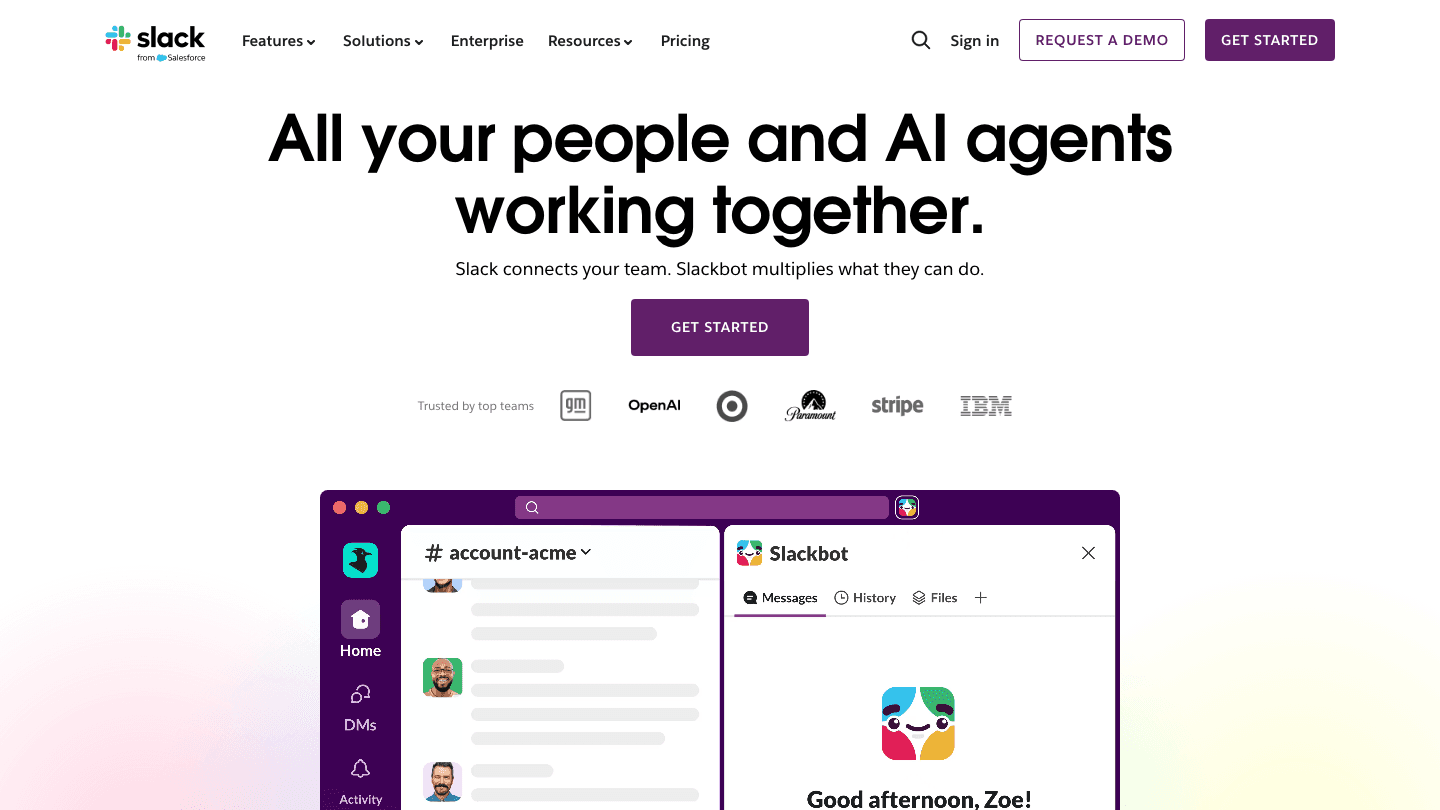
Slack's Notion integration works in two directions. You can share Notion page links in Slack and get rich link previews (page title, icon, and a snippet of content) without anyone needing to leave the conversation. You can also send Slack messages directly to Notion as new database entries or page comments, which is useful for capturing decisions and action items from conversations without manual copy-pasting.
For teams that run projects in Notion but communicate in Slack, this integration reduces the friction of keeping both updated. A decision made in Slack can be captured in Notion in two clicks rather than requiring someone to manually open Notion, find the right page, and type out the summary.
The free Slack tier limits message history to 90 days, which is fine for short-term projects but creates gaps in longer-running initiatives. Paid plans start at $7.25/user/mo on annual billing.
Rich Notion link previews in Slack channels and DMs
Send Slack messages to Notion as database entries or page comments
Notion bot for Slack can surface and search Notion content in conversations
Free tier available; paid plans add unlimited message history
What Works: The link preview alone is worth setting up. Sharing a Notion page in Slack shows a useful preview that gives context without requiring the recipient to open the link. The Notion-to-Slack message flow also saves real time for teams doing async project updates.
Limitations: The integration doesn't sync data automatically; it's primarily a surface-and-share connection rather than a deep bidirectional sync. For deeper automation between Notion and Slack, use Zapier alongside.
Pricing: Free (90-day message history); Pro $7.25/user/mo (annual); Business+ $15/user/mo (annual).
Best for: Teams using Notion for project management and Slack for daily communication who want both tools to feel connected rather than siloed.
Which Apps Should You Add to Notion?
You need Notion tasks turned into a daily schedule: add Lifestack for AI scheduling or Sunsama for a guided daily planning ritual
You want your project dates in a real calendar: start with Notion Calendar (free, no setup)
You read a lot and want highlights in Notion: add Readwise with the Full plan for the Notion export
You want async video in your Notion pages: add Loom and embed recordings directly
You need Notion to connect to other business tools automatically: add Zapier for no-code automation
Your team communicates in Slack: connect the Notion integration for link previews and message capture
You're building a solo stack: Lifestack + Notion Calendar covers 80% of what most individual users need alongside Notion
FAQ
What apps integrate directly with Notion?
Sunsama, Notion Calendar, Readwise, Zapier, and Slack all have native Notion integrations with official support. Zapier's Notion integration is the most powerful for custom workflows. Sunsama's integration is among the best for task-driven daily planning. Lifestack works alongside Notion rather than through a direct API integration, but it pairs naturally with how most Notion task users work.
What is the best app to use with Notion for scheduling?
Lifestack is the best for AI-driven scheduling that builds your day automatically around your energy patterns. Sunsama is the best for manually guided daily planning that pulls Notion tasks into a focused ritual. Notion Calendar is the best for viewing your Notion project dates in a real calendar. See our full roundup of calendar management tools for a broader comparison.
Can Notion replace apps like Asana or Trello?
For many teams, yes. Notion's database views (board, calendar, timeline, table) cover most of what dedicated project management tools do. The main things it can't replace are automated scheduling, native time-tracking, and deep resource management. That's where companion apps like those on this list fill the gaps. See how Notion compares in our posts on apps to use with Trello and apps to use with Todoist.
Is Notion Calendar free?
Yes. Notion Calendar is free for all Notion users. It syncs with your Notion workspace and Google Calendar automatically. It's available on Mac, iOS, and web. There's no paid tier required to access the core calendar functionality.
What is the best free app to use with Notion?
Notion Calendar is the most useful free Notion companion for most users. Slack has a free tier with 90-day message history. Zapier's free plan covers 100 tasks/month (limited but useful for testing). Loom's free tier covers 25 videos at up to 5 minutes each. If you're building a solo Notion stack without a budget, starting with Notion Calendar and Lifestack's free trial gives you the most immediate upgrade to your daily workflow. Our guide to the best task manager apps covers more free-tier options for mobile Notion users.
Notion is one of the most flexible productivity tools on the market. It can be a personal wiki, a project tracker, a content calendar, a CRM, and a knowledge base all at once. That flexibility is exactly why it needs companions: Notion is excellent at organizing information, but it wasn't designed to schedule your day, automate your workflows, or handle async video communication.
The apps on this list fill those gaps. They either integrate directly with Notion to add capabilities it lacks, or they pair naturally with how Notion-heavy teams and solopreneurs work. Some have native Notion connections. Others sit alongside it so naturally that most people end up using them together without thinking about it as an "integration."
We focused on tools that add something Notion genuinely can't do on its own: AI scheduling, daily planning with Notion tasks, reading workflows, async video, automation, and team communication. These are the apps that consistently show up in the stacks of people who use Notion seriously.
Key Takeaways
Lifestack is the best companion if you track tasks in Notion but need those tasks turned into an actual scheduled day, with AI that accounts for your energy levels.
Sunsama is the best option if you want to pull tasks from Notion databases directly into a daily planning ritual.
Zapier is the most powerful for automation, connecting Notion to hundreds of other tools with no code required.
Quick Guide: Best Apps to Use with Notion
1. Lifestack: Best for AI-powered scheduling alongside Notion task management
2. Sunsama: Best for pulling Notion tasks into a focused daily plan
3. Notion Calendar: Best official calendar companion, free for all Notion users
4. Readwise: Best for capturing reading highlights and syncing them to Notion
5. Loom: Best for recording and embedding videos directly in Notion pages
6. Zapier: Best for automating Notion workflows with other apps
7. Slack: Best for connecting Notion-based work to real-time team communication
How We Evaluated
Quality of Notion integration: does it connect natively, or require workarounds?
What it adds: does it solve something Notion genuinely can't do alone?
Ease of setup: how fast can you get the two tools working together?
Pricing: is there a free tier or trial to test the combination before committing?
Use case fit: solo user vs. team, knowledge work vs. project management
1. Lifestack: Best AI Scheduler for Notion Users
Turn your Notion tasks into a real schedule, automatically.
The most common frustration for Notion power users: you have a beautifully organized task database, but it never tells you what to work on today or when. Notion is excellent at storing and tracking; it's not a daily planner. Lifestack is the missing piece.
Lifestack is an AI planner app that reads your calendars and task list, then builds your daily schedule automatically. It schedules deep work during your peak energy windows and lighter tasks during natural low-focus periods. For Notion users who maintain their tasks in a Notion database and then export or manually re-enter them elsewhere to get a daily plan, Lifestack eliminates that friction. You capture in Notion; Lifestack turns the output into a scheduled day.
The energy-aware scheduling is what sets it apart from other scheduling apps. It's not filling calendar slots based on availability alone. It's matching task type to the kind of focus the task actually requires.
AI auto-scheduling that builds your full day from your task list
Energy-aware time-blocking: deep work goes to peak hours, admin to low-energy slots
Syncs with Google Calendar, Outlook, and Apple Calendar
Available on iOS, Android, and Chrome
What Works: The combination of Notion for task capture and Lifestack for daily scheduling is one of the cleanest two-tool stacks available. Notion handles the complexity of your project structure; Lifestack handles the daily execution puzzle.
Limitations: No direct Notion API integration yet. You capture tasks in Notion and manage your active task queue in Lifestack or your connected calendar. For many users, this workflow is actually cleaner than a tight integration would be.
Pricing: $7/mo or $50/yr. Annual plan includes a 7-day free trial.
Best for: Notion users who need AI to convert their task databases into a real, energy-aware daily schedule.
2. Sunsama: Best for Notion Task-Driven Daily Planning
Your Notion tasks, pulled into a focused daily ritual.
Sunsama has a native Notion integration that pulls tasks from your Notion databases directly into its daily planning interface. Each morning, Sunsama walks you through choosing what to work on that day, and your Notion tasks appear as options to add to your plan. When you complete a task in Sunsama, the status updates back in Notion.
That bidirectional sync is genuinely useful for anyone who uses Notion as their primary project database. Instead of switching between Notion for tracking and a separate calendar for scheduling, Sunsama surfaces the right Notion tasks at the right moment in your morning planning ritual.
The daily planning ritual itself is Sunsama's core differentiator: a guided, intentional process of selecting your priorities, time-boxing them, and shutting down at the end of the day. For Notion users who feel like they have great organization but poor daily execution, this is the tool most often recommended.
Native Notion integration with bidirectional task status sync
Guided daily planning and shutdown ritual
Pulls from Asana, Jira, Linear, GitHub, Gmail, and more alongside Notion
14-day free trial, no credit card required
What Works: The Notion integration is one of the best on the market. Tasks pull cleanly, statuses sync back, and the daily planning ritual gives structure to what would otherwise be a passive task list.
Limitations: No AI auto-scheduling. You still manually choose what goes into your day. At $22/mo, it's the most expensive app on this list. The ritual requires consistent daily buy-in to deliver value.
Pricing: $22/mo or $17/mo billed annually ($204/yr). 14-day free trial.
Best for: Notion users who want their database tasks to drive a structured, intentional daily planning practice.
3. Notion Calendar: Best Free Scheduling Companion
The official Notion calendar, free for everyone.
Notion Calendar is Notion's own standalone calendar app, built from the Cron acquisition. It connects directly to your Notion workspace and shows Notion database events (meetings, deadlines, project milestones) alongside your Google Calendar events in a single view.
The native integration works cleanly in a way that third-party calendar connections rarely do. Notion database entries that have a date property appear automatically in the calendar. You can also create Notion database entries directly from the calendar, which is particularly useful for project-tracked meetings or events.
For calendar management that stays inside the Notion ecosystem, this is the obvious starting point. It's free, it installs in minutes, and it eliminates the disconnect between your Notion project dates and your actual calendar.
Native Notion workspace integration with automatic date property sync
Google Calendar integration in the same view
Create Notion database entries directly from the calendar
Available on Mac, iOS, and web
What Works: Zero configuration for Notion database date sync. It just works. The free pricing makes it the default recommendation for any Notion user who also needs a calendar view of their projects.
Limitations: More calendar than daily planner. No AI scheduling, no task management features beyond what Notion provides. If you need deeper scheduling automation, pair it with Lifestack or Sunsama.
Pricing: Free for all Notion users.
Best for: Any Notion user who wants their project dates visible in a real calendar without leaving the Notion ecosystem.
4. Readwise: Best for Building a Notion Knowledge Base
Every highlight you save, automatically exported to Notion.
Readwise captures your highlights from books (Kindle, physical), articles, newsletters, PDFs, and podcasts, then sends them to Notion automatically. Each source gets its own Notion page, organized with tags, notes, and the full metadata. If you're building a knowledge base in Notion and doing serious reading, Readwise is the tool that connects those two activities.
The daily review feature sends you a small batch of past highlights each morning by email or in-app, using a spaced repetition algorithm to surface things you're likely to have forgotten. Combined with Notion, this creates a reading system where highlights land in your workspace automatically and resurface regularly enough to actually stick.
Captures highlights from Kindle, Apple Books, PDFs, articles, and podcasts
Native Notion export with automatic organization by source and tag
Daily review with spaced repetition for retention
Readwise Reader included in the Full plan
What Works: The Notion export is excellent. Highlights land cleanly in dedicated database pages, tagged and searchable. For anyone doing research, writing, or learning in Notion, this eliminates manual copy-pasting entirely.
Limitations: No free tier after the 30-day trial. The Lite plan (no Notion export) is less useful for this specific use case; you'll need the Full plan.
Pricing: 30-day free trial; Lite $5.59/mo (annual); Full $9.99/mo (annual, includes Notion export and Readwise Reader).
Best for: Researchers, writers, and knowledge workers who read heavily and want their highlights organized in their Notion workspace automatically.
5. Loom: Best for Async Video in Notion Pages
Record a two-minute video instead of writing a five-paragraph explanation.
Loom (now part of Atlassian) lets you record your screen, camera, or both, then share the video via a link. Notion pages accept embedded Loom links natively, which means you can add a Loom recording directly to any page as a visual explanation, walkthrough, or update. The video plays inline without leaving Notion.
This combination is useful for teams running projects or documentation in Notion. Instead of writing out a complex process in a Notion page, you can record a 90-second walkthrough and embed it. Viewers can comment on specific timestamps directly in Loom, and you can link those responses back to the Notion page.
The free tier is generous enough for light use. If you're doing weekly team video updates or occasional process documentation, the 25-video limit with a 5-minute cap covers most of what you'd need.
Embeds directly in Notion pages as inline playable video
Screen recording, camera recording, or both simultaneously
Timestamp commenting for async feedback
AI features for transcription, summaries, and filler word removal (Business+ AI)
What Works: The Notion embed is frictionless. Paste a Loom link into a Notion page and it becomes an embedded player automatically. For async-first teams or solopreneurs sending client deliverables, Loom inside Notion is a genuinely better communication channel than long written explanations.
Limitations: The free tier caps videos at 5 minutes. AI features require the $24/user/mo Business+ AI plan, which adds up quickly for larger teams.
Pricing: Free (25 videos, 5-min cap); Business $18/user/mo; Business + AI $24/user/mo.
Best for: Teams using Notion for documentation or project management who want async video as part of their communication workflow.
6. Zapier: Best for Automating Notion Workflows
Connect Notion to thousands of other apps without writing code.
Zapier connects Notion to over 7,000 other apps through simple trigger-and-action automations called Zaps. When something happens in one app, Zapier does something in another. New row in your Notion database: send a Slack message. Form submission via Typeform: create a new Notion database entry. New Notion task assigned: add it to a Google Sheet and send a confirmation email.
The Notion integration is one of Zapier's most popular, and for good reason: Notion's own automation features are limited, and many real-world workflows require data moving between Notion and other systems. Zapier fills that gap without requiring any programming knowledge.
Connects Notion to 7,000+ apps including Slack, Gmail, Google Sheets, Airtable, and more
Trigger-and-action automations with no code required
Free tier includes 100 tasks/month and two-step Zaps
Multi-step Zaps available on paid plans for more complex workflows
What Works: The Notion integration handles both reads (triggering on new database entries) and writes (creating or updating Notion entries from other apps) well. The visual Zap builder makes it accessible even for non-technical users.
Limitations: The free tier's 100 tasks/month goes quickly if you're automating high-volume workflows. Multi-step Zaps (which most serious automations require) need a paid plan from $19.99/mo.
Pricing: Free (100 tasks/mo, two-step Zaps); Professional from $19.99/mo (annual). 14-day free trial of Professional.
Best for: Anyone who wants Notion to talk to other tools automatically, especially teams with recurring workflows that currently require manual data entry.
7. Slack: Best for Connecting Notion to Real-Time Team Chat
Surface Notion content in your team's daily conversation.
Slack's Notion integration works in two directions. You can share Notion page links in Slack and get rich link previews (page title, icon, and a snippet of content) without anyone needing to leave the conversation. You can also send Slack messages directly to Notion as new database entries or page comments, which is useful for capturing decisions and action items from conversations without manual copy-pasting.
For teams that run projects in Notion but communicate in Slack, this integration reduces the friction of keeping both updated. A decision made in Slack can be captured in Notion in two clicks rather than requiring someone to manually open Notion, find the right page, and type out the summary.
The free Slack tier limits message history to 90 days, which is fine for short-term projects but creates gaps in longer-running initiatives. Paid plans start at $7.25/user/mo on annual billing.
Rich Notion link previews in Slack channels and DMs
Send Slack messages to Notion as database entries or page comments
Notion bot for Slack can surface and search Notion content in conversations
Free tier available; paid plans add unlimited message history
What Works: The link preview alone is worth setting up. Sharing a Notion page in Slack shows a useful preview that gives context without requiring the recipient to open the link. The Notion-to-Slack message flow also saves real time for teams doing async project updates.
Limitations: The integration doesn't sync data automatically; it's primarily a surface-and-share connection rather than a deep bidirectional sync. For deeper automation between Notion and Slack, use Zapier alongside.
Pricing: Free (90-day message history); Pro $7.25/user/mo (annual); Business+ $15/user/mo (annual).
Best for: Teams using Notion for project management and Slack for daily communication who want both tools to feel connected rather than siloed.
Which Apps Should You Add to Notion?
You need Notion tasks turned into a daily schedule: add Lifestack for AI scheduling or Sunsama for a guided daily planning ritual
You want your project dates in a real calendar: start with Notion Calendar (free, no setup)
You read a lot and want highlights in Notion: add Readwise with the Full plan for the Notion export
You want async video in your Notion pages: add Loom and embed recordings directly
You need Notion to connect to other business tools automatically: add Zapier for no-code automation
Your team communicates in Slack: connect the Notion integration for link previews and message capture
You're building a solo stack: Lifestack + Notion Calendar covers 80% of what most individual users need alongside Notion
FAQ
What apps integrate directly with Notion?
Sunsama, Notion Calendar, Readwise, Zapier, and Slack all have native Notion integrations with official support. Zapier's Notion integration is the most powerful for custom workflows. Sunsama's integration is among the best for task-driven daily planning. Lifestack works alongside Notion rather than through a direct API integration, but it pairs naturally with how most Notion task users work.
What is the best app to use with Notion for scheduling?
Lifestack is the best for AI-driven scheduling that builds your day automatically around your energy patterns. Sunsama is the best for manually guided daily planning that pulls Notion tasks into a focused ritual. Notion Calendar is the best for viewing your Notion project dates in a real calendar. See our full roundup of calendar management tools for a broader comparison.
Can Notion replace apps like Asana or Trello?
For many teams, yes. Notion's database views (board, calendar, timeline, table) cover most of what dedicated project management tools do. The main things it can't replace are automated scheduling, native time-tracking, and deep resource management. That's where companion apps like those on this list fill the gaps. See how Notion compares in our posts on apps to use with Trello and apps to use with Todoist.
Is Notion Calendar free?
Yes. Notion Calendar is free for all Notion users. It syncs with your Notion workspace and Google Calendar automatically. It's available on Mac, iOS, and web. There's no paid tier required to access the core calendar functionality.
What is the best free app to use with Notion?
Notion Calendar is the most useful free Notion companion for most users. Slack has a free tier with 90-day message history. Zapier's free plan covers 100 tasks/month (limited but useful for testing). Loom's free tier covers 25 videos at up to 5 minutes each. If you're building a solo Notion stack without a budget, starting with Notion Calendar and Lifestack's free trial gives you the most immediate upgrade to your daily workflow. Our guide to the best task manager apps covers more free-tier options for mobile Notion users.

FOLLOW ON
FOLLOW ON
FOLLOW ON


Copyright 2026 © Lifestack. All rights reserved
Copyright 2026 © Lifestack. All rights reserved

