
App
Best Calendar Management Tools in 2026
Best Calendar Management Tools in 2026
A calendar app is supposed to make your week run. For a lot of people it does the opposite. Notifications fire all day. Meetings stack on top of meetings. The work you actually need to do never gets a slot on the grid. By Friday you've been busy for five days and accomplished about two of the things on your list.
The fix isn't a fancier calendar. It's a calendar management tool that does some of the thinking for you: blocks focus time before meetings devour it, reschedules around overruns, and pulls tasks from your to-do app into actual time slots on the day they're due. We spent the last few weeks living inside six of the most-recommended options and came out with clear winners depending on what you need.
This guide is written for individuals managing their own time, not for IT admins rolling out enterprise scheduling. We weighted real-world usability over feature checklists. If a tool sounded good on paper but felt punishing to use after three days, it didn't make the cut.
Key Takeaways
AI auto-scheduling is now table stakes. The interesting differentiation is what data each tool uses to decide what goes where.
Tools that integrate with sleep and recovery wearables (Oura, WHOOP, Apple Watch) plan better days than ones that only see your calendar.
Free calendar apps work if your week is mostly meetings. Paid AI calendar tools earn their cost only if you spend more than three hours a day on focused work.
The Quick Guide
Lifestack: energy-aware AI calendar that reads your wearable data. Best overall pick for individuals who do focused work.
Motion: auto-scheduling AI for project-heavy work. Strong if your day is mostly task-based.
Sunsama: daily-planning calendar that forces deliberate planning. Best for chronic over-committers.
Akiflow: unified inbox for tasks across Slack, Gmail, Notion, and more. Best if your work scatters across tools.
Fantastical: power-user calendar with natural-language event entry. Best for Apple-ecosystem users who want a polished traditional calendar.
Notion Calendar: free, clean, well-designed. Best free option if you're already in Notion.
How We Evaluated
Auto-scheduling intelligence: does it actually schedule your work or just display events?
Energy and recovery awareness: does it know whether you're ready for a hard day or running on empty?
Integrations: Google, Outlook, iCloud, plus tasks from Todoist, Linear, Notion, etc.
Rescheduling behavior: when something runs long, does the app gracefully rebuild the day?
Pricing relative to value: does it earn its cost for individual users, not just enterprise teams?
Mobile and desktop parity: does the experience hold up on the device you actually use?
1. Lifestack: Best Overall AI Calendar
Energy-aware scheduling for people who do focused work, not just meetings.
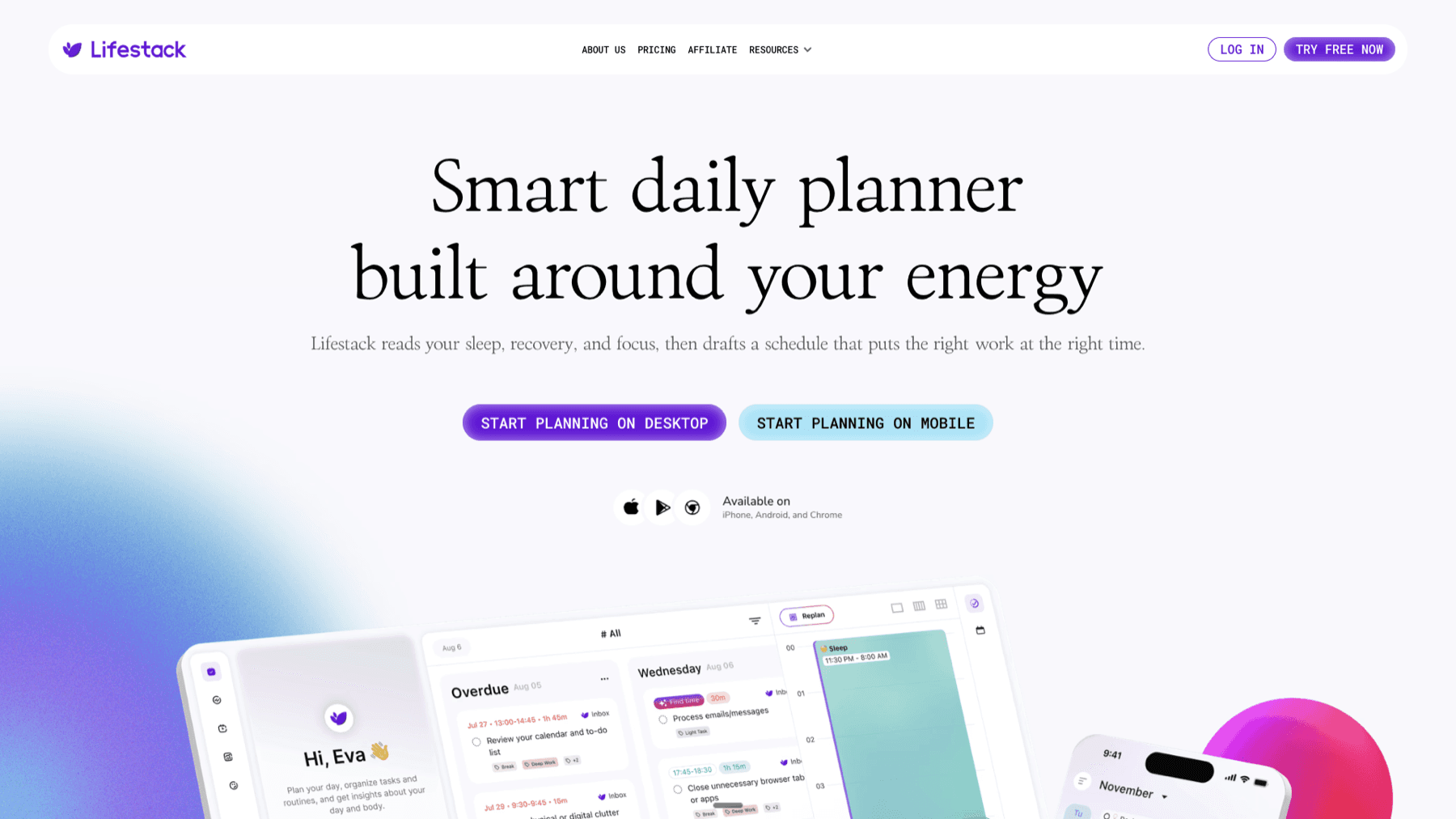
Lifestack is the calendar tool we ended up keeping installed after this whole review. The pitch is simple: every other AI scheduler treats every Tuesday like every other Tuesday. Lifestack reads your sleep score, HRV, and recovery data from Oura, WHOOP, Apple Watch, or Garmin and adjusts the day's plan to what your body and brain are actually ready for.
In practice that means on a day after bad sleep, your deep-work block gets pushed back two hours and your hard meetings get nudged. On a day when recovery is high, the schedule front-loads the demanding stuff. You can override it anytime, but the default suggestions feel like they were made by someone who actually saw your week, not a generic productivity AI.
Key Features
Reads sleep and recovery from Oura, WHOOP, Apple Watch, Garmin, Fitbit, Ultrahuman
Energy-based time blocking for deep work, admin, and meetings
Pulls tasks from Todoist, Google Tasks, and other inboxes
Reschedules automatically when meetings run long or change
Wind-down timing tuned to your actual sleep need, not a generic 10pm
What Works
The recovery-aware planning genuinely changes how the day goes on a bad-sleep morning
Mobile, desktop, and Chrome extension all stay in sync
Fast setup. Connect your calendar and wearable and you're getting useful plans inside a day
Limitations
Most useful if you wear a tracking device. Works without one, but the unique value comes from the biometric integration
No team-scheduling features. This is a single-user tool, not a meeting-coordination platform
Pricing: $7/month, $50/year (7-day free trial on annual), or $120 lifetime. iOS, Android, Chrome extension.
Best for: Knowledge workers, founders, and anyone whose week is a mix of focused work and reactive meetings. Especially if you already wear a recovery tracker.
2. Motion: Best for Pure Auto-Scheduling
Throws your tasks on the calendar so you don't have to decide when.
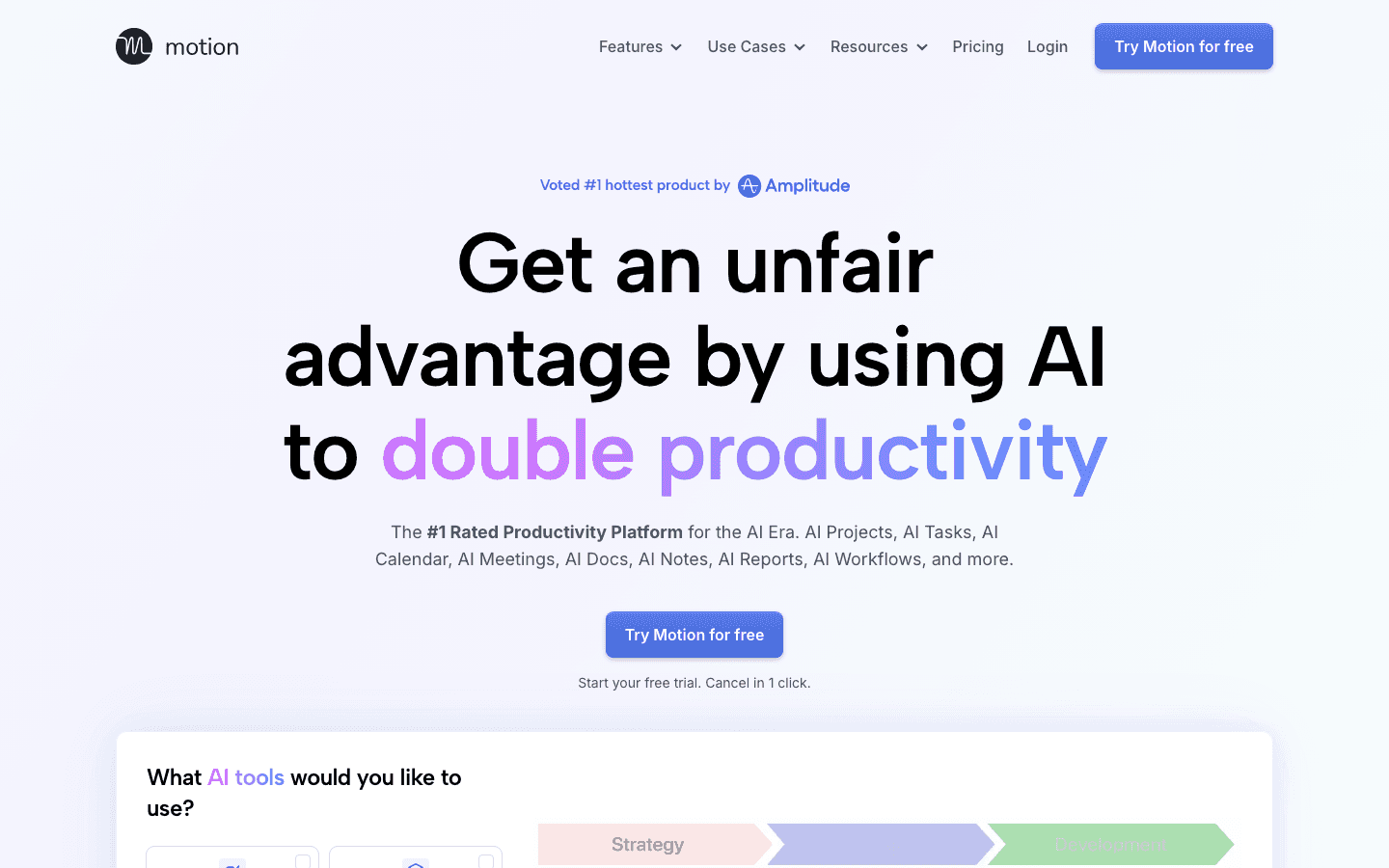
Motion was the first AI calendar to get auto-scheduling right at scale. You add tasks with a deadline and a priority. Motion finds the slots. When something runs long or a new meeting drops in, it rebuilds the schedule on the fly. For someone running multiple projects with hard deadlines, that automation removes a lot of daily decision-making.
The catch is that Motion plans based on availability and priority, not on you. It doesn't know whether you slept five hours or eight, and the day after a brutal night will look identical to the day after a great one. For some people that's fine. For people whose output depends on managing their energy, it can feel like the calendar is fighting them.
Key Features
Auto-schedules tasks based on deadlines, priorities, and calendar gaps
Rebuilds the schedule when meetings run over or new ones arrive
Project management features bolted on (Kanban boards, dependencies)
Meeting templates and booking pages
What Works
The auto-scheduling is genuinely useful if your day is mostly task-based
Strong project-tracking features for managing client work
Limitations
No energy or recovery awareness. Plans the same on bad-sleep days as on good ones
Pricing is steep, especially compared to lighter-weight alternatives
The UI is dense. Onboarding takes longer than most tools on this list
Pricing: $19/seat/month (Pro AI) or $29/seat/month (Business AI), with 33% off annual billing. Free trial available.
Best for: Solo operators with task-heavy workloads, agencies juggling client projects, anyone who lives by deadlines and wants the calendar to handle them.
3. Sunsama: Best for Deliberate Daily Planning
Forces you to plan the day before the day plans you.
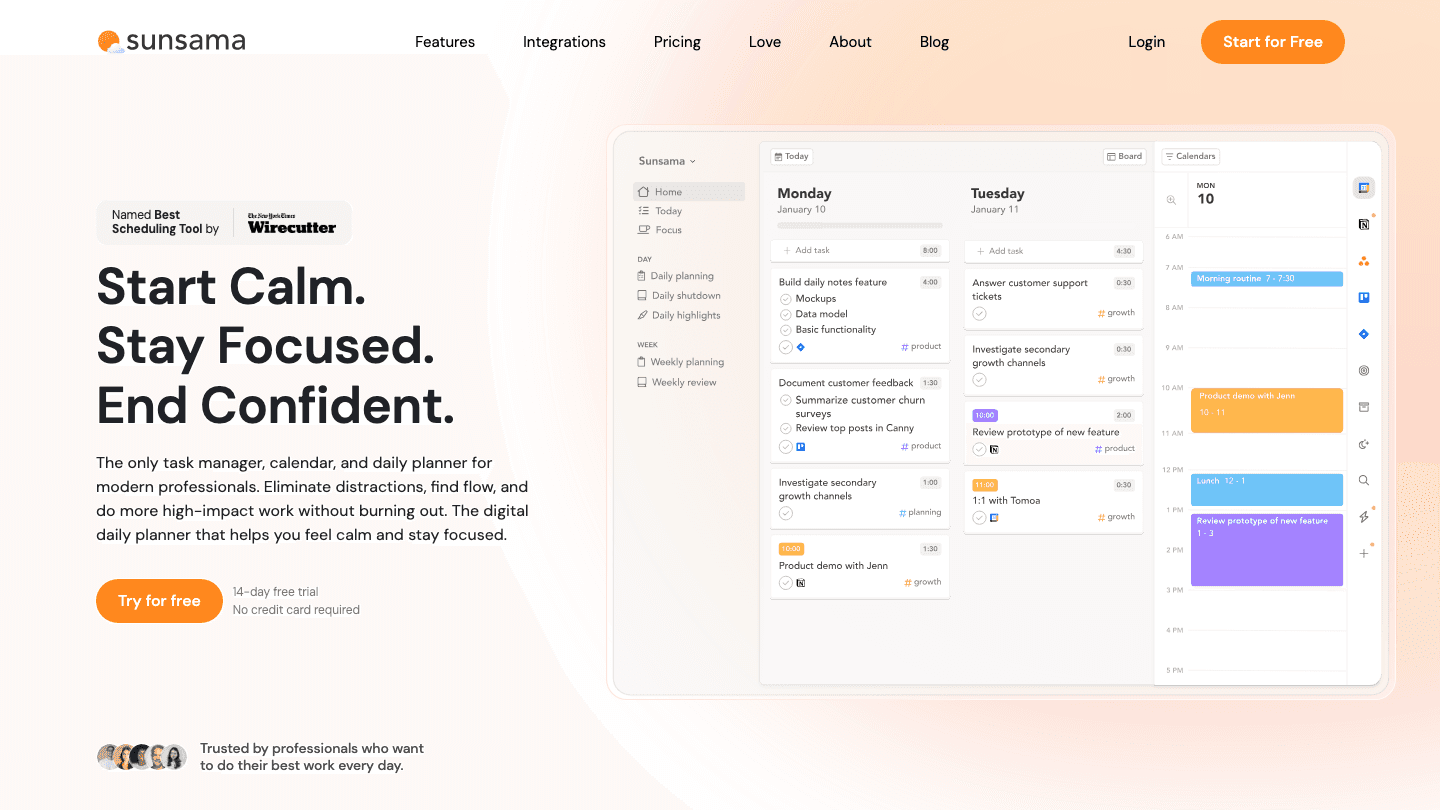
Sunsama takes a deliberate stance against AI auto-scheduling. The premise is that the act of planning your day yourself, with intention, produces better outcomes than handing it to an algorithm. Every morning you sit down with Sunsama, drag tasks from your other tools (email, Slack, Trello, Notion, Jira) into today's plan, and estimate how long each will take. If the time doesn't fit the day, you have to cut things.
That manual planning step takes 15 minutes a day. For chronic over-committers, those 15 minutes are worth the cost of the tool by themselves. Once you've explicitly said "no, that doesn't fit today," it's much easier to actually finish what you said yes to.
Key Features
Daily and weekly planning rituals that pull from email, Slack, and task apps
Time estimates per task with running total against your available hours
Focus timer with shutdown ritual at end of day
Integrations: Gmail, Outlook, Slack, Trello, Asana, Linear, Notion, Jira, Todoist
What Works
The daily ritual genuinely changes how realistic your plans are
The shutdown ritual at end of day is rare and useful
Limitations
No auto-scheduling. If you want the calendar to plan itself, this isn't the tool
No energy or recovery integration
Pricing is higher than tools with similar feature sets
Pricing: $20/month or $17/month billed annually. 14-day free trial, no card required.
Best for: People who consistently over-commit and need a structural intervention. Less useful if your problem is finding time to do work, more useful if your problem is being honest about what fits in a day.
4. Akiflow: Best for Scattered Workflows
Pulls every task source into one calendar inbox.
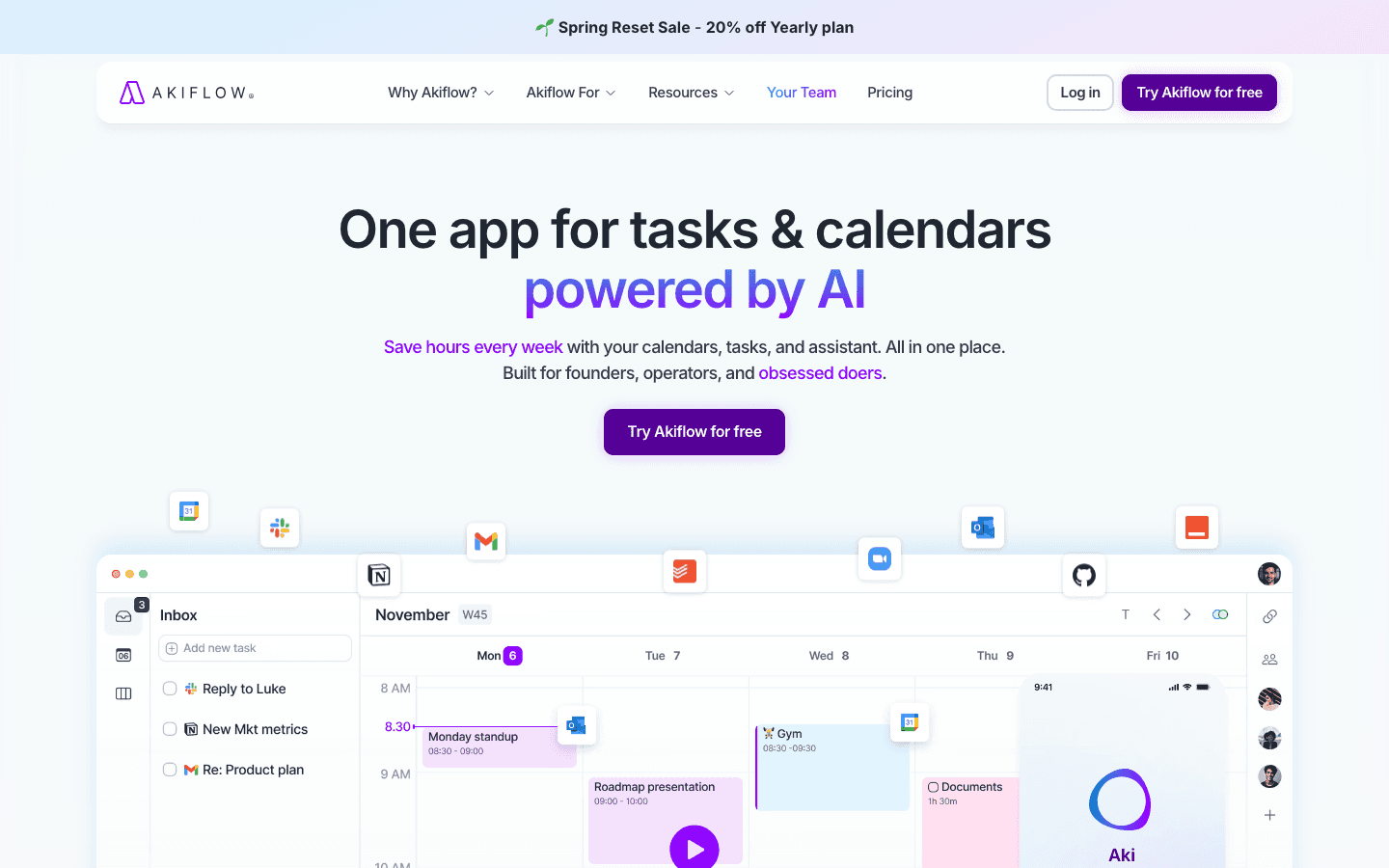
Akiflow solves a specific problem: tasks scattered across Slack, Gmail, Notion, Jira, Linear, ClickUp, and four other places. Akiflow connects to all of them, pulls every actionable item into a single inbox, and lets you time-block it onto your calendar with a keyboard shortcut. For people whose work crosses 6+ tools daily, that consolidation alone is worth the price.
The downside is that Akiflow is task management plus calendar, not really a planner. It expects you to know what to do with each item. The recently added Aki AI assistant adds some suggestion-based planning, but Akiflow still feels best as a power tool for people who already have a planning system and need a faster surface.
Key Features
Universal inbox pulling from Gmail, Slack, Notion, Jira, Linear, ClickUp, Trello, GitHub, Asana, Todoist
Drag-and-drop time blocking onto Google or Outlook calendar
Keyboard-first interface with command palette
Aki AI assistant for task triage and planning suggestions
What Works
The integration breadth genuinely consolidates a fragmented day
Keyboard-first design is fast once you learn it
Limitations
No energy or recovery awareness
Pricing is the steepest on this list. The monthly plan is hard to justify
Mobile experience is behind the desktop one
Pricing: $34/month, or $19/month billed annually. 7-day free trial. See our full Akiflow alternatives roundup for cheaper options.
Best for: Knowledge workers whose tasks live across many tools and who need a single keyboard-driven surface to manage them.
5. Fantastical: Best Polished Traditional Calendar
Premium calendar for the Apple ecosystem with natural-language event entry.
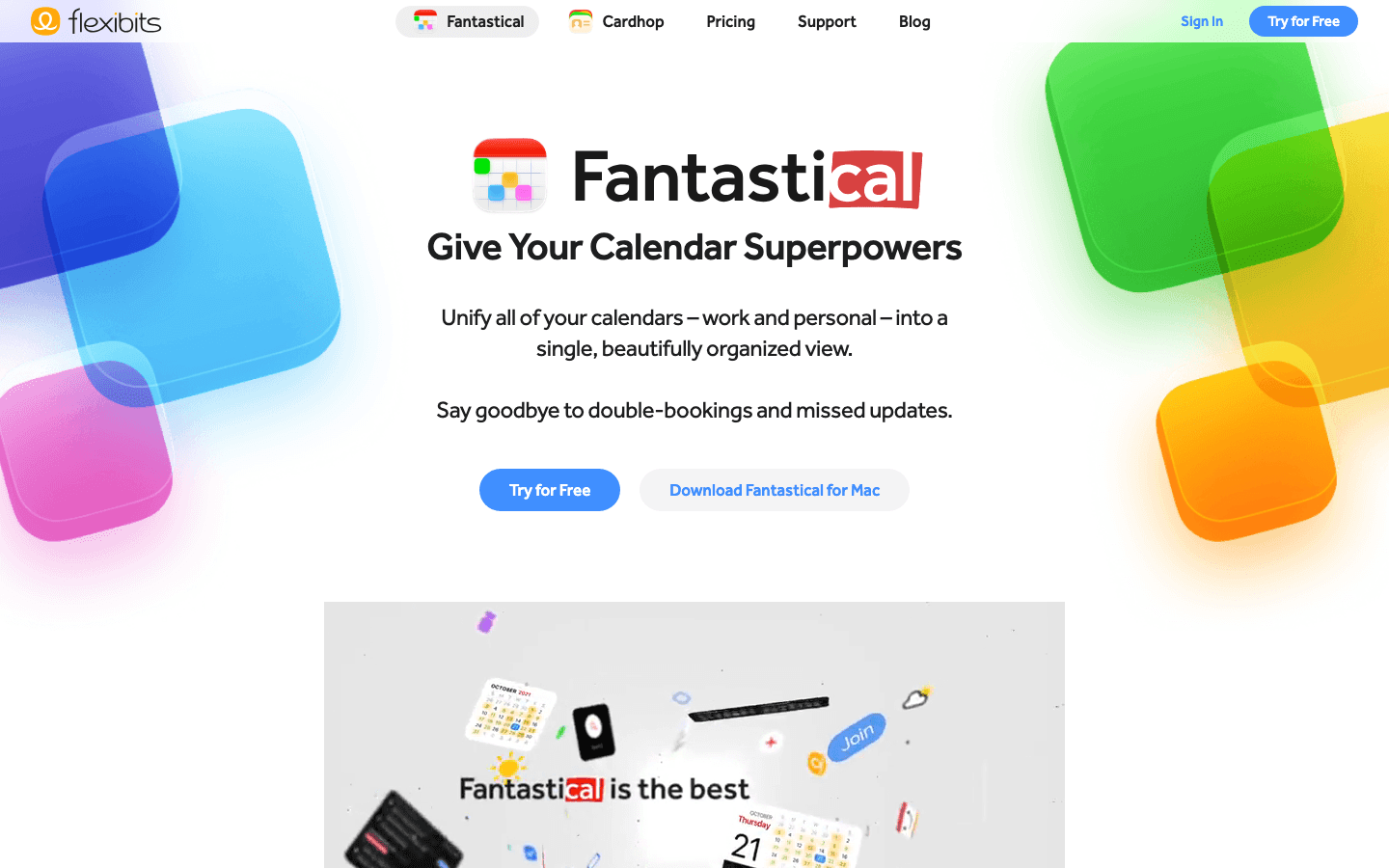
Fantastical isn't an AI calendar and doesn't pretend to be. It's a beautifully built traditional calendar with strong Apple integration, natural-language event creation ("lunch with Jamie Thursday at noon" becomes a parsed event), and proposals/openings features for one-off scheduling. If your week is mostly meetings, you live in the Apple ecosystem, and you don't need AI to plan your day, Fantastical is the cleanest experience available.
We include it here because not everyone needs an algorithm running their week. Some people just need a calendar that doesn't get in the way. Fantastical does that, and does it more elegantly than the default Apple Calendar on iOS, iPadOS, macOS, and Apple Watch.
Key Features
Natural-language event parsing across all platforms
Weather forecasts in the daily view
Meeting proposals and openings for one-on-one scheduling
Excellent Apple Watch and CarPlay integration
What Works
Best-in-class polish across the Apple ecosystem
Natural-language entry is fast once muscle memory kicks in
Limitations
No auto-scheduling. No task pulling. No energy awareness
Windows and Android support is limited or absent
Premium features are bundled across Fantastical and Cardhop, which can feel like paying for things you don't use
Pricing: Free tier available. Premium subscription required for scheduling features, proposals, and advanced views. 14-day free trial on Premium.
Best for: Apple-only users with meeting-heavy weeks who want a polished traditional calendar without AI getting involved.
6. Notion Calendar: Best Free Option
Clean, free, and pairs naturally with Notion.
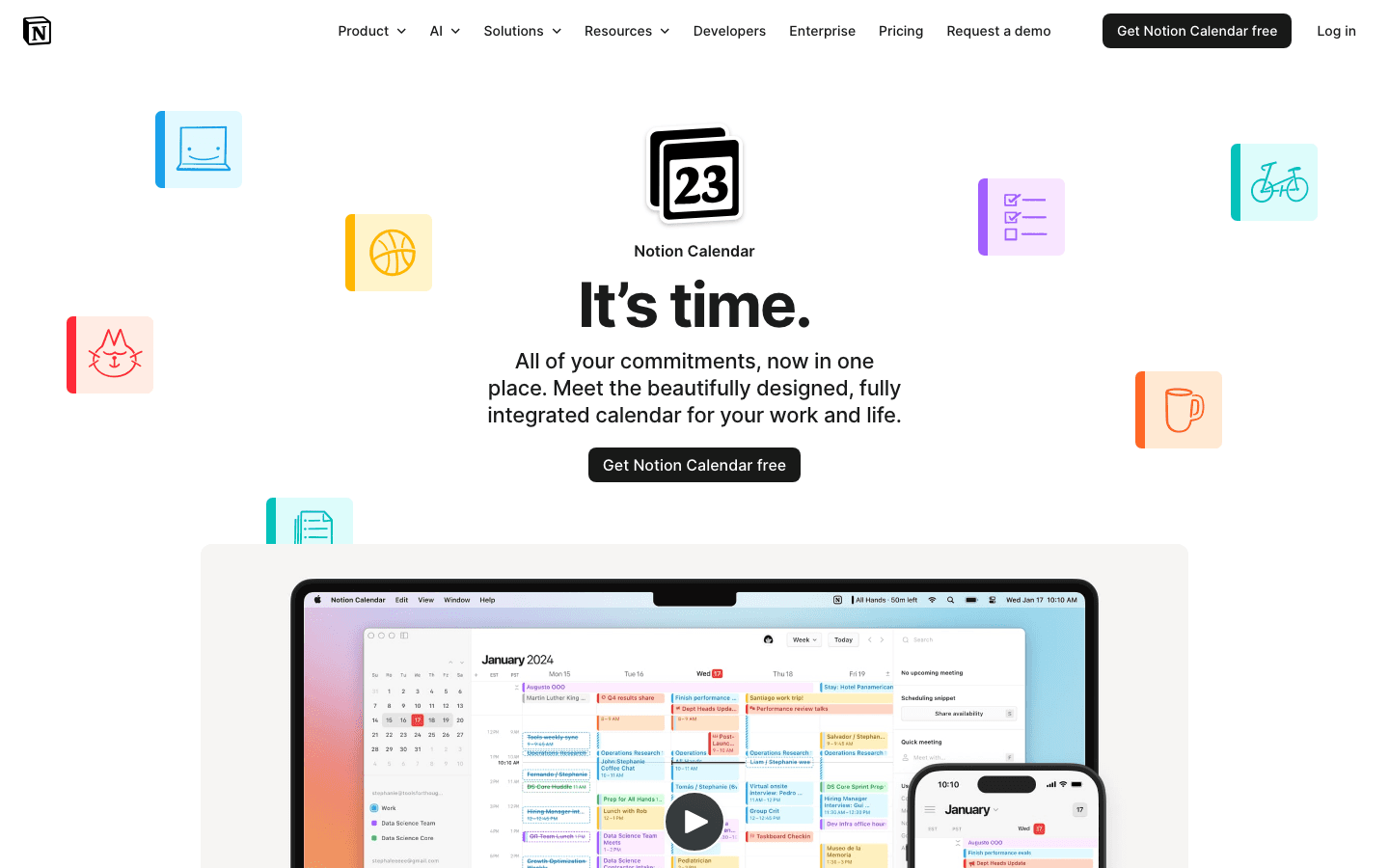
Notion Calendar (the rebranded Cron) is free and probably the best-designed calendar you can use without paying anything. Connects to Google Calendar, integrates cleanly with Notion databases so you can pull task pages onto the grid, and has fast keyboard navigation. There's no AI scheduling, no task auto-prioritization, no energy awareness. Just a sharp, fast, free calendar.
If you're already running your task system in Notion, this is the path of least resistance. It's also the right pick if you're not yet sure whether AI calendar tools are worth paying for. Use Notion Calendar for a month, see what you actually wish the calendar did, then upgrade only to a tool that does that specific thing.
Key Features
Free for individual use
Native Notion database integration: drop pages onto the calendar grid
Multi-calendar view across Google accounts
Fast keyboard navigation and command palette
What Works
Clean design and fast performance
Free, with no feature gates on individuals
Limitations
Google Calendar only. No native Outlook or iCloud support
No auto-scheduling, no task pulling beyond Notion, no energy awareness
Limited Windows support
Pricing: Free for individual use.
Best for: Notion power users, people not ready to pay for an AI calendar yet, anyone who just wants a fast, clean grid view.
Which Calendar Management Tool Is Right for You?
You wear an Oura/WHOOP/Apple Watch and do focused work: Lifestack. The recovery-aware scheduling is the only thing on this list that adapts to how you actually feel.
You manage 5+ client projects with deadlines: Motion. Pure auto-scheduling is its strength.
You over-commit every week and need a forced reality check: Sunsama. The daily planning ritual is the intervention.
Your tasks scatter across 6+ tools: Akiflow. The universal inbox is the value.
You live in Apple's ecosystem and want a polished traditional calendar: Fantastical.
You're not paying for a calendar app yet: Notion Calendar. Use it until you know what you actually want.
Frequently Asked Questions
What are calendar management tools?
Calendar management tools are apps that go beyond displaying events. They add features like auto-scheduling tasks into calendar gaps, pulling work items from other tools (email, Slack, task managers) into time blocks, rescheduling when meetings run long, and in some cases adjusting the day's plan based on your sleep or recovery data. The category sits between traditional calendars (Google, Outlook, Apple) and project management tools (Asana, Trello).
Do I need an AI calendar tool?
Only if you spend more than three hours a day on focused work that needs to be scheduled. If your calendar is mostly meetings other people booked, a traditional calendar like Notion Calendar or Fantastical handles your needs. AI calendar tools earn their cost when you have to actively decide when to do each piece of work, and the decision is expensive.
What's the difference between Motion, Sunsama, and Lifestack?
Motion auto-schedules your tasks for you. Sunsama makes you plan your own day deliberately, in a ritual. Lifestack schedules around your actual energy and recovery state, adapting the plan to whether you're rested or running on fumes. They solve different problems. Motion removes scheduling decisions. Sunsama forces honest planning. Lifestack ties the plan to your biology.
Are there free calendar management tools that actually work?
Notion Calendar is the strongest free option. It's well-designed, integrates with Google Calendar, and pulls Notion pages onto the grid. Beyond that, free tiers tend to be heavily limited. Most of the value of paid tools (AI scheduling, multi-app integration, energy awareness) sits behind their paywalls.
Can I use a calendar management tool with Google Calendar?
All six tools in this list connect to Google Calendar as the primary backing calendar. Lifestack, Motion, Akiflow, and Notion Calendar work with it natively. Sunsama syncs bidirectionally. Fantastical reads from it but with weaker integration than its iCloud support. Outlook support varies more, with Motion and Sunsama strong, others weaker.
How do I switch from one calendar app to another?
You don't actually switch. The underlying calendar (Google, Outlook, iCloud) stays. You switch the front-end app that reads and writes to it. That means trying a new tool is low-risk: install, connect, try it for a week, uninstall if it doesn't fit. Your events don't go anywhere because they live in the source calendar, not in any specific app.
What's the best calendar tool for ADHD?
Tools that reduce the number of decisions required tend to work better for ADHD brains. Auto-scheduling tools (Motion, Lifestack) remove the "when do I do this" decision that often produces paralysis. The energy-based approach also tends to fit better because it accepts that some days are productive and some aren't, instead of demanding consistent performance.
A calendar app is supposed to make your week run. For a lot of people it does the opposite. Notifications fire all day. Meetings stack on top of meetings. The work you actually need to do never gets a slot on the grid. By Friday you've been busy for five days and accomplished about two of the things on your list.
The fix isn't a fancier calendar. It's a calendar management tool that does some of the thinking for you: blocks focus time before meetings devour it, reschedules around overruns, and pulls tasks from your to-do app into actual time slots on the day they're due. We spent the last few weeks living inside six of the most-recommended options and came out with clear winners depending on what you need.
This guide is written for individuals managing their own time, not for IT admins rolling out enterprise scheduling. We weighted real-world usability over feature checklists. If a tool sounded good on paper but felt punishing to use after three days, it didn't make the cut.
Key Takeaways
AI auto-scheduling is now table stakes. The interesting differentiation is what data each tool uses to decide what goes where.
Tools that integrate with sleep and recovery wearables (Oura, WHOOP, Apple Watch) plan better days than ones that only see your calendar.
Free calendar apps work if your week is mostly meetings. Paid AI calendar tools earn their cost only if you spend more than three hours a day on focused work.
The Quick Guide
Lifestack: energy-aware AI calendar that reads your wearable data. Best overall pick for individuals who do focused work.
Motion: auto-scheduling AI for project-heavy work. Strong if your day is mostly task-based.
Sunsama: daily-planning calendar that forces deliberate planning. Best for chronic over-committers.
Akiflow: unified inbox for tasks across Slack, Gmail, Notion, and more. Best if your work scatters across tools.
Fantastical: power-user calendar with natural-language event entry. Best for Apple-ecosystem users who want a polished traditional calendar.
Notion Calendar: free, clean, well-designed. Best free option if you're already in Notion.
How We Evaluated
Auto-scheduling intelligence: does it actually schedule your work or just display events?
Energy and recovery awareness: does it know whether you're ready for a hard day or running on empty?
Integrations: Google, Outlook, iCloud, plus tasks from Todoist, Linear, Notion, etc.
Rescheduling behavior: when something runs long, does the app gracefully rebuild the day?
Pricing relative to value: does it earn its cost for individual users, not just enterprise teams?
Mobile and desktop parity: does the experience hold up on the device you actually use?
1. Lifestack: Best Overall AI Calendar
Energy-aware scheduling for people who do focused work, not just meetings.
Lifestack is the calendar tool we ended up keeping installed after this whole review. The pitch is simple: every other AI scheduler treats every Tuesday like every other Tuesday. Lifestack reads your sleep score, HRV, and recovery data from Oura, WHOOP, Apple Watch, or Garmin and adjusts the day's plan to what your body and brain are actually ready for.
In practice that means on a day after bad sleep, your deep-work block gets pushed back two hours and your hard meetings get nudged. On a day when recovery is high, the schedule front-loads the demanding stuff. You can override it anytime, but the default suggestions feel like they were made by someone who actually saw your week, not a generic productivity AI.
Key Features
Reads sleep and recovery from Oura, WHOOP, Apple Watch, Garmin, Fitbit, Ultrahuman
Energy-based time blocking for deep work, admin, and meetings
Pulls tasks from Todoist, Google Tasks, and other inboxes
Reschedules automatically when meetings run long or change
Wind-down timing tuned to your actual sleep need, not a generic 10pm
What Works
The recovery-aware planning genuinely changes how the day goes on a bad-sleep morning
Mobile, desktop, and Chrome extension all stay in sync
Fast setup. Connect your calendar and wearable and you're getting useful plans inside a day
Limitations
Most useful if you wear a tracking device. Works without one, but the unique value comes from the biometric integration
No team-scheduling features. This is a single-user tool, not a meeting-coordination platform
Pricing: $7/month, $50/year (7-day free trial on annual), or $120 lifetime. iOS, Android, Chrome extension.
Best for: Knowledge workers, founders, and anyone whose week is a mix of focused work and reactive meetings. Especially if you already wear a recovery tracker.
2. Motion: Best for Pure Auto-Scheduling
Throws your tasks on the calendar so you don't have to decide when.
Motion was the first AI calendar to get auto-scheduling right at scale. You add tasks with a deadline and a priority. Motion finds the slots. When something runs long or a new meeting drops in, it rebuilds the schedule on the fly. For someone running multiple projects with hard deadlines, that automation removes a lot of daily decision-making.
The catch is that Motion plans based on availability and priority, not on you. It doesn't know whether you slept five hours or eight, and the day after a brutal night will look identical to the day after a great one. For some people that's fine. For people whose output depends on managing their energy, it can feel like the calendar is fighting them.
Key Features
Auto-schedules tasks based on deadlines, priorities, and calendar gaps
Rebuilds the schedule when meetings run over or new ones arrive
Project management features bolted on (Kanban boards, dependencies)
Meeting templates and booking pages
What Works
The auto-scheduling is genuinely useful if your day is mostly task-based
Strong project-tracking features for managing client work
Limitations
No energy or recovery awareness. Plans the same on bad-sleep days as on good ones
Pricing is steep, especially compared to lighter-weight alternatives
The UI is dense. Onboarding takes longer than most tools on this list
Pricing: $19/seat/month (Pro AI) or $29/seat/month (Business AI), with 33% off annual billing. Free trial available.
Best for: Solo operators with task-heavy workloads, agencies juggling client projects, anyone who lives by deadlines and wants the calendar to handle them.
3. Sunsama: Best for Deliberate Daily Planning
Forces you to plan the day before the day plans you.
Sunsama takes a deliberate stance against AI auto-scheduling. The premise is that the act of planning your day yourself, with intention, produces better outcomes than handing it to an algorithm. Every morning you sit down with Sunsama, drag tasks from your other tools (email, Slack, Trello, Notion, Jira) into today's plan, and estimate how long each will take. If the time doesn't fit the day, you have to cut things.
That manual planning step takes 15 minutes a day. For chronic over-committers, those 15 minutes are worth the cost of the tool by themselves. Once you've explicitly said "no, that doesn't fit today," it's much easier to actually finish what you said yes to.
Key Features
Daily and weekly planning rituals that pull from email, Slack, and task apps
Time estimates per task with running total against your available hours
Focus timer with shutdown ritual at end of day
Integrations: Gmail, Outlook, Slack, Trello, Asana, Linear, Notion, Jira, Todoist
What Works
The daily ritual genuinely changes how realistic your plans are
The shutdown ritual at end of day is rare and useful
Limitations
No auto-scheduling. If you want the calendar to plan itself, this isn't the tool
No energy or recovery integration
Pricing is higher than tools with similar feature sets
Pricing: $20/month or $17/month billed annually. 14-day free trial, no card required.
Best for: People who consistently over-commit and need a structural intervention. Less useful if your problem is finding time to do work, more useful if your problem is being honest about what fits in a day.
4. Akiflow: Best for Scattered Workflows
Pulls every task source into one calendar inbox.
Akiflow solves a specific problem: tasks scattered across Slack, Gmail, Notion, Jira, Linear, ClickUp, and four other places. Akiflow connects to all of them, pulls every actionable item into a single inbox, and lets you time-block it onto your calendar with a keyboard shortcut. For people whose work crosses 6+ tools daily, that consolidation alone is worth the price.
The downside is that Akiflow is task management plus calendar, not really a planner. It expects you to know what to do with each item. The recently added Aki AI assistant adds some suggestion-based planning, but Akiflow still feels best as a power tool for people who already have a planning system and need a faster surface.
Key Features
Universal inbox pulling from Gmail, Slack, Notion, Jira, Linear, ClickUp, Trello, GitHub, Asana, Todoist
Drag-and-drop time blocking onto Google or Outlook calendar
Keyboard-first interface with command palette
Aki AI assistant for task triage and planning suggestions
What Works
The integration breadth genuinely consolidates a fragmented day
Keyboard-first design is fast once you learn it
Limitations
No energy or recovery awareness
Pricing is the steepest on this list. The monthly plan is hard to justify
Mobile experience is behind the desktop one
Pricing: $34/month, or $19/month billed annually. 7-day free trial. See our full Akiflow alternatives roundup for cheaper options.
Best for: Knowledge workers whose tasks live across many tools and who need a single keyboard-driven surface to manage them.
5. Fantastical: Best Polished Traditional Calendar
Premium calendar for the Apple ecosystem with natural-language event entry.
Fantastical isn't an AI calendar and doesn't pretend to be. It's a beautifully built traditional calendar with strong Apple integration, natural-language event creation ("lunch with Jamie Thursday at noon" becomes a parsed event), and proposals/openings features for one-off scheduling. If your week is mostly meetings, you live in the Apple ecosystem, and you don't need AI to plan your day, Fantastical is the cleanest experience available.
We include it here because not everyone needs an algorithm running their week. Some people just need a calendar that doesn't get in the way. Fantastical does that, and does it more elegantly than the default Apple Calendar on iOS, iPadOS, macOS, and Apple Watch.
Key Features
Natural-language event parsing across all platforms
Weather forecasts in the daily view
Meeting proposals and openings for one-on-one scheduling
Excellent Apple Watch and CarPlay integration
What Works
Best-in-class polish across the Apple ecosystem
Natural-language entry is fast once muscle memory kicks in
Limitations
No auto-scheduling. No task pulling. No energy awareness
Windows and Android support is limited or absent
Premium features are bundled across Fantastical and Cardhop, which can feel like paying for things you don't use
Pricing: Free tier available. Premium subscription required for scheduling features, proposals, and advanced views. 14-day free trial on Premium.
Best for: Apple-only users with meeting-heavy weeks who want a polished traditional calendar without AI getting involved.
6. Notion Calendar: Best Free Option
Clean, free, and pairs naturally with Notion.
Notion Calendar (the rebranded Cron) is free and probably the best-designed calendar you can use without paying anything. Connects to Google Calendar, integrates cleanly with Notion databases so you can pull task pages onto the grid, and has fast keyboard navigation. There's no AI scheduling, no task auto-prioritization, no energy awareness. Just a sharp, fast, free calendar.
If you're already running your task system in Notion, this is the path of least resistance. It's also the right pick if you're not yet sure whether AI calendar tools are worth paying for. Use Notion Calendar for a month, see what you actually wish the calendar did, then upgrade only to a tool that does that specific thing.
Key Features
Free for individual use
Native Notion database integration: drop pages onto the calendar grid
Multi-calendar view across Google accounts
Fast keyboard navigation and command palette
What Works
Clean design and fast performance
Free, with no feature gates on individuals
Limitations
Google Calendar only. No native Outlook or iCloud support
No auto-scheduling, no task pulling beyond Notion, no energy awareness
Limited Windows support
Pricing: Free for individual use.
Best for: Notion power users, people not ready to pay for an AI calendar yet, anyone who just wants a fast, clean grid view.
Which Calendar Management Tool Is Right for You?
You wear an Oura/WHOOP/Apple Watch and do focused work: Lifestack. The recovery-aware scheduling is the only thing on this list that adapts to how you actually feel.
You manage 5+ client projects with deadlines: Motion. Pure auto-scheduling is its strength.
You over-commit every week and need a forced reality check: Sunsama. The daily planning ritual is the intervention.
Your tasks scatter across 6+ tools: Akiflow. The universal inbox is the value.
You live in Apple's ecosystem and want a polished traditional calendar: Fantastical.
You're not paying for a calendar app yet: Notion Calendar. Use it until you know what you actually want.
Frequently Asked Questions
What are calendar management tools?
Calendar management tools are apps that go beyond displaying events. They add features like auto-scheduling tasks into calendar gaps, pulling work items from other tools (email, Slack, task managers) into time blocks, rescheduling when meetings run long, and in some cases adjusting the day's plan based on your sleep or recovery data. The category sits between traditional calendars (Google, Outlook, Apple) and project management tools (Asana, Trello).
Do I need an AI calendar tool?
Only if you spend more than three hours a day on focused work that needs to be scheduled. If your calendar is mostly meetings other people booked, a traditional calendar like Notion Calendar or Fantastical handles your needs. AI calendar tools earn their cost when you have to actively decide when to do each piece of work, and the decision is expensive.
What's the difference between Motion, Sunsama, and Lifestack?
Motion auto-schedules your tasks for you. Sunsama makes you plan your own day deliberately, in a ritual. Lifestack schedules around your actual energy and recovery state, adapting the plan to whether you're rested or running on fumes. They solve different problems. Motion removes scheduling decisions. Sunsama forces honest planning. Lifestack ties the plan to your biology.
Are there free calendar management tools that actually work?
Notion Calendar is the strongest free option. It's well-designed, integrates with Google Calendar, and pulls Notion pages onto the grid. Beyond that, free tiers tend to be heavily limited. Most of the value of paid tools (AI scheduling, multi-app integration, energy awareness) sits behind their paywalls.
Can I use a calendar management tool with Google Calendar?
All six tools in this list connect to Google Calendar as the primary backing calendar. Lifestack, Motion, Akiflow, and Notion Calendar work with it natively. Sunsama syncs bidirectionally. Fantastical reads from it but with weaker integration than its iCloud support. Outlook support varies more, with Motion and Sunsama strong, others weaker.
How do I switch from one calendar app to another?
You don't actually switch. The underlying calendar (Google, Outlook, iCloud) stays. You switch the front-end app that reads and writes to it. That means trying a new tool is low-risk: install, connect, try it for a week, uninstall if it doesn't fit. Your events don't go anywhere because they live in the source calendar, not in any specific app.
What's the best calendar tool for ADHD?
Tools that reduce the number of decisions required tend to work better for ADHD brains. Auto-scheduling tools (Motion, Lifestack) remove the "when do I do this" decision that often produces paralysis. The energy-based approach also tends to fit better because it accepts that some days are productive and some aren't, instead of demanding consistent performance.

FOLLOW ON
FOLLOW ON
FOLLOW ON


Copyright 2026 © Lifestack. All rights reserved
Copyright 2026 © Lifestack. All rights reserved

