
App
Google Tasks vs Google Keep: Which to Use?
Google Tasks vs Google Keep: Which to Use?

Google Tasks vs Google Keep: Two Different Tools, One Ecosystem
Google Tasks is a structured to-do list that connects directly to your Google Calendar. Google Keep is a note-taking app for capturing ideas, images, checklists, and voice memos. If you are choosing between Google Tasks vs Keep, the deciding question is simple: does the item need a due date on your calendar? If yes, use Tasks. If not, use Keep.
Both tools are free, live inside your Google account, and help you capture things you need to remember. That is roughly where the similarities end. Tasks works best when you know what needs to happen, when it is due, and how it connects to your schedule. Keep works best when you want to capture something quickly without attaching a deadline to it.
Neither tool is wrong. The problems start when people expect Tasks to take notes or expect Keep to manage deadlines. This breakdown covers what each does well, where each falls short, and which to reach for.
Key Takeaways
Google Tasks is a lightweight to-do list that integrates directly with Gmail and Google Calendar. It is ideal for simple task tracking with due dates.
Google Keep is a note-taking and capture tool. It handles checklists, images, audio, and freehand drawing alongside text notes.
Most productive Google users benefit from having both: Tasks for actionable items with deadlines, Keep for everything else you want to remember.
Quick Verdict
Google Tasks: Best for turning to-dos into calendar events and keeping work tasks organized inside Gmail.
Google Keep: Best for fast note capture, idea storage, and checklists that do not need calendar integration.
Google Tasks Overview
A clean, calendar-connected task manager built into Gmail and Google Calendar.
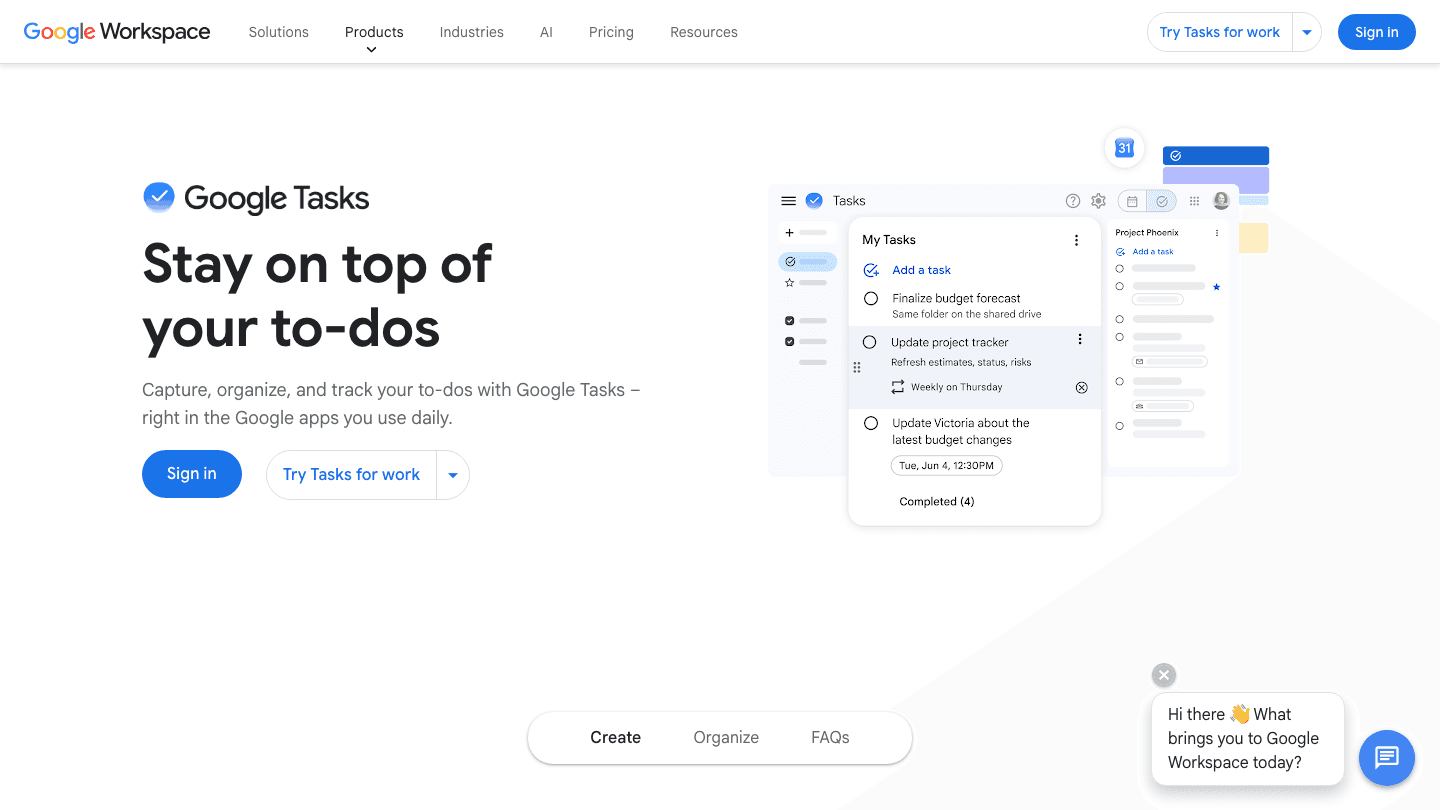
Google Tasks lives in the sidebar of Gmail and Google Calendar, which is its core strength. You can drag tasks directly onto your calendar as time blocks, set due dates that show up in your Google Calendar view, and manage subtasks under any item. Recurring tasks are also supported, making it practical for weekly reviews or regular check-ins.
The interface is intentionally minimal. There are no tags, no priorities, no custom views, and no search function worth mentioning. For power users, this is a frustration. For someone who just wants a simple list that does not fight with their calendar, it is exactly right.
What Works: Tight Gmail and Google Calendar integration, drag tasks onto calendar, subtasks, recurring tasks, free with any Google account, available on Android and iOS
Limitations: No labels or tags, no task search, no rich notes, single-person use (no sharing or collaboration), limited filtering options
Pricing: Free with any Google account.
Best for: People who live in Gmail and want their to-dos connected to their Google Calendar without extra setup. See our guide on apps that work well alongside Google Tasks for ways to extend it.
Google Keep Overview
A fast, colorful note-taking tool for capturing anything from quick ideas to detailed checklists.
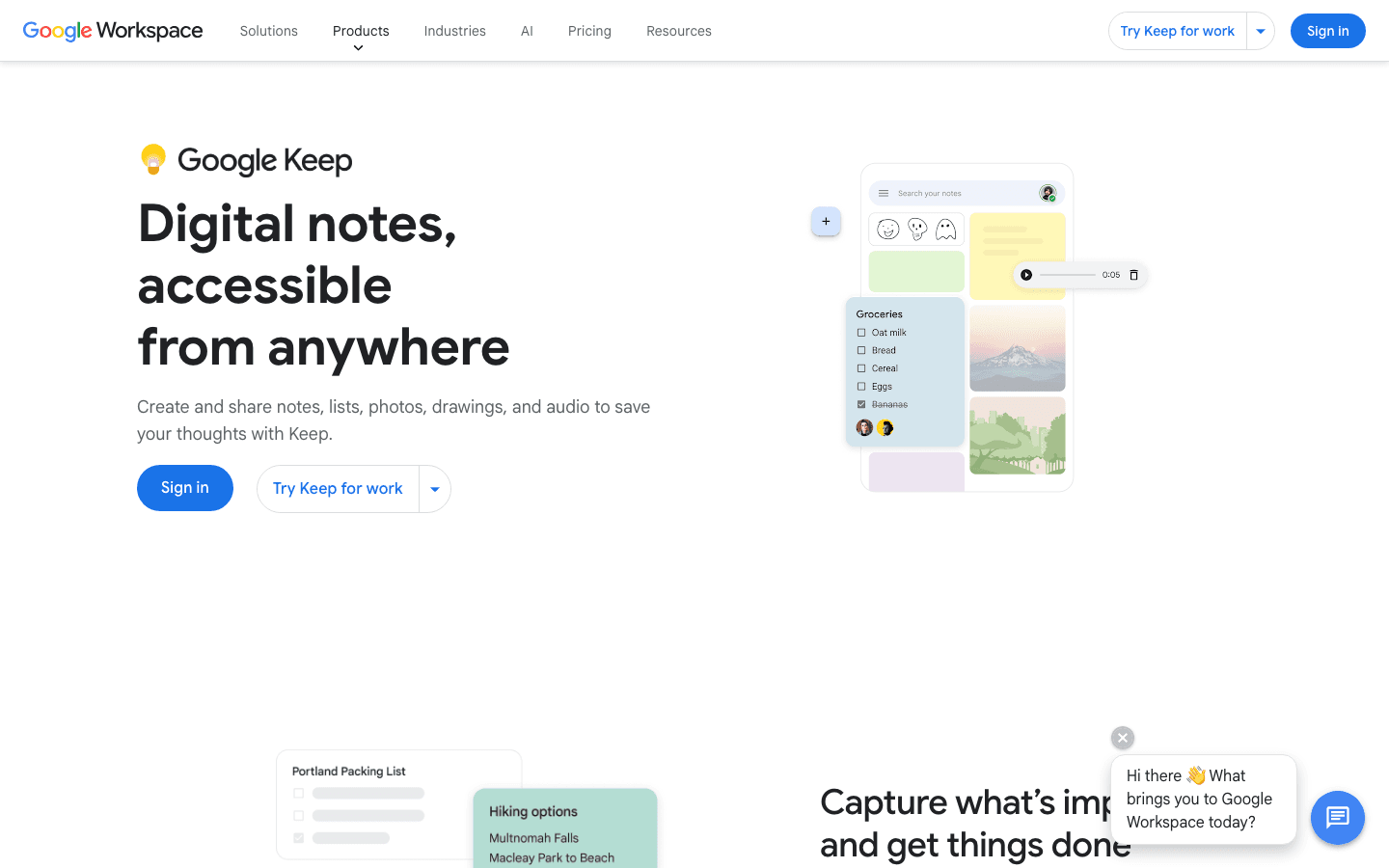
Google Keep is built for capture speed. You open it, write something down, close it. It handles text, checklists, images, drawings, and voice memos. You can color-code notes, add labels, pin important ones, and the search is genuinely good. Google Keep also integrates with Google Docs, so you can convert notes into full documents when a quick idea grows into something more.
The limitation is structure. Keep is essentially a wall of cards. It does not have folders or hierarchies, which works fine at small scale but becomes hard to navigate as you accumulate hundreds of notes. It also has reminder notifications (time-based and location-based), but these do not sync with Google Calendar the way Tasks does.
What Works: Fast note capture, rich media support (images, audio, drawings), color labels, powerful search, Google Docs integration, collaborative sharing
Limitations: No calendar integration for reminders, no folders or nested organization, can become cluttered with heavy use, no due date workflow
Pricing: Free with any Google account.
Best for: Anyone who needs a quick capture tool for ideas, reference notes, grocery lists, and checklists without worrying about calendar dates.
Head-to-Head: Google Keep vs Google Tasks
Calendar Integration
Tasks wins outright. Due dates in Google Tasks appear directly in Google Calendar, and you can drag a task onto the calendar to block time for it. Keep has reminder notifications, but they do not show up in Google Calendar. If calendar visibility matters, Tasks is the answer.
Note-Taking and Rich Content
Keep wins. Tasks only supports plain text descriptions attached to tasks. Keep handles checklists, images, voice recordings, and freehand drawings. For capturing information rather than tracking actions, Keep is the better tool.
Organization and Search
Keep has stronger organization. You get color-coding, labels, and a search that actually works well. Tasks has lists (like separate task folders), but no tagging or filtering beyond that. If you have more than 30 to 40 items across your system, Keep's labels give you more control.
Collaboration
Keep supports note sharing with other Google users. Tasks does not. For team-level collaboration, neither tool is really designed for it, but Keep at least lets you share a grocery list with a partner or a note with a colleague.
Simplicity and Setup
Both are essentially zero-setup tools. They are built into Gmail, Google Calendar, and Google Docs by default. Tasks is marginally simpler because it has fewer features to navigate.
Mobile Apps
Both have solid Android and iOS apps. Google Tasks' mobile app is clean and fast. Keep's mobile app adds a widget option, which makes it useful for quick capture directly from your home screen without opening the app.
Which Should You Choose?
Use Google Tasks if you want a simple to-do list that connects to your Google Calendar, and your tasks have clear due dates you want visible in your schedule.
Use Google Keep if you need a catch-all for notes, ideas, images, and checklists that do not have specific deadlines.
Use both if you want Tasks for action items with due dates and Keep for everything else. They do not overlap much and complement each other well.
Use neither if you need something with real prioritization, project management, or energy-aware scheduling. Both tools are deliberately lightweight.
What If You Need More Than These Tools Offer?
Google Tasks and Google Keep are both free and simple, which also means they are limited. They do not prioritize tasks intelligently, suggest what to work on next, or schedule work around your energy levels throughout the day.
If you are already living in Google Calendar and want a tool that builds a smarter schedule on top of it, Lifestack is worth a look. It connects to your Google Calendar and wearable devices (Oura, Garmin, WHOOP, Apple Health) to schedule your tasks during your actual energy peaks. If you are curious how task management evolves when it is connected to your biology, the best apps to use with Google Calendar guide has more options to explore.
Frequently Asked Questions
What is the difference between Google Tasks and Google Keep?
Google Tasks is a structured to-do list that integrates with Gmail and Google Calendar. It is built for tasks with due dates and subtasks. Google Keep is a note-taking app for fast capture of ideas, images, checklists, and voice memos. Tasks is for actions; Keep is for information.
Can Google Keep replace Google Tasks?
Not really. Google Keep can create checklists, but they do not sync with Google Calendar and do not support due dates in the same structured way. If you are tracking tasks with deadlines that should appear in your calendar, Tasks is still the better tool for that specific job.
Does Google Tasks sync with Google Calendar?
Yes. Tasks with due dates appear in Google Calendar on the date they are due. You can also drag a task from the Gmail sidebar onto your calendar to schedule time for it. This is one of Google Tasks' main advantages. See how to make the most of it in our Google Calendar apps guide.
Is Google Keep good for task management?
It depends on what you mean. Google Keep handles checklists and reminders well, which covers basic task management for some people. But it lacks due date tracking in Google Calendar, subtasks, and recurring task support. For anything with deadlines or project structure, a dedicated task manager works better. See our best task manager app roundup for alternatives.
Are Google Tasks and Google Keep free?
Yes. Both are completely free with any Google account. They come pre-installed in Gmail, Google Calendar, and Google Docs, with no subscription required.
What is a better alternative to Google Tasks and Google Keep?
It depends on what you need. For a smarter to-do list with AI scheduling, the best AI task managers page has a full roundup. For note-taking with more structure than Keep, Notion or Obsidian offer more depth. And if you want your task scheduling to adapt to your daily energy levels, Lifestack connects to your wearables to schedule work when you are actually at your best.
Google Tasks vs Google Keep: which is better for students?
Students tracking assignment deadlines will get more from Google Tasks, since due dates sync directly to Google Calendar. Students who want to capture research notes, images, and ideas without worrying about deadlines will find Google Keep more useful. Many students use both: Tasks for assignments, Keep for study notes and reference material.
Google Tasks vs Google Keep: Two Different Tools, One Ecosystem
Google Tasks is a structured to-do list that connects directly to your Google Calendar. Google Keep is a note-taking app for capturing ideas, images, checklists, and voice memos. If you are choosing between Google Tasks vs Keep, the deciding question is simple: does the item need a due date on your calendar? If yes, use Tasks. If not, use Keep.
Both tools are free, live inside your Google account, and help you capture things you need to remember. That is roughly where the similarities end. Tasks works best when you know what needs to happen, when it is due, and how it connects to your schedule. Keep works best when you want to capture something quickly without attaching a deadline to it.
Neither tool is wrong. The problems start when people expect Tasks to take notes or expect Keep to manage deadlines. This breakdown covers what each does well, where each falls short, and which to reach for.
Key Takeaways
Google Tasks is a lightweight to-do list that integrates directly with Gmail and Google Calendar. It is ideal for simple task tracking with due dates.
Google Keep is a note-taking and capture tool. It handles checklists, images, audio, and freehand drawing alongside text notes.
Most productive Google users benefit from having both: Tasks for actionable items with deadlines, Keep for everything else you want to remember.
Quick Verdict
Google Tasks: Best for turning to-dos into calendar events and keeping work tasks organized inside Gmail.
Google Keep: Best for fast note capture, idea storage, and checklists that do not need calendar integration.
Google Tasks Overview
A clean, calendar-connected task manager built into Gmail and Google Calendar.
Google Tasks lives in the sidebar of Gmail and Google Calendar, which is its core strength. You can drag tasks directly onto your calendar as time blocks, set due dates that show up in your Google Calendar view, and manage subtasks under any item. Recurring tasks are also supported, making it practical for weekly reviews or regular check-ins.
The interface is intentionally minimal. There are no tags, no priorities, no custom views, and no search function worth mentioning. For power users, this is a frustration. For someone who just wants a simple list that does not fight with their calendar, it is exactly right.
What Works: Tight Gmail and Google Calendar integration, drag tasks onto calendar, subtasks, recurring tasks, free with any Google account, available on Android and iOS
Limitations: No labels or tags, no task search, no rich notes, single-person use (no sharing or collaboration), limited filtering options
Pricing: Free with any Google account.
Best for: People who live in Gmail and want their to-dos connected to their Google Calendar without extra setup. See our guide on apps that work well alongside Google Tasks for ways to extend it.
Google Keep Overview
A fast, colorful note-taking tool for capturing anything from quick ideas to detailed checklists.
Google Keep is built for capture speed. You open it, write something down, close it. It handles text, checklists, images, drawings, and voice memos. You can color-code notes, add labels, pin important ones, and the search is genuinely good. Google Keep also integrates with Google Docs, so you can convert notes into full documents when a quick idea grows into something more.
The limitation is structure. Keep is essentially a wall of cards. It does not have folders or hierarchies, which works fine at small scale but becomes hard to navigate as you accumulate hundreds of notes. It also has reminder notifications (time-based and location-based), but these do not sync with Google Calendar the way Tasks does.
What Works: Fast note capture, rich media support (images, audio, drawings), color labels, powerful search, Google Docs integration, collaborative sharing
Limitations: No calendar integration for reminders, no folders or nested organization, can become cluttered with heavy use, no due date workflow
Pricing: Free with any Google account.
Best for: Anyone who needs a quick capture tool for ideas, reference notes, grocery lists, and checklists without worrying about calendar dates.
Head-to-Head: Google Keep vs Google Tasks
Calendar Integration
Tasks wins outright. Due dates in Google Tasks appear directly in Google Calendar, and you can drag a task onto the calendar to block time for it. Keep has reminder notifications, but they do not show up in Google Calendar. If calendar visibility matters, Tasks is the answer.
Note-Taking and Rich Content
Keep wins. Tasks only supports plain text descriptions attached to tasks. Keep handles checklists, images, voice recordings, and freehand drawings. For capturing information rather than tracking actions, Keep is the better tool.
Organization and Search
Keep has stronger organization. You get color-coding, labels, and a search that actually works well. Tasks has lists (like separate task folders), but no tagging or filtering beyond that. If you have more than 30 to 40 items across your system, Keep's labels give you more control.
Collaboration
Keep supports note sharing with other Google users. Tasks does not. For team-level collaboration, neither tool is really designed for it, but Keep at least lets you share a grocery list with a partner or a note with a colleague.
Simplicity and Setup
Both are essentially zero-setup tools. They are built into Gmail, Google Calendar, and Google Docs by default. Tasks is marginally simpler because it has fewer features to navigate.
Mobile Apps
Both have solid Android and iOS apps. Google Tasks' mobile app is clean and fast. Keep's mobile app adds a widget option, which makes it useful for quick capture directly from your home screen without opening the app.
Which Should You Choose?
Use Google Tasks if you want a simple to-do list that connects to your Google Calendar, and your tasks have clear due dates you want visible in your schedule.
Use Google Keep if you need a catch-all for notes, ideas, images, and checklists that do not have specific deadlines.
Use both if you want Tasks for action items with due dates and Keep for everything else. They do not overlap much and complement each other well.
Use neither if you need something with real prioritization, project management, or energy-aware scheduling. Both tools are deliberately lightweight.
What If You Need More Than These Tools Offer?
Google Tasks and Google Keep are both free and simple, which also means they are limited. They do not prioritize tasks intelligently, suggest what to work on next, or schedule work around your energy levels throughout the day.
If you are already living in Google Calendar and want a tool that builds a smarter schedule on top of it, Lifestack is worth a look. It connects to your Google Calendar and wearable devices (Oura, Garmin, WHOOP, Apple Health) to schedule your tasks during your actual energy peaks. If you are curious how task management evolves when it is connected to your biology, the best apps to use with Google Calendar guide has more options to explore.
Frequently Asked Questions
What is the difference between Google Tasks and Google Keep?
Google Tasks is a structured to-do list that integrates with Gmail and Google Calendar. It is built for tasks with due dates and subtasks. Google Keep is a note-taking app for fast capture of ideas, images, checklists, and voice memos. Tasks is for actions; Keep is for information.
Can Google Keep replace Google Tasks?
Not really. Google Keep can create checklists, but they do not sync with Google Calendar and do not support due dates in the same structured way. If you are tracking tasks with deadlines that should appear in your calendar, Tasks is still the better tool for that specific job.
Does Google Tasks sync with Google Calendar?
Yes. Tasks with due dates appear in Google Calendar on the date they are due. You can also drag a task from the Gmail sidebar onto your calendar to schedule time for it. This is one of Google Tasks' main advantages. See how to make the most of it in our Google Calendar apps guide.
Is Google Keep good for task management?
It depends on what you mean. Google Keep handles checklists and reminders well, which covers basic task management for some people. But it lacks due date tracking in Google Calendar, subtasks, and recurring task support. For anything with deadlines or project structure, a dedicated task manager works better. See our best task manager app roundup for alternatives.
Are Google Tasks and Google Keep free?
Yes. Both are completely free with any Google account. They come pre-installed in Gmail, Google Calendar, and Google Docs, with no subscription required.
What is a better alternative to Google Tasks and Google Keep?
It depends on what you need. For a smarter to-do list with AI scheduling, the best AI task managers page has a full roundup. For note-taking with more structure than Keep, Notion or Obsidian offer more depth. And if you want your task scheduling to adapt to your daily energy levels, Lifestack connects to your wearables to schedule work when you are actually at your best.
Google Tasks vs Google Keep: which is better for students?
Students tracking assignment deadlines will get more from Google Tasks, since due dates sync directly to Google Calendar. Students who want to capture research notes, images, and ideas without worrying about deadlines will find Google Keep more useful. Many students use both: Tasks for assignments, Keep for study notes and reference material.



FOLLOW ON
FOLLOW ON
FOLLOW ON


Copyright 2026 © Lifestack. All rights reserved
Copyright 2026 © Lifestack. All rights reserved

