
App
Best Apps to Use with Google Tasks in 2026
Best Apps to Use with Google Tasks in 2026

Google Tasks is free, built into Gmail and Google Calendar, and syncs across all your devices without any setup. For basic task tracking inside the Google ecosystem, it's a sensible default. But it's also deliberately minimal: no subtasks beyond one level, no priority tags, no calendar view for tasks, no AI scheduling, and no time estimates.
The apps on this list add the layers that Google Tasks intentionally omits. Some schedule your tasks into your calendar. Some add proper project management structure. Some pair the task list with richer planning tools. All of them work with Google Tasks rather than replacing it.
Pricing verified June 2026. Apps tested on Android and iOS.
Key Takeaways
Lifestack adds the scheduling layer that Google Tasks completely lacks, turning your task list into a time-blocked daily plan
Todoist and TickTick are the strongest task manager upgrades for Google Tasks users who need more structure
Motion is the best option for users who want AI to auto-schedule their Google Calendar around their tasks
Quick Guide: Apps to Use with Google Tasks
Lifestack: AI scheduler that builds your day around your Google Calendar and tasks
Todoist: full-featured task manager with Google Tasks sync
TickTick: tasks + calendar + Pomodoro timer, with Google Calendar integration
Any.do: daily planner with Google Tasks integration
Motion: AI that auto-schedules tasks into your Google Calendar
Notion: documentation and project management alongside your tasks
1. Lifestack: Best for Scheduling Your Google Tasks
AI daily planning that turns your tasks into a time-blocked calendar
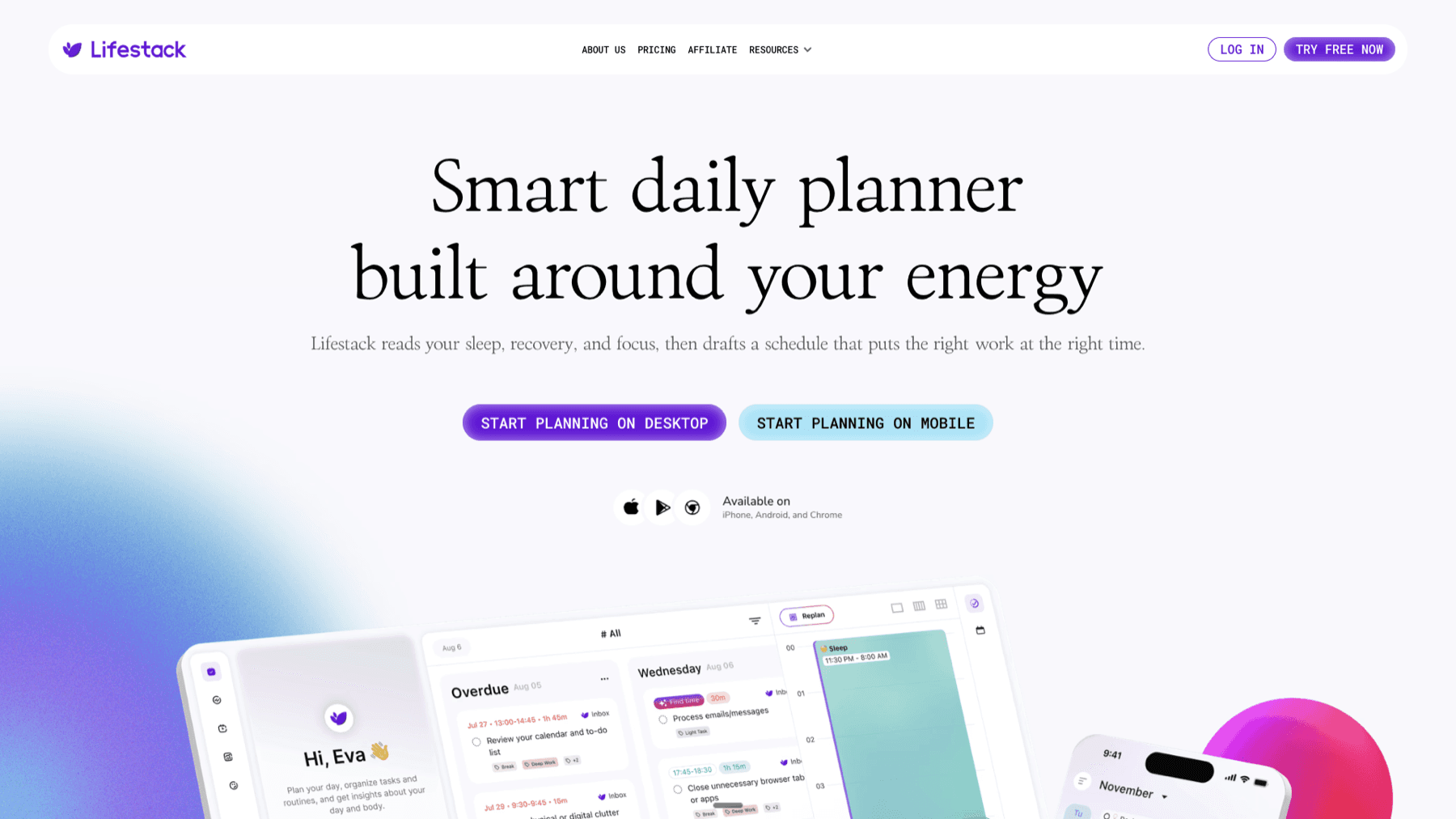
Google Tasks tells you what to do. Lifestack tells you when to do it. Connect Lifestack to your Google Calendar, add your tasks, and the AI generates a full daily plan that slots tasks into your schedule based on your energy levels and available time. When meetings shift or tasks take longer than expected, Lifestack reschedules automatically.
This is the gap Google Tasks has never filled: there's no native way to turn your task list into a scheduled plan. Lifestack adds that layer. The energy-aware scheduling is the key differentiator: rather than finding any open slot, it places cognitively demanding work during peak hours and lighter tasks in lower-energy windows. See how it compares in our guide to the best AI planner apps.
Energy-aware AI scheduling that adapts to your capacity throughout the day
Google Calendar sync for two-way scheduling awareness
Auto-reschedules when the day changes
iOS and Android apps
What Works
Adds the scheduling dimension that Google Tasks doesn't have
Energy-based placement produces better daily plans than time-slot-only approaches
Limitations
No direct Google Tasks API sync; tasks get added to Lifestack separately
Not a project management tool
Pricing: $7/month or $50/year; $120 lifetime. 7-day free trial on annual plans.
Best for: Google Calendar users who want AI to schedule their tasks into a realistic daily plan.
2. Todoist: Best Task Manager Upgrade for Google Tasks
Full-featured task management with Google Tasks import
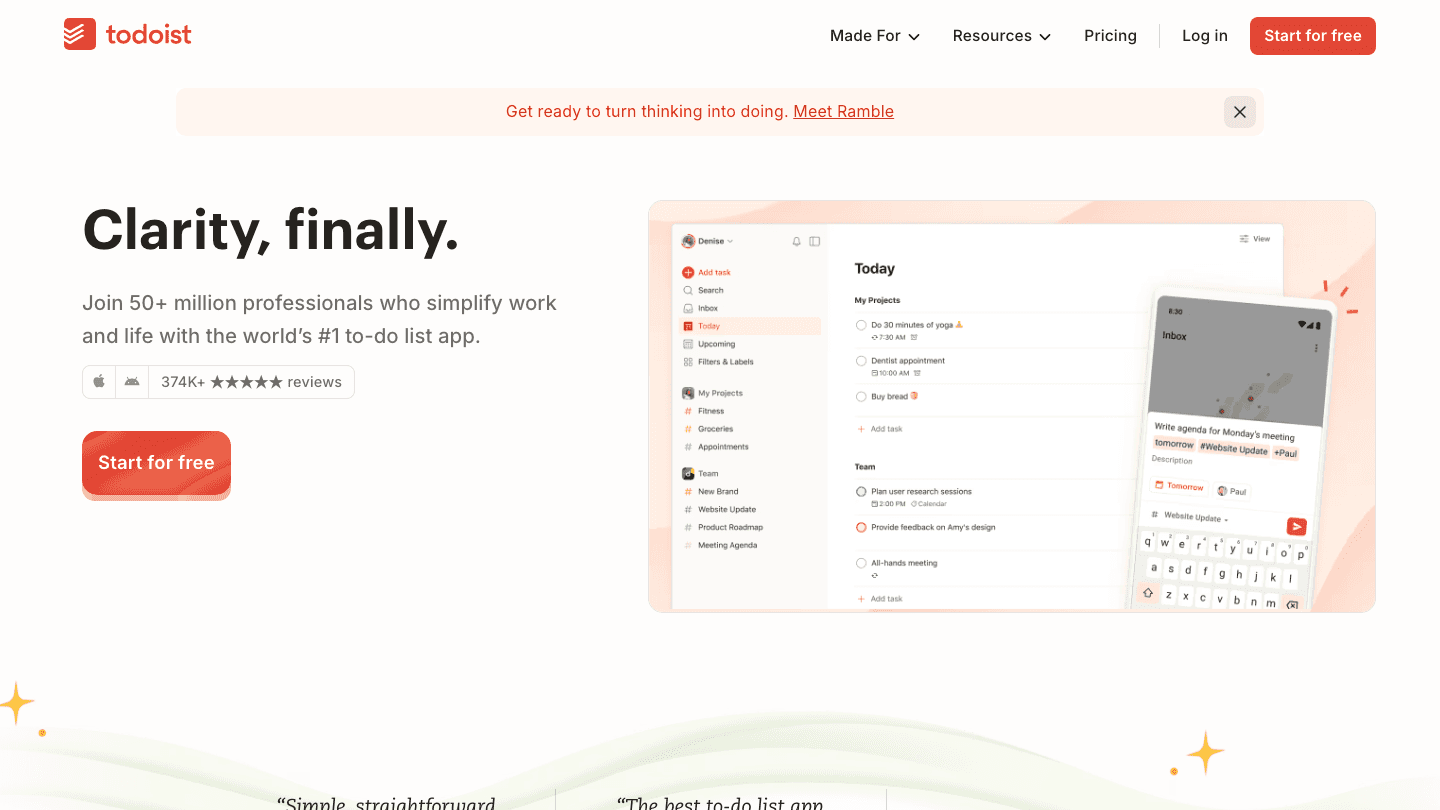
Todoist has a Google Tasks sync that pulls your tasks from Google into Todoist for richer management: projects, subtasks, priority levels, labels, filters, and recurring tasks. It also integrates with Google Calendar, showing tasks as time blocks in your calendar view.
If your main frustration with Google Tasks is the limited structure (no priority tags, basic list organization, shallow subtasks), Todoist is the most direct upgrade. The free tier covers most personal use cases, and the natural language date parsing makes adding tasks fast enough that you'll actually use it. It's one of the best reminder apps that works well within the Google ecosystem.
Google Tasks and Google Calendar integration
Subtasks, priority levels, labels, and filters
Natural language date and time parsing
Strong free tier
iOS, Android, web, and desktop apps
What Works
Google Calendar integration that shows tasks as scheduled blocks
Natural language input is faster than Google Tasks' native interface
Limitations
No AI scheduling or automatic task placement
Calendar view requires a paid plan
Pricing: Free; Pro subscription (see todoist.com for current pricing).
Best for: Google Tasks users who want more organizational structure without leaving the Google ecosystem.
3. TickTick: Best for Tasks + Calendar + Focus Timer
One app for task management, calendar view, and Pomodoro timer
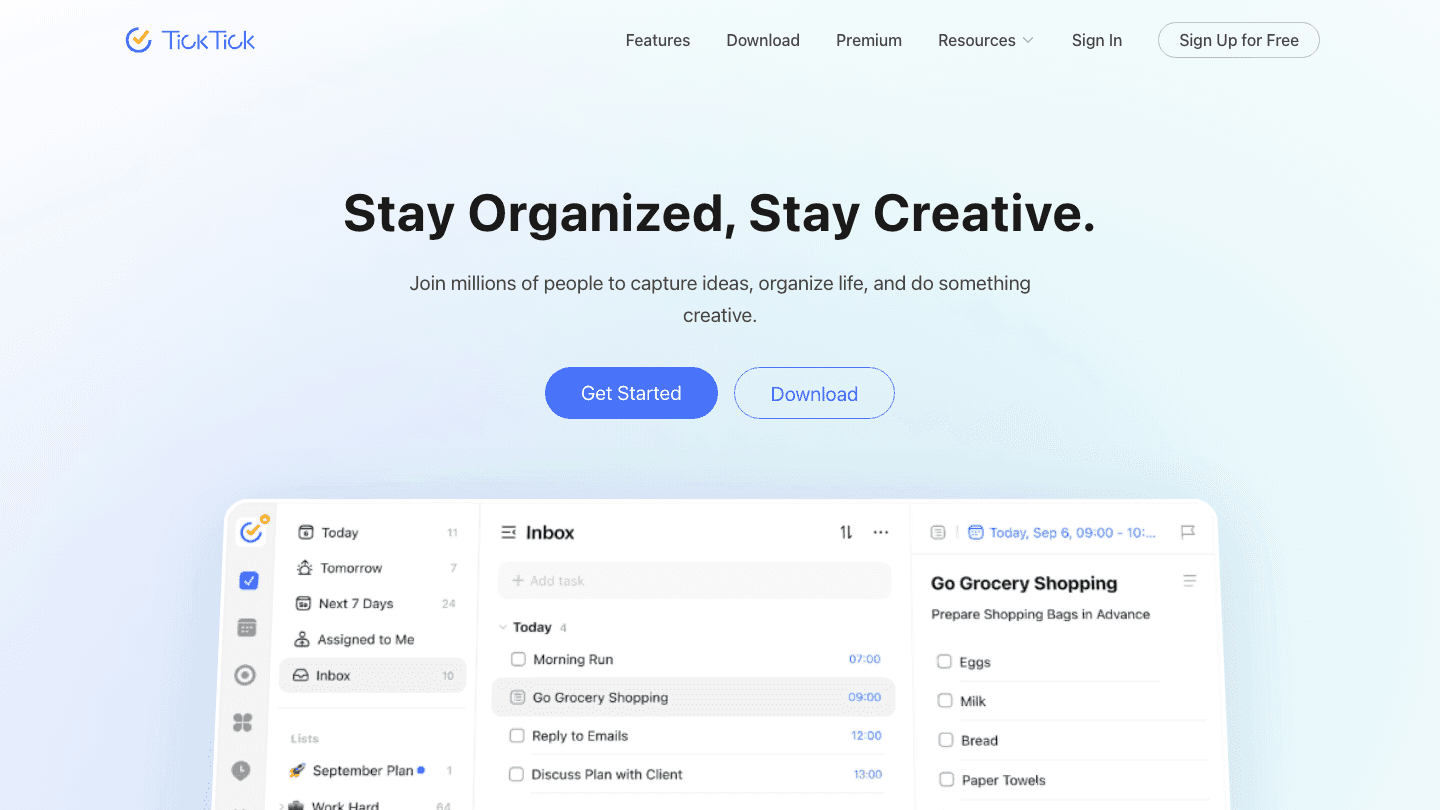
TickTick integrates with Google Calendar and Google Tasks, showing your tasks alongside your calendar events in a single unified view. The built-in Pomodoro timer makes it a complete focus tool rather than just a task manager.
For Google Tasks users who find themselves switching between multiple apps (tasks, calendar, timer), TickTick consolidates all of it. The free tier includes calendar sync and the Pomodoro timer. The Premium tier adds calendar view modes and more advanced filtering. It's one of the strongest free task manager options that integrates directly with Google's ecosystem.
Google Calendar sync and Google Tasks integration
Built-in Pomodoro focus timer
Calendar view showing tasks alongside events
Habit tracker for recurring behaviors
Free tier includes most useful features
What Works
Having the focus timer built in removes the need for a separate app during work sessions
Google Calendar integration shows tasks as time blocks on your schedule
Limitations
No AI scheduling
Calendar display modes require Premium
Pricing: Free; Premium $35.99/year.
Best for: Google users who want tasks, calendar, and focus timer in one app with a functional free tier.
4. Any.do: Best for a Simple Google Tasks Companion
Daily planner with Google Tasks integration and a built-in planning ritual
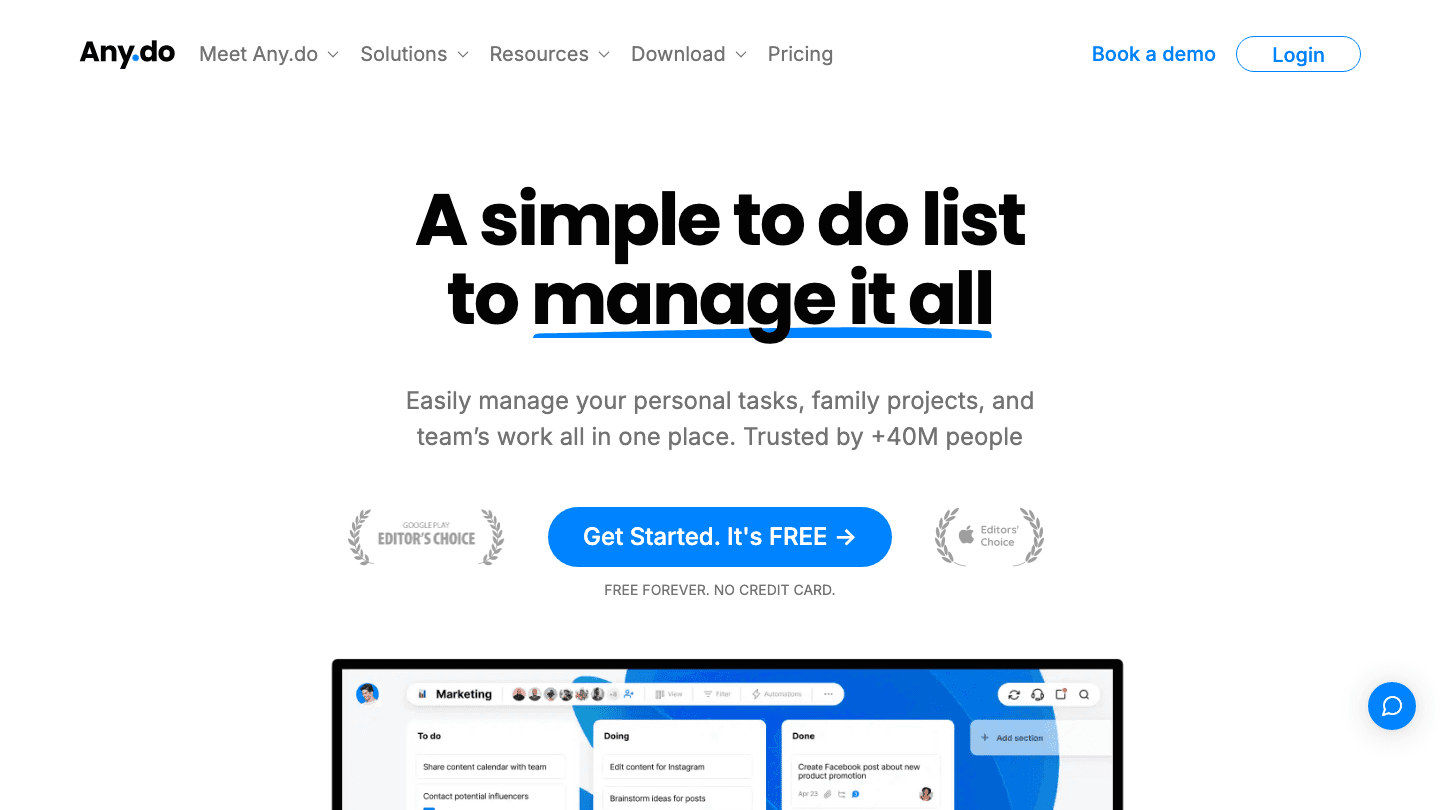
Any.do integrates with Google Tasks and Google Calendar, letting you pull your tasks from Google into a daily planning view. The "My Day" feature prompts you to review your tasks each morning and drag the important ones into today's plan, adding an intentional planning step that Google Tasks doesn't offer on its own.
The Google Tasks integration means you don't have to abandon what you've already set up in Google. Any.do reads your Google Tasks lists and shows them alongside tasks you add directly, so you can manage everything in one daily planning view. The scheduling experience is simpler than Lifestack or Motion, which makes it a good fit for users who don't need AI automation.
Google Tasks and Google Calendar integration
Daily "My Day" planning ritual with drag-to-today workflow
Voice input for fast task capture
Free tier covers most personal use cases
iOS, Android, web, and Mac apps
What Works
The daily review ritual adds intentional prioritization that Google Tasks doesn't prompt you to do
Google Tasks integration means existing tasks carry over without re-entry
Limitations
No AI scheduling
Recurring tasks require Premium
Pricing: Free; Premium $7.99/month or $4.99/month billed annually.
Best for: Google Tasks users who want a simple daily planning ritual alongside their existing task list.
5. Motion: Best for Auto-Scheduling Tasks into Google Calendar
AI that builds your complete daily schedule from tasks, meetings, and deadlines
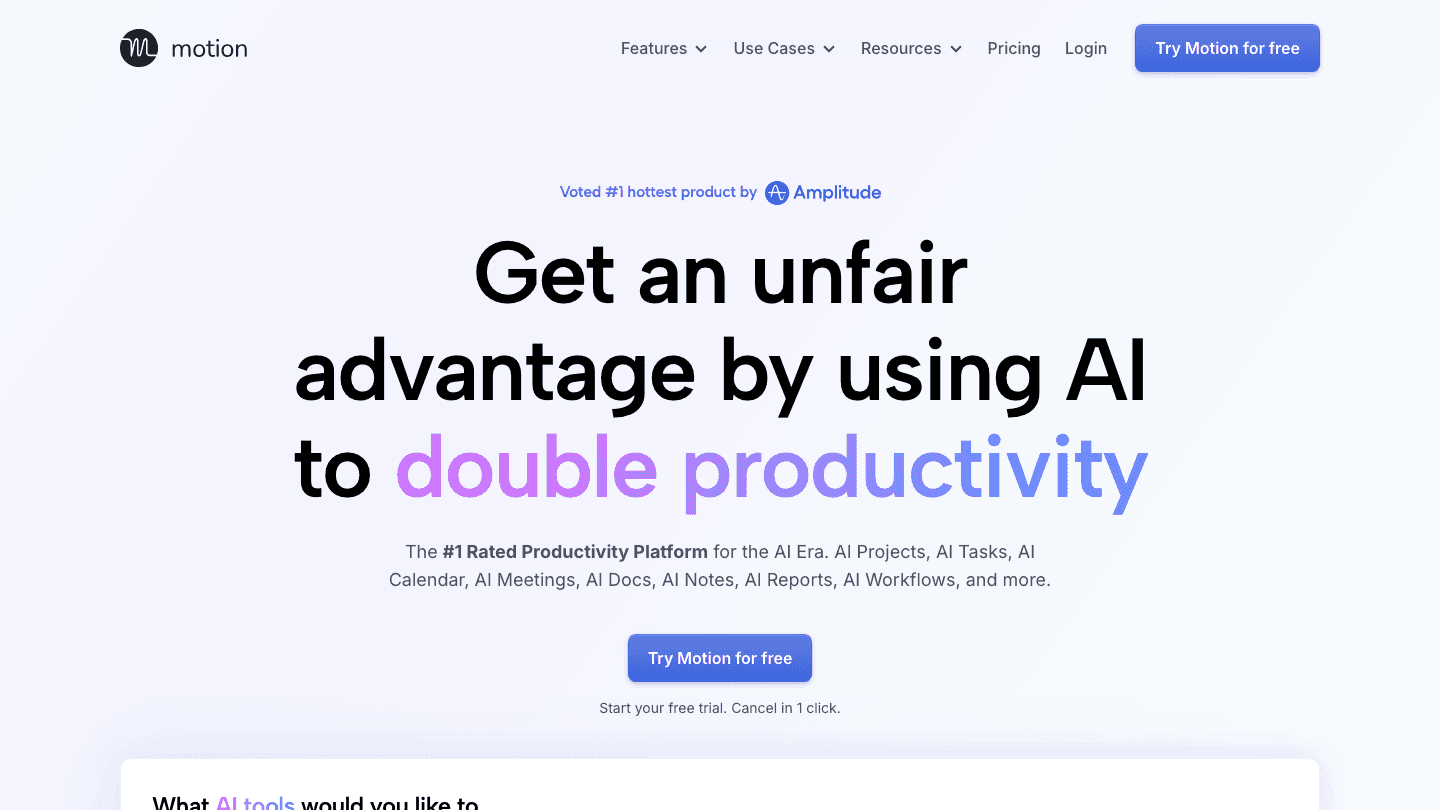
Motion integrates with Google Calendar and auto-schedules your tasks into open time slots based on deadlines and priorities. Where Lifestack focuses on energy-aware scheduling for individuals, Motion focuses on deadline management: it handles the "I have ten things due this week and four hours of meetings per day" problem by building a realistic schedule that fits everything in.
For heavy Google Calendar users who manage multiple project deadlines alongside a packed meeting schedule, Motion's auto-scheduling removes the manual work of deciding what to work on and when. The result is a Google Calendar that fills with scheduled task blocks automatically, not just meetings.
Google Calendar integration with auto-scheduled task blocks
AI prioritization based on deadlines and available time
Automatic reprioritization when deadlines shift
Meeting scheduling assistant included
What Works
Auto-scheduling into Google Calendar is the feature Google Tasks conspicuously lacks
Deadline-aware reprioritization handles competing priorities automatically
Limitations
No energy awareness; fills any available slot regardless of cognitive demand
At $19/month, it's one of the more expensive options on this list
Pricing: $19/month; ~$12.73/month billed annually. Free trial available.
Best for: Google Calendar power users who want AI to auto-schedule tasks alongside a heavy meeting load.
6. Notion: Best for Project Context Alongside Google Tasks
Documentation and planning that gives your tasks the context they need
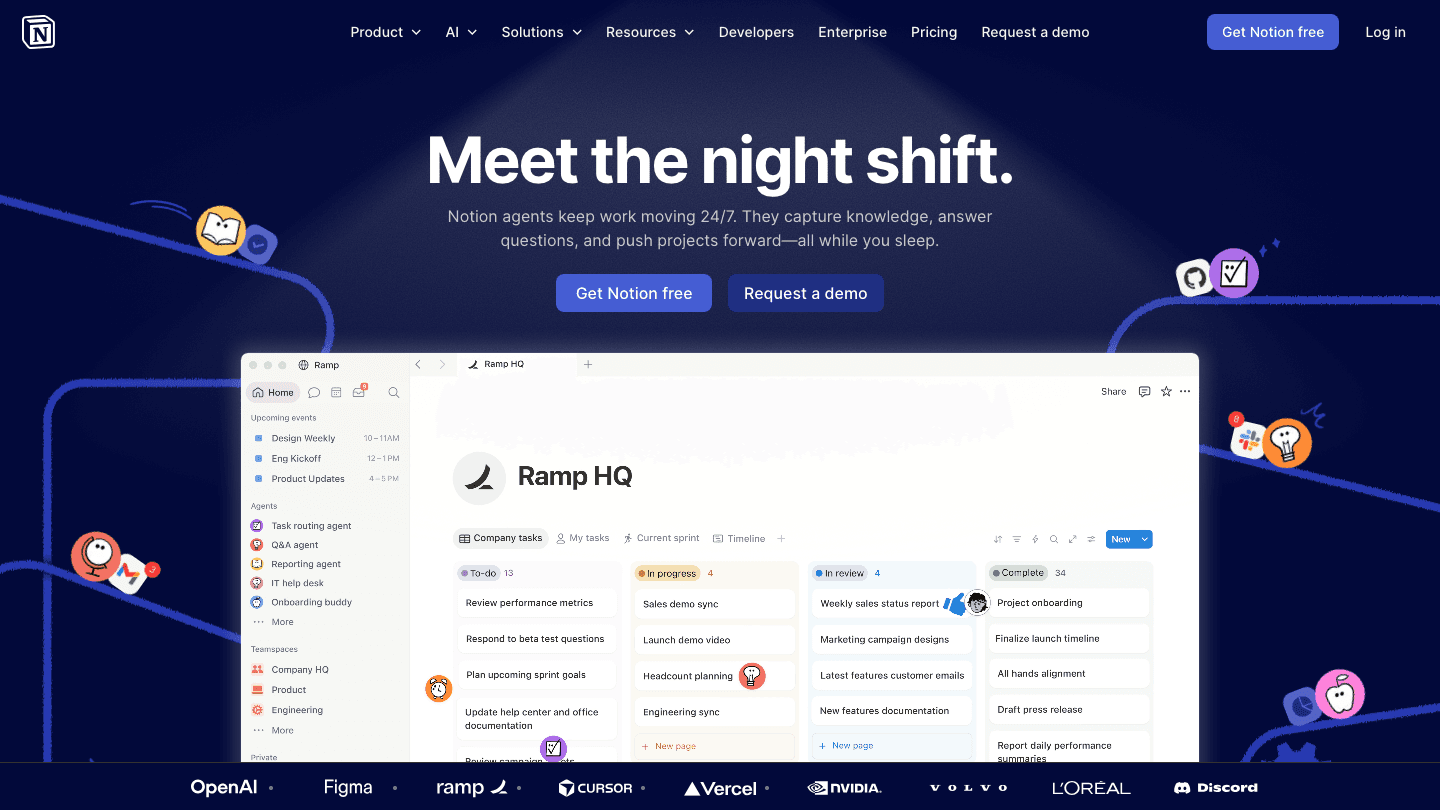
Notion doesn't replace Google Tasks. It adds the documentation layer around your tasks: project notes, meeting records, research, specifications, and planning docs. When a Google Task is "finalize the report," Notion is where the draft lives, the comments live, and the reference materials are organized.
Notion has a Google Tasks integration through Zapier and other connectors, though the native connection isn't as direct as Todoist's. The real value is using Notion for project management and documentation while keeping Google Tasks for the individual task items that Google Calendar's sidebar shows. They solve different problems at different scales.
Flexible pages for project documentation and planning
Database views (table, Kanban, calendar) for project management
AI writing and summarization features
Google Drive integration for connected documents
Team collaboration and sharing
What Works
Provides the project context that individual tasks in Google Tasks lack
Flexible enough to replace multiple tools for teams that want documentation and task planning together
Limitations
No direct native Google Tasks sync
Can become disorganized without consistent maintenance
Pricing: Free; Plus $10/user/month; Business $20/user/month.
Best for: teams and project-heavy users who need documentation and project context alongside their Google Tasks.
Which App Should You Add to Google Tasks?
Want to schedule tasks into your calendar: Lifestack or Motion
Want more organizational structure: Todoist
Want tasks + calendar + focus timer: TickTick
Want a simple daily planning ritual: Any.do
Heavy meeting schedule and deadline pressure: Motion
Need project documentation: Notion
Frequently Asked Questions
What apps work with Google Tasks?
Todoist, TickTick, and Any.do all have native Google Tasks integration. Lifestack and Motion integrate with Google Calendar to schedule your tasks into time blocks. Notion works alongside Google Tasks for project-level documentation. See also our guide on apps to use with Todoist for more task management pairings.
Can you schedule Google Tasks into Google Calendar?
Not automatically with native tools. Google Calendar shows tasks in a sidebar but doesn't auto-schedule them into time blocks. Motion integrates with Google Calendar and does this automatically. Lifestack generates a time-blocked day plan using your Google Calendar availability.
Is Google Tasks free?
Yes, completely free. It comes with every Google account and works in Gmail, Google Calendar, and the standalone Google Tasks app on iOS and Android. The limitation is that it's deliberately minimal, which is why pairing it with other apps adds significant value.
What is the difference between Google Tasks and Google Keep?
Google Tasks is for actionable to-do items with due dates, connected to Google Calendar. Google Keep is for quick notes, lists, and ideas that don't need due dates or project structure. Many people use both: Tasks for things with deadlines, Keep for reference notes and shopping lists.
How does Lifestack work with Google Tasks?
Lifestack syncs with Google Calendar and uses your existing calendar events as scheduling constraints. You add tasks to Lifestack and the AI builds a daily plan that fits them around your meetings and your energy levels. The result is a scheduled day that accounts for both what you need to do and when you're actually capable of doing it. Learn more in our guide to AI planner apps.
Google Tasks is free, built into Gmail and Google Calendar, and syncs across all your devices without any setup. For basic task tracking inside the Google ecosystem, it's a sensible default. But it's also deliberately minimal: no subtasks beyond one level, no priority tags, no calendar view for tasks, no AI scheduling, and no time estimates.
The apps on this list add the layers that Google Tasks intentionally omits. Some schedule your tasks into your calendar. Some add proper project management structure. Some pair the task list with richer planning tools. All of them work with Google Tasks rather than replacing it.
Pricing verified June 2026. Apps tested on Android and iOS.
Key Takeaways
Lifestack adds the scheduling layer that Google Tasks completely lacks, turning your task list into a time-blocked daily plan
Todoist and TickTick are the strongest task manager upgrades for Google Tasks users who need more structure
Motion is the best option for users who want AI to auto-schedule their Google Calendar around their tasks
Quick Guide: Apps to Use with Google Tasks
Lifestack: AI scheduler that builds your day around your Google Calendar and tasks
Todoist: full-featured task manager with Google Tasks sync
TickTick: tasks + calendar + Pomodoro timer, with Google Calendar integration
Any.do: daily planner with Google Tasks integration
Motion: AI that auto-schedules tasks into your Google Calendar
Notion: documentation and project management alongside your tasks
1. Lifestack: Best for Scheduling Your Google Tasks
AI daily planning that turns your tasks into a time-blocked calendar
Google Tasks tells you what to do. Lifestack tells you when to do it. Connect Lifestack to your Google Calendar, add your tasks, and the AI generates a full daily plan that slots tasks into your schedule based on your energy levels and available time. When meetings shift or tasks take longer than expected, Lifestack reschedules automatically.
This is the gap Google Tasks has never filled: there's no native way to turn your task list into a scheduled plan. Lifestack adds that layer. The energy-aware scheduling is the key differentiator: rather than finding any open slot, it places cognitively demanding work during peak hours and lighter tasks in lower-energy windows. See how it compares in our guide to the best AI planner apps.
Energy-aware AI scheduling that adapts to your capacity throughout the day
Google Calendar sync for two-way scheduling awareness
Auto-reschedules when the day changes
iOS and Android apps
What Works
Adds the scheduling dimension that Google Tasks doesn't have
Energy-based placement produces better daily plans than time-slot-only approaches
Limitations
No direct Google Tasks API sync; tasks get added to Lifestack separately
Not a project management tool
Pricing: $7/month or $50/year; $120 lifetime. 7-day free trial on annual plans.
Best for: Google Calendar users who want AI to schedule their tasks into a realistic daily plan.
2. Todoist: Best Task Manager Upgrade for Google Tasks
Full-featured task management with Google Tasks import
Todoist has a Google Tasks sync that pulls your tasks from Google into Todoist for richer management: projects, subtasks, priority levels, labels, filters, and recurring tasks. It also integrates with Google Calendar, showing tasks as time blocks in your calendar view.
If your main frustration with Google Tasks is the limited structure (no priority tags, basic list organization, shallow subtasks), Todoist is the most direct upgrade. The free tier covers most personal use cases, and the natural language date parsing makes adding tasks fast enough that you'll actually use it. It's one of the best reminder apps that works well within the Google ecosystem.
Google Tasks and Google Calendar integration
Subtasks, priority levels, labels, and filters
Natural language date and time parsing
Strong free tier
iOS, Android, web, and desktop apps
What Works
Google Calendar integration that shows tasks as scheduled blocks
Natural language input is faster than Google Tasks' native interface
Limitations
No AI scheduling or automatic task placement
Calendar view requires a paid plan
Pricing: Free; Pro subscription (see todoist.com for current pricing).
Best for: Google Tasks users who want more organizational structure without leaving the Google ecosystem.
3. TickTick: Best for Tasks + Calendar + Focus Timer
One app for task management, calendar view, and Pomodoro timer
TickTick integrates with Google Calendar and Google Tasks, showing your tasks alongside your calendar events in a single unified view. The built-in Pomodoro timer makes it a complete focus tool rather than just a task manager.
For Google Tasks users who find themselves switching between multiple apps (tasks, calendar, timer), TickTick consolidates all of it. The free tier includes calendar sync and the Pomodoro timer. The Premium tier adds calendar view modes and more advanced filtering. It's one of the strongest free task manager options that integrates directly with Google's ecosystem.
Google Calendar sync and Google Tasks integration
Built-in Pomodoro focus timer
Calendar view showing tasks alongside events
Habit tracker for recurring behaviors
Free tier includes most useful features
What Works
Having the focus timer built in removes the need for a separate app during work sessions
Google Calendar integration shows tasks as time blocks on your schedule
Limitations
No AI scheduling
Calendar display modes require Premium
Pricing: Free; Premium $35.99/year.
Best for: Google users who want tasks, calendar, and focus timer in one app with a functional free tier.
4. Any.do: Best for a Simple Google Tasks Companion
Daily planner with Google Tasks integration and a built-in planning ritual
Any.do integrates with Google Tasks and Google Calendar, letting you pull your tasks from Google into a daily planning view. The "My Day" feature prompts you to review your tasks each morning and drag the important ones into today's plan, adding an intentional planning step that Google Tasks doesn't offer on its own.
The Google Tasks integration means you don't have to abandon what you've already set up in Google. Any.do reads your Google Tasks lists and shows them alongside tasks you add directly, so you can manage everything in one daily planning view. The scheduling experience is simpler than Lifestack or Motion, which makes it a good fit for users who don't need AI automation.
Google Tasks and Google Calendar integration
Daily "My Day" planning ritual with drag-to-today workflow
Voice input for fast task capture
Free tier covers most personal use cases
iOS, Android, web, and Mac apps
What Works
The daily review ritual adds intentional prioritization that Google Tasks doesn't prompt you to do
Google Tasks integration means existing tasks carry over without re-entry
Limitations
No AI scheduling
Recurring tasks require Premium
Pricing: Free; Premium $7.99/month or $4.99/month billed annually.
Best for: Google Tasks users who want a simple daily planning ritual alongside their existing task list.
5. Motion: Best for Auto-Scheduling Tasks into Google Calendar
AI that builds your complete daily schedule from tasks, meetings, and deadlines
Motion integrates with Google Calendar and auto-schedules your tasks into open time slots based on deadlines and priorities. Where Lifestack focuses on energy-aware scheduling for individuals, Motion focuses on deadline management: it handles the "I have ten things due this week and four hours of meetings per day" problem by building a realistic schedule that fits everything in.
For heavy Google Calendar users who manage multiple project deadlines alongside a packed meeting schedule, Motion's auto-scheduling removes the manual work of deciding what to work on and when. The result is a Google Calendar that fills with scheduled task blocks automatically, not just meetings.
Google Calendar integration with auto-scheduled task blocks
AI prioritization based on deadlines and available time
Automatic reprioritization when deadlines shift
Meeting scheduling assistant included
What Works
Auto-scheduling into Google Calendar is the feature Google Tasks conspicuously lacks
Deadline-aware reprioritization handles competing priorities automatically
Limitations
No energy awareness; fills any available slot regardless of cognitive demand
At $19/month, it's one of the more expensive options on this list
Pricing: $19/month; ~$12.73/month billed annually. Free trial available.
Best for: Google Calendar power users who want AI to auto-schedule tasks alongside a heavy meeting load.
6. Notion: Best for Project Context Alongside Google Tasks
Documentation and planning that gives your tasks the context they need
Notion doesn't replace Google Tasks. It adds the documentation layer around your tasks: project notes, meeting records, research, specifications, and planning docs. When a Google Task is "finalize the report," Notion is where the draft lives, the comments live, and the reference materials are organized.
Notion has a Google Tasks integration through Zapier and other connectors, though the native connection isn't as direct as Todoist's. The real value is using Notion for project management and documentation while keeping Google Tasks for the individual task items that Google Calendar's sidebar shows. They solve different problems at different scales.
Flexible pages for project documentation and planning
Database views (table, Kanban, calendar) for project management
AI writing and summarization features
Google Drive integration for connected documents
Team collaboration and sharing
What Works
Provides the project context that individual tasks in Google Tasks lack
Flexible enough to replace multiple tools for teams that want documentation and task planning together
Limitations
No direct native Google Tasks sync
Can become disorganized without consistent maintenance
Pricing: Free; Plus $10/user/month; Business $20/user/month.
Best for: teams and project-heavy users who need documentation and project context alongside their Google Tasks.
Which App Should You Add to Google Tasks?
Want to schedule tasks into your calendar: Lifestack or Motion
Want more organizational structure: Todoist
Want tasks + calendar + focus timer: TickTick
Want a simple daily planning ritual: Any.do
Heavy meeting schedule and deadline pressure: Motion
Need project documentation: Notion
Frequently Asked Questions
What apps work with Google Tasks?
Todoist, TickTick, and Any.do all have native Google Tasks integration. Lifestack and Motion integrate with Google Calendar to schedule your tasks into time blocks. Notion works alongside Google Tasks for project-level documentation. See also our guide on apps to use with Todoist for more task management pairings.
Can you schedule Google Tasks into Google Calendar?
Not automatically with native tools. Google Calendar shows tasks in a sidebar but doesn't auto-schedule them into time blocks. Motion integrates with Google Calendar and does this automatically. Lifestack generates a time-blocked day plan using your Google Calendar availability.
Is Google Tasks free?
Yes, completely free. It comes with every Google account and works in Gmail, Google Calendar, and the standalone Google Tasks app on iOS and Android. The limitation is that it's deliberately minimal, which is why pairing it with other apps adds significant value.
What is the difference between Google Tasks and Google Keep?
Google Tasks is for actionable to-do items with due dates, connected to Google Calendar. Google Keep is for quick notes, lists, and ideas that don't need due dates or project structure. Many people use both: Tasks for things with deadlines, Keep for reference notes and shopping lists.
How does Lifestack work with Google Tasks?
Lifestack syncs with Google Calendar and uses your existing calendar events as scheduling constraints. You add tasks to Lifestack and the AI builds a daily plan that fits them around your meetings and your energy levels. The result is a scheduled day that accounts for both what you need to do and when you're actually capable of doing it. Learn more in our guide to AI planner apps.

FOLLOW ON
FOLLOW ON
FOLLOW ON


Copyright 2026 © Lifestack. All rights reserved
Copyright 2026 © Lifestack. All rights reserved

