
Tips
Notion Cornell Notes Template: How to Build One
Notion Cornell Notes Template: How to Build One

The Cornell notes method was developed at Cornell University in the 1950s and has been a staple of effective studying ever since. The idea is simple: divide your note page into three sections -- a narrow cue column on the left, a wide notes area on the right, and a summary box at the bottom. You take notes during class or reading in the right column, then fill in the left column afterward with questions and keywords that connect the material, then write a brief summary at the bottom to consolidate what you learned.
It works because it forces you to process the material twice. The first pass is capturing. The second pass -- filling in the cue column -- is sense-making. The summary forces you to synthesize. That's three levels of engagement with the material versus the one level you get with a linear notes dump.
Notion handles this well. The two-column layout takes about 60 seconds to set up once you know the approach, and unlike paper Cornell notes, your Notion version is searchable, linkable, and survives the end of the semester. This guide walks through exactly how to build it.
Key Takeaways
The Cornell method requires three distinct zones: a narrow cue/keyword column, a wide note-taking column, and a summary section below -- Notion's column blocks recreate this layout directly
The cue column is filled in after the notes, not during -- the review step is what makes the method work for retention
A good Notion Cornell template links to your class or topic dashboard so notes stay organized by subject rather than scattered as separate pages
The Three Sections of Cornell Notes
Before building in Notion, understand what each section is for:
Notes column (right, ~70% width): Taken during the lecture, reading, or meeting. Use bullet points, brief sentences, abbreviations. Speed over completeness. You're capturing, not composing.
Cue column (left, ~30% width): Filled in within 24 hours of taking the notes. Write questions that the notes answer, key terms to define, main concepts, or topics you'd use to retrieve that content on a test. This is the active recall layer.
Summary section (bottom): 3-5 sentences written after completing the cue column. Forces synthesis. What was the main point? What connects these ideas? What would you say to someone who wasn't there?
The cue column and summary are the parts most people skip. They're also the parts that make the method work. If you're just using it as a two-column layout to look organized, you'll get aesthetic notes that don't help you retain anything. The prompts and summary force the second-pass engagement.
Setting Up Cornell Notes in Notion
Here's how to build the template page in Notion:
Create a new Notion page. Title it with the class, lecture topic, or date (e.g., "Bio 201 | Week 3 | Cell Division").
Add a two-column layout. Type
/columnsand select "2 Columns." This creates the left and right column structure for your cue and notes sections.Set the column proportions. Hover over the divider between columns until a blue bar appears, then drag it left so the right column takes up roughly 70% of the width and the left column takes up 30%.
Label the left column. Type a small header: "Cues / Questions / Keywords" or just "Cues." Use a Callout block (
/callout) in a neutral color to visually distinguish it from the notes column.Leave the right column empty for notes. During class or reading, you'll type here. Use bullet points (
-) or numbered lists as your default.Add a horizontal divider below the two-column block. Type
---and hit Enter.Add a "Summary" section below the divider. Use a Callout block or simple bold header: "Summary." Leave space to write 3-5 sentences after reviewing your notes.
That's the full template. The whole structure takes about 2 minutes to set up. Once you have it, duplicate the page each time you need a new set of notes rather than rebuilding from scratch. Notion templates for students follow this same duplication pattern across your full setup.
How to Actually Use the Cue Column
The cue column is where most people get this wrong. The mistake is treating it as a second notes column -- summarizing what's in the notes column instead of creating questions that point to it.
The cue column should contain things you could use to quiz yourself. If the notes column says "mitochondria produce ATP via oxidative phosphorylation using the electron transport chain," the cue column should say "How does the mitochondria produce ATP?" or just "ATP production mechanism." When you cover the right column and read only the left, you should be able to reconstruct the notes from the cues alone. If you can't, the cues aren't specific enough.
Write cues as questions when possible ("What causes X?", "How does Y work?", "What is the difference between A and B?")
Write key terms when questions are too long
Group cues by concept rather than by line -- one cue can point to multiple notes bullets
Go back to the cue column within 24 hours while the material is still warm
People with task initiation challenges often find the cue column step easy to skip because it feels like extra work rather than essential work. Set a 15-minute calendar block after each class or reading session specifically for the cue review. It matters more than the notes themselves.
Writing Summaries That Actually Help
The summary section is 3-5 sentences at the bottom of each Cornell notes page. It's not a recap of everything in the notes. It's your attempt to answer: "What was this really about, in my own words?"
A useful prompt to get started: "If someone who wasn't in this class asked me what we learned today, I would say..." Write the answer. That's your summary. The constraint of one paragraph forces you to identify what mattered and discard what was incidental. Good practice for exams, where you have limited space to demonstrate understanding.
In Notion, keep the Summary callout block visible even when it's empty -- the visual reminder helps you fill it in rather than closing the page and moving on. Your Notion journal can follow a similar structure if you're using the same workspace for personal reflection alongside study notes.
Organizing Cornell Notes in Notion Long-Term
Individual note pages are useful. A system that organizes them is what makes them valuable over time.
The simplest approach: create one Notion database per class or subject. Each entry in the database is one Cornell notes session. Add properties for Date, Topic, and Status (Reviewed / Not Reviewed). The "Not Reviewed" filter becomes your study queue -- any notes where you haven't filled in the cue column yet.
Link this database from your main Notion dashboard so you can see at a glance which notes still need the cue review step. See the ADHD student planner guide for how to integrate your notes system with your broader study schedule -- the notes are only as useful as the review sessions you schedule around them.
For active recall practice: Use the cue column as your study tool. Open any Cornell notes page, cover the right column (minimize it in Notion or just mentally ignore it), and try to answer each cue from memory. Reveal the notes column to check. This is a low-tech but effective spaced repetition method without needing a separate flashcard app.
Turning Better Notes into Better Days
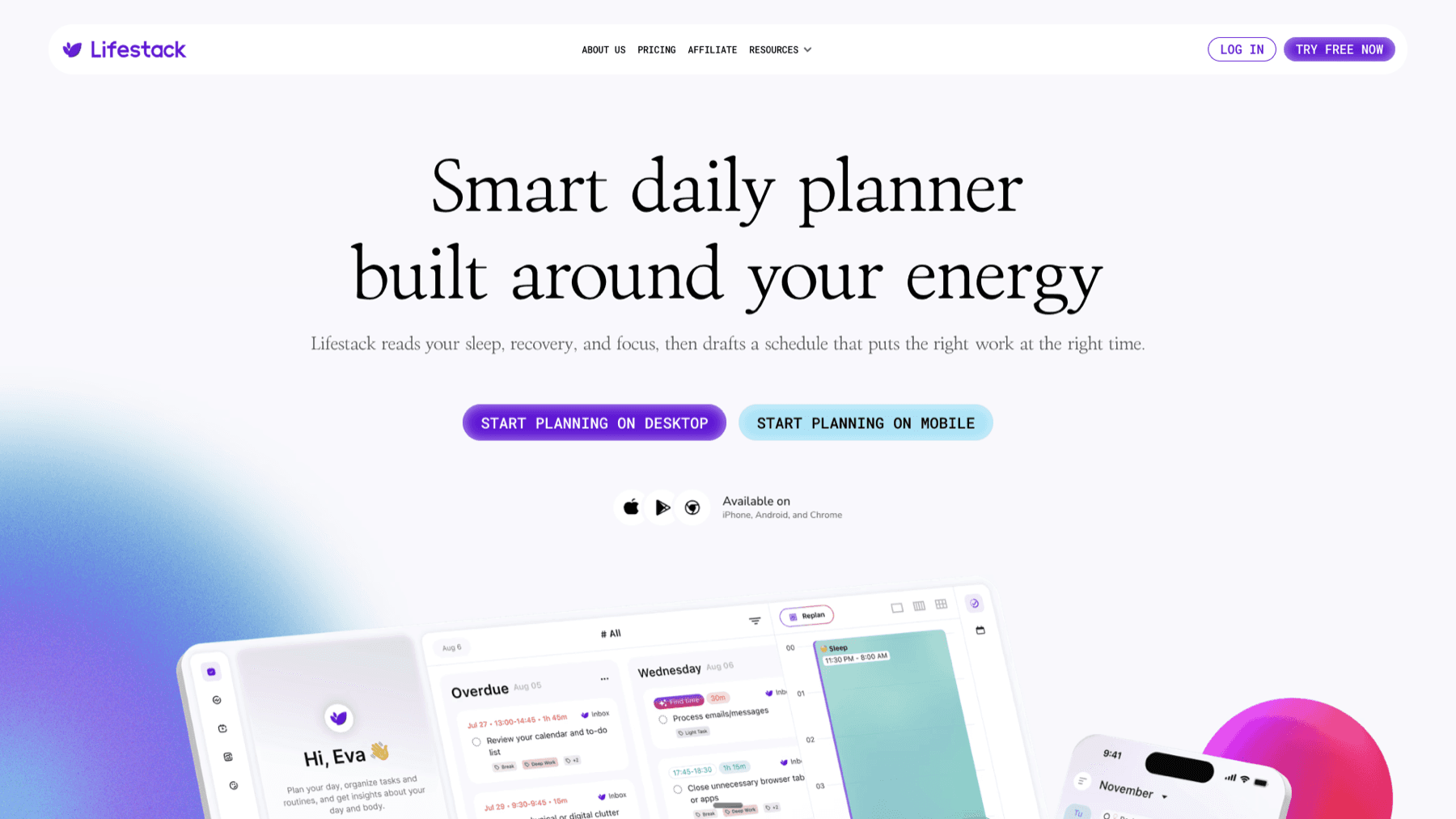
Good notes only pay off if you schedule time to review them. That's a planning problem as much as a study skills problem. Lifestack helps close that gap with energy-based scheduling -- matching cognitively demanding work like active recall sessions to the parts of your day when your focus is sharpest, rather than defaulting to late-night cramming when you're already running low.
If you're using Notion for your full study and life planning system, Lifestack works alongside it to schedule the deep work (review sessions, writing, problem sets) at the times your brain is best equipped for it. That pairing -- Notion for capture and organization, Lifestack for intelligent scheduling -- is the same approach that works in professional contexts where the notes are meeting notes rather than lecture notes. Available for iOS and Android, starting at $9.99/month or $49.99/year with a 7-day free trial.
Frequently Asked Questions
What is the Cornell notes method?
The Cornell notes method is a structured note-taking system with three sections: a narrow cue column on the left for keywords and questions, a wide notes area on the right for capturing content during class or reading, and a summary section at the bottom written after reviewing both columns. It was developed at Cornell University to improve retention through two-pass engagement -- capturing first, then synthesizing.
Can you make a Cornell notes template in Notion?
Yes. Use Notion's two-column layout block to create the cue and notes columns, then add a horizontal divider and a summary callout below. The main limitation is that Notion doesn't let you lock column width ratios precisely -- you'll need to drag the divider manually to approximate the 30/70 split each time, unless you use a workaround like a wider callout in the left column to hold its shape.
How do you create two columns in Notion?
Type /columns and select "2 columns" from the block menu, or drag any existing block to the right side of another block until a blue line appears -- Notion automatically creates a two-column layout. To adjust the split, hover over the divider between columns until a draggable handle appears.
When should you fill in the cue column?
Within 24 hours of taking the notes, while the material is still accessible from memory. During class or reading, focus only on the notes column -- the cue column is a review activity, not a live capture activity. Filling it in too long after the fact reduces the recall benefit because you're reading rather than retrieving.
Is Cornell notes good for ADHD?
The structure helps -- having a defined layout reduces the "where do I write this?" paralysis that blank pages can cause. The cue column's active recall step also pairs well with focus strategies for studying since it creates short, contained review tasks rather than long passive re-reading sessions. The summary section can be harder for ADHD learners because it requires synthesis -- keep summaries short (2-3 sentences is enough) rather than trying to cover everything at once.
How is Notion Cornell notes different from paper Cornell notes?
The structure is identical, but Notion adds searchability (find any cue or concept across all your notes with Ctrl+P), linkability (connect a note page to a class database, related readings, or your student template system), and longevity. Paper Cornell notes from September are usually illegible or lost by December. Notion notes persist and can be filtered, tagged, and built on semester after semester.
The Cornell notes method was developed at Cornell University in the 1950s and has been a staple of effective studying ever since. The idea is simple: divide your note page into three sections -- a narrow cue column on the left, a wide notes area on the right, and a summary box at the bottom. You take notes during class or reading in the right column, then fill in the left column afterward with questions and keywords that connect the material, then write a brief summary at the bottom to consolidate what you learned.
It works because it forces you to process the material twice. The first pass is capturing. The second pass -- filling in the cue column -- is sense-making. The summary forces you to synthesize. That's three levels of engagement with the material versus the one level you get with a linear notes dump.
Notion handles this well. The two-column layout takes about 60 seconds to set up once you know the approach, and unlike paper Cornell notes, your Notion version is searchable, linkable, and survives the end of the semester. This guide walks through exactly how to build it.
Key Takeaways
The Cornell method requires three distinct zones: a narrow cue/keyword column, a wide note-taking column, and a summary section below -- Notion's column blocks recreate this layout directly
The cue column is filled in after the notes, not during -- the review step is what makes the method work for retention
A good Notion Cornell template links to your class or topic dashboard so notes stay organized by subject rather than scattered as separate pages
The Three Sections of Cornell Notes
Before building in Notion, understand what each section is for:
Notes column (right, ~70% width): Taken during the lecture, reading, or meeting. Use bullet points, brief sentences, abbreviations. Speed over completeness. You're capturing, not composing.
Cue column (left, ~30% width): Filled in within 24 hours of taking the notes. Write questions that the notes answer, key terms to define, main concepts, or topics you'd use to retrieve that content on a test. This is the active recall layer.
Summary section (bottom): 3-5 sentences written after completing the cue column. Forces synthesis. What was the main point? What connects these ideas? What would you say to someone who wasn't there?
The cue column and summary are the parts most people skip. They're also the parts that make the method work. If you're just using it as a two-column layout to look organized, you'll get aesthetic notes that don't help you retain anything. The prompts and summary force the second-pass engagement.
Setting Up Cornell Notes in Notion
Here's how to build the template page in Notion:
Create a new Notion page. Title it with the class, lecture topic, or date (e.g., "Bio 201 | Week 3 | Cell Division").
Add a two-column layout. Type
/columnsand select "2 Columns." This creates the left and right column structure for your cue and notes sections.Set the column proportions. Hover over the divider between columns until a blue bar appears, then drag it left so the right column takes up roughly 70% of the width and the left column takes up 30%.
Label the left column. Type a small header: "Cues / Questions / Keywords" or just "Cues." Use a Callout block (
/callout) in a neutral color to visually distinguish it from the notes column.Leave the right column empty for notes. During class or reading, you'll type here. Use bullet points (
-) or numbered lists as your default.Add a horizontal divider below the two-column block. Type
---and hit Enter.Add a "Summary" section below the divider. Use a Callout block or simple bold header: "Summary." Leave space to write 3-5 sentences after reviewing your notes.
That's the full template. The whole structure takes about 2 minutes to set up. Once you have it, duplicate the page each time you need a new set of notes rather than rebuilding from scratch. Notion templates for students follow this same duplication pattern across your full setup.
How to Actually Use the Cue Column
The cue column is where most people get this wrong. The mistake is treating it as a second notes column -- summarizing what's in the notes column instead of creating questions that point to it.
The cue column should contain things you could use to quiz yourself. If the notes column says "mitochondria produce ATP via oxidative phosphorylation using the electron transport chain," the cue column should say "How does the mitochondria produce ATP?" or just "ATP production mechanism." When you cover the right column and read only the left, you should be able to reconstruct the notes from the cues alone. If you can't, the cues aren't specific enough.
Write cues as questions when possible ("What causes X?", "How does Y work?", "What is the difference between A and B?")
Write key terms when questions are too long
Group cues by concept rather than by line -- one cue can point to multiple notes bullets
Go back to the cue column within 24 hours while the material is still warm
People with task initiation challenges often find the cue column step easy to skip because it feels like extra work rather than essential work. Set a 15-minute calendar block after each class or reading session specifically for the cue review. It matters more than the notes themselves.
Writing Summaries That Actually Help
The summary section is 3-5 sentences at the bottom of each Cornell notes page. It's not a recap of everything in the notes. It's your attempt to answer: "What was this really about, in my own words?"
A useful prompt to get started: "If someone who wasn't in this class asked me what we learned today, I would say..." Write the answer. That's your summary. The constraint of one paragraph forces you to identify what mattered and discard what was incidental. Good practice for exams, where you have limited space to demonstrate understanding.
In Notion, keep the Summary callout block visible even when it's empty -- the visual reminder helps you fill it in rather than closing the page and moving on. Your Notion journal can follow a similar structure if you're using the same workspace for personal reflection alongside study notes.
Organizing Cornell Notes in Notion Long-Term
Individual note pages are useful. A system that organizes them is what makes them valuable over time.
The simplest approach: create one Notion database per class or subject. Each entry in the database is one Cornell notes session. Add properties for Date, Topic, and Status (Reviewed / Not Reviewed). The "Not Reviewed" filter becomes your study queue -- any notes where you haven't filled in the cue column yet.
Link this database from your main Notion dashboard so you can see at a glance which notes still need the cue review step. See the ADHD student planner guide for how to integrate your notes system with your broader study schedule -- the notes are only as useful as the review sessions you schedule around them.
For active recall practice: Use the cue column as your study tool. Open any Cornell notes page, cover the right column (minimize it in Notion or just mentally ignore it), and try to answer each cue from memory. Reveal the notes column to check. This is a low-tech but effective spaced repetition method without needing a separate flashcard app.
Turning Better Notes into Better Days
Good notes only pay off if you schedule time to review them. That's a planning problem as much as a study skills problem. Lifestack helps close that gap with energy-based scheduling -- matching cognitively demanding work like active recall sessions to the parts of your day when your focus is sharpest, rather than defaulting to late-night cramming when you're already running low.
If you're using Notion for your full study and life planning system, Lifestack works alongside it to schedule the deep work (review sessions, writing, problem sets) at the times your brain is best equipped for it. That pairing -- Notion for capture and organization, Lifestack for intelligent scheduling -- is the same approach that works in professional contexts where the notes are meeting notes rather than lecture notes. Available for iOS and Android, starting at $9.99/month or $49.99/year with a 7-day free trial.
Frequently Asked Questions
What is the Cornell notes method?
The Cornell notes method is a structured note-taking system with three sections: a narrow cue column on the left for keywords and questions, a wide notes area on the right for capturing content during class or reading, and a summary section at the bottom written after reviewing both columns. It was developed at Cornell University to improve retention through two-pass engagement -- capturing first, then synthesizing.
Can you make a Cornell notes template in Notion?
Yes. Use Notion's two-column layout block to create the cue and notes columns, then add a horizontal divider and a summary callout below. The main limitation is that Notion doesn't let you lock column width ratios precisely -- you'll need to drag the divider manually to approximate the 30/70 split each time, unless you use a workaround like a wider callout in the left column to hold its shape.
How do you create two columns in Notion?
Type /columns and select "2 columns" from the block menu, or drag any existing block to the right side of another block until a blue line appears -- Notion automatically creates a two-column layout. To adjust the split, hover over the divider between columns until a draggable handle appears.
When should you fill in the cue column?
Within 24 hours of taking the notes, while the material is still accessible from memory. During class or reading, focus only on the notes column -- the cue column is a review activity, not a live capture activity. Filling it in too long after the fact reduces the recall benefit because you're reading rather than retrieving.
Is Cornell notes good for ADHD?
The structure helps -- having a defined layout reduces the "where do I write this?" paralysis that blank pages can cause. The cue column's active recall step also pairs well with focus strategies for studying since it creates short, contained review tasks rather than long passive re-reading sessions. The summary section can be harder for ADHD learners because it requires synthesis -- keep summaries short (2-3 sentences is enough) rather than trying to cover everything at once.
How is Notion Cornell notes different from paper Cornell notes?
The structure is identical, but Notion adds searchability (find any cue or concept across all your notes with Ctrl+P), linkability (connect a note page to a class database, related readings, or your student template system), and longevity. Paper Cornell notes from September are usually illegible or lost by December. Notion notes persist and can be filtered, tagged, and built on semester after semester.



FOLLOW ON
FOLLOW ON
FOLLOW ON



Copyright 2026 © Lifestack. All rights reserved
Copyright 2026 © Lifestack. All rights reserved

