
Notion Journal Template
Notion Journal Template

Journaling is one of the highest-return habits you can build, and yet most people quit within two weeks. The pages go blank. The habit breaks. The app gets deleted. This is not a willpower problem. It is a system problem. When a journal is just an empty text block, it creates no structure to return to and no feedback to show your progress.
A Notion journal template fixes the blank-page problem by giving each entry a shape before you open it. Daily prompts appear automatically. Mood and energy ratings are one click. The weekly review is already waiting. This guide shows you how to build that system from scratch and use it in a way that actually lasts.
Notion is a strong choice for journaling because it combines the structure of a database with the flexibility of a document. You can filter entries by mood, search by keyword, and link your journal to your task list. No other note app does all three.
Key Takeaways
A Notion journal database with a daily template button removes the blank-page barrier and makes showing up trivially easy.
Adding mood, energy, and tag properties turns your journal into a searchable record you can analyze over time.
The weekly review entry is the most valuable page in the system. Build it into the template from day one.
Why Notion Works for Journaling
Most journaling apps are either too simple (plain text) or too complex (overgrown note systems). Notion sits in a productive middle ground. Each journal entry is a database page. The database gives you structure: date, mood, energy level, tags. The page gives you space: long-form text, embedded images, checklists, whatever you need that day.
The other advantage is that your journal lives next to your work. Your tasks, projects, and notes are in Notion. Your journal can reference them, link to them, and reflect on them without switching apps. This matters for the weekly review especially, where you want to look at what you accomplished alongside how you felt about it.
If you have used Notion for tasks before, check out the existing guide on Notion productivity apps to see how journaling fits into a broader system. And if you are curious about Notion's pricing, the free plan handles everything in this guide.
Set Up Your Journal Database
Create a new full-page database in Notion. Name it "Journal." Add these properties:
Name (title) - date and brief note, e.g. "Nov 9 - good focus day"
Date (Date) - the entry date, set automatically with
@todayin the templateMood (Select) - options: Great, Good, Neutral, Low, Rough. Add color codes so entries are visually scannable.
Energy (Select) - options: High, Medium, Low. This one is worth tracking separately from mood, since you can feel mentally sharp but physically drained or vice versa.
Tags (Multi-select) - create tags for themes you want to track: Work, Health, Relationships, Finance, Creative, Rest
Type (Select) - Daily, Weekly Review, Freewrite, Gratitude
Keep the property list short. Every property you add is a decision you have to make each time you open an entry. Five to six properties is the practical ceiling before friction creeps in.
Build the Daily Entry Template
Notion templates are the most underused feature in journaling setups. A template button inside your journal database creates a new page with preset content every time you tap it. This is what eliminates the blank page.
In your journal database, click "New" and then the dropdown arrow next to it. Select "New template." Build your template with this structure:
Morning prompts (3 questions): What am I looking forward to today? What is the one thing that would make today a win? What do I need to let go of from yesterday?
Evening prompts (3 questions): What went well? What would I do differently? What am I grateful for?
Free write block: An empty text area below the prompts for anything outside the structure
Set the Date property to @today in the template so it pre-fills automatically. For the Mood and Energy properties, leave them blank in the template. Filling those in first thing is a 2-second habit that becomes the opening ritual of each entry. Good morning routines benefit from exactly this kind of low-friction anchor.
Add a Weekly Review Page
The weekly review is where journaling pays off most. Daily entries capture the data. The weekly review makes sense of it. Without this page, you are collecting impressions without ever stepping back to notice what they mean.
Create a second template for weekly reviews. Use the Type property to tag these pages as "Weekly Review" so they are filterable. The weekly review template should include:
What were the 3 wins from this week?
What did not go as planned, and why?
What one habit do I want to strengthen next week?
What am I carrying into next week that needs attention?
A gallery view embed filtered to this week's daily entries, so you can read them while answering the prompts
The gallery embed is key. Looking at your daily moods and energy levels while writing the weekly review gives you real data, not just impressions. This is part of what makes the Notion setup genuinely better than a paper journal. For more on the habit of planning your week effectively, that guide covers the scheduling side of this same practice.
Use Filtered Views to Find Patterns
Once you have 30 days of entries, the filtered views become genuinely useful. Create these views in your journal database:
This Month - filtered by Date (is this month), sorted by Date ascending
Low Days - filtered by Mood equals Low or Rough. Use this to look for context: what tags appear on these days? What day of the week? What was happening in work or health?
By Tag - grouped by Tags. See how much you have written about Work vs Health vs Relationships over time.
Weekly Reviews Only - filtered by Type equals Weekly Review. Your longitudinal record of reflection.
The Low Days view is the one most people overlook. When you can filter your journal to only your hardest days and read them together, patterns appear that never would have been visible inside a linear journal. It is one of the most practical things about keeping a digital journaling system rather than paper.
Connect Your Journal to Your Task System
Journaling and task management work best when they talk to each other. When you write in your morning prompt "the one thing that would make today a win," that answer should map to something on your task list. When your evening prompt asks what went well, you should be able to glance at completed tasks to jog your memory.
In Notion, you can create a linked database view inside your journal entry that shows today's tasks. Create a filtered task view embedded as a subpage block: select your tasks database, filter by Due Date equals today, and place it inside the daily entry template. It takes five minutes to set up and makes the morning and evening prompts much more grounded.
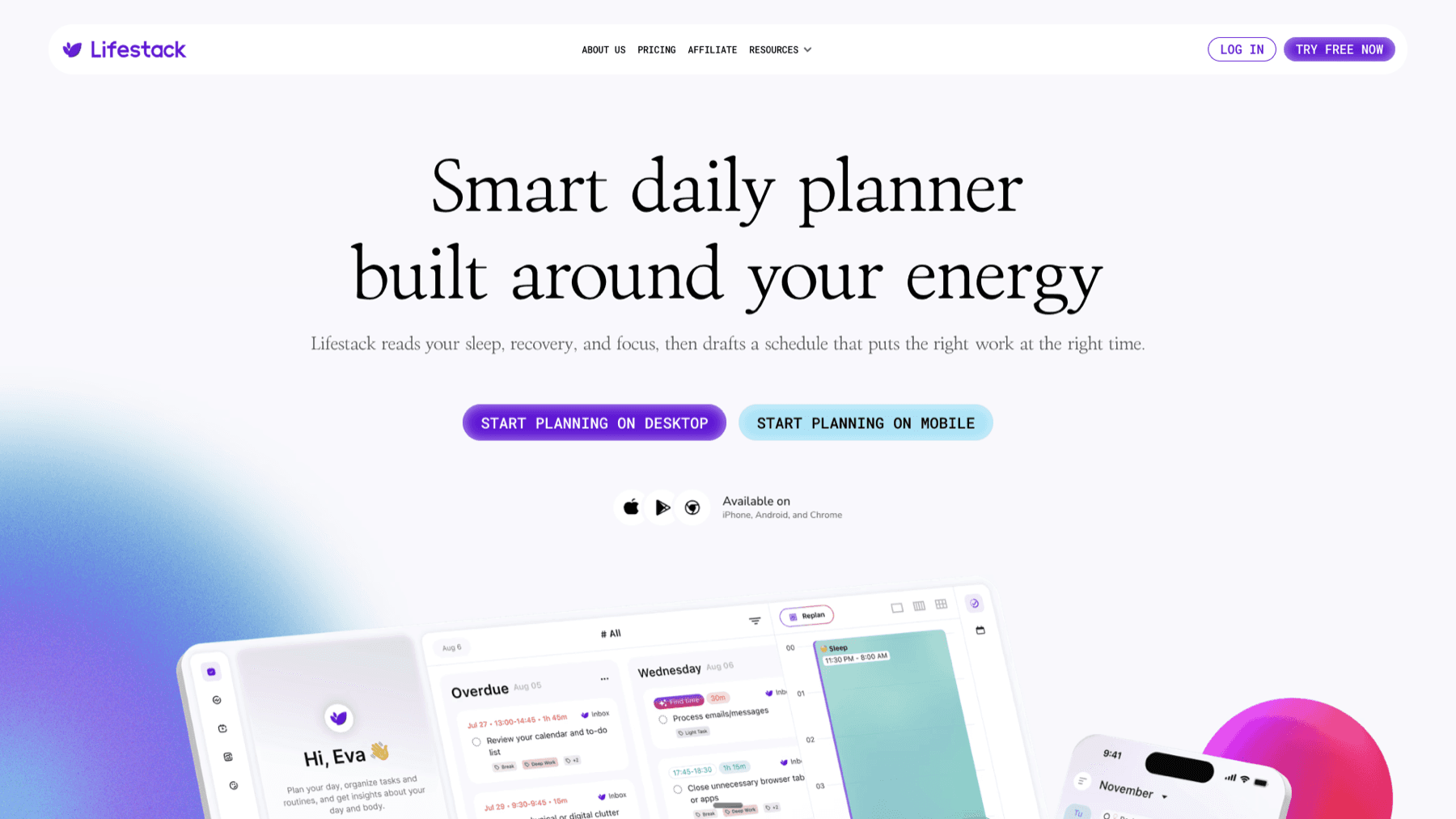
If you want your tasks automatically time-blocked around your journaling time, Lifestack handles that layer. It schedules your tasks into calendar blocks based on your energy levels, so your high-energy morning time stays protected for deep work while admin tasks fill lower-energy slots. The journal and task system live in Notion; the scheduling intelligence lives in Lifestack. They handle different problems and work well side by side. Planning effectively is easier when both sides of that equation are covered.
Best Tool for Notion Journal Users
For journaling, Notion is hard to beat. For scheduling the time to journal and protecting it from getting bumped, Lifestack is the tool that fills the gap. It auto-schedules recurring blocks (like your 10-minute morning journal session) during the right energy window for you personally, so the habit actually gets done rather than perpetually deferred. At $9.99/month or $49.99/year with a 7-day free trial, it is a low-cost way to make habits like journaling stick in a full calendar.
Make the Habit Stick
The template eliminates the blank-page problem. The habit still needs a trigger. Pick one anchor: journal always happens right after your first coffee, right before you open email, or the last thing before you close your laptop. The specific anchor matters less than the consistency of the pairing.
Start with just the three morning prompts for the first two weeks. Skip the evening prompts, skip the tags. All of those features are waiting when the basic habit is solid. Adding complexity too early is what kills most journaling attempts. A habit tracker can help you mark the streak and notice when you break it.
After 30 days, do your first proper weekly review and look at the full month of entries. If you have been tagging and rating mood and energy, you will see something that surprises you. That is the moment when the system becomes a real tool, not just a productivity experiment. For more ideas on building a sustainable daily structure, the daily planner guide covers the broader routine these habits fit into.
Frequently Asked Questions
What is a Notion journal template?
A Notion journal template is a database with pre-built daily and weekly entry templates. When you create a new entry, the template pre-fills with journal prompts, date, and properties for mood, energy, and tags so you never face a blank page.
How do I create a journal in Notion?
Create a full-page database, add properties for Date, Mood, Energy, Tags, and Type, then build a template button with your daily prompts pre-written. This guide covers every step in detail.
Is Notion good for daily journaling?
Yes. Notion's database structure lets you filter entries by mood, search by keyword, and link to tasks and projects. The free plan is fully sufficient for journaling, and the template button feature removes the main barrier to consistency.
What should I include in a daily journal entry?
Three morning prompts (what you are looking forward to, your one win for the day, what to release from yesterday) and three evening prompts (what went well, what you would change, what you are grateful for) cover most of what matters. Keep it under 15 minutes.
How is a Notion journal different from a paper journal?
Notion entries are searchable, filterable, and linkable. You can find every entry where you rated mood as Low, see which tags cluster around those days, and link journal entries to task completions. Paper journals cannot do this. The trade-off is that Notion requires a device and an internet connection.
How do I do a weekly review in Notion?
Create a second template for weekly review entries, tagged with Type = Weekly Review. The template should include questions about wins, what did not work, next week's focus, and an embedded view of that week's daily entries. Run it every Sunday or Friday afternoon.
Journaling is one of the highest-return habits you can build, and yet most people quit within two weeks. The pages go blank. The habit breaks. The app gets deleted. This is not a willpower problem. It is a system problem. When a journal is just an empty text block, it creates no structure to return to and no feedback to show your progress.
A Notion journal template fixes the blank-page problem by giving each entry a shape before you open it. Daily prompts appear automatically. Mood and energy ratings are one click. The weekly review is already waiting. This guide shows you how to build that system from scratch and use it in a way that actually lasts.
Notion is a strong choice for journaling because it combines the structure of a database with the flexibility of a document. You can filter entries by mood, search by keyword, and link your journal to your task list. No other note app does all three.
Key Takeaways
A Notion journal database with a daily template button removes the blank-page barrier and makes showing up trivially easy.
Adding mood, energy, and tag properties turns your journal into a searchable record you can analyze over time.
The weekly review entry is the most valuable page in the system. Build it into the template from day one.
Why Notion Works for Journaling
Most journaling apps are either too simple (plain text) or too complex (overgrown note systems). Notion sits in a productive middle ground. Each journal entry is a database page. The database gives you structure: date, mood, energy level, tags. The page gives you space: long-form text, embedded images, checklists, whatever you need that day.
The other advantage is that your journal lives next to your work. Your tasks, projects, and notes are in Notion. Your journal can reference them, link to them, and reflect on them without switching apps. This matters for the weekly review especially, where you want to look at what you accomplished alongside how you felt about it.
If you have used Notion for tasks before, check out the existing guide on Notion productivity apps to see how journaling fits into a broader system. And if you are curious about Notion's pricing, the free plan handles everything in this guide.
Set Up Your Journal Database
Create a new full-page database in Notion. Name it "Journal." Add these properties:
Name (title) - date and brief note, e.g. "Nov 9 - good focus day"
Date (Date) - the entry date, set automatically with
@todayin the templateMood (Select) - options: Great, Good, Neutral, Low, Rough. Add color codes so entries are visually scannable.
Energy (Select) - options: High, Medium, Low. This one is worth tracking separately from mood, since you can feel mentally sharp but physically drained or vice versa.
Tags (Multi-select) - create tags for themes you want to track: Work, Health, Relationships, Finance, Creative, Rest
Type (Select) - Daily, Weekly Review, Freewrite, Gratitude
Keep the property list short. Every property you add is a decision you have to make each time you open an entry. Five to six properties is the practical ceiling before friction creeps in.
Build the Daily Entry Template
Notion templates are the most underused feature in journaling setups. A template button inside your journal database creates a new page with preset content every time you tap it. This is what eliminates the blank page.
In your journal database, click "New" and then the dropdown arrow next to it. Select "New template." Build your template with this structure:
Morning prompts (3 questions): What am I looking forward to today? What is the one thing that would make today a win? What do I need to let go of from yesterday?
Evening prompts (3 questions): What went well? What would I do differently? What am I grateful for?
Free write block: An empty text area below the prompts for anything outside the structure
Set the Date property to @today in the template so it pre-fills automatically. For the Mood and Energy properties, leave them blank in the template. Filling those in first thing is a 2-second habit that becomes the opening ritual of each entry. Good morning routines benefit from exactly this kind of low-friction anchor.
Add a Weekly Review Page
The weekly review is where journaling pays off most. Daily entries capture the data. The weekly review makes sense of it. Without this page, you are collecting impressions without ever stepping back to notice what they mean.
Create a second template for weekly reviews. Use the Type property to tag these pages as "Weekly Review" so they are filterable. The weekly review template should include:
What were the 3 wins from this week?
What did not go as planned, and why?
What one habit do I want to strengthen next week?
What am I carrying into next week that needs attention?
A gallery view embed filtered to this week's daily entries, so you can read them while answering the prompts
The gallery embed is key. Looking at your daily moods and energy levels while writing the weekly review gives you real data, not just impressions. This is part of what makes the Notion setup genuinely better than a paper journal. For more on the habit of planning your week effectively, that guide covers the scheduling side of this same practice.
Use Filtered Views to Find Patterns
Once you have 30 days of entries, the filtered views become genuinely useful. Create these views in your journal database:
This Month - filtered by Date (is this month), sorted by Date ascending
Low Days - filtered by Mood equals Low or Rough. Use this to look for context: what tags appear on these days? What day of the week? What was happening in work or health?
By Tag - grouped by Tags. See how much you have written about Work vs Health vs Relationships over time.
Weekly Reviews Only - filtered by Type equals Weekly Review. Your longitudinal record of reflection.
The Low Days view is the one most people overlook. When you can filter your journal to only your hardest days and read them together, patterns appear that never would have been visible inside a linear journal. It is one of the most practical things about keeping a digital journaling system rather than paper.
Connect Your Journal to Your Task System
Journaling and task management work best when they talk to each other. When you write in your morning prompt "the one thing that would make today a win," that answer should map to something on your task list. When your evening prompt asks what went well, you should be able to glance at completed tasks to jog your memory.
In Notion, you can create a linked database view inside your journal entry that shows today's tasks. Create a filtered task view embedded as a subpage block: select your tasks database, filter by Due Date equals today, and place it inside the daily entry template. It takes five minutes to set up and makes the morning and evening prompts much more grounded.
If you want your tasks automatically time-blocked around your journaling time, Lifestack handles that layer. It schedules your tasks into calendar blocks based on your energy levels, so your high-energy morning time stays protected for deep work while admin tasks fill lower-energy slots. The journal and task system live in Notion; the scheduling intelligence lives in Lifestack. They handle different problems and work well side by side. Planning effectively is easier when both sides of that equation are covered.
Best Tool for Notion Journal Users
For journaling, Notion is hard to beat. For scheduling the time to journal and protecting it from getting bumped, Lifestack is the tool that fills the gap. It auto-schedules recurring blocks (like your 10-minute morning journal session) during the right energy window for you personally, so the habit actually gets done rather than perpetually deferred. At $9.99/month or $49.99/year with a 7-day free trial, it is a low-cost way to make habits like journaling stick in a full calendar.
Make the Habit Stick
The template eliminates the blank-page problem. The habit still needs a trigger. Pick one anchor: journal always happens right after your first coffee, right before you open email, or the last thing before you close your laptop. The specific anchor matters less than the consistency of the pairing.
Start with just the three morning prompts for the first two weeks. Skip the evening prompts, skip the tags. All of those features are waiting when the basic habit is solid. Adding complexity too early is what kills most journaling attempts. A habit tracker can help you mark the streak and notice when you break it.
After 30 days, do your first proper weekly review and look at the full month of entries. If you have been tagging and rating mood and energy, you will see something that surprises you. That is the moment when the system becomes a real tool, not just a productivity experiment. For more ideas on building a sustainable daily structure, the daily planner guide covers the broader routine these habits fit into.
Frequently Asked Questions
What is a Notion journal template?
A Notion journal template is a database with pre-built daily and weekly entry templates. When you create a new entry, the template pre-fills with journal prompts, date, and properties for mood, energy, and tags so you never face a blank page.
How do I create a journal in Notion?
Create a full-page database, add properties for Date, Mood, Energy, Tags, and Type, then build a template button with your daily prompts pre-written. This guide covers every step in detail.
Is Notion good for daily journaling?
Yes. Notion's database structure lets you filter entries by mood, search by keyword, and link to tasks and projects. The free plan is fully sufficient for journaling, and the template button feature removes the main barrier to consistency.
What should I include in a daily journal entry?
Three morning prompts (what you are looking forward to, your one win for the day, what to release from yesterday) and three evening prompts (what went well, what you would change, what you are grateful for) cover most of what matters. Keep it under 15 minutes.
How is a Notion journal different from a paper journal?
Notion entries are searchable, filterable, and linkable. You can find every entry where you rated mood as Low, see which tags cluster around those days, and link journal entries to task completions. Paper journals cannot do this. The trade-off is that Notion requires a device and an internet connection.
How do I do a weekly review in Notion?
Create a second template for weekly review entries, tagged with Type = Weekly Review. The template should include questions about wins, what did not work, next week's focus, and an embedded view of that week's daily entries. Run it every Sunday or Friday afternoon.



FOLLOW ON
FOLLOW ON
FOLLOW ON



Copyright 2026 © Lifestack. All rights reserved
Copyright 2026 © Lifestack. All rights reserved

