
App
Notion Planner: How It Works and Where It Falls Short
Notion Planner: How It Works and Where It Falls Short

People who love Notion tend to love it intensely. It's endlessly flexible, supports databases, wikis, task lists, kanban boards, calendars, and linked views all in one workspace. Many users build elaborate planning systems inside it and swear by them.
But "Notion as a planner" means very different things to different people. For some, it's a daily journal and project hub. For others, it's a full life operating system with habit trackers, goal reviews, and weekly templates. Neither use case is wrong. What matters is understanding what Notion actually does and doesn't do so you can decide if it fits your planning workflow.
This guide covers what makes Notion work well as a planner, where it genuinely struggles, and what to pair with it to fill the gaps.
Key Takeaways
Notion excels as a knowledge and project hub, flexible enough to build almost any planning system you can imagine
Its biggest gap as a daily planner is the lack of scheduling intelligence: Notion doesn't auto-schedule tasks, doesn't read your calendar, and doesn't account for energy or cognitive load
The free tier is genuinely capable for individual use; paid plans add collaboration features and AI that matter for teams
What Is a Notion Planner?
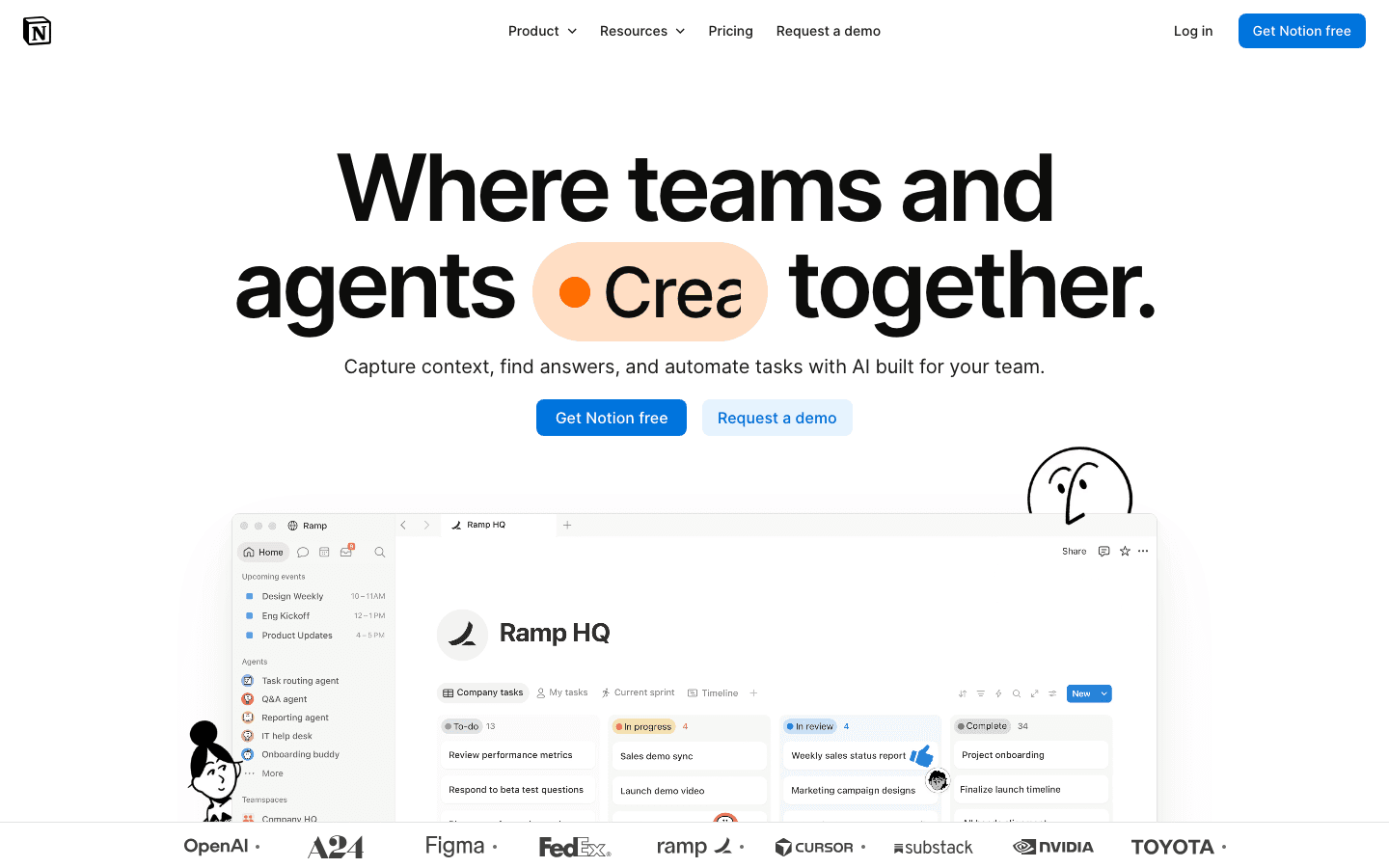
A Notion planner is any workspace setup that uses Notion's databases, pages, and views to plan and track work. The most common patterns are a daily or weekly task list (a database filtered by date), a goal tracker (a page with progress properties), and a project hub (linked databases connecting tasks, notes, and resources). Notion's template gallery has hundreds of pre-built planner setups you can duplicate with one click.
What makes Notion genuinely useful here is the relational database layer. You can create a Tasks database and a Projects database, link them together, and then view your tasks filtered by project, by date, or by status. You can see today's tasks in a list view, the same tasks in a calendar view, and a board view sorted by priority, all from the same underlying data. That kind of flexibility is rare in purpose-built planner apps.
Notion AI, available on paid plans, adds the ability to generate summaries, draft content, and build simple automations across your workspace. The AI can draft a project brief, summarize meeting notes, or suggest tasks based on a goal you describe, useful for people who find blank-page syndrome the biggest friction in planning.
What Notion Does Well as a Planner
Flexibility: Build the exact planning system your brain wants, not the one someone else designed. If you want a weekly review template, a habit tracker, and a project database all linked together, Notion can do that.
All-in-one workspace: Notes, tasks, projects, and references live in one place. No context-switching between your task manager and your note-taking app.
Views: The same database can display as a table, list, board, calendar, gallery, or timeline. Seeing your week in calendar view while also having a filterable task list is genuinely useful.
Collaboration: Shared workspaces let teams plan together, comment on tasks, and see shared project statuses in real time.
Templates: The gallery has well-designed planner systems built by the community. You can get up and running in minutes without building from scratch.
Where Notion Falls Short as a Planner
Notion is a workspace builder. It is not a scheduling engine. That distinction matters for daily planning.
When you have a task list in Notion, the tool has no opinion about when you should do the tasks. It won't move them around based on your calendar availability, your cognitive energy levels, or what's overdue. You have to manually look at your calendar, estimate how long each task takes, and decide when to do what. For light task loads, that's fine. For people managing complex days with many competing demands, it creates significant friction.
The other major gap is calendar integration. Notion Calendar (the standalone Notion calendar product) connects to Google Calendar and surfaces Notion tasks alongside events. But Notion itself doesn't read your meeting load and adjust your task schedule accordingly. If you add a 2-hour meeting in the morning, your task database doesn't respond.
Mobile experience is also a recurring complaint. Notion is powerful on desktop, but the mobile app is slower and the editing experience is less fluid than purpose-built planner apps optimized for quick capture on a phone. If you need to log tasks quickly throughout the day, Notion's mobile app creates more friction than a native task manager. See how it compares in our best AI planner apps roundup.
How to Set Up Notion as a Daily Planner
If you want to use Notion as your primary planner, a few structural decisions make the experience much better.
Start with a Tasks database, not a page. A database gives you filtering, sorting, and linked views that a plain page can't provide. Add properties for Status (Not started / In progress / Done), Date, Priority, and Project.
Create a Today view. Filter your Tasks database to show only items where Date is today. Pin this view. Every morning, this is your starting point.
Link to a Projects database. When tasks live in silos, context gets lost. Linking tasks to projects lets you see everything for a given project in one place and understand which tasks belong to which outcome.
Use a Weekly Review template. Notion's flexibility is wasted without a regular review rhythm. A weekly template page where you reflect on what got done, what didn't, and what carries forward turns Notion from a static list into a living system.
Pairing Notion with an Auto-Scheduling Layer

The gap Notion leaves is the scheduling decision: given this task list and this calendar, when should I do what?
Lifestack fills that gap. It reads your tasks and calendar, layers in health and recovery data from wearables, and auto-schedules your day so your hardest work lands in your highest-energy windows. Where Notion tells you what needs to get done, Lifestack tells you when to do it and in what order based on your actual capacity that day.
For people who use Notion as a project and knowledge hub, this pairing works well: Notion holds the full context of what exists and why, while Lifestack handles the daily execution layer. See how other apps pair with Notion in our best apps to use with Notion guide.
Pricing
Free: $0 per member: unlimited pages and blocks for individual use
Plus: $10/member/month (billed monthly), adds unlimited history, guest access, and custom automations
Business: $20/member/month (billed monthly), adds advanced permissions, Notion AI for teams, and analytics
Enterprise: Custom pricing
The free plan covers everything most individuals need for a personal planner setup. Paid plans matter primarily for teams that need collaboration features and admin controls. Notion AI (available in Plus and above) is worth considering if you regularly write project briefs or want to generate task lists from meeting notes.
Frequently Asked Questions
Is Notion good as a daily planner?
For capturing and organizing tasks, yes. For scheduling and prioritizing them automatically, no. Notion is excellent at holding a task list and letting you filter and sort it. It doesn't auto-schedule tasks based on your calendar or energy level. Most serious users pair it with a dedicated scheduling tool for the execution layer.
What is the best Notion planner template?
The best template depends on your planning style. For a simple daily setup, any template with a Tasks database filtered to today works well. For a more complete life planning system, the community-built "Life OS" templates (available in the Notion template gallery) combine goals, habits, projects, and weekly reviews in one linked workspace.
Can Notion replace a calendar?
Not directly. Notion has a calendar view for databases, but it doesn't replace a time-blocking calendar like Google Calendar. Notion Calendar (a separate Notion product) connects your Google Calendar to your Notion workspace so you can see both together. For a full calendar alternative comparison, see our Google Calendar alternatives guide.
Is Notion free to use as a planner?
Yes. The free tier gives individuals unlimited pages and blocks, which is sufficient for building a full personal planner setup. You'd need a paid plan if you want to collaborate with a team, need unlimited page history, or want Notion AI features.
What should I use alongside Notion for better productivity?
A scheduling tool that can auto-prioritize your task list based on your calendar and energy is the most common gap Notion users report. Lifestack handles this by reading your wearable data and building energy-aware time blocks for your day. Our best time management apps guide covers other useful pairings.
People who love Notion tend to love it intensely. It's endlessly flexible, supports databases, wikis, task lists, kanban boards, calendars, and linked views all in one workspace. Many users build elaborate planning systems inside it and swear by them.
But "Notion as a planner" means very different things to different people. For some, it's a daily journal and project hub. For others, it's a full life operating system with habit trackers, goal reviews, and weekly templates. Neither use case is wrong. What matters is understanding what Notion actually does and doesn't do so you can decide if it fits your planning workflow.
This guide covers what makes Notion work well as a planner, where it genuinely struggles, and what to pair with it to fill the gaps.
Key Takeaways
Notion excels as a knowledge and project hub, flexible enough to build almost any planning system you can imagine
Its biggest gap as a daily planner is the lack of scheduling intelligence: Notion doesn't auto-schedule tasks, doesn't read your calendar, and doesn't account for energy or cognitive load
The free tier is genuinely capable for individual use; paid plans add collaboration features and AI that matter for teams
What Is a Notion Planner?
A Notion planner is any workspace setup that uses Notion's databases, pages, and views to plan and track work. The most common patterns are a daily or weekly task list (a database filtered by date), a goal tracker (a page with progress properties), and a project hub (linked databases connecting tasks, notes, and resources). Notion's template gallery has hundreds of pre-built planner setups you can duplicate with one click.
What makes Notion genuinely useful here is the relational database layer. You can create a Tasks database and a Projects database, link them together, and then view your tasks filtered by project, by date, or by status. You can see today's tasks in a list view, the same tasks in a calendar view, and a board view sorted by priority, all from the same underlying data. That kind of flexibility is rare in purpose-built planner apps.
Notion AI, available on paid plans, adds the ability to generate summaries, draft content, and build simple automations across your workspace. The AI can draft a project brief, summarize meeting notes, or suggest tasks based on a goal you describe, useful for people who find blank-page syndrome the biggest friction in planning.
What Notion Does Well as a Planner
Flexibility: Build the exact planning system your brain wants, not the one someone else designed. If you want a weekly review template, a habit tracker, and a project database all linked together, Notion can do that.
All-in-one workspace: Notes, tasks, projects, and references live in one place. No context-switching between your task manager and your note-taking app.
Views: The same database can display as a table, list, board, calendar, gallery, or timeline. Seeing your week in calendar view while also having a filterable task list is genuinely useful.
Collaboration: Shared workspaces let teams plan together, comment on tasks, and see shared project statuses in real time.
Templates: The gallery has well-designed planner systems built by the community. You can get up and running in minutes without building from scratch.
Where Notion Falls Short as a Planner
Notion is a workspace builder. It is not a scheduling engine. That distinction matters for daily planning.
When you have a task list in Notion, the tool has no opinion about when you should do the tasks. It won't move them around based on your calendar availability, your cognitive energy levels, or what's overdue. You have to manually look at your calendar, estimate how long each task takes, and decide when to do what. For light task loads, that's fine. For people managing complex days with many competing demands, it creates significant friction.
The other major gap is calendar integration. Notion Calendar (the standalone Notion calendar product) connects to Google Calendar and surfaces Notion tasks alongside events. But Notion itself doesn't read your meeting load and adjust your task schedule accordingly. If you add a 2-hour meeting in the morning, your task database doesn't respond.
Mobile experience is also a recurring complaint. Notion is powerful on desktop, but the mobile app is slower and the editing experience is less fluid than purpose-built planner apps optimized for quick capture on a phone. If you need to log tasks quickly throughout the day, Notion's mobile app creates more friction than a native task manager. See how it compares in our best AI planner apps roundup.
How to Set Up Notion as a Daily Planner
If you want to use Notion as your primary planner, a few structural decisions make the experience much better.
Start with a Tasks database, not a page. A database gives you filtering, sorting, and linked views that a plain page can't provide. Add properties for Status (Not started / In progress / Done), Date, Priority, and Project.
Create a Today view. Filter your Tasks database to show only items where Date is today. Pin this view. Every morning, this is your starting point.
Link to a Projects database. When tasks live in silos, context gets lost. Linking tasks to projects lets you see everything for a given project in one place and understand which tasks belong to which outcome.
Use a Weekly Review template. Notion's flexibility is wasted without a regular review rhythm. A weekly template page where you reflect on what got done, what didn't, and what carries forward turns Notion from a static list into a living system.
Pairing Notion with an Auto-Scheduling Layer
The gap Notion leaves is the scheduling decision: given this task list and this calendar, when should I do what?
Lifestack fills that gap. It reads your tasks and calendar, layers in health and recovery data from wearables, and auto-schedules your day so your hardest work lands in your highest-energy windows. Where Notion tells you what needs to get done, Lifestack tells you when to do it and in what order based on your actual capacity that day.
For people who use Notion as a project and knowledge hub, this pairing works well: Notion holds the full context of what exists and why, while Lifestack handles the daily execution layer. See how other apps pair with Notion in our best apps to use with Notion guide.
Pricing
Free: $0 per member: unlimited pages and blocks for individual use
Plus: $10/member/month (billed monthly), adds unlimited history, guest access, and custom automations
Business: $20/member/month (billed monthly), adds advanced permissions, Notion AI for teams, and analytics
Enterprise: Custom pricing
The free plan covers everything most individuals need for a personal planner setup. Paid plans matter primarily for teams that need collaboration features and admin controls. Notion AI (available in Plus and above) is worth considering if you regularly write project briefs or want to generate task lists from meeting notes.
Frequently Asked Questions
Is Notion good as a daily planner?
For capturing and organizing tasks, yes. For scheduling and prioritizing them automatically, no. Notion is excellent at holding a task list and letting you filter and sort it. It doesn't auto-schedule tasks based on your calendar or energy level. Most serious users pair it with a dedicated scheduling tool for the execution layer.
What is the best Notion planner template?
The best template depends on your planning style. For a simple daily setup, any template with a Tasks database filtered to today works well. For a more complete life planning system, the community-built "Life OS" templates (available in the Notion template gallery) combine goals, habits, projects, and weekly reviews in one linked workspace.
Can Notion replace a calendar?
Not directly. Notion has a calendar view for databases, but it doesn't replace a time-blocking calendar like Google Calendar. Notion Calendar (a separate Notion product) connects your Google Calendar to your Notion workspace so you can see both together. For a full calendar alternative comparison, see our Google Calendar alternatives guide.
Is Notion free to use as a planner?
Yes. The free tier gives individuals unlimited pages and blocks, which is sufficient for building a full personal planner setup. You'd need a paid plan if you want to collaborate with a team, need unlimited page history, or want Notion AI features.
What should I use alongside Notion for better productivity?
A scheduling tool that can auto-prioritize your task list based on your calendar and energy is the most common gap Notion users report. Lifestack handles this by reading your wearable data and building energy-aware time blocks for your day. Our best time management apps guide covers other useful pairings.



FOLLOW ON
FOLLOW ON
FOLLOW ON


Copyright 2026 © Lifestack. All rights reserved
Copyright 2026 © Lifestack. All rights reserved

