
Tips
Notion To-Do List Templates: Best Free Options
Notion To-Do List Templates: Best Free Options

Notion is one of the most flexible productivity tools available, and that flexibility extends to its to-do lists. You can build a simple checkbox list in under a minute, or you can create a multi-view task database with due dates, priority labels, assignees, and recurring tasks. The challenge is knowing which setup actually serves you day-to-day rather than just looking good in screenshots.
This guide covers the best free Notion to-do list templates, how to build your own from scratch, and what to do when Notion's template ecosystem doesn't quite fit your workflow.
Key Takeaways
Notion's native templates cover everything from simple checkboxes to full GTD-style databases; the right one depends on how much complexity you actually use
The most useful customizations are priority filters, recurring task support, and a "Today" filtered view that shows only what's due right now
If your tasks need to block time on a calendar or adapt to your energy levels, Notion templates alone won't get you there
What to Look for in a Notion To-Do List Template
Not all Notion task templates are built for actual daily use. Many look impressive in preview screenshots but break down when you add fifty tasks or try to use them consistently across a month. Before duplicating any template, check for these four things:
Filtered views. A good template has at least one "Today" or "Active" view that filters out completed and future tasks. If you're staring at every task you've ever added each morning, the template will slow you down rather than focus you.
Priority or status properties. Task templates with no way to mark urgency force you to mentally sort your list every time you open it. A simple High/Medium/Low label or a P1/P2/P3 field solves this.
Due dates that actually work. Notion's date property allows reminders if connected to Notion Calendar. Templates that use a plain text "Due" field instead of a proper date property lose this functionality entirely.
Low friction for adding tasks. If you have to navigate three levels of a database hierarchy to add a single task, you'll stop using the template within a week. The best setups have a "Quick Add" row at the top of the main view.
The Best Free Notion To-Do List Templates

Notion's official template gallery has over 70,000 community-built templates. These are the ones that hold up under daily use:
Notion Task List (Official). Notion's own task list template gives you a database with status, priority, and due date properties, plus three default views: list, board, and calendar. This is the right starting point for most people. It's free, requires no signup outside of Notion itself, and can be duplicated into any workspace in one click.
Thomas Frank's Ultimate Tasks. Frank's template combines task and project management in a single database, with tags, project linking, and a GTD-style inbox. It's more complex than Notion's official template but better suited for people managing multiple projects at once. The base version is free; a premium version with extra views and automations is available for purchase.
Notion Weekly To-Do List. If your mental model is week-based rather than project-based, Notion's weekly template organizes tasks by day of the week in a simple gallery or table view. This pairs well with the guide on daily planner templates if you want to extend it into daily planning.
GTD-Style Inbox + Action Template. Community-built GTD templates capture tasks into an inbox first, then let you process them into projects, next actions, waiting-for, and someday/maybe lists. This is the most powerful Notion task setup available, and also the most likely to be abandoned if you're not already using GTD. See our Notion project management guide for how to extend this into full project tracking.
How to Build Your Own Notion To-Do List Template
Building from scratch takes about fifteen minutes and gives you a template that fits your exact workflow rather than someone else's assumptions. Here's the structure that works:
1. Create a new database. Add a new page, choose "Table" as the view type. This becomes your master task list.
2. Add these properties: Name (default), Status (select: To Do / In Progress / Done), Priority (select: High / Medium / Low), Due Date (date property with reminder enabled), Project (relation to a Projects database if you're tracking projects), and Notes (text, collapsed by default).
3. Create a "Today" view. Duplicate the main table view, name it "Today," and add a filter: Status is not Done AND Due Date is on or before Today. Pin this as your default view.
4. Create a "This Week" view. Same as above but filter Due Date within the current week. This gives you the full picture when planning your week.
5. Add a quick-add row. Turn on "Show calculations" at the bottom of the table and add an empty row permanently visible at the top using the "New" button shortcut. For faster capture, use the Notion mobile widget to add tasks directly from your home screen.
The result is a minimal, filtered task manager that you can customize further as your needs evolve. For more complex setups, the Notion dashboard guide covers how to combine multiple databases into a single command center.
Customizations That Make Templates Actually Stick
Most Notion task templates get abandoned within a month. The templates aren't the problem: the missing habit of actually opening Notion is. These customizations address that:
Add Notion to your phone home screen. The Notion widget for iOS and Android can display your filtered "Today" view without opening the app. This removes the activation cost and keeps tasks visible alongside everything else you check in the morning.
Connect to Notion Calendar. Notion Calendar syncs due dates from your task database to your calendar. Tasks with due dates appear as calendar blocks, making your workload visible alongside meetings. The setup takes under two minutes in Notion Calendar settings.
Use recurring task templates. Notion doesn't support native recurring tasks, but you can create template buttons that pre-fill task names, priorities, and due dates. Set up a "Weekly Review" template button that creates all your review tasks with one click. See the Notion habit tracker guide for the same pattern applied to habit tracking.
Add an Eisenhower Matrix view. If your task list gets overwhelming, a gallery view filtered by urgency and importance gives you the classic 2x2 prioritization matrix inside Notion. Our Notion Eisenhower Matrix template covers how to build this.
When Notion's Templates Aren't Enough
Notion is a database and document tool. It doesn't know when you have energy to tackle deep work, it doesn't block time on your calendar automatically, and it won't reschedule overdue tasks when your day changes. This is fine for many workflows, but if you find yourself manually moving tasks each morning or constantly making promises about tasks you never get to, the problem isn't the template.
Time blocking is the bridge between a Notion task list and an actual schedule. The time-blocking template guide covers how to structure your calendar around your task list. For a broader comparison of task management approaches, this guide on task apps for variable energy is worth reading before you invest heavily in any one system.
Best Tool for Notion-Based Task Management
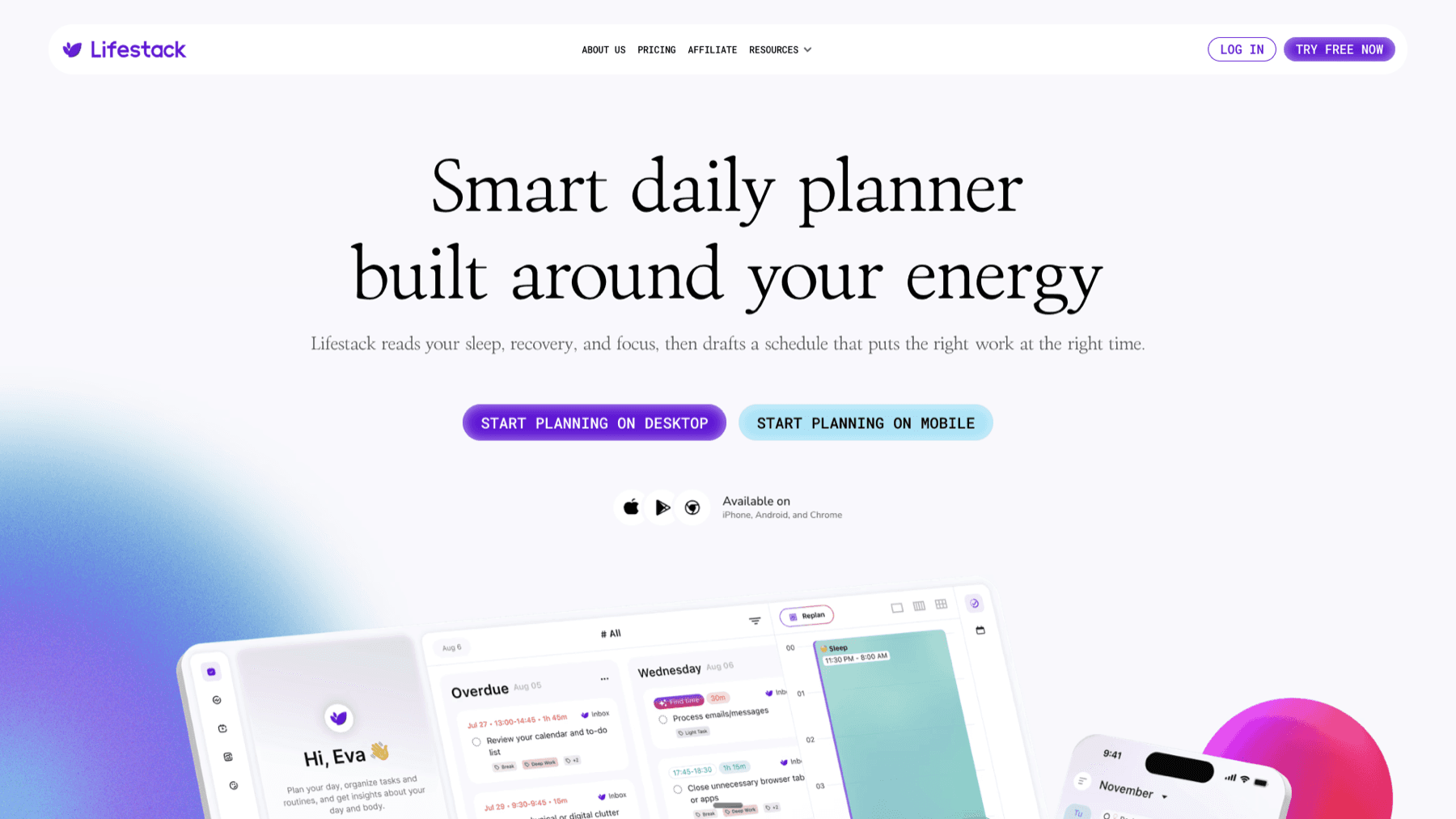
If you want your Notion tasks to automatically block time on your calendar, Lifestack is the tool that connects them. It reads your tasks, your calendar, and your wearable's energy data, then schedules deep work and focus blocks in the slots where you're actually capable of doing them, not just the slots that are technically empty.
Unlike Notion's templates, which require you to manually decide when to work on each task, Lifestack handles the scheduling layer automatically. If you have an Oura Ring, Apple Watch, or Garmin, it uses your HRV and sleep data to determine when in the day you're at your best, then places your highest-priority tasks in those windows. Notion becomes your capture and reference layer; Lifestack becomes your execution layer.
Lifestack is available on iOS and Android, with a Chrome extension. Plans start at $9.99/month or $49.99/year, with a 7-day free trial on the annual plan. See more in our energy-based scheduling guide.
Frequently Asked Questions
Does Notion have a free to-do list template?
Yes. Notion's official Task List template is free and available directly in the template gallery. It includes status, priority, and due date properties, plus list, board, and calendar views. You can duplicate it into any Notion workspace without any paid plan.
Can I create recurring tasks in a Notion to-do list?
Notion doesn't support native recurring tasks. The standard workaround is to use template buttons: create a button that generates a pre-filled task with specific properties, then click it each time you need a new instance of that task. Some third-party Notion automations (via Zapier or Make) can create recurring tasks automatically on a schedule.
What is the best Notion template for a daily to-do list?
The Notion Weekly To-Do List template, filtered to show today's tasks, works well for daily planning. If you want something more structured, Thomas Frank's Ultimate Tasks template includes a daily focus view alongside project management features. For daily planning specifically, our Notion planner guide covers the best setup options in detail.
How do I add a to-do list to a Notion page?
Type "/todo" on any Notion page to insert an inline to-do list with checkboxes. For a database-backed task list that you can filter, sort, and view in multiple ways, use "/table" instead and configure the properties. The database approach is more powerful but takes more setup. The inline checklist is better for one-off task lists within documents or notes.
Can I share my Notion to-do list with someone else?
Yes. On Notion's free plan, you can share pages with up to 10 guests. Paid plans increase the guest limit and add granular permission controls. You can share with view-only or edit access. For team task management, Notion's project database templates support assignee properties so each person can filter to their own tasks.
Notion is one of the most flexible productivity tools available, and that flexibility extends to its to-do lists. You can build a simple checkbox list in under a minute, or you can create a multi-view task database with due dates, priority labels, assignees, and recurring tasks. The challenge is knowing which setup actually serves you day-to-day rather than just looking good in screenshots.
This guide covers the best free Notion to-do list templates, how to build your own from scratch, and what to do when Notion's template ecosystem doesn't quite fit your workflow.
Key Takeaways
Notion's native templates cover everything from simple checkboxes to full GTD-style databases; the right one depends on how much complexity you actually use
The most useful customizations are priority filters, recurring task support, and a "Today" filtered view that shows only what's due right now
If your tasks need to block time on a calendar or adapt to your energy levels, Notion templates alone won't get you there
What to Look for in a Notion To-Do List Template
Not all Notion task templates are built for actual daily use. Many look impressive in preview screenshots but break down when you add fifty tasks or try to use them consistently across a month. Before duplicating any template, check for these four things:
Filtered views. A good template has at least one "Today" or "Active" view that filters out completed and future tasks. If you're staring at every task you've ever added each morning, the template will slow you down rather than focus you.
Priority or status properties. Task templates with no way to mark urgency force you to mentally sort your list every time you open it. A simple High/Medium/Low label or a P1/P2/P3 field solves this.
Due dates that actually work. Notion's date property allows reminders if connected to Notion Calendar. Templates that use a plain text "Due" field instead of a proper date property lose this functionality entirely.
Low friction for adding tasks. If you have to navigate three levels of a database hierarchy to add a single task, you'll stop using the template within a week. The best setups have a "Quick Add" row at the top of the main view.
The Best Free Notion To-Do List Templates
Notion's official template gallery has over 70,000 community-built templates. These are the ones that hold up under daily use:
Notion Task List (Official). Notion's own task list template gives you a database with status, priority, and due date properties, plus three default views: list, board, and calendar. This is the right starting point for most people. It's free, requires no signup outside of Notion itself, and can be duplicated into any workspace in one click.
Thomas Frank's Ultimate Tasks. Frank's template combines task and project management in a single database, with tags, project linking, and a GTD-style inbox. It's more complex than Notion's official template but better suited for people managing multiple projects at once. The base version is free; a premium version with extra views and automations is available for purchase.
Notion Weekly To-Do List. If your mental model is week-based rather than project-based, Notion's weekly template organizes tasks by day of the week in a simple gallery or table view. This pairs well with the guide on daily planner templates if you want to extend it into daily planning.
GTD-Style Inbox + Action Template. Community-built GTD templates capture tasks into an inbox first, then let you process them into projects, next actions, waiting-for, and someday/maybe lists. This is the most powerful Notion task setup available, and also the most likely to be abandoned if you're not already using GTD. See our Notion project management guide for how to extend this into full project tracking.
How to Build Your Own Notion To-Do List Template
Building from scratch takes about fifteen minutes and gives you a template that fits your exact workflow rather than someone else's assumptions. Here's the structure that works:
1. Create a new database. Add a new page, choose "Table" as the view type. This becomes your master task list.
2. Add these properties: Name (default), Status (select: To Do / In Progress / Done), Priority (select: High / Medium / Low), Due Date (date property with reminder enabled), Project (relation to a Projects database if you're tracking projects), and Notes (text, collapsed by default).
3. Create a "Today" view. Duplicate the main table view, name it "Today," and add a filter: Status is not Done AND Due Date is on or before Today. Pin this as your default view.
4. Create a "This Week" view. Same as above but filter Due Date within the current week. This gives you the full picture when planning your week.
5. Add a quick-add row. Turn on "Show calculations" at the bottom of the table and add an empty row permanently visible at the top using the "New" button shortcut. For faster capture, use the Notion mobile widget to add tasks directly from your home screen.
The result is a minimal, filtered task manager that you can customize further as your needs evolve. For more complex setups, the Notion dashboard guide covers how to combine multiple databases into a single command center.
Customizations That Make Templates Actually Stick
Most Notion task templates get abandoned within a month. The templates aren't the problem: the missing habit of actually opening Notion is. These customizations address that:
Add Notion to your phone home screen. The Notion widget for iOS and Android can display your filtered "Today" view without opening the app. This removes the activation cost and keeps tasks visible alongside everything else you check in the morning.
Connect to Notion Calendar. Notion Calendar syncs due dates from your task database to your calendar. Tasks with due dates appear as calendar blocks, making your workload visible alongside meetings. The setup takes under two minutes in Notion Calendar settings.
Use recurring task templates. Notion doesn't support native recurring tasks, but you can create template buttons that pre-fill task names, priorities, and due dates. Set up a "Weekly Review" template button that creates all your review tasks with one click. See the Notion habit tracker guide for the same pattern applied to habit tracking.
Add an Eisenhower Matrix view. If your task list gets overwhelming, a gallery view filtered by urgency and importance gives you the classic 2x2 prioritization matrix inside Notion. Our Notion Eisenhower Matrix template covers how to build this.
When Notion's Templates Aren't Enough
Notion is a database and document tool. It doesn't know when you have energy to tackle deep work, it doesn't block time on your calendar automatically, and it won't reschedule overdue tasks when your day changes. This is fine for many workflows, but if you find yourself manually moving tasks each morning or constantly making promises about tasks you never get to, the problem isn't the template.
Time blocking is the bridge between a Notion task list and an actual schedule. The time-blocking template guide covers how to structure your calendar around your task list. For a broader comparison of task management approaches, this guide on task apps for variable energy is worth reading before you invest heavily in any one system.
Best Tool for Notion-Based Task Management
If you want your Notion tasks to automatically block time on your calendar, Lifestack is the tool that connects them. It reads your tasks, your calendar, and your wearable's energy data, then schedules deep work and focus blocks in the slots where you're actually capable of doing them, not just the slots that are technically empty.
Unlike Notion's templates, which require you to manually decide when to work on each task, Lifestack handles the scheduling layer automatically. If you have an Oura Ring, Apple Watch, or Garmin, it uses your HRV and sleep data to determine when in the day you're at your best, then places your highest-priority tasks in those windows. Notion becomes your capture and reference layer; Lifestack becomes your execution layer.
Lifestack is available on iOS and Android, with a Chrome extension. Plans start at $9.99/month or $49.99/year, with a 7-day free trial on the annual plan. See more in our energy-based scheduling guide.
Frequently Asked Questions
Does Notion have a free to-do list template?
Yes. Notion's official Task List template is free and available directly in the template gallery. It includes status, priority, and due date properties, plus list, board, and calendar views. You can duplicate it into any Notion workspace without any paid plan.
Can I create recurring tasks in a Notion to-do list?
Notion doesn't support native recurring tasks. The standard workaround is to use template buttons: create a button that generates a pre-filled task with specific properties, then click it each time you need a new instance of that task. Some third-party Notion automations (via Zapier or Make) can create recurring tasks automatically on a schedule.
What is the best Notion template for a daily to-do list?
The Notion Weekly To-Do List template, filtered to show today's tasks, works well for daily planning. If you want something more structured, Thomas Frank's Ultimate Tasks template includes a daily focus view alongside project management features. For daily planning specifically, our Notion planner guide covers the best setup options in detail.
How do I add a to-do list to a Notion page?
Type "/todo" on any Notion page to insert an inline to-do list with checkboxes. For a database-backed task list that you can filter, sort, and view in multiple ways, use "/table" instead and configure the properties. The database approach is more powerful but takes more setup. The inline checklist is better for one-off task lists within documents or notes.
Can I share my Notion to-do list with someone else?
Yes. On Notion's free plan, you can share pages with up to 10 guests. Paid plans increase the guest limit and add granular permission controls. You can share with view-only or edit access. For team task management, Notion's project database templates support assignee properties so each person can filter to their own tasks.

FOLLOW ON
FOLLOW ON
FOLLOW ON



Copyright 2026 © Lifestack. All rights reserved
Copyright 2026 © Lifestack. All rights reserved

