
Tips
How to Use TickTick Subtasks: A Complete Guide
How to Use TickTick Subtasks: A Complete Guide

TickTick is one of the most capable task managers available today, and subtasks are one of the features that make it genuinely useful for more than just simple to-do lists. The ability to break a task into smaller, numbered steps changes how you think about your work - instead of staring at "prepare quarterly report" for three days, you have six specific actions you can actually start on.
Despite this, subtasks in TickTick are underused. Most people create a flat list of tasks and never realize they can nest them. The feature exists in both the free and premium plans, it works across iOS, Android, and desktop, and once you get used to it, you'll wonder how you managed without it.
This guide covers everything: how to add subtasks, how to nest and reorder them, how to set independent due dates, and how to use them for multi-step projects rather than just breaking apart individual tasks.
Key Takeaways
TickTick subtasks are available on both free and premium plans, and you can add them directly inside any task on mobile or desktop.
Subtasks support their own due dates, reminders, and assignees (in shared lists), making them useful for project management, not just checklists.
For tasks that require scheduling around your actual energy and calendar availability, pairing TickTick with an auto-scheduling tool like Lifestack fills the gap TickTick leaves around time management.
What Are Subtasks in TickTick?
In TickTick, a subtask is a child item nested beneath a parent task. Each subtask has its own checkbox, and completing all subtasks does not automatically complete the parent (you still mark the parent done separately). This design is intentional - the parent task represents the outcome, the subtasks represent the steps to get there.
Subtasks are different from TickTick's checklist items (which you add via the "+" inside a task description). Checklists are lightweight bullet points with no metadata. Subtasks are full task entries that can carry due dates, reminders, priorities, and in shared lists, assignees. If you need a simple "pack bag" checklist, the inline checklist works. If you need each step to have a deadline, use subtasks.
The TickTick review goes deeper on how the whole app fits together - subtasks are one piece of a broader task management system worth understanding in full.
How to Add Subtasks in TickTick
On iOS and Android: open any task, then tap the subtask icon (the stacked-lines icon below the task title). Type the subtask name and hit return to add more. Each subtask gets its own row with an independent checkbox.
On desktop (Mac, Windows, or the web app): open a task detail panel, then look for "Add Subtask" at the bottom of the task panel. Click it, type, and press Enter to create another. You can also right-click any task in a list view and select "Add Subtask" to create a child task without opening the full detail view.

One thing to be aware of: in the list view, subtasks are hidden by default. You'll see a small indicator on the parent task showing how many subtasks exist and how many are complete (e.g., "2/5"). Click the indicator to expand and see the subtasks inline. This keeps list views clean without losing the detail.
Nesting Subtasks and Reordering Them
TickTick supports one level of nesting in the standard view - you can have tasks and subtasks, but not subtasks-of-subtasks in the typical interface. For most use cases, one level is enough. If you're working on something complex enough to need three levels of depth, you're better served by a dedicated project management tool than a task manager.
To reorder subtasks, long-press and drag on mobile, or hover over the left edge of the subtask on desktop until the drag handle appears, then drag to reposition. Reordering doesn't change due dates - it's purely a visual preference for the sequence you want to work through the steps.
If you're managing tasks that benefit from more than simple lists, the task breakdown guide covers frameworks for decomposing work before you even open your task manager, which makes the actual entry faster and cleaner.
Setting Due Dates on Individual Subtasks
This is where subtasks become genuinely powerful for project tracking. Each subtask can carry its own due date, independent of the parent task's due date. This means you can structure a project like a mini-timeline: research due Monday, outline due Wednesday, first draft due Friday, revision due the following Monday - all nested under a single "Finish article" parent.
To set a due date on a subtask on mobile, tap the subtask to open it, then tap the calendar icon. On desktop, hover over the subtask and click the date icon that appears. You can set the same date fields you would on any top-level task: due date, due time, and reminder.
One limitation: TickTick's Today view and calendar view show subtasks with their own due dates, but they appear as independent items rather than showing their parent context. If you have many subtasks with different due dates, the Today view can fill up quickly with items that don't obviously connect to their projects. The TickTick for ADHD guide covers strategies for filtering views so you're not overwhelmed by task volume.
Using Subtasks for Project Work
The most effective use of subtasks in TickTick is not splitting up single tasks but tracking multi-step projects inside a task manager that doesn't have native project views. Each project becomes a task, and each phase or deliverable becomes a subtask with its own deadline.
For example: a "Launch new landing page" task might have subtasks for copy, design review, development handoff, QA, and final sign-off. Each subtask has its own due date. The parent task due date represents the launch date. You can see at a glance how far along the project is from the completion indicator on the parent.
This works better than creating separate tasks for each step because it keeps related work grouped. When a project gets pushed, you update the parent due date as a reference and shift the subtask dates individually. It's not as automated as a Gantt chart, but it doesn't require learning a whole new tool either. TickTick Premium (at $49.99/year) doesn't add more nesting levels for subtasks, but it does give you 299 lists and 999 tasks per list - useful when you're using this method for many projects at once.
If you're comparing TickTick to other tools for project tracking, the ClickUp vs TickTick comparison covers how the two handle multi-step work differently.
Subtask Progress Tracking
TickTick displays subtask progress as a fraction on the parent task (e.g., "3/7 completed"). This shows in both list view and calendar view. As you check off subtasks, the parent task shows progress without you needing to open it.
In Kanban view (available on Premium), parent tasks move between columns based on their own status - subtask completion doesn't auto-advance the card. You move the parent card when you're ready to call the whole task done. This matters if you're using TickTick for work that involves review steps where "all subtasks complete" doesn't automatically mean "ready to ship."
For recurring tasks with subtasks, TickTick resets all subtask checkboxes when the parent task recurs. This is exactly what you want for things like a weekly review template - add all the review steps as subtasks once, and they reset every week automatically.
The Gap Subtasks Don't Fill: Scheduling
TickTick is excellent at helping you organize and track tasks. What it doesn't do is help you decide when to work on them, based on your actual calendar availability and energy levels. A subtask with a Friday due date doesn't tell you whether to work on it Monday morning or Thursday afternoon, or whether you even have the focused time needed to do it well on those days.
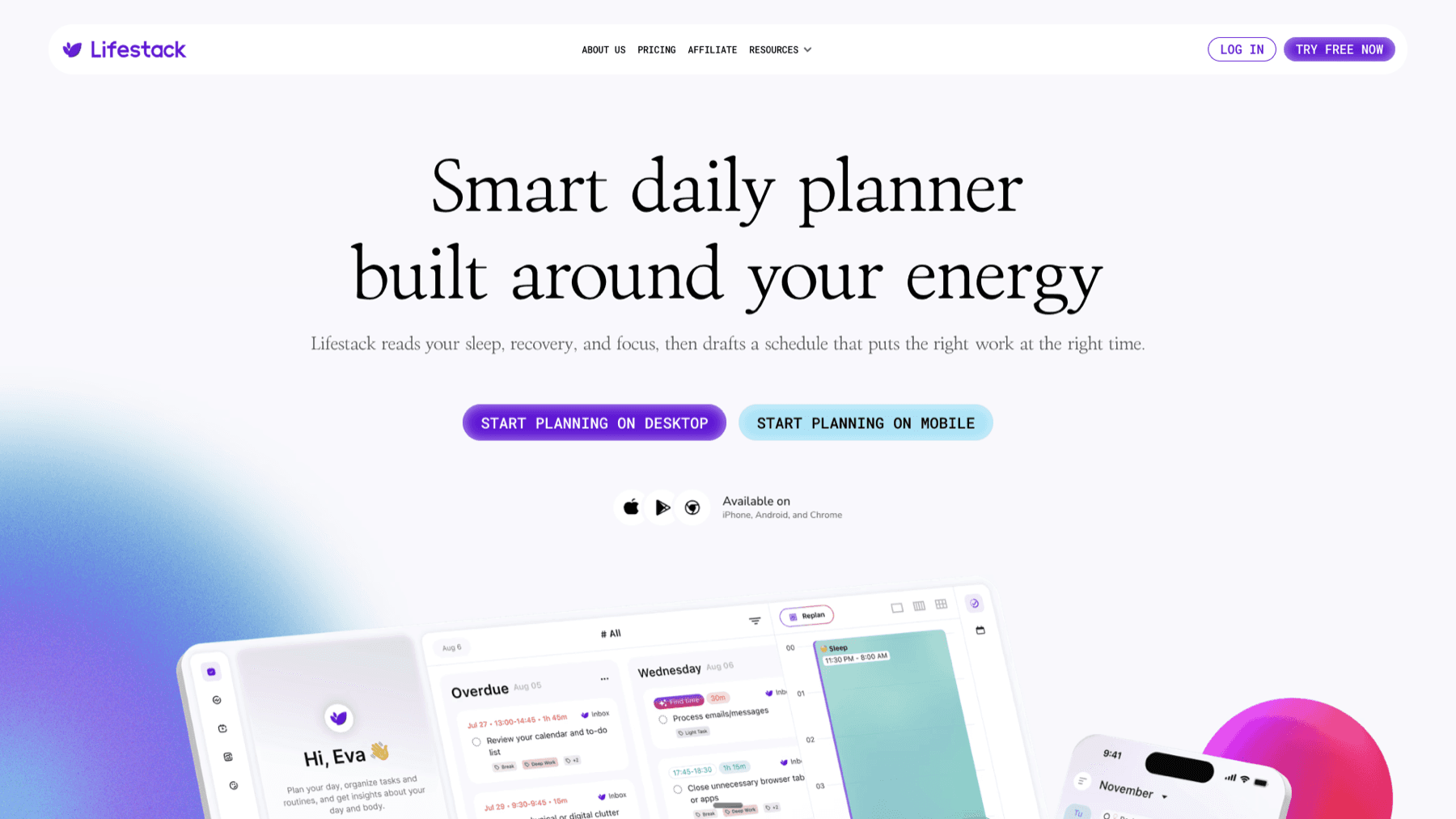
This is where Lifestack fits alongside TickTick. Lifestack reads your calendar, your task list, and your historical energy patterns, and auto-schedules your work into blocks when you're genuinely available and in the right cognitive state for the task. If your subtasks need to be completed by Friday, Lifestack finds the actual time slots to do them - accounting for meetings, focus time, and your personal energy curve. The energy-based scheduling guide explains the approach in full.
Lifestack starts at $9.99/month or $49.99/year, with a 7-day free trial on the annual plan. If you're already using TickTick as your task capture system and finding that the scheduling piece is the missing link, it's worth trying. More context on combining the two is in the best task management app for inconsistent energy levels guide.
Frequently Asked Questions
Does TickTick have subtasks on the free plan?
Yes. Subtasks are available in both the free and premium plans. The free plan lets you create subtasks inside any task across your 9 lists. Premium doesn't add extra nesting levels but does increase the total number of lists and tasks available, which matters once you're managing many projects.
Can you set due dates on subtasks in TickTick?
Yes. Each subtask can have its own independent due date, due time, and reminder. These show up in the Today view and calendar view just like any other task with a due date. The subtask's parent context (which project it belongs to) is shown when you tap into it.
How many levels of subtasks does TickTick support?
TickTick supports one level of nesting in the standard task manager view - tasks and subtasks, but not subtasks-of-subtasks. If you need deeper nesting, you'd need a dedicated project management tool. For most personal task management and small team projects, one level is sufficient.
Can subtasks be assigned to different people?
Yes, in shared lists. When you share a TickTick list with others, you can assign individual subtasks to specific people, just like you can assign top-level tasks. This makes TickTick functional for small team projects without needing to switch to a heavier project management tool.
What's the difference between subtasks and checklist items in TickTick?
Checklist items are lightweight bullets you add inside a task's notes area - no due dates, no reminders, no assignees. Subtasks are full child tasks with their own metadata. Use checklists for simple "don't forget" items. Use subtasks when each step has its own deadline or needs to be assigned or tracked separately.
Does TickTick have a good alternative if subtasks aren't enough?
If you need deeper project management than TickTick provides, TickTick alternatives covers the main options across different use cases. For the scheduling gap specifically, adding an auto-scheduler alongside TickTick is usually more practical than switching tools entirely. The TickTick pricing breakdown can also help you decide whether upgrading to Premium makes sense for your workflow.
TickTick is one of the most capable task managers available today, and subtasks are one of the features that make it genuinely useful for more than just simple to-do lists. The ability to break a task into smaller, numbered steps changes how you think about your work - instead of staring at "prepare quarterly report" for three days, you have six specific actions you can actually start on.
Despite this, subtasks in TickTick are underused. Most people create a flat list of tasks and never realize they can nest them. The feature exists in both the free and premium plans, it works across iOS, Android, and desktop, and once you get used to it, you'll wonder how you managed without it.
This guide covers everything: how to add subtasks, how to nest and reorder them, how to set independent due dates, and how to use them for multi-step projects rather than just breaking apart individual tasks.
Key Takeaways
TickTick subtasks are available on both free and premium plans, and you can add them directly inside any task on mobile or desktop.
Subtasks support their own due dates, reminders, and assignees (in shared lists), making them useful for project management, not just checklists.
For tasks that require scheduling around your actual energy and calendar availability, pairing TickTick with an auto-scheduling tool like Lifestack fills the gap TickTick leaves around time management.
What Are Subtasks in TickTick?
In TickTick, a subtask is a child item nested beneath a parent task. Each subtask has its own checkbox, and completing all subtasks does not automatically complete the parent (you still mark the parent done separately). This design is intentional - the parent task represents the outcome, the subtasks represent the steps to get there.
Subtasks are different from TickTick's checklist items (which you add via the "+" inside a task description). Checklists are lightweight bullet points with no metadata. Subtasks are full task entries that can carry due dates, reminders, priorities, and in shared lists, assignees. If you need a simple "pack bag" checklist, the inline checklist works. If you need each step to have a deadline, use subtasks.
The TickTick review goes deeper on how the whole app fits together - subtasks are one piece of a broader task management system worth understanding in full.
How to Add Subtasks in TickTick
On iOS and Android: open any task, then tap the subtask icon (the stacked-lines icon below the task title). Type the subtask name and hit return to add more. Each subtask gets its own row with an independent checkbox.
On desktop (Mac, Windows, or the web app): open a task detail panel, then look for "Add Subtask" at the bottom of the task panel. Click it, type, and press Enter to create another. You can also right-click any task in a list view and select "Add Subtask" to create a child task without opening the full detail view.
One thing to be aware of: in the list view, subtasks are hidden by default. You'll see a small indicator on the parent task showing how many subtasks exist and how many are complete (e.g., "2/5"). Click the indicator to expand and see the subtasks inline. This keeps list views clean without losing the detail.
Nesting Subtasks and Reordering Them
TickTick supports one level of nesting in the standard view - you can have tasks and subtasks, but not subtasks-of-subtasks in the typical interface. For most use cases, one level is enough. If you're working on something complex enough to need three levels of depth, you're better served by a dedicated project management tool than a task manager.
To reorder subtasks, long-press and drag on mobile, or hover over the left edge of the subtask on desktop until the drag handle appears, then drag to reposition. Reordering doesn't change due dates - it's purely a visual preference for the sequence you want to work through the steps.
If you're managing tasks that benefit from more than simple lists, the task breakdown guide covers frameworks for decomposing work before you even open your task manager, which makes the actual entry faster and cleaner.
Setting Due Dates on Individual Subtasks
This is where subtasks become genuinely powerful for project tracking. Each subtask can carry its own due date, independent of the parent task's due date. This means you can structure a project like a mini-timeline: research due Monday, outline due Wednesday, first draft due Friday, revision due the following Monday - all nested under a single "Finish article" parent.
To set a due date on a subtask on mobile, tap the subtask to open it, then tap the calendar icon. On desktop, hover over the subtask and click the date icon that appears. You can set the same date fields you would on any top-level task: due date, due time, and reminder.
One limitation: TickTick's Today view and calendar view show subtasks with their own due dates, but they appear as independent items rather than showing their parent context. If you have many subtasks with different due dates, the Today view can fill up quickly with items that don't obviously connect to their projects. The TickTick for ADHD guide covers strategies for filtering views so you're not overwhelmed by task volume.
Using Subtasks for Project Work
The most effective use of subtasks in TickTick is not splitting up single tasks but tracking multi-step projects inside a task manager that doesn't have native project views. Each project becomes a task, and each phase or deliverable becomes a subtask with its own deadline.
For example: a "Launch new landing page" task might have subtasks for copy, design review, development handoff, QA, and final sign-off. Each subtask has its own due date. The parent task due date represents the launch date. You can see at a glance how far along the project is from the completion indicator on the parent.
This works better than creating separate tasks for each step because it keeps related work grouped. When a project gets pushed, you update the parent due date as a reference and shift the subtask dates individually. It's not as automated as a Gantt chart, but it doesn't require learning a whole new tool either. TickTick Premium (at $49.99/year) doesn't add more nesting levels for subtasks, but it does give you 299 lists and 999 tasks per list - useful when you're using this method for many projects at once.
If you're comparing TickTick to other tools for project tracking, the ClickUp vs TickTick comparison covers how the two handle multi-step work differently.
Subtask Progress Tracking
TickTick displays subtask progress as a fraction on the parent task (e.g., "3/7 completed"). This shows in both list view and calendar view. As you check off subtasks, the parent task shows progress without you needing to open it.
In Kanban view (available on Premium), parent tasks move between columns based on their own status - subtask completion doesn't auto-advance the card. You move the parent card when you're ready to call the whole task done. This matters if you're using TickTick for work that involves review steps where "all subtasks complete" doesn't automatically mean "ready to ship."
For recurring tasks with subtasks, TickTick resets all subtask checkboxes when the parent task recurs. This is exactly what you want for things like a weekly review template - add all the review steps as subtasks once, and they reset every week automatically.
The Gap Subtasks Don't Fill: Scheduling
TickTick is excellent at helping you organize and track tasks. What it doesn't do is help you decide when to work on them, based on your actual calendar availability and energy levels. A subtask with a Friday due date doesn't tell you whether to work on it Monday morning or Thursday afternoon, or whether you even have the focused time needed to do it well on those days.
This is where Lifestack fits alongside TickTick. Lifestack reads your calendar, your task list, and your historical energy patterns, and auto-schedules your work into blocks when you're genuinely available and in the right cognitive state for the task. If your subtasks need to be completed by Friday, Lifestack finds the actual time slots to do them - accounting for meetings, focus time, and your personal energy curve. The energy-based scheduling guide explains the approach in full.
Lifestack starts at $9.99/month or $49.99/year, with a 7-day free trial on the annual plan. If you're already using TickTick as your task capture system and finding that the scheduling piece is the missing link, it's worth trying. More context on combining the two is in the best task management app for inconsistent energy levels guide.
Frequently Asked Questions
Does TickTick have subtasks on the free plan?
Yes. Subtasks are available in both the free and premium plans. The free plan lets you create subtasks inside any task across your 9 lists. Premium doesn't add extra nesting levels but does increase the total number of lists and tasks available, which matters once you're managing many projects.
Can you set due dates on subtasks in TickTick?
Yes. Each subtask can have its own independent due date, due time, and reminder. These show up in the Today view and calendar view just like any other task with a due date. The subtask's parent context (which project it belongs to) is shown when you tap into it.
How many levels of subtasks does TickTick support?
TickTick supports one level of nesting in the standard task manager view - tasks and subtasks, but not subtasks-of-subtasks. If you need deeper nesting, you'd need a dedicated project management tool. For most personal task management and small team projects, one level is sufficient.
Can subtasks be assigned to different people?
Yes, in shared lists. When you share a TickTick list with others, you can assign individual subtasks to specific people, just like you can assign top-level tasks. This makes TickTick functional for small team projects without needing to switch to a heavier project management tool.
What's the difference between subtasks and checklist items in TickTick?
Checklist items are lightweight bullets you add inside a task's notes area - no due dates, no reminders, no assignees. Subtasks are full child tasks with their own metadata. Use checklists for simple "don't forget" items. Use subtasks when each step has its own deadline or needs to be assigned or tracked separately.
Does TickTick have a good alternative if subtasks aren't enough?
If you need deeper project management than TickTick provides, TickTick alternatives covers the main options across different use cases. For the scheduling gap specifically, adding an auto-scheduler alongside TickTick is usually more practical than switching tools entirely. The TickTick pricing breakdown can also help you decide whether upgrading to Premium makes sense for your workflow.



FOLLOW ON
FOLLOW ON
FOLLOW ON



Copyright 2026 © Lifestack. All rights reserved
Copyright 2026 © Lifestack. All rights reserved

