
Tips
What Is a Smart List in Apple Reminders?
What Is a Smart List in Apple Reminders?

If you open Apple Reminders and see a row of icons labeled Today, Scheduled, All, Flagged, and Completed -- those are Smart Lists. They're not lists you create. They're automatically generated views that filter your tasks from every list you have based on specific rules.
The idea is simple: instead of jumping between five different lists to find what you need to do today, Smart Lists pull the right tasks together for you. Today shows everything due today. Scheduled shows everything with a due date coming up. Flagged shows the tasks you've marked as important. They update in real time as you add, complete, or edit tasks.
Here's exactly how each one works, how tags create your own custom Smart Lists, and how to use all of this to actually stay on top of your day.
The Five Built-In Smart Lists

Every Apple Reminders account starts with five Smart Lists. They appear at the top of the app before any of your regular lists.
Today: Shows every task due today, plus any overdue tasks that weren't completed. This is your daily work view -- most people start here every morning.
Scheduled: Shows all tasks with any upcoming due date or time. Good for a week-ahead view to see what's coming without getting lost in today's list.
All: Shows every task from every list in one place. Useful for a full audit or searching when you don't remember which list something is in.
Flagged: Shows only tasks you've flagged as important. This is a manual priority layer -- you flag a task, it shows up here regardless of which list it lives in.
Completed: Shows tasks you've checked off. Reminders keeps these for 30 days before deleting them permanently.
You can't delete the built-in Smart Lists, but you can hide the ones you don't use. Go to Settings > Reminders and toggle off any Smart List to remove it from your main view.
How Tags Create Custom Smart Lists
Tags are where Smart Lists get personal. When you add a tag to any task (type # followed by a word -- like #work, #errands, or #someday), Reminders automatically creates a tag-based Smart List that shows every task with that tag, across all your lists.
These tag Smart Lists appear in a Tags section at the bottom of the sidebar. So if you tag 15 tasks across 5 different lists with #errands, tapping the #errands Smart List instantly pulls them all together. Same logic applies to #work or #health or whatever system you use.
You can combine tags on a single task too. A task tagged #work and #urgent shows up in both Smart Lists. It's a lightweight version of the cross-list filtering that apps like Todoist charge a Pro plan to unlock. See the best Apple Reminders setup guide for a full tagging system worth copying.
Smart Lists vs Regular Lists: When to Use Each
Regular lists in Reminders are for context: Groceries, Work Projects, Home, Reading. They answer "where does this task live?" Smart Lists are for action: they answer "what do I work on right now?"
The practical split that works well: capture tasks into regular lists by context, then use Smart Lists as your working views. Add a task to your Work list, give it a due date, and it shows up in Today when the day arrives. Add a task to Home but flag it as important, and it shows up in Flagged whenever you need to prioritize.
The mistake most people make is using their regular lists as the working view, which means checking 6-8 different lists every morning. Smart Lists exist to prevent that. Daily planners for ADHD often recommend this exact split for reducing decision fatigue.
Setting Up a Smart List Workflow That Actually Works
The simplest workflow: every morning, open Today and work through it. Flag anything that's genuinely must-do-today if the list is too long. Use Scheduled to look 2-3 days ahead and prep anything that's coming. That's it. Three views, no jumping around.
A few additions that make a real difference:
Use Early Reminders for tasks where the reminder itself needs to come before the actual due time -- like packing for a trip the night before it leaves, not the morning of.
Add tags at capture time, not later. The habit of tagging when you add a task means your Smart Lists stay accurate. Retroactive tagging is a chore.
Hide Smart Lists you don't use. If you never look at Completed or All, hiding them keeps the top of the app focused on what matters.
Use Flagged as a Today shortlist on days when Today is packed. Flag the 3 things you need to do before anything else, then work from Flagged first.
People with task initiation challenges often find that having a single, unambiguous "do this now" view is the difference between starting and stalling. Flagged can serve that role if Today is too crowded.
What Smart Lists Can't Do (and Where the Limits Show)
Smart Lists are powerful for what they are, but they don't do priority-based filtering beyond the binary flag system. You can't create a Smart List that shows "tasks due in the next 3 days tagged #work with priority High" the way Todoist's custom filter system can.
They also don't understand your schedule. Today shows everything due today -- whether that's 3 tasks or 30, whether you have 20 free minutes or a packed calendar. There's no capacity awareness. If you scheduled 12 things on a day when you're in meetings from 9-5, Today will show you 12 things and leave you to figure out what's actually doable.
For most people, that's fine. But if you're regularly over-scheduling your day or struggling with task paralysis in front of a full list, the problem isn't the list -- it's the absence of a planning layer that knows what you can realistically do. See the section below on tools that add that layer. Also worth checking: apps that pair well with Apple Reminders to fill in those gaps without switching apps entirely.
Best Tool for Smart Planning Around Apple Reminders
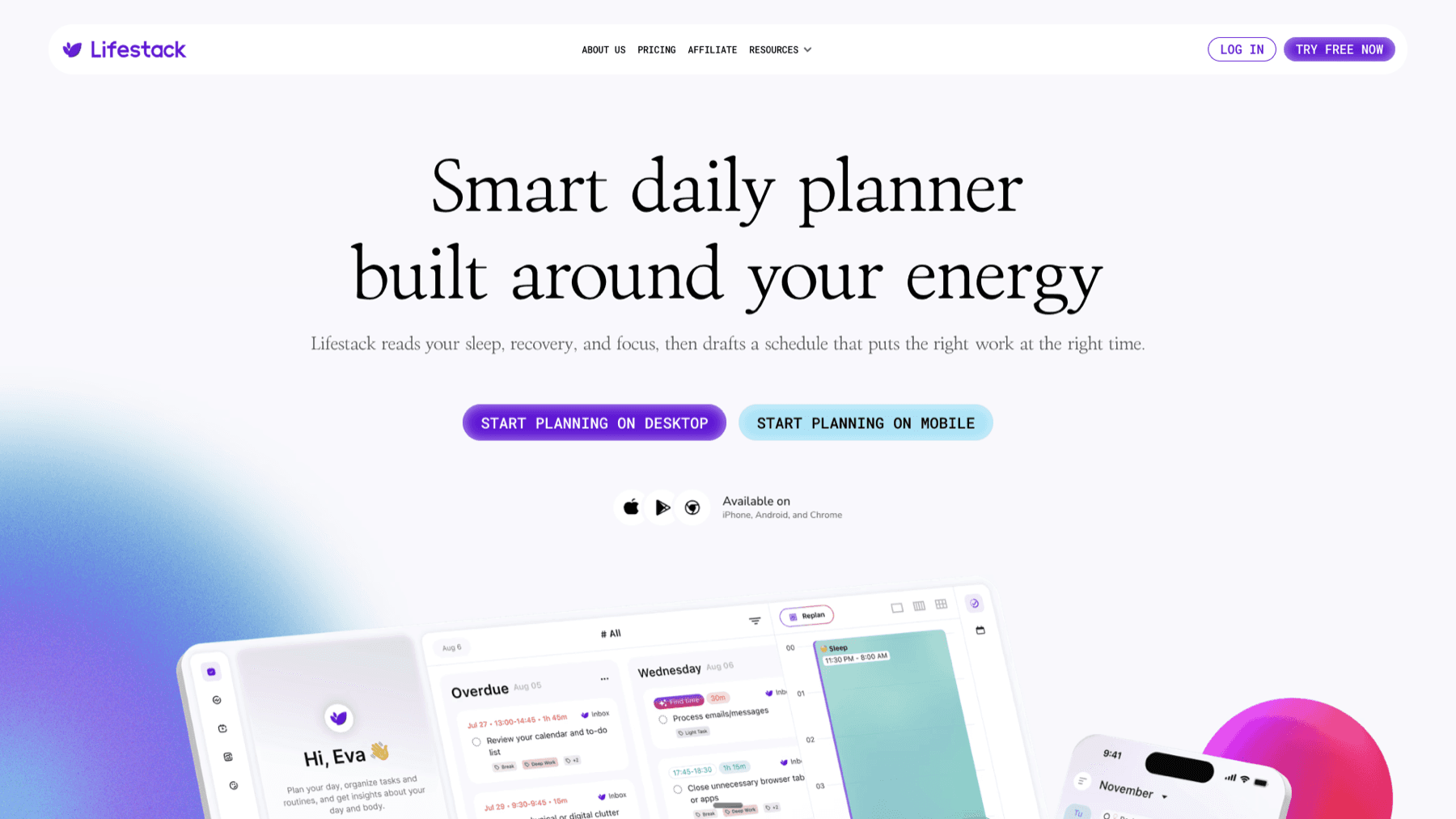
Smart Lists are good at showing you what exists. What they don't show is when you should actually work on it, or whether you have the energy for it right now. That gap is where Lifestack fits.
Lifestack uses energy-based scheduling to build your day plan around your natural capacity -- putting demanding tasks when your energy is high and lighter work when you're winding down. It connects with your calendar and helps you match the what (from your task list) with the when (from your schedule and energy levels). For people who find themselves staring at a full Today view without knowing where to start, that decision layer makes a real difference. Lifestack starts at $9.99/month or $49.99/year with a 7-day free trial.
Frequently Asked Questions
What is a Smart List in Apple Reminders?
A Smart List is an automatically generated view that filters tasks from all your lists based on specific rules -- due date, flag status, tags, or completion. The built-in ones are Today, Scheduled, All, Flagged, and Completed. You can also create tag-based Smart Lists by adding tags to tasks.
Can I create my own Smart List in Apple Reminders?
Not in the traditional sense, but tags function as custom Smart Lists. Add a tag to any task (type # followed by a word) and Reminders automatically creates a filtered view for that tag in the Tags section. It's not as flexible as Todoist's custom filter system, but it covers most use cases.
How do I add a task to a Smart List?
You don't add tasks to Smart Lists directly -- tasks are added to regular lists and Smart Lists pull them in automatically based on their properties. To appear in Today, a task needs a due date of today. To appear in Flagged, it needs to be flagged. To appear in a tag Smart List, it needs that tag.
Can I hide Smart Lists I don't use?
Yes. Go to Settings > Reminders on your iPhone or the Reminders preferences on Mac, and toggle off any Smart List you don't want to see. The tasks still exist -- the Smart List is just hidden from your main view.
Does Today in Reminders show overdue tasks?
Yes. The Today Smart List shows both tasks due today and tasks from past days that weren't completed. If you have three overdue tasks from last week and two due today, Today will show all five. That's usually helpful, but can feel overwhelming if you let tasks pile up -- see the visual reminders for ADHD guide for ways to triage without burnout.
What's the difference between Flagged and Priority in Reminders?
Flagged is a simple toggle -- on or off. Priority is a separate field with Low, Medium, and High options. Both can filter tasks into views: Flagged tasks appear in the Flagged Smart List, and you can filter by priority inside the Scheduled view. Most people pick one system and stick with it. Flagged is simpler; Priority is more granular. The best reminder apps comparison goes deeper if you're wondering whether Reminders is the right fit for your workflow.
If you open Apple Reminders and see a row of icons labeled Today, Scheduled, All, Flagged, and Completed -- those are Smart Lists. They're not lists you create. They're automatically generated views that filter your tasks from every list you have based on specific rules.
The idea is simple: instead of jumping between five different lists to find what you need to do today, Smart Lists pull the right tasks together for you. Today shows everything due today. Scheduled shows everything with a due date coming up. Flagged shows the tasks you've marked as important. They update in real time as you add, complete, or edit tasks.
Here's exactly how each one works, how tags create your own custom Smart Lists, and how to use all of this to actually stay on top of your day.
The Five Built-In Smart Lists
Every Apple Reminders account starts with five Smart Lists. They appear at the top of the app before any of your regular lists.
Today: Shows every task due today, plus any overdue tasks that weren't completed. This is your daily work view -- most people start here every morning.
Scheduled: Shows all tasks with any upcoming due date or time. Good for a week-ahead view to see what's coming without getting lost in today's list.
All: Shows every task from every list in one place. Useful for a full audit or searching when you don't remember which list something is in.
Flagged: Shows only tasks you've flagged as important. This is a manual priority layer -- you flag a task, it shows up here regardless of which list it lives in.
Completed: Shows tasks you've checked off. Reminders keeps these for 30 days before deleting them permanently.
You can't delete the built-in Smart Lists, but you can hide the ones you don't use. Go to Settings > Reminders and toggle off any Smart List to remove it from your main view.
How Tags Create Custom Smart Lists
Tags are where Smart Lists get personal. When you add a tag to any task (type # followed by a word -- like #work, #errands, or #someday), Reminders automatically creates a tag-based Smart List that shows every task with that tag, across all your lists.
These tag Smart Lists appear in a Tags section at the bottom of the sidebar. So if you tag 15 tasks across 5 different lists with #errands, tapping the #errands Smart List instantly pulls them all together. Same logic applies to #work or #health or whatever system you use.
You can combine tags on a single task too. A task tagged #work and #urgent shows up in both Smart Lists. It's a lightweight version of the cross-list filtering that apps like Todoist charge a Pro plan to unlock. See the best Apple Reminders setup guide for a full tagging system worth copying.
Smart Lists vs Regular Lists: When to Use Each
Regular lists in Reminders are for context: Groceries, Work Projects, Home, Reading. They answer "where does this task live?" Smart Lists are for action: they answer "what do I work on right now?"
The practical split that works well: capture tasks into regular lists by context, then use Smart Lists as your working views. Add a task to your Work list, give it a due date, and it shows up in Today when the day arrives. Add a task to Home but flag it as important, and it shows up in Flagged whenever you need to prioritize.
The mistake most people make is using their regular lists as the working view, which means checking 6-8 different lists every morning. Smart Lists exist to prevent that. Daily planners for ADHD often recommend this exact split for reducing decision fatigue.
Setting Up a Smart List Workflow That Actually Works
The simplest workflow: every morning, open Today and work through it. Flag anything that's genuinely must-do-today if the list is too long. Use Scheduled to look 2-3 days ahead and prep anything that's coming. That's it. Three views, no jumping around.
A few additions that make a real difference:
Use Early Reminders for tasks where the reminder itself needs to come before the actual due time -- like packing for a trip the night before it leaves, not the morning of.
Add tags at capture time, not later. The habit of tagging when you add a task means your Smart Lists stay accurate. Retroactive tagging is a chore.
Hide Smart Lists you don't use. If you never look at Completed or All, hiding them keeps the top of the app focused on what matters.
Use Flagged as a Today shortlist on days when Today is packed. Flag the 3 things you need to do before anything else, then work from Flagged first.
People with task initiation challenges often find that having a single, unambiguous "do this now" view is the difference between starting and stalling. Flagged can serve that role if Today is too crowded.
What Smart Lists Can't Do (and Where the Limits Show)
Smart Lists are powerful for what they are, but they don't do priority-based filtering beyond the binary flag system. You can't create a Smart List that shows "tasks due in the next 3 days tagged #work with priority High" the way Todoist's custom filter system can.
They also don't understand your schedule. Today shows everything due today -- whether that's 3 tasks or 30, whether you have 20 free minutes or a packed calendar. There's no capacity awareness. If you scheduled 12 things on a day when you're in meetings from 9-5, Today will show you 12 things and leave you to figure out what's actually doable.
For most people, that's fine. But if you're regularly over-scheduling your day or struggling with task paralysis in front of a full list, the problem isn't the list -- it's the absence of a planning layer that knows what you can realistically do. See the section below on tools that add that layer. Also worth checking: apps that pair well with Apple Reminders to fill in those gaps without switching apps entirely.
Best Tool for Smart Planning Around Apple Reminders
Smart Lists are good at showing you what exists. What they don't show is when you should actually work on it, or whether you have the energy for it right now. That gap is where Lifestack fits.
Lifestack uses energy-based scheduling to build your day plan around your natural capacity -- putting demanding tasks when your energy is high and lighter work when you're winding down. It connects with your calendar and helps you match the what (from your task list) with the when (from your schedule and energy levels). For people who find themselves staring at a full Today view without knowing where to start, that decision layer makes a real difference. Lifestack starts at $9.99/month or $49.99/year with a 7-day free trial.
Frequently Asked Questions
What is a Smart List in Apple Reminders?
A Smart List is an automatically generated view that filters tasks from all your lists based on specific rules -- due date, flag status, tags, or completion. The built-in ones are Today, Scheduled, All, Flagged, and Completed. You can also create tag-based Smart Lists by adding tags to tasks.
Can I create my own Smart List in Apple Reminders?
Not in the traditional sense, but tags function as custom Smart Lists. Add a tag to any task (type # followed by a word) and Reminders automatically creates a filtered view for that tag in the Tags section. It's not as flexible as Todoist's custom filter system, but it covers most use cases.
How do I add a task to a Smart List?
You don't add tasks to Smart Lists directly -- tasks are added to regular lists and Smart Lists pull them in automatically based on their properties. To appear in Today, a task needs a due date of today. To appear in Flagged, it needs to be flagged. To appear in a tag Smart List, it needs that tag.
Can I hide Smart Lists I don't use?
Yes. Go to Settings > Reminders on your iPhone or the Reminders preferences on Mac, and toggle off any Smart List you don't want to see. The tasks still exist -- the Smart List is just hidden from your main view.
Does Today in Reminders show overdue tasks?
Yes. The Today Smart List shows both tasks due today and tasks from past days that weren't completed. If you have three overdue tasks from last week and two due today, Today will show all five. That's usually helpful, but can feel overwhelming if you let tasks pile up -- see the visual reminders for ADHD guide for ways to triage without burnout.
What's the difference between Flagged and Priority in Reminders?
Flagged is a simple toggle -- on or off. Priority is a separate field with Low, Medium, and High options. Both can filter tasks into views: Flagged tasks appear in the Flagged Smart List, and you can filter by priority inside the Scheduled view. Most people pick one system and stick with it. Flagged is simpler; Priority is more granular. The best reminder apps comparison goes deeper if you're wondering whether Reminders is the right fit for your workflow.

FOLLOW ON
FOLLOW ON
FOLLOW ON



Copyright 2026 © Lifestack. All rights reserved
Copyright 2026 © Lifestack. All rights reserved

