
App
Best Apps to Use with Apple Reminders
Best Apps to Use with Apple Reminders
Apple Reminders has gotten significantly better in recent years. Subtasks, smart lists, tagging, grocery lists, and iCloud sharing all work reliably now. For basic task tracking on iPhone and Mac, it's a genuinely solid option that most people already have and don't pay extra for.
But it has real gaps. No scheduling layer. No calendar view. No daily planner that shows your tasks alongside your meetings. No AI to help you figure out when to do things. The apps on this list fill those gaps without replacing what Apple Reminders does well.
Pricing verified June 2026. All apps tested on iPhone.
Key Takeaways
Lifestack adds the scheduling layer that Apple Reminders completely lacks, putting your tasks into a time-blocked daily plan
Fantastical is the best calendar app for seeing Reminders alongside your events in one view
Bear and GoodNotes add a rich note-taking layer for capturing the context around what you're being reminded to do
Quick Guide: Apps to Use with Apple Reminders
Lifestack: AI scheduler that turns your reminders into a time-blocked daily plan
Fantastical: calendar app that reads Apple Reminders natively
Structured: visual timeline planner that shows tasks alongside your day
Things 3: polished task manager that imports from Apple Reminders
GoodNotes: digital notebook for capturing detailed notes around your tasks
Bear: Markdown notes app for Apple users who want fast, searchable context
1. Lifestack: Best for Scheduling Your Reminders
Turns your task list into a time-blocked daily plan
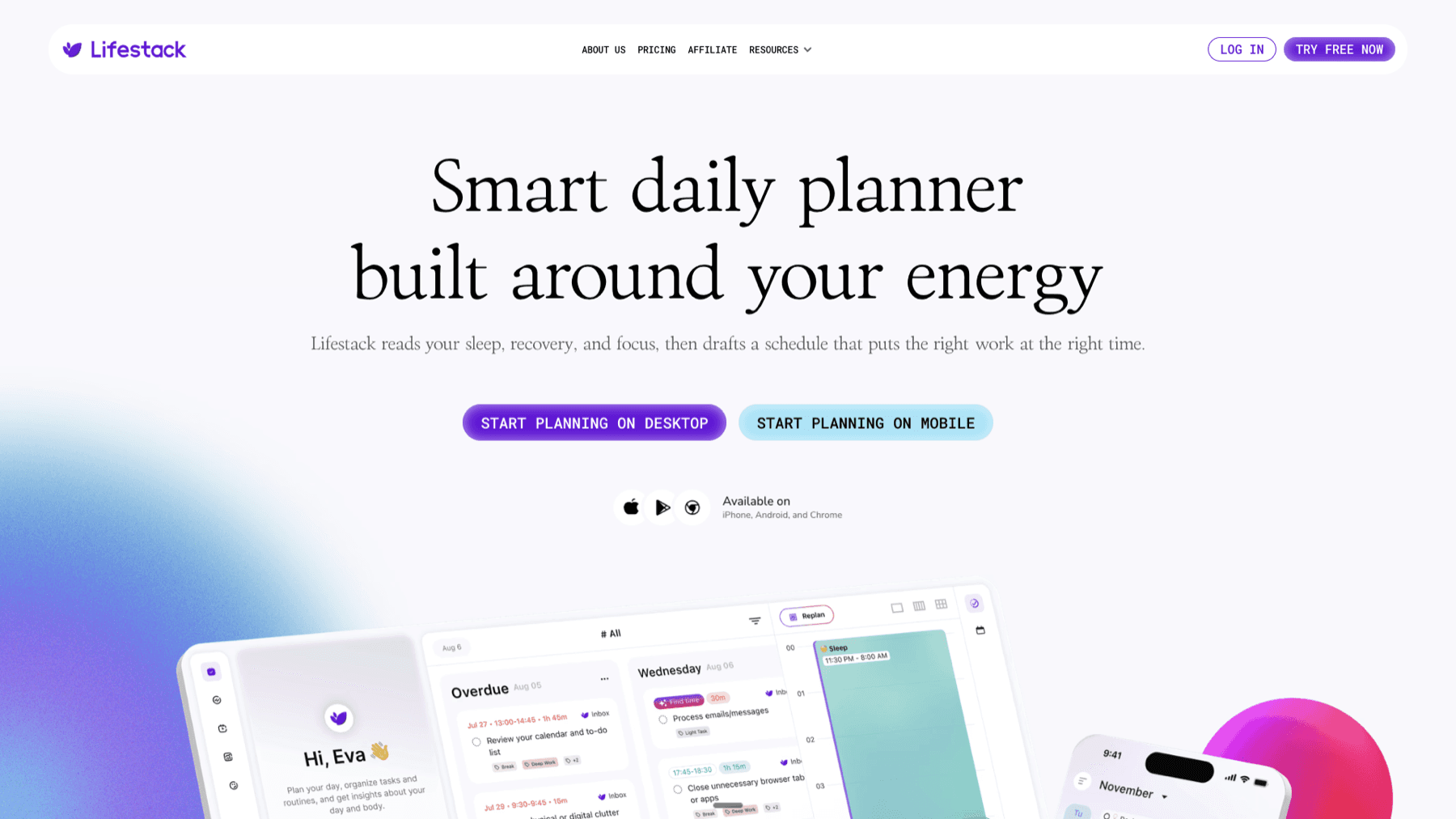
Apple Reminders tells you what to do and when to be reminded. It doesn't tell you when in your day to actually do it. Lifestack fills that gap: it takes your tasks and schedules them into your day based on your energy levels and calendar availability, so your reminders become a realistic plan rather than a list you defer repeatedly.
Lifestack works alongside Apple Reminders rather than replacing it. Keep Reminders for capture: add things quickly via Siri, shared lists, and location-based reminders. Then use Lifestack as your daily scheduling layer to decide when those items actually get done.
Energy-aware AI scheduling that fits tasks into your day
Google Calendar and Apple Calendar sync
Auto-reschedules when tasks take longer than expected
Strong iPhone and Android apps
What Works
Adds the "when" layer that Apple Reminders is missing
Energy-based scheduling produces better daily plans than time-slot-only approaches
Limitations
No direct Apple Reminders API sync; tasks need to be added to Lifestack separately
Not a note-taking or list-making tool
Pricing: $7/month or $50/year; $120 lifetime. 7-day free trial on annual plans.
Best for: people who use Apple Reminders for capture but need a scheduling layer to actually plan when things get done.
2. Fantastical: Best Calendar App for Apple Reminders
See your Reminders and calendar events in one clean view
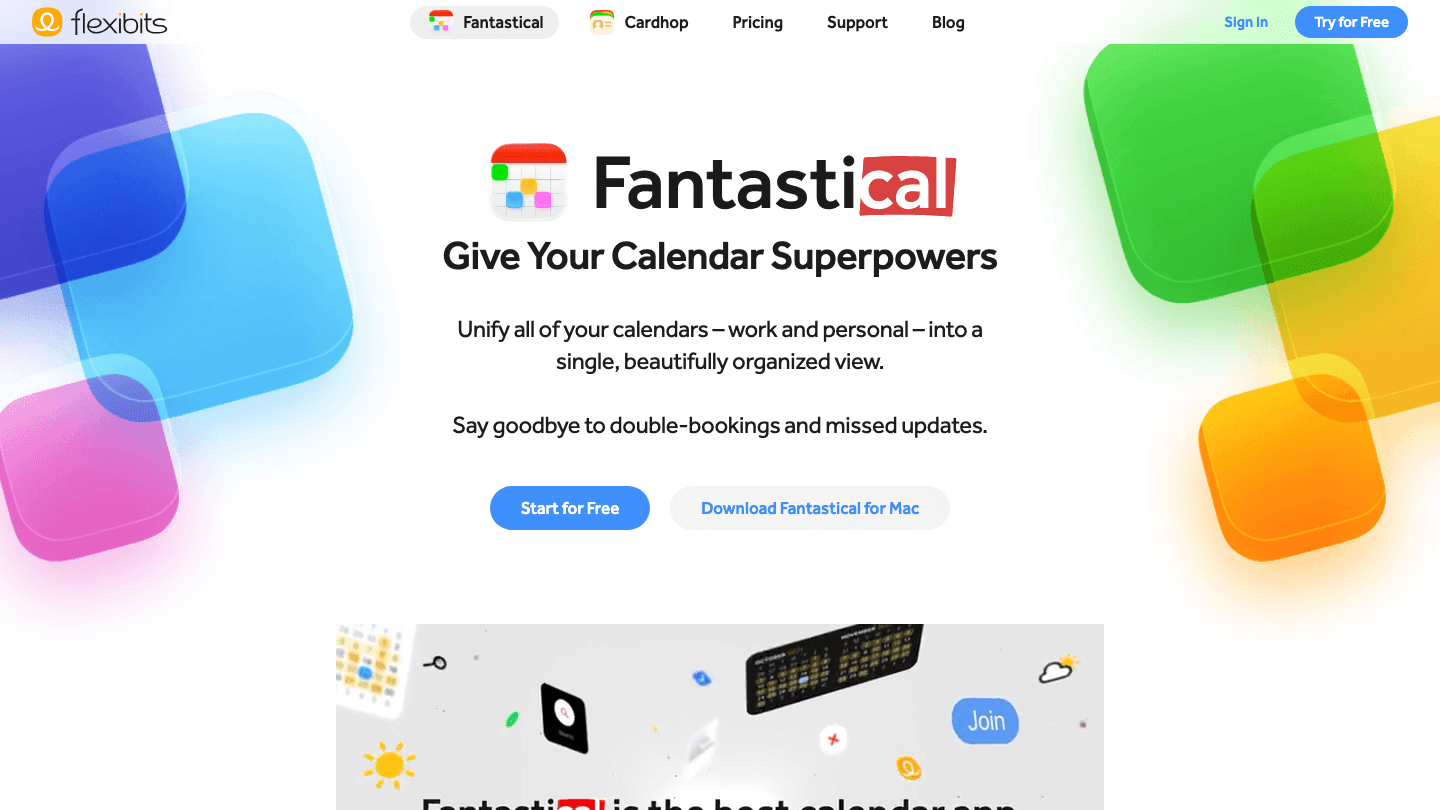
Fantastical has native Apple Reminders integration. Your Reminders lists appear directly in Fantastical alongside your calendar events, so you can see tasks and appointments in the same day view without switching apps. Creating a reminder from Fantastical via natural language entry ("pick up dry cleaning Friday") adds it to the right Reminders list automatically.
This is the most practical pairing for people who live in their calendar. Apple's native Calendar app doesn't show Reminders items in its day view. Fantastical does, which makes it much easier to plan a day that includes both meetings and tasks. For calendar management with Apple's ecosystem, it's the obvious choice.
Native Apple Reminders integration in the calendar view
Natural language event and task entry
Day, week, month, and year views on iPhone
Apple Watch and widget support
iCloud, Google Calendar, Exchange sync
What Works
The unified task and event view is exactly what the native Calendar app should show but doesn't
Natural language input for reminders is faster than Reminders' own interface
Limitations
Premium subscription required for most useful features
No AI scheduling of tasks
Pricing: Free; Flexibits Premium $6.99/month or $56.99/year. 14-day free trial.
Best for: Apple users who want their Reminders visible in their calendar without switching apps.
3. Structured: Best Visual Day Planner for iPhone
A timeline view of your day that shows tasks when they need to happen

Structured is a visual timeline planner that complements Apple Reminders by adding the time dimension. You place tasks on a visual timeline, see your day as color-coded blocks, and work through it hour by hour. It syncs with Apple Calendar, so your meetings appear automatically on the same timeline.
Apple Reminders doesn't have a timeline view. Everything is a list. Structured gives you the visual equivalent: a scrollable view of your day where you can see what's happening when and whether you've allocated enough time for everything. For visual thinkers who find list-based reminders easy to ignore, this is a useful companion.
Visual timeline showing every task as a time block
Apple Calendar sync to show events automatically
Recurring tasks and habit tracking
Free tier with real functionality
What Works
The visual timeline makes it much harder to underestimate how much time tasks take
Free tier is useful enough that many users never need Pro
Limitations
No direct Apple Reminders integration; tasks need to be added manually
No AI scheduling
Pricing: Free; Pro $6.99/month or $29.99/year; Lifetime $99.99.
Best for: visual thinkers who want to see their tasks on a timeline rather than in a list.
4. Things 3: Best Task Manager for Apple Reminders Users
A polished, opinionated task manager built for the Apple ecosystem
Things 3 by Cultured Code has native Apple Reminders import. You can pull tasks from Reminders into Things 3 and manage them with Things' richer organizational system: areas, projects, tags, deadlines, and scheduled dates. The result is Apple Reminders for quick capture, Things 3 for serious planning.
The design is excellent throughout. Things 3 is among the best-looking task manager apps on Apple devices, and the Today view that shows what's scheduled and what's overdue is genuinely useful for daily planning. There's no subscription: you pay once for iPhone, iPad, and Mac separately.
Import from Apple Reminders to move tasks into Things
Areas, projects, tags, and scheduled dates for organization
Today view showing what's due and what's overdue
Apple Watch support and Siri integration
One-time purchase, no subscription
What Works
The Reminders import means you can use Siri and Reminders for fast capture, then organize in Things 3
One-time purchase is good value for a personal tool you use daily
Limitations
Apple-only; no Android or web version
No AI scheduling or automatic task placement
Pricing: $9.99 (iPhone), $19.99 (iPad), $49.99 (Mac). One-time purchase.
Best for: Apple users who want a richer task manager with Reminders import for capture.
5. GoodNotes: Best for Capturing Context Around Reminders
A digital notebook for the notes that belong alongside your tasks
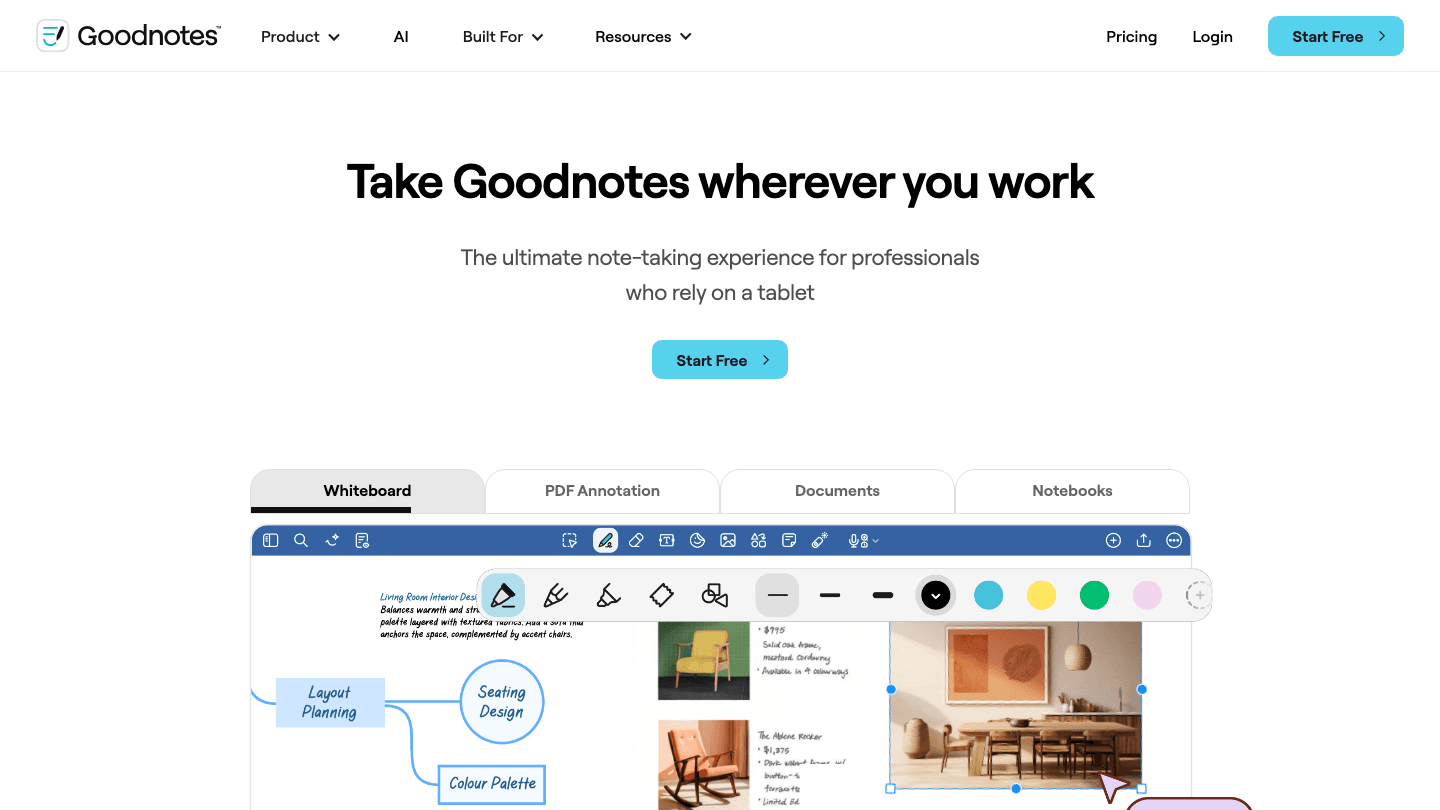
Apple Reminders is good at capturing tasks. It's not good at capturing context: the background information, meeting notes, sketches, or planning documents that belong alongside a task. GoodNotes fills that gap as a digital notebook that lives on your iPad or iPhone alongside your Reminders.
A reminder to "finish the project proposal" is more useful when you can open GoodNotes and find your handwritten notes from the kickoff meeting, the requirements doc you annotated, and the rough outline you sketched last week. GoodNotes serves as the context layer; Reminders serves as the trigger. They complement each other well for project-heavy work.
Handwriting and typed notes with Apple Pencil support
PDF annotation for reference documents
AI-powered search and handwriting transcription
Organize notebooks by project or area
What Works
The contextual notes beside tasks reduce the "I forget what I meant by this" problem that pure reminder apps create
Works best for tablet users; functional on iPhone too
Limitations
No direct Reminders integration
Most useful with an iPad and Apple Pencil
Pricing: Free (3 notebooks); Essential $11.99/year; Pro $35.99/year.
Best for: iPad users who want rich note-taking context alongside their Apple Reminders.
6. Bear: Best for Fast, Searchable Notes on iPhone
Markdown notes that sync across Apple devices with fast search
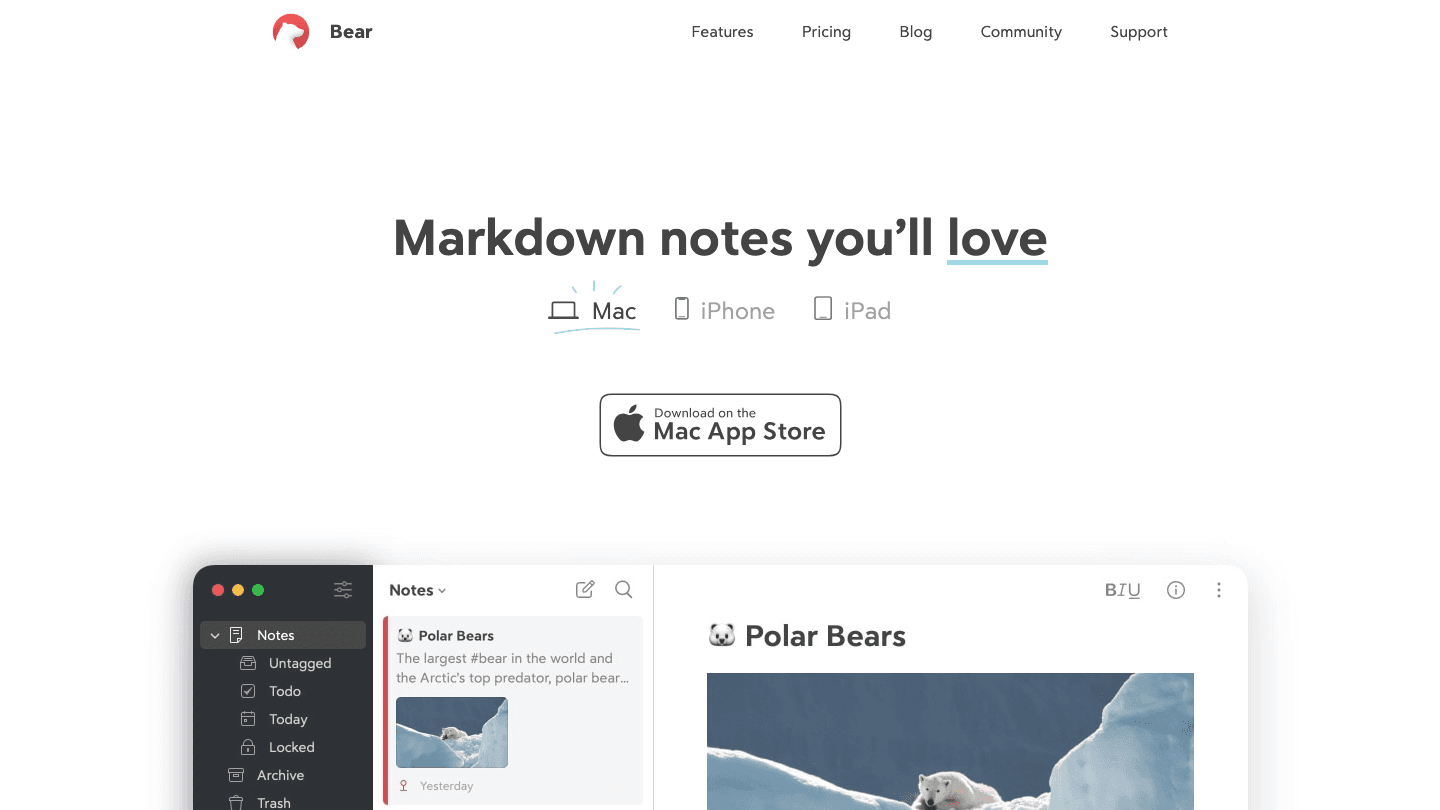
Bear is a Markdown notes app built for Apple devices. Where GoodNotes is optimized for handwriting and tablet use, Bear is optimized for typed notes that need to be found again quickly. Write notes in Markdown, tag them with #tags, and search across everything instantly on iPhone, iPad, and Mac.
For Apple Reminders users, Bear serves as the note-capture side: when a reminder needs context, write a quick Bear note. When you finish a task, archive the note. The tag system makes it easy to group notes by project, person, or area, and brain dumping into Bear before a reminder due date is a fast way to surface what you actually need to do.
Markdown editing with real-time formatting preview
Tag-based organization that works across all notes
Fast search across all content including inside notes
iPhone, iPad, and Mac apps with iCloud sync
Excellent export options (PDF, HTML, Word, etc.)
What Works
Fastest typing and search experience of any notes app on this list
Markdown format means your notes are portable and future-proof
Limitations
Apple-only; no Android or web app
No direct Reminders integration
Pricing: Free; Bear Pro $2.99/month or $29.99/year. 14-day free trial.
Best for: Apple users who need fast, searchable Markdown notes alongside their reminders.
Which App Should You Add to Apple Reminders?
Need a scheduling layer: Lifestack
Want Reminders in your calendar: Fantastical
Want a visual timeline of your day: Structured
Want a richer task manager: Things 3
Use an iPad with Apple Pencil: GoodNotes
Want fast typed notes and search: Bear
Frequently Asked Questions
What apps work with Apple Reminders?
Fantastical is the best third-party app for seeing Apple Reminders inside a calendar view. Things 3 can import from Reminders for deeper task management. Lifestack uses your calendar to schedule when to do your tasks, complementing Reminders as a capture tool. See also our guide on the best reminder apps for iOS.
Can you see Apple Reminders in a calendar view?
The native Apple Calendar app does not show Reminders in its day view. Fantastical does, showing your reminders alongside your calendar events in a single unified timeline. This is one of the main reasons Apple users upgrade from the native Calendar to Fantastical.
Is Apple Reminders good enough on its own?
For basic task capture, yes. For daily planning, scheduling, calendar integration, and note-taking context, you'll benefit from pairing it with other apps. Apple Reminders is excellent for fast capture via Siri and location-based reminders; the apps above handle the planning and organization layer.
How do I use Lifestack with Apple Reminders?
Use Apple Reminders for quick capture (Siri, Share Sheet, location triggers). Then add your high-priority tasks to Lifestack with estimated time and energy tags. Lifestack schedules them into your day based on your calendar and energy, turning your reminder list into a realistic AI-powered daily plan.
Does Things 3 read Apple Reminders?
Yes. Things 3 has an Apple Reminders import feature that pulls tasks from your Reminders lists into Things for further organization. This workflow lets you use Siri and the native Reminders app for fast capture, then manage everything in Things 3's richer organizational system.
Apple Reminders has gotten significantly better in recent years. Subtasks, smart lists, tagging, grocery lists, and iCloud sharing all work reliably now. For basic task tracking on iPhone and Mac, it's a genuinely solid option that most people already have and don't pay extra for.
But it has real gaps. No scheduling layer. No calendar view. No daily planner that shows your tasks alongside your meetings. No AI to help you figure out when to do things. The apps on this list fill those gaps without replacing what Apple Reminders does well.
Pricing verified June 2026. All apps tested on iPhone.
Key Takeaways
Lifestack adds the scheduling layer that Apple Reminders completely lacks, putting your tasks into a time-blocked daily plan
Fantastical is the best calendar app for seeing Reminders alongside your events in one view
Bear and GoodNotes add a rich note-taking layer for capturing the context around what you're being reminded to do
Quick Guide: Apps to Use with Apple Reminders
Lifestack: AI scheduler that turns your reminders into a time-blocked daily plan
Fantastical: calendar app that reads Apple Reminders natively
Structured: visual timeline planner that shows tasks alongside your day
Things 3: polished task manager that imports from Apple Reminders
GoodNotes: digital notebook for capturing detailed notes around your tasks
Bear: Markdown notes app for Apple users who want fast, searchable context
1. Lifestack: Best for Scheduling Your Reminders
Turns your task list into a time-blocked daily plan
Apple Reminders tells you what to do and when to be reminded. It doesn't tell you when in your day to actually do it. Lifestack fills that gap: it takes your tasks and schedules them into your day based on your energy levels and calendar availability, so your reminders become a realistic plan rather than a list you defer repeatedly.
Lifestack works alongside Apple Reminders rather than replacing it. Keep Reminders for capture: add things quickly via Siri, shared lists, and location-based reminders. Then use Lifestack as your daily scheduling layer to decide when those items actually get done.
Energy-aware AI scheduling that fits tasks into your day
Google Calendar and Apple Calendar sync
Auto-reschedules when tasks take longer than expected
Strong iPhone and Android apps
What Works
Adds the "when" layer that Apple Reminders is missing
Energy-based scheduling produces better daily plans than time-slot-only approaches
Limitations
No direct Apple Reminders API sync; tasks need to be added to Lifestack separately
Not a note-taking or list-making tool
Pricing: $7/month or $50/year; $120 lifetime. 7-day free trial on annual plans.
Best for: people who use Apple Reminders for capture but need a scheduling layer to actually plan when things get done.
2. Fantastical: Best Calendar App for Apple Reminders
See your Reminders and calendar events in one clean view
Fantastical has native Apple Reminders integration. Your Reminders lists appear directly in Fantastical alongside your calendar events, so you can see tasks and appointments in the same day view without switching apps. Creating a reminder from Fantastical via natural language entry ("pick up dry cleaning Friday") adds it to the right Reminders list automatically.
This is the most practical pairing for people who live in their calendar. Apple's native Calendar app doesn't show Reminders items in its day view. Fantastical does, which makes it much easier to plan a day that includes both meetings and tasks. For calendar management with Apple's ecosystem, it's the obvious choice.
Native Apple Reminders integration in the calendar view
Natural language event and task entry
Day, week, month, and year views on iPhone
Apple Watch and widget support
iCloud, Google Calendar, Exchange sync
What Works
The unified task and event view is exactly what the native Calendar app should show but doesn't
Natural language input for reminders is faster than Reminders' own interface
Limitations
Premium subscription required for most useful features
No AI scheduling of tasks
Pricing: Free; Flexibits Premium $6.99/month or $56.99/year. 14-day free trial.
Best for: Apple users who want their Reminders visible in their calendar without switching apps.
3. Structured: Best Visual Day Planner for iPhone
A timeline view of your day that shows tasks when they need to happen
Structured is a visual timeline planner that complements Apple Reminders by adding the time dimension. You place tasks on a visual timeline, see your day as color-coded blocks, and work through it hour by hour. It syncs with Apple Calendar, so your meetings appear automatically on the same timeline.
Apple Reminders doesn't have a timeline view. Everything is a list. Structured gives you the visual equivalent: a scrollable view of your day where you can see what's happening when and whether you've allocated enough time for everything. For visual thinkers who find list-based reminders easy to ignore, this is a useful companion.
Visual timeline showing every task as a time block
Apple Calendar sync to show events automatically
Recurring tasks and habit tracking
Free tier with real functionality
What Works
The visual timeline makes it much harder to underestimate how much time tasks take
Free tier is useful enough that many users never need Pro
Limitations
No direct Apple Reminders integration; tasks need to be added manually
No AI scheduling
Pricing: Free; Pro $6.99/month or $29.99/year; Lifetime $99.99.
Best for: visual thinkers who want to see their tasks on a timeline rather than in a list.
4. Things 3: Best Task Manager for Apple Reminders Users
A polished, opinionated task manager built for the Apple ecosystem
Things 3 by Cultured Code has native Apple Reminders import. You can pull tasks from Reminders into Things 3 and manage them with Things' richer organizational system: areas, projects, tags, deadlines, and scheduled dates. The result is Apple Reminders for quick capture, Things 3 for serious planning.
The design is excellent throughout. Things 3 is among the best-looking task manager apps on Apple devices, and the Today view that shows what's scheduled and what's overdue is genuinely useful for daily planning. There's no subscription: you pay once for iPhone, iPad, and Mac separately.
Import from Apple Reminders to move tasks into Things
Areas, projects, tags, and scheduled dates for organization
Today view showing what's due and what's overdue
Apple Watch support and Siri integration
One-time purchase, no subscription
What Works
The Reminders import means you can use Siri and Reminders for fast capture, then organize in Things 3
One-time purchase is good value for a personal tool you use daily
Limitations
Apple-only; no Android or web version
No AI scheduling or automatic task placement
Pricing: $9.99 (iPhone), $19.99 (iPad), $49.99 (Mac). One-time purchase.
Best for: Apple users who want a richer task manager with Reminders import for capture.
5. GoodNotes: Best for Capturing Context Around Reminders
A digital notebook for the notes that belong alongside your tasks
Apple Reminders is good at capturing tasks. It's not good at capturing context: the background information, meeting notes, sketches, or planning documents that belong alongside a task. GoodNotes fills that gap as a digital notebook that lives on your iPad or iPhone alongside your Reminders.
A reminder to "finish the project proposal" is more useful when you can open GoodNotes and find your handwritten notes from the kickoff meeting, the requirements doc you annotated, and the rough outline you sketched last week. GoodNotes serves as the context layer; Reminders serves as the trigger. They complement each other well for project-heavy work.
Handwriting and typed notes with Apple Pencil support
PDF annotation for reference documents
AI-powered search and handwriting transcription
Organize notebooks by project or area
What Works
The contextual notes beside tasks reduce the "I forget what I meant by this" problem that pure reminder apps create
Works best for tablet users; functional on iPhone too
Limitations
No direct Reminders integration
Most useful with an iPad and Apple Pencil
Pricing: Free (3 notebooks); Essential $11.99/year; Pro $35.99/year.
Best for: iPad users who want rich note-taking context alongside their Apple Reminders.
6. Bear: Best for Fast, Searchable Notes on iPhone
Markdown notes that sync across Apple devices with fast search
Bear is a Markdown notes app built for Apple devices. Where GoodNotes is optimized for handwriting and tablet use, Bear is optimized for typed notes that need to be found again quickly. Write notes in Markdown, tag them with #tags, and search across everything instantly on iPhone, iPad, and Mac.
For Apple Reminders users, Bear serves as the note-capture side: when a reminder needs context, write a quick Bear note. When you finish a task, archive the note. The tag system makes it easy to group notes by project, person, or area, and brain dumping into Bear before a reminder due date is a fast way to surface what you actually need to do.
Markdown editing with real-time formatting preview
Tag-based organization that works across all notes
Fast search across all content including inside notes
iPhone, iPad, and Mac apps with iCloud sync
Excellent export options (PDF, HTML, Word, etc.)
What Works
Fastest typing and search experience of any notes app on this list
Markdown format means your notes are portable and future-proof
Limitations
Apple-only; no Android or web app
No direct Reminders integration
Pricing: Free; Bear Pro $2.99/month or $29.99/year. 14-day free trial.
Best for: Apple users who need fast, searchable Markdown notes alongside their reminders.
Which App Should You Add to Apple Reminders?
Need a scheduling layer: Lifestack
Want Reminders in your calendar: Fantastical
Want a visual timeline of your day: Structured
Want a richer task manager: Things 3
Use an iPad with Apple Pencil: GoodNotes
Want fast typed notes and search: Bear
Frequently Asked Questions
What apps work with Apple Reminders?
Fantastical is the best third-party app for seeing Apple Reminders inside a calendar view. Things 3 can import from Reminders for deeper task management. Lifestack uses your calendar to schedule when to do your tasks, complementing Reminders as a capture tool. See also our guide on the best reminder apps for iOS.
Can you see Apple Reminders in a calendar view?
The native Apple Calendar app does not show Reminders in its day view. Fantastical does, showing your reminders alongside your calendar events in a single unified timeline. This is one of the main reasons Apple users upgrade from the native Calendar to Fantastical.
Is Apple Reminders good enough on its own?
For basic task capture, yes. For daily planning, scheduling, calendar integration, and note-taking context, you'll benefit from pairing it with other apps. Apple Reminders is excellent for fast capture via Siri and location-based reminders; the apps above handle the planning and organization layer.
How do I use Lifestack with Apple Reminders?
Use Apple Reminders for quick capture (Siri, Share Sheet, location triggers). Then add your high-priority tasks to Lifestack with estimated time and energy tags. Lifestack schedules them into your day based on your calendar and energy, turning your reminder list into a realistic AI-powered daily plan.
Does Things 3 read Apple Reminders?
Yes. Things 3 has an Apple Reminders import feature that pulls tasks from your Reminders lists into Things for further organization. This workflow lets you use Siri and the native Reminders app for fast capture, then manage everything in Things 3's richer organizational system.

FOLLOW ON
FOLLOW ON
FOLLOW ON


Copyright 2026 © Lifestack. All rights reserved
Copyright 2026 © Lifestack. All rights reserved

