
App
Best Apps to Use with Microsoft To Do in 2026
Best Apps to Use with Microsoft To Do in 2026
Why Pair Other Apps with Microsoft To Do?
Microsoft To Do is one of the most widely used task managers in the world, largely because it is free, fast, and already included with any Microsoft account. It does exactly what it promises: a clean list of tasks, organized into lists, with reminders and due dates. For basic task capture and daily to-do management, it works well.
The gaps show up when your work becomes more complex. Microsoft To Do does not schedule tasks into your calendar for you. It has no project board view for multi-step work. It does not track time, take meeting notes, or link tasks to related documents. None of those are criticisms. They are just outside the scope of what To Do was designed to do. The right companion apps fill those gaps without replacing To Do itself.
The six apps below each cover a specific capability that Microsoft To Do does not provide, while working alongside it rather than asking you to switch systems. Most have free tiers that make it easy to test the combination before committing.
Key Takeaways
Lifestack is the most direct upgrade for Microsoft To Do users who want their tasks automatically scheduled into their calendar, not just listed.
OneNote and Notion fill the note-taking and project context gap that Microsoft To Do does not address.
Clockify adds the time tracking layer that many knowledge workers need alongside any task manager.
Quick Guide: 6 Best Apps to Use with Microsoft To Do
Lifestack: AI scheduler that turns your Microsoft To Do tasks into a timed calendar plan
OneNote: Microsoft's own note-taking app for context, references, and meeting notes attached to tasks
Notion: Richer workspace for projects that outgrow a flat task list
Clockify: Free time tracker to see how long your tasks actually take
Any.do: Cross-platform task management for lists shared with people outside the Microsoft ecosystem
Trello: Visual board view for projects that need more structure than a to-do list
How We Chose These Apps
We looked for apps that (a) solve a specific limitation of Microsoft To Do, (b) work alongside it without requiring you to migrate your tasks, and (c) are practical for everyday use rather than complex to set up. Apps that replicate what To Do already does well did not make the list.
Fills a clear gap in Microsoft To Do's feature set
Available on iOS, Android, or web (ideally all three)
Free tier or reasonable starting price
Works with Microsoft or Outlook accounts where relevant
1. Lifestack: Best App to Use with Microsoft To Do for Scheduling
Turn your task list into a timed plan, automatically.
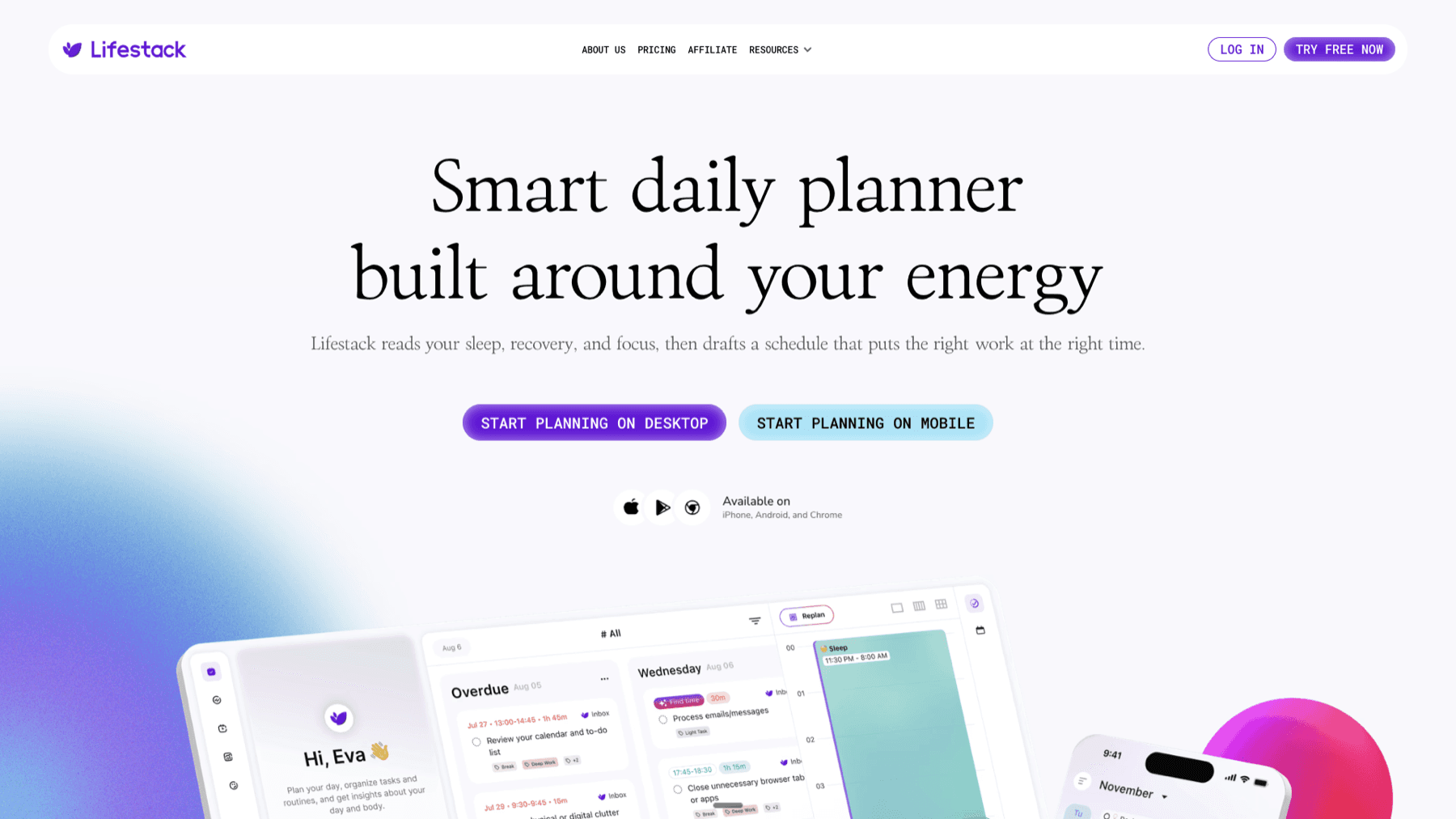
Microsoft To Do tells you what to do. Lifestack tells you when to do it. The two apps are direct complements: you capture tasks in To Do, and Lifestack takes those tasks and schedules them into your calendar based on your energy patterns and available time. The result is a calendar that actually reflects your workload, not just your meetings.
The scheduling is energy-aware, which is the key difference from a basic time blocking app. Lifestack learns when you are at your sharpest during the day and puts demanding tasks in those windows. Low-energy tasks go elsewhere. The plan adjusts automatically when your calendar shifts, so you are not rebuilding your schedule from scratch every time a meeting changes. For a full look at the approach, the Lifestack introduction explains the scheduling method in detail.
Key Features
AI scheduling that places tasks in your calendar based on energy and priority
Automatic rescheduling when meetings move or tasks shift
Google Calendar and Outlook integration
iOS, Android, and Chrome extension
What Works
Converts a list of tasks into a realistic daily plan without manual time-blocking
Works with Outlook calendars, the same ecosystem most Microsoft To Do users rely on
Handles days where the plan falls apart and reschedules automatically
Limitations
No direct Microsoft To Do integration yet (task import works via calendar sync)
Wearable-based energy tracking takes a few weeks to reach full accuracy
Pricing: $7/month or $50/year (7-day free trial on annual plan)
Best for: Microsoft To Do users who want tasks automatically scheduled into their day, not just listed in a to-do app
2. OneNote: Best App to Use with Microsoft To Do for Notes
The natural note-taking companion in the Microsoft ecosystem.
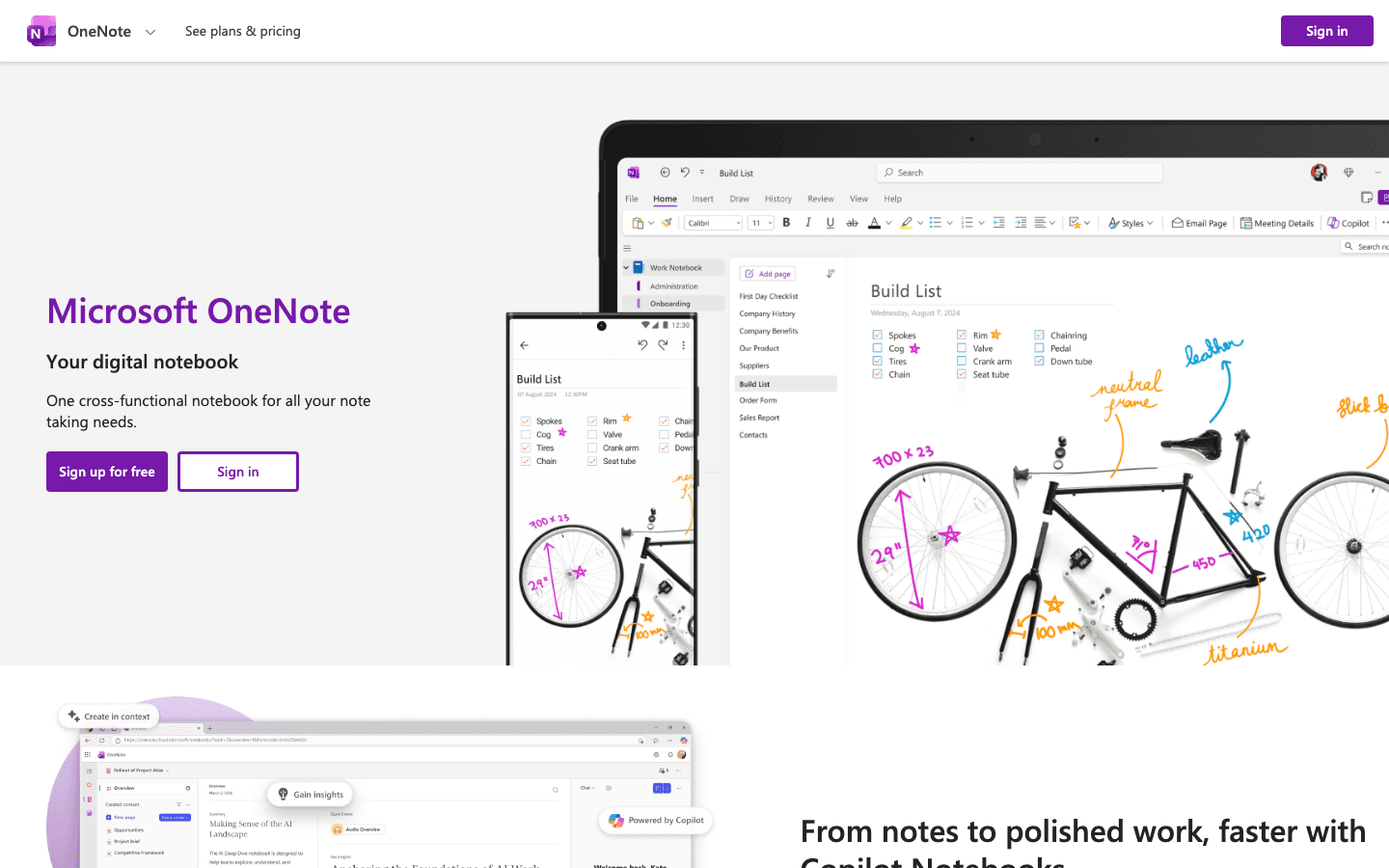
Microsoft OneNote is the closest-fit companion to Microsoft To Do because it is built by the same company and integrates with the same Microsoft account. OneNote handles everything that To Do does not: meeting notes, project documentation, reference material, and the context behind tasks. While To Do says "prepare the Q3 report," OneNote holds the outline, the source data, and the previous quarter's notes.
The real benefit of using both together is reducing the number of places your brain has to look. Tasks in To Do, context in OneNote. Both sync across devices through your Microsoft account and work offline. OneNote's freeform canvas lets you sketch, paste images, and annotate documents in ways that a structured task manager never could.
Key Features
Freeform notebooks organized into sections and pages
Syncs across all devices through Microsoft account
Web clipper for saving research alongside project notes
Audio recording, handwriting, and image annotation
What Works
Zero setup friction for existing Microsoft account holders
Same ecosystem as To Do, Outlook, and Teams means less context switching
Free with any Microsoft account
Limitations
No AI features in the free tier (requires Microsoft 365 Copilot)
Organization can get unwieldy in large notebooks without discipline
Pricing: Free with any Microsoft account; advanced features with Microsoft 365 ($6.99/month Personal)
Best for: Microsoft To Do users who want note-taking and project context in the same Microsoft ecosystem
3. Notion: Best App to Use with Microsoft To Do for Project Management
When your projects outgrow a flat task list.
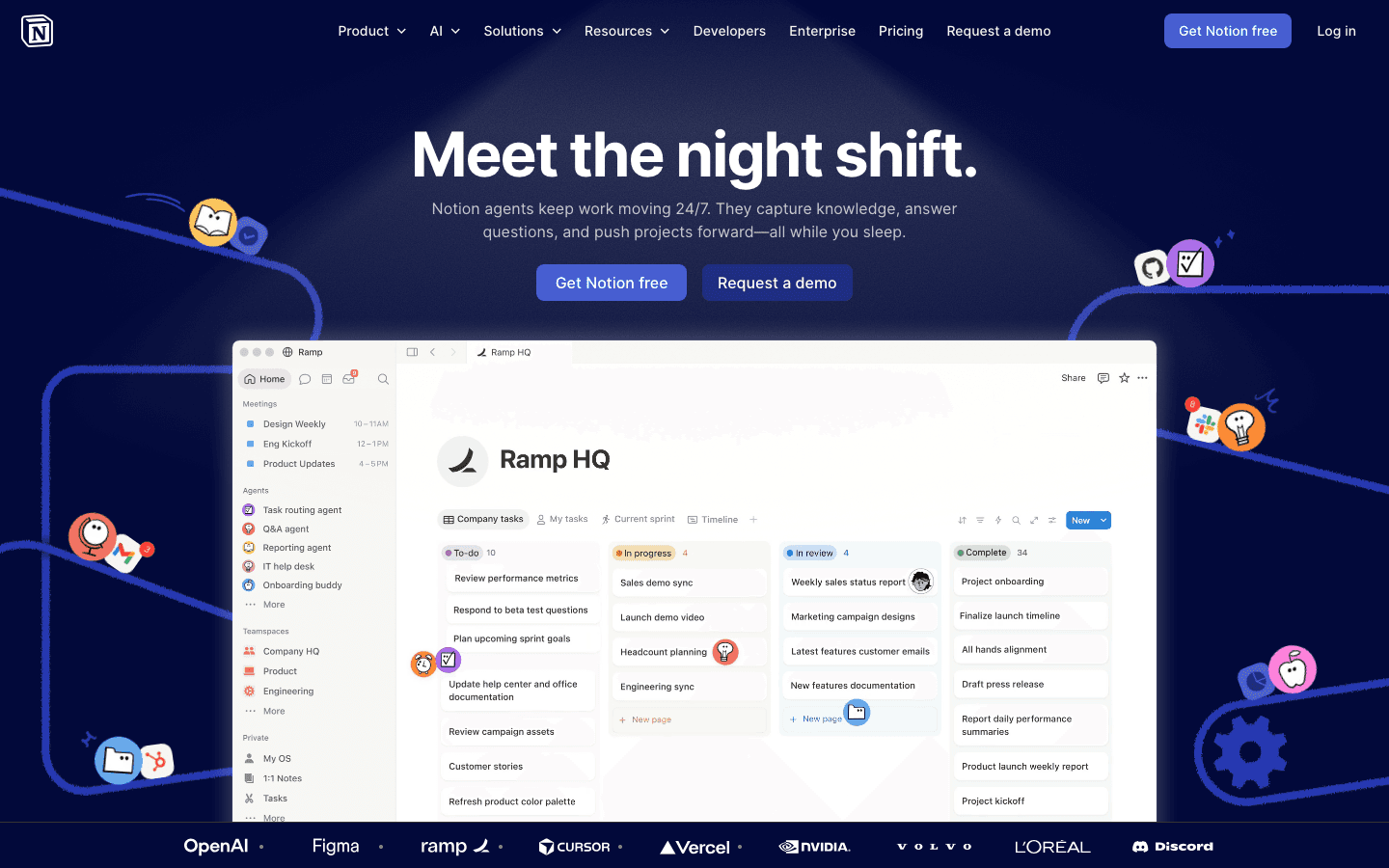
Notion adds a layer of project management depth that Microsoft To Do cannot provide. Where To Do gives you lists with subtasks, Notion gives you databases: filtered views, linked projects, timelines, and team wikis. When a project grows complex enough to have dependencies, stakeholders, and documentation that needs to stay connected, Notion handles the structure in ways a to-do list cannot.
The practical split works like this: simple personal and work tasks stay in Microsoft To Do, where capture is fast and reminders are automatic. Complex projects or anything involving a team move into Notion, where the structure can grow with the work. The apps that pair well with Notion shows how this ecosystem expands further for power users.
Key Features
Database views: table, board, calendar, timeline, gallery
Linked databases so tasks, documents, and projects reference each other
Notion AI for summarizing pages and querying the workspace
Team wikis and shared workspaces
What Works
Scales from a simple project page to a full team knowledge base
Board view gives projects visual structure that To Do's list view lacks
Free plan is generous for individuals
Limitations
Setup overhead is real: a Notion workspace requires intentional structure to stay useful
Not designed for quick daily task capture (To Do is better for that)
Pricing: Free plan available; Plus at $10/member/month
Best for: Microsoft To Do users who manage complex multi-step projects that need linked documents, boards, and team collaboration
4. Clockify: Best App to Use with Microsoft To Do for Time Tracking
Free time tracking so you know how long your tasks actually take.
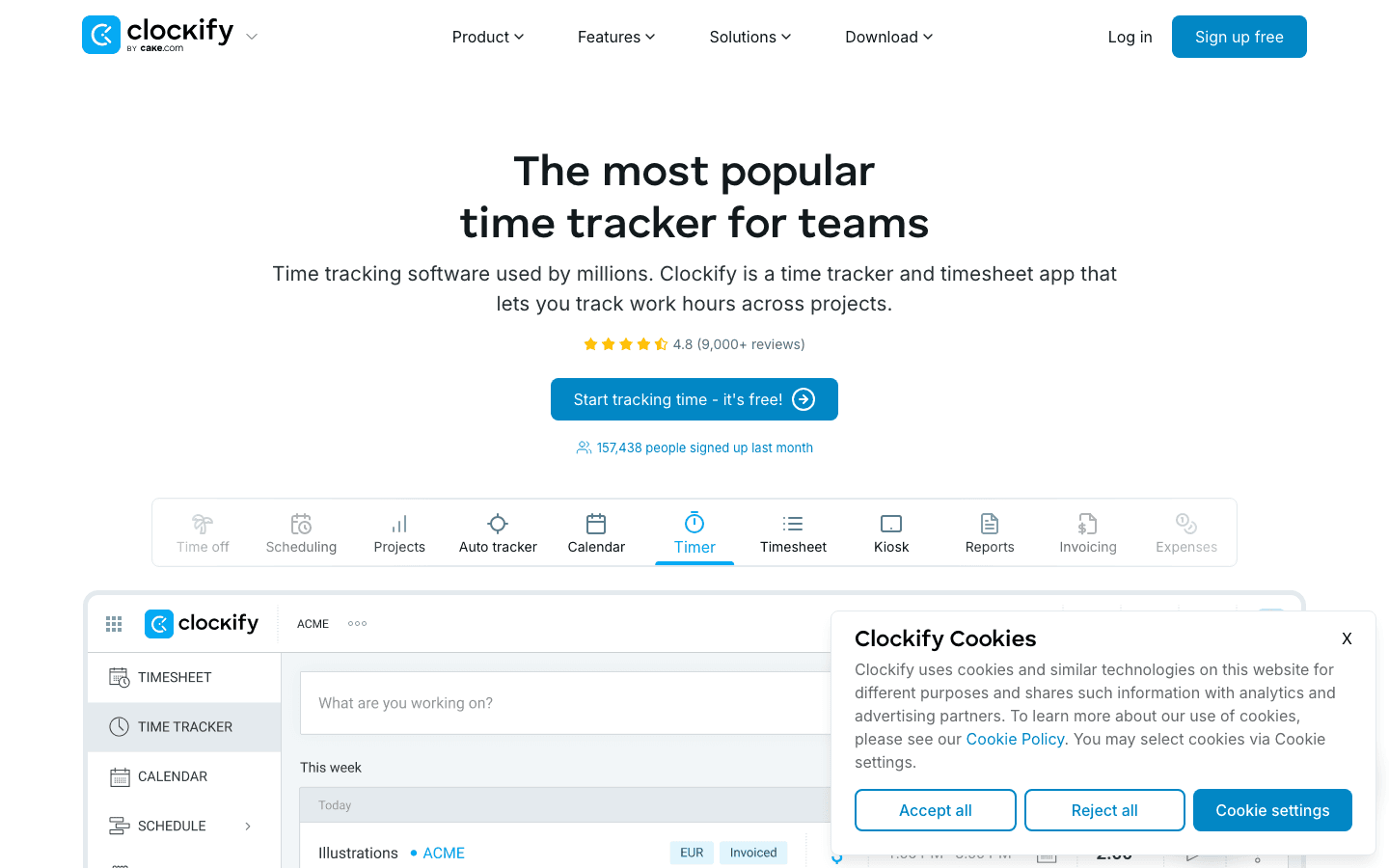
Clockify fills the one gap that almost every task manager has: none of them tell you how long tasks actually took versus how long you estimated. Microsoft To Do shows you what is done and what is pending. Clockify adds the time dimension. Run the timer while working through your To Do list, and by the end of the week you have accurate data on where your hours went.
This data is more useful than it sounds. Most knowledge workers consistently underestimate how long tasks take, which makes scheduling feel impossible. When you can see that "respond to emails" actually takes 90 minutes, not 30, you can plan around that reality. Clockify's free tier covers this use case entirely. You do not need a paid plan to track time and generate basic weekly reports.
Key Features
One-click time tracking with a running timer
Weekly and monthly reports by project and task type
Calendar view showing tracked time alongside scheduled blocks
Available on iOS, Android, desktop, and browser
What Works
Genuinely free with no limits on users or hours tracked
Reports are clear without any configuration
Works alongside any task manager without integration requirements
Limitations
Requires manual tracking discipline. It only knows what you tell it
No scheduling or planning features
Pricing: Free forever; Basic from $3.99/month per seat (annual)
Best for: Microsoft To Do users who bill by the hour, need timesheet reports, or want data on how long tasks actually take
5. Any.do: Best App to Use with Microsoft To Do for Shared Lists
Task sharing that works with people who do not use Microsoft.
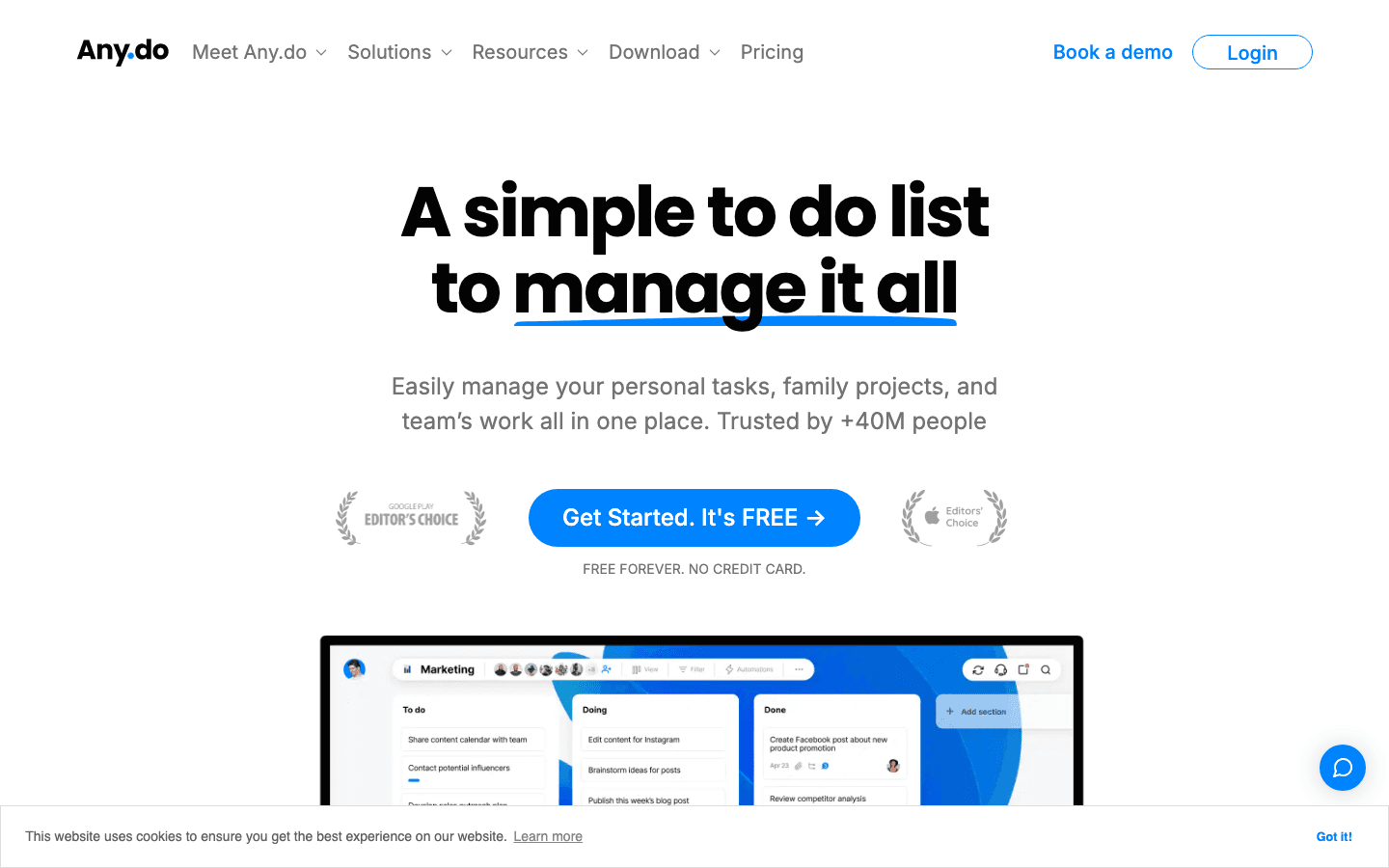
Any.do solves a specific collaboration problem with Microsoft To Do: shared lists only work smoothly when everyone has a Microsoft account. For family lists, personal projects with friends, or collaborating with people outside a Microsoft work environment, Any.do is a cross-platform alternative that does not require a Microsoft account to join.
The practical use case is splitting your task systems by audience. Work tasks and projects that involve colleagues already in Microsoft 365 stay in To Do. Grocery lists, household tasks, and anything involving people outside the Microsoft ecosystem go in Any.do. The AI features in Any.do (smart suggestions, WhatsApp reminders) add value on top of basic list management, and the free plan covers most personal use cases without cost.
Key Features
Shared task lists accessible without a Microsoft account
WhatsApp reminders for task completion
AI-suggested tasks and smart scheduling
Family plan for shared household lists
What Works
No Microsoft account required for collaborators
Works on iOS, Android, web, and desktop
Free forever plan is genuinely useful
Limitations
AI features are locked behind the Premium tier
Overlaps with Microsoft To Do, so it requires discipline to keep the two systems separate
Pricing: Free forever; Premium from $4.99/month (billed annually)
Best for: Microsoft To Do users who need to share task lists with people outside the Microsoft ecosystem
6. Trello: Best App to Use with Microsoft To Do for Visual Boards
Kanban-style project boards when a list is not enough structure.
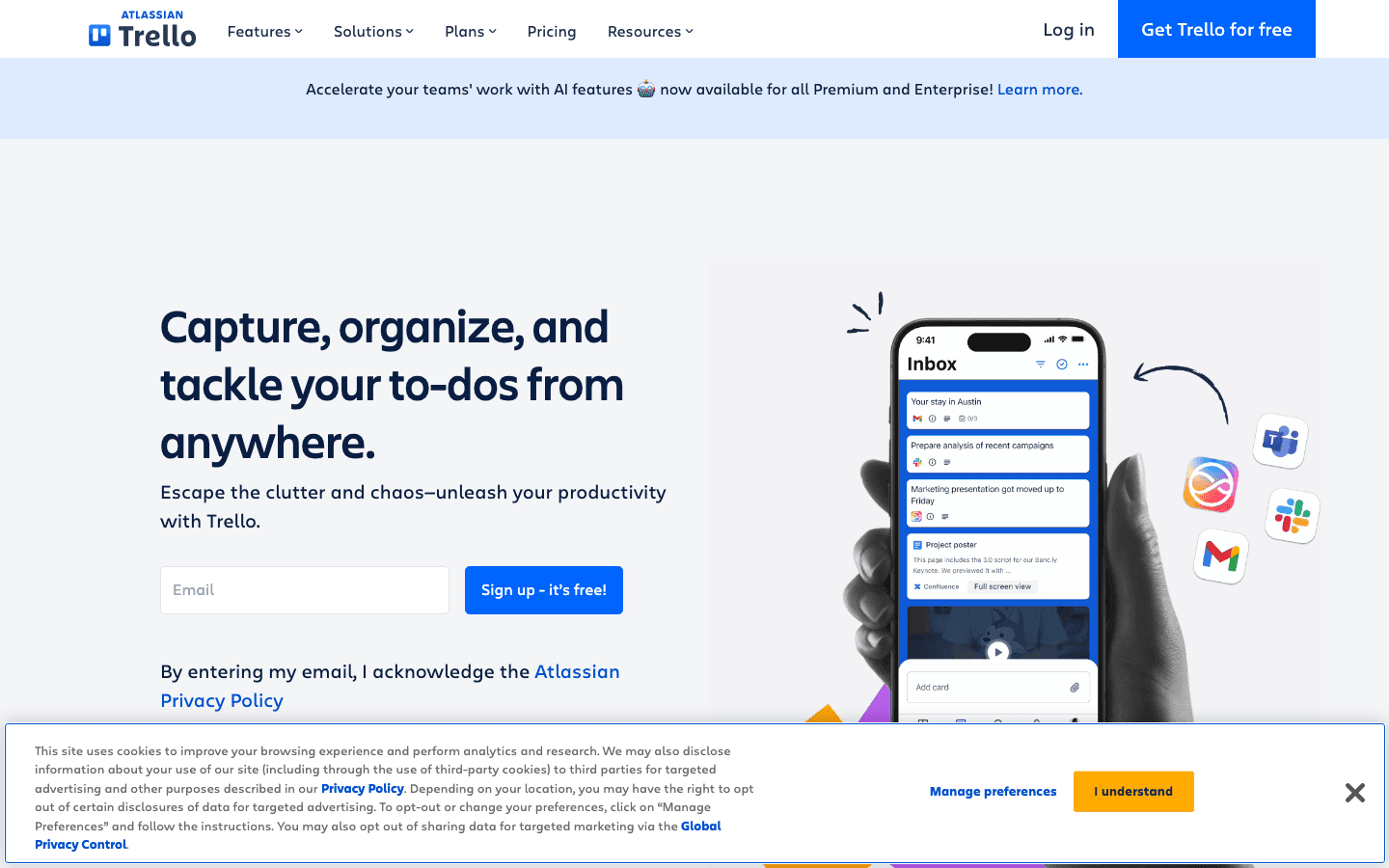
Trello gives your projects a visual structure that Microsoft To Do cannot match. Where To Do organizes tasks in flat lists, Trello uses boards with columns: To Do, In Progress, Done, Blocked, whatever your workflow needs. For projects with multiple stages, multiple people, or work that needs to be visible to a team at a glance, a Trello board communicates more than a shared list.
The natural division is: personal tasks and reminders stay in Microsoft To Do, which is fast and low-friction for daily task capture. Team projects and anything with stages move to Trello, where the board view tracks progress across the whole pipeline. Trello's free plan supports unlimited cards and up to 10 boards per workspace, which covers most small team needs without cost. For a broader look at tools that pair well with a board-based workflow, the post on apps to use with Trello covers the stack in more depth.
Key Features
Kanban boards with customizable columns and drag-and-drop cards
Checklists, due dates, attachments, and labels on each card
Power-Ups for calendar view, automation, and integrations
Available on iOS, Android, web, and desktop
What Works
Visual board view makes project progress obvious at a glance
Free plan is generous for individuals and small teams
Low learning curve compared to more complex project management tools
Limitations
No native scheduling or calendar integration in the free tier
Can become cluttered on large projects with many active cards
Pricing: Free plan available; Standard at $5/user/month (annual)
Best for: Microsoft To Do users who manage team projects or multi-stage workflows that need a board view rather than a flat list
Which App Should You Add to Microsoft To Do First?
Start with the app that addresses your biggest current pain point:
You have tasks but no plan for when to do them: Add Lifestack. It turns your list into a scheduled day. The guide on best scheduling apps covers the scheduling options in more depth if you want to compare approaches.
You need notes and context linked to your tasks: Start with OneNote if you are already in the Microsoft ecosystem. Move to Notion if you need more structure for complex projects.
You bill by the hour or want to understand your time: Add Clockify. It is free and works alongside any task system without requiring changes to how you use To Do.
You share lists with people outside Microsoft: Any.do. Keep work tasks in To Do, shared personal and household lists in Any.do.
You manage team projects with multiple stages: Trello. Personal tasks in To Do, team projects on a Trello board.
Frequently Asked Questions
What apps work well with Microsoft To Do?
The best companion apps each fill a specific gap: Lifestack for scheduling, OneNote for note-taking, Notion for project management, Clockify for time tracking, Any.do for non-Microsoft sharing, and Trello for visual board views. The right combination depends on what Microsoft To Do alone does not cover for your specific work.
Does Microsoft To Do integrate with other apps?
Microsoft To Do integrates natively with Outlook tasks, Microsoft Planner, and Teams. It also connects to many third-party apps through Power Automate or Zapier for automating task creation from emails, forms, and other triggers. Direct calendar scheduling integrations are limited. That is where Lifestack's approach of working with your Outlook calendar adds the most value.
Can you use Microsoft To Do with Google Calendar?
Not natively. Microsoft To Do is designed to work with Outlook and the Microsoft calendar ecosystem. For Google Calendar users, tools like Lifestack work with both Google and Outlook calendars and can bridge the two systems by scheduling tasks regardless of which calendar you use. See the post on AI planner apps for scheduling options that work across both ecosystems.
Is Microsoft To Do good for teams?
Microsoft To Do is designed primarily for individual task management. Teams with shared lists will quickly hit its limitations: no board view, no task dependencies, no timeline, and limited assignment features. For team work, Trello or Notion are stronger choices that work alongside To Do for individual task capture.
What is the best Microsoft To Do alternative?
If you're looking for a full replacement rather than a companion app, the choice depends on what you need most. Todoist is the strongest like-for-like replacement with a better feature set. Notion replaces To Do plus OneNote in one tool. Lifestack replaces To Do with a version that also schedules your tasks. The goal of the apps on this list is to keep using To Do while filling specific gaps, not to migrate away from it.
Why Pair Other Apps with Microsoft To Do?
Microsoft To Do is one of the most widely used task managers in the world, largely because it is free, fast, and already included with any Microsoft account. It does exactly what it promises: a clean list of tasks, organized into lists, with reminders and due dates. For basic task capture and daily to-do management, it works well.
The gaps show up when your work becomes more complex. Microsoft To Do does not schedule tasks into your calendar for you. It has no project board view for multi-step work. It does not track time, take meeting notes, or link tasks to related documents. None of those are criticisms. They are just outside the scope of what To Do was designed to do. The right companion apps fill those gaps without replacing To Do itself.
The six apps below each cover a specific capability that Microsoft To Do does not provide, while working alongside it rather than asking you to switch systems. Most have free tiers that make it easy to test the combination before committing.
Key Takeaways
Lifestack is the most direct upgrade for Microsoft To Do users who want their tasks automatically scheduled into their calendar, not just listed.
OneNote and Notion fill the note-taking and project context gap that Microsoft To Do does not address.
Clockify adds the time tracking layer that many knowledge workers need alongside any task manager.
Quick Guide: 6 Best Apps to Use with Microsoft To Do
Lifestack: AI scheduler that turns your Microsoft To Do tasks into a timed calendar plan
OneNote: Microsoft's own note-taking app for context, references, and meeting notes attached to tasks
Notion: Richer workspace for projects that outgrow a flat task list
Clockify: Free time tracker to see how long your tasks actually take
Any.do: Cross-platform task management for lists shared with people outside the Microsoft ecosystem
Trello: Visual board view for projects that need more structure than a to-do list
How We Chose These Apps
We looked for apps that (a) solve a specific limitation of Microsoft To Do, (b) work alongside it without requiring you to migrate your tasks, and (c) are practical for everyday use rather than complex to set up. Apps that replicate what To Do already does well did not make the list.
Fills a clear gap in Microsoft To Do's feature set
Available on iOS, Android, or web (ideally all three)
Free tier or reasonable starting price
Works with Microsoft or Outlook accounts where relevant
1. Lifestack: Best App to Use with Microsoft To Do for Scheduling
Turn your task list into a timed plan, automatically.
Microsoft To Do tells you what to do. Lifestack tells you when to do it. The two apps are direct complements: you capture tasks in To Do, and Lifestack takes those tasks and schedules them into your calendar based on your energy patterns and available time. The result is a calendar that actually reflects your workload, not just your meetings.
The scheduling is energy-aware, which is the key difference from a basic time blocking app. Lifestack learns when you are at your sharpest during the day and puts demanding tasks in those windows. Low-energy tasks go elsewhere. The plan adjusts automatically when your calendar shifts, so you are not rebuilding your schedule from scratch every time a meeting changes. For a full look at the approach, the Lifestack introduction explains the scheduling method in detail.
Key Features
AI scheduling that places tasks in your calendar based on energy and priority
Automatic rescheduling when meetings move or tasks shift
Google Calendar and Outlook integration
iOS, Android, and Chrome extension
What Works
Converts a list of tasks into a realistic daily plan without manual time-blocking
Works with Outlook calendars, the same ecosystem most Microsoft To Do users rely on
Handles days where the plan falls apart and reschedules automatically
Limitations
No direct Microsoft To Do integration yet (task import works via calendar sync)
Wearable-based energy tracking takes a few weeks to reach full accuracy
Pricing: $7/month or $50/year (7-day free trial on annual plan)
Best for: Microsoft To Do users who want tasks automatically scheduled into their day, not just listed in a to-do app
2. OneNote: Best App to Use with Microsoft To Do for Notes
The natural note-taking companion in the Microsoft ecosystem.
Microsoft OneNote is the closest-fit companion to Microsoft To Do because it is built by the same company and integrates with the same Microsoft account. OneNote handles everything that To Do does not: meeting notes, project documentation, reference material, and the context behind tasks. While To Do says "prepare the Q3 report," OneNote holds the outline, the source data, and the previous quarter's notes.
The real benefit of using both together is reducing the number of places your brain has to look. Tasks in To Do, context in OneNote. Both sync across devices through your Microsoft account and work offline. OneNote's freeform canvas lets you sketch, paste images, and annotate documents in ways that a structured task manager never could.
Key Features
Freeform notebooks organized into sections and pages
Syncs across all devices through Microsoft account
Web clipper for saving research alongside project notes
Audio recording, handwriting, and image annotation
What Works
Zero setup friction for existing Microsoft account holders
Same ecosystem as To Do, Outlook, and Teams means less context switching
Free with any Microsoft account
Limitations
No AI features in the free tier (requires Microsoft 365 Copilot)
Organization can get unwieldy in large notebooks without discipline
Pricing: Free with any Microsoft account; advanced features with Microsoft 365 ($6.99/month Personal)
Best for: Microsoft To Do users who want note-taking and project context in the same Microsoft ecosystem
3. Notion: Best App to Use with Microsoft To Do for Project Management
When your projects outgrow a flat task list.
Notion adds a layer of project management depth that Microsoft To Do cannot provide. Where To Do gives you lists with subtasks, Notion gives you databases: filtered views, linked projects, timelines, and team wikis. When a project grows complex enough to have dependencies, stakeholders, and documentation that needs to stay connected, Notion handles the structure in ways a to-do list cannot.
The practical split works like this: simple personal and work tasks stay in Microsoft To Do, where capture is fast and reminders are automatic. Complex projects or anything involving a team move into Notion, where the structure can grow with the work. The apps that pair well with Notion shows how this ecosystem expands further for power users.
Key Features
Database views: table, board, calendar, timeline, gallery
Linked databases so tasks, documents, and projects reference each other
Notion AI for summarizing pages and querying the workspace
Team wikis and shared workspaces
What Works
Scales from a simple project page to a full team knowledge base
Board view gives projects visual structure that To Do's list view lacks
Free plan is generous for individuals
Limitations
Setup overhead is real: a Notion workspace requires intentional structure to stay useful
Not designed for quick daily task capture (To Do is better for that)
Pricing: Free plan available; Plus at $10/member/month
Best for: Microsoft To Do users who manage complex multi-step projects that need linked documents, boards, and team collaboration
4. Clockify: Best App to Use with Microsoft To Do for Time Tracking
Free time tracking so you know how long your tasks actually take.
Clockify fills the one gap that almost every task manager has: none of them tell you how long tasks actually took versus how long you estimated. Microsoft To Do shows you what is done and what is pending. Clockify adds the time dimension. Run the timer while working through your To Do list, and by the end of the week you have accurate data on where your hours went.
This data is more useful than it sounds. Most knowledge workers consistently underestimate how long tasks take, which makes scheduling feel impossible. When you can see that "respond to emails" actually takes 90 minutes, not 30, you can plan around that reality. Clockify's free tier covers this use case entirely. You do not need a paid plan to track time and generate basic weekly reports.
Key Features
One-click time tracking with a running timer
Weekly and monthly reports by project and task type
Calendar view showing tracked time alongside scheduled blocks
Available on iOS, Android, desktop, and browser
What Works
Genuinely free with no limits on users or hours tracked
Reports are clear without any configuration
Works alongside any task manager without integration requirements
Limitations
Requires manual tracking discipline. It only knows what you tell it
No scheduling or planning features
Pricing: Free forever; Basic from $3.99/month per seat (annual)
Best for: Microsoft To Do users who bill by the hour, need timesheet reports, or want data on how long tasks actually take
5. Any.do: Best App to Use with Microsoft To Do for Shared Lists
Task sharing that works with people who do not use Microsoft.
Any.do solves a specific collaboration problem with Microsoft To Do: shared lists only work smoothly when everyone has a Microsoft account. For family lists, personal projects with friends, or collaborating with people outside a Microsoft work environment, Any.do is a cross-platform alternative that does not require a Microsoft account to join.
The practical use case is splitting your task systems by audience. Work tasks and projects that involve colleagues already in Microsoft 365 stay in To Do. Grocery lists, household tasks, and anything involving people outside the Microsoft ecosystem go in Any.do. The AI features in Any.do (smart suggestions, WhatsApp reminders) add value on top of basic list management, and the free plan covers most personal use cases without cost.
Key Features
Shared task lists accessible without a Microsoft account
WhatsApp reminders for task completion
AI-suggested tasks and smart scheduling
Family plan for shared household lists
What Works
No Microsoft account required for collaborators
Works on iOS, Android, web, and desktop
Free forever plan is genuinely useful
Limitations
AI features are locked behind the Premium tier
Overlaps with Microsoft To Do, so it requires discipline to keep the two systems separate
Pricing: Free forever; Premium from $4.99/month (billed annually)
Best for: Microsoft To Do users who need to share task lists with people outside the Microsoft ecosystem
6. Trello: Best App to Use with Microsoft To Do for Visual Boards
Kanban-style project boards when a list is not enough structure.
Trello gives your projects a visual structure that Microsoft To Do cannot match. Where To Do organizes tasks in flat lists, Trello uses boards with columns: To Do, In Progress, Done, Blocked, whatever your workflow needs. For projects with multiple stages, multiple people, or work that needs to be visible to a team at a glance, a Trello board communicates more than a shared list.
The natural division is: personal tasks and reminders stay in Microsoft To Do, which is fast and low-friction for daily task capture. Team projects and anything with stages move to Trello, where the board view tracks progress across the whole pipeline. Trello's free plan supports unlimited cards and up to 10 boards per workspace, which covers most small team needs without cost. For a broader look at tools that pair well with a board-based workflow, the post on apps to use with Trello covers the stack in more depth.
Key Features
Kanban boards with customizable columns and drag-and-drop cards
Checklists, due dates, attachments, and labels on each card
Power-Ups for calendar view, automation, and integrations
Available on iOS, Android, web, and desktop
What Works
Visual board view makes project progress obvious at a glance
Free plan is generous for individuals and small teams
Low learning curve compared to more complex project management tools
Limitations
No native scheduling or calendar integration in the free tier
Can become cluttered on large projects with many active cards
Pricing: Free plan available; Standard at $5/user/month (annual)
Best for: Microsoft To Do users who manage team projects or multi-stage workflows that need a board view rather than a flat list
Which App Should You Add to Microsoft To Do First?
Start with the app that addresses your biggest current pain point:
You have tasks but no plan for when to do them: Add Lifestack. It turns your list into a scheduled day. The guide on best scheduling apps covers the scheduling options in more depth if you want to compare approaches.
You need notes and context linked to your tasks: Start with OneNote if you are already in the Microsoft ecosystem. Move to Notion if you need more structure for complex projects.
You bill by the hour or want to understand your time: Add Clockify. It is free and works alongside any task system without requiring changes to how you use To Do.
You share lists with people outside Microsoft: Any.do. Keep work tasks in To Do, shared personal and household lists in Any.do.
You manage team projects with multiple stages: Trello. Personal tasks in To Do, team projects on a Trello board.
Frequently Asked Questions
What apps work well with Microsoft To Do?
The best companion apps each fill a specific gap: Lifestack for scheduling, OneNote for note-taking, Notion for project management, Clockify for time tracking, Any.do for non-Microsoft sharing, and Trello for visual board views. The right combination depends on what Microsoft To Do alone does not cover for your specific work.
Does Microsoft To Do integrate with other apps?
Microsoft To Do integrates natively with Outlook tasks, Microsoft Planner, and Teams. It also connects to many third-party apps through Power Automate or Zapier for automating task creation from emails, forms, and other triggers. Direct calendar scheduling integrations are limited. That is where Lifestack's approach of working with your Outlook calendar adds the most value.
Can you use Microsoft To Do with Google Calendar?
Not natively. Microsoft To Do is designed to work with Outlook and the Microsoft calendar ecosystem. For Google Calendar users, tools like Lifestack work with both Google and Outlook calendars and can bridge the two systems by scheduling tasks regardless of which calendar you use. See the post on AI planner apps for scheduling options that work across both ecosystems.
Is Microsoft To Do good for teams?
Microsoft To Do is designed primarily for individual task management. Teams with shared lists will quickly hit its limitations: no board view, no task dependencies, no timeline, and limited assignment features. For team work, Trello or Notion are stronger choices that work alongside To Do for individual task capture.
What is the best Microsoft To Do alternative?
If you're looking for a full replacement rather than a companion app, the choice depends on what you need most. Todoist is the strongest like-for-like replacement with a better feature set. Notion replaces To Do plus OneNote in one tool. Lifestack replaces To Do with a version that also schedules your tasks. The goal of the apps on this list is to keep using To Do while filling specific gaps, not to migrate away from it.

FOLLOW ON
FOLLOW ON
FOLLOW ON


Copyright 2026 © Lifestack. All rights reserved
Copyright 2026 © Lifestack. All rights reserved

