
Tips
TickTick Desktop App: Features, Tips, and Setup
TickTick Desktop App: Features, Tips, and Setup

The TickTick desktop app is worth installing if you spend most of your workday at a computer. The mobile app is excellent for capture and quick checks, but the desktop version adds keyboard shortcuts, a larger interface for planning, the full calendar view, and a persistent quick-add shortcut that you can trigger without switching apps. For anyone managing serious task volume, the desktop experience is meaningfully better than the browser version.
TickTick has native desktop apps for Mac and Windows, plus a web app that works on Linux and any browser. All sync instantly with the mobile app - tasks you add on your phone appear on the desktop within seconds, and vice versa. The core feature set is the same across platforms, but the desktop apps have platform-specific integrations (like a Mac menu bar icon) that the web app doesn't replicate.
This guide covers how to get started with the TickTick desktop app, what it does differently from mobile, the most useful keyboard shortcuts, and how to configure it for real work sessions. For a full overview of everything TickTick can do, the TickTick review goes deeper on the broader feature set.
Key Takeaways
TickTick's desktop app for Mac and Windows adds keyboard shortcuts, a persistent menu bar icon, and a full calendar view that the browser version doesn't match for daily planning.
The quick-add shortcut (default: Ctrl+Shift+A on Windows, Cmd+Shift+A on Mac) lets you capture tasks from anywhere without switching windows - one of the highest-value features for heavy task users.
TickTick's free plan works fine on desktop; Premium ($49.99/year) adds the calendar view and task duration, which are the two features most worth upgrading for desktop power users.
How to Download and Install TickTick Desktop App
Go to ticktick.com/about/download and choose the right version for your system. The Mac version requires macOS 10.14 (Mojave) or later; the Windows version requires Windows 7 or later. Both are native apps rather than Electron wrappers - they're fast and don't have the memory overhead of a browser-based app running in a container.
After installing, sign in with your existing TickTick account. If you don't have one, the free tier gets you started immediately. Everything syncs from the account, so your existing tasks and lists appear right away. The desktop app will stay logged in unless you explicitly sign out.
Linux users: TickTick doesn't have a native Linux app. The web app at app.ticktick.com works in any browser, and there are several unofficial Electron wrappers in the community if you want a standalone window, though these aren't supported by TickTick.
Desktop vs Mobile: What's Different
The most obvious difference is screen real estate. On desktop, you can see your task list, the detail panel for a selected task, and the calendar view simultaneously. On mobile, you switch between views. For planning a week or reviewing a project, having everything visible at once changes how you work.

The calendar view (Premium feature) is significantly more useful on desktop. You can drag tasks to dates, see your Google or Outlook calendar events alongside tasks, and get a week or month overview. On mobile, the calendar view exists but the small screen limits how much you can see at once.
Desktop also has a right-click context menu on tasks that exposes options more quickly than tapping through on mobile. And the persistent menu bar icon (Mac) or system tray icon (Windows) means TickTick is always a single click away without opening the app - useful for quick captures during focused work.
Keyboard Shortcuts Worth Knowing
The quick-add shortcut is the most valuable: on Mac, it's Cmd+Shift+A by default; on Windows, it's Ctrl+Shift+A. This opens a minimal add task dialog over whatever you're working on. Type the task, press Enter, and it disappears. You never leave your current work. This alone makes the desktop app worth installing over the browser version.
In the main app window:
Q (or Ctrl/Cmd+N): Add a new task in the current list
/ or Ctrl/Cmd+F: Open search
Tab: Indent task (make it a subtask)
Shift+Tab: Outdent task (promote subtask to top level)
Ctrl/Cmd+D: Mark task as complete
Ctrl/Cmd+T: Set today as due date
Ctrl/Cmd+Shift+T: Set tomorrow as due date
? : Open the full keyboard shortcut reference
The Tab/Shift+Tab indent behavior is worth knowing because it's the keyboard-first way to create subtasks without touching the mouse. If you're someone who primarily types rather than clicks, you can build a full project structure entirely from the keyboard. The TickTick subtasks guide covers the full subtask system in more detail.
Desktop App Settings Worth Configuring
In Preferences (Cmd+, on Mac or via the user menu on Windows), a few settings make a material difference to daily use. Under General, set the default list for quick-add tasks - without this, quick-add items land in your Inbox, which can get cluttered. Set it to whichever list you use for your daily work capture.
Start Week On: Monday or Sunday depending on your preference. This affects how the calendar view displays. For anyone doing weekly review-style planning, getting this right matters.
Under Notifications, configure how reminders appear on desktop. Task reminders in TickTick show as system notifications by default. If you're doing deep work and don't want interruptions, you can set a Do Not Disturb window that suppresses notifications during focus hours.
The Pomodoro timer lives in the Focus section of Preferences. If you use Pomodoro-style time blocks, TickTick's built-in timer is usable - it logs focus time against tasks, which shows up in the activity summary. It's not a full Pomodoro app, but it covers the basics without installing a separate tool. The TickTick pricing guide clarifies which features are free vs Premium.
Using TickTick Desktop for Work Projects
The desktop app works well as a lightweight project manager for individual contributors. Create a list per project, use subtasks for each deliverable, set due dates on the subtasks, and use the calendar view to see how your project milestones fit against the rest of your work. It's not a Jira replacement for team work, but for personal project tracking it's genuinely capable.
The Smart Lists in the left sidebar (Today, Next 7 Days, All) are more useful on desktop than mobile because you can see the full list without scrolling. "Next 7 Days" gives you a rolling week view of everything due, which is a good morning planning anchor. The TickTick vs Todoist comparison covers how the two apps differ for this kind of personal project workflow.
For teams, TickTick Premium supports shared lists where tasks can be assigned to collaborators. On desktop, the assignee picker appears as a dropdown in the task detail panel. Task comments and file attachments also appear more usably in the desktop layout than on mobile. The best apps to use with TickTick guide covers which tools plug in well for team workflows.
The Gap Between Task Capture and Scheduling
TickTick is excellent at helping you capture, organize, and prioritize tasks. The piece it doesn't cover is deciding when to actually work on each task, based on what your calendar looks like and when you're at your best cognitively. A task with a Friday due date doesn't tell you whether Tuesday morning or Thursday afternoon is the right time to start it.
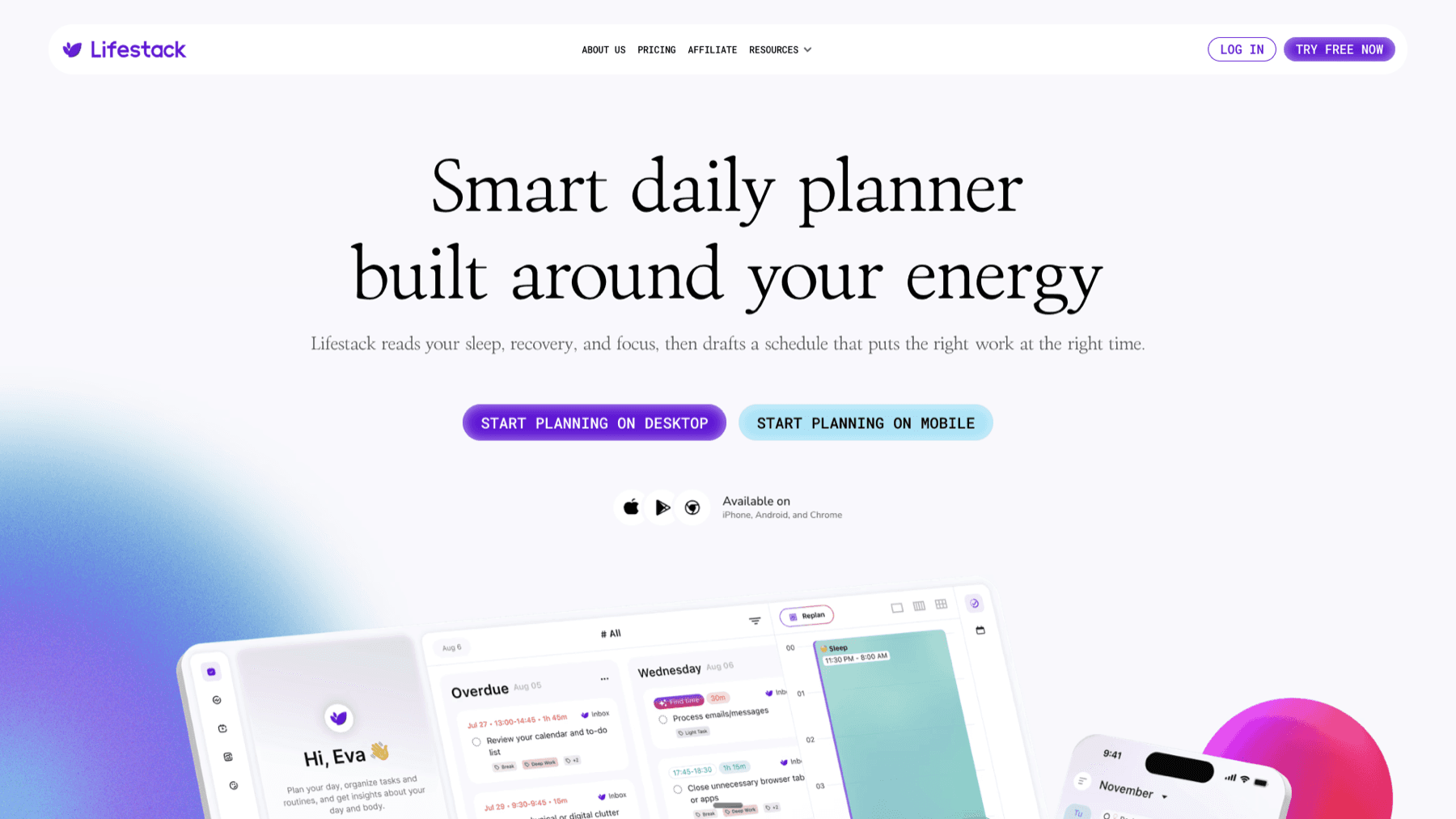
Lifestack fills this gap by auto-scheduling tasks into time blocks on your calendar based on your energy patterns, available free time, and task priorities. It reads your existing calendar and builds a daily schedule that accounts for when you're genuinely focused, not just when you happen to have no meetings. The energy-based scheduling guide covers the approach. Used alongside TickTick, it handles the planning layer that TickTick deliberately leaves to you. Lifestack is $9.99/month or $49.99/year with a 7-day free trial on the annual plan.
Frequently Asked Questions
Is the TickTick desktop app free?
Yes. The desktop app is free to download, and the free plan works on it. You get 9 lists, 99 tasks per list, reminders, and sync across devices. TickTick Premium ($49.99/year) adds the calendar view, task duration, Kanban view, and AI features - the calendar view in particular is worth the upgrade if you plan on the desktop.
Does TickTick desktop work offline?
Yes, with caveats. Tasks you've already loaded are accessible offline. You can create, edit, and complete tasks while offline, and they sync when you reconnect. Creating a new list offline may require a sync before it's visible on other devices. The offline experience is reliable for daily task management but shouldn't be depended on for initial setup.
What's the difference between the web app and the desktop app?
The native desktop apps (Mac and Windows) offer the persistent menu bar/system tray icon, the global quick-add keyboard shortcut that works from any app, better performance, and system-level notifications. The web app works in a browser, works on Linux, requires no installation, and is otherwise feature-equivalent. If you're on a managed computer where you can't install software, the web app is the solution.
Can I use TickTick desktop with Google Calendar?
Yes. In TickTick settings, you can connect your Google Calendar account and display your calendar events alongside tasks in the TickTick calendar view. Events appear as blocks on the calendar. TickTick doesn't create Google Calendar events from tasks (that's a one-way display), but seeing your meetings and task due dates in one view is genuinely useful for daily planning. The TickTick alternatives guide covers apps that do deeper calendar integration if that matters to you.
How do I enable dark mode on TickTick desktop?
Go to Preferences (Cmd+, on Mac, or the user menu on Windows) and find the Theme option. TickTick offers a dark theme, a light theme, and a system-sync option that follows your OS appearance setting. The dark theme is clean and easy on the eyes for evening planning sessions.
The TickTick desktop app is worth installing if you spend most of your workday at a computer. The mobile app is excellent for capture and quick checks, but the desktop version adds keyboard shortcuts, a larger interface for planning, the full calendar view, and a persistent quick-add shortcut that you can trigger without switching apps. For anyone managing serious task volume, the desktop experience is meaningfully better than the browser version.
TickTick has native desktop apps for Mac and Windows, plus a web app that works on Linux and any browser. All sync instantly with the mobile app - tasks you add on your phone appear on the desktop within seconds, and vice versa. The core feature set is the same across platforms, but the desktop apps have platform-specific integrations (like a Mac menu bar icon) that the web app doesn't replicate.
This guide covers how to get started with the TickTick desktop app, what it does differently from mobile, the most useful keyboard shortcuts, and how to configure it for real work sessions. For a full overview of everything TickTick can do, the TickTick review goes deeper on the broader feature set.
Key Takeaways
TickTick's desktop app for Mac and Windows adds keyboard shortcuts, a persistent menu bar icon, and a full calendar view that the browser version doesn't match for daily planning.
The quick-add shortcut (default: Ctrl+Shift+A on Windows, Cmd+Shift+A on Mac) lets you capture tasks from anywhere without switching windows - one of the highest-value features for heavy task users.
TickTick's free plan works fine on desktop; Premium ($49.99/year) adds the calendar view and task duration, which are the two features most worth upgrading for desktop power users.
How to Download and Install TickTick Desktop App
Go to ticktick.com/about/download and choose the right version for your system. The Mac version requires macOS 10.14 (Mojave) or later; the Windows version requires Windows 7 or later. Both are native apps rather than Electron wrappers - they're fast and don't have the memory overhead of a browser-based app running in a container.
After installing, sign in with your existing TickTick account. If you don't have one, the free tier gets you started immediately. Everything syncs from the account, so your existing tasks and lists appear right away. The desktop app will stay logged in unless you explicitly sign out.
Linux users: TickTick doesn't have a native Linux app. The web app at app.ticktick.com works in any browser, and there are several unofficial Electron wrappers in the community if you want a standalone window, though these aren't supported by TickTick.
Desktop vs Mobile: What's Different
The most obvious difference is screen real estate. On desktop, you can see your task list, the detail panel for a selected task, and the calendar view simultaneously. On mobile, you switch between views. For planning a week or reviewing a project, having everything visible at once changes how you work.
The calendar view (Premium feature) is significantly more useful on desktop. You can drag tasks to dates, see your Google or Outlook calendar events alongside tasks, and get a week or month overview. On mobile, the calendar view exists but the small screen limits how much you can see at once.
Desktop also has a right-click context menu on tasks that exposes options more quickly than tapping through on mobile. And the persistent menu bar icon (Mac) or system tray icon (Windows) means TickTick is always a single click away without opening the app - useful for quick captures during focused work.
Keyboard Shortcuts Worth Knowing
The quick-add shortcut is the most valuable: on Mac, it's Cmd+Shift+A by default; on Windows, it's Ctrl+Shift+A. This opens a minimal add task dialog over whatever you're working on. Type the task, press Enter, and it disappears. You never leave your current work. This alone makes the desktop app worth installing over the browser version.
In the main app window:
Q (or Ctrl/Cmd+N): Add a new task in the current list
/ or Ctrl/Cmd+F: Open search
Tab: Indent task (make it a subtask)
Shift+Tab: Outdent task (promote subtask to top level)
Ctrl/Cmd+D: Mark task as complete
Ctrl/Cmd+T: Set today as due date
Ctrl/Cmd+Shift+T: Set tomorrow as due date
? : Open the full keyboard shortcut reference
The Tab/Shift+Tab indent behavior is worth knowing because it's the keyboard-first way to create subtasks without touching the mouse. If you're someone who primarily types rather than clicks, you can build a full project structure entirely from the keyboard. The TickTick subtasks guide covers the full subtask system in more detail.
Desktop App Settings Worth Configuring
In Preferences (Cmd+, on Mac or via the user menu on Windows), a few settings make a material difference to daily use. Under General, set the default list for quick-add tasks - without this, quick-add items land in your Inbox, which can get cluttered. Set it to whichever list you use for your daily work capture.
Start Week On: Monday or Sunday depending on your preference. This affects how the calendar view displays. For anyone doing weekly review-style planning, getting this right matters.
Under Notifications, configure how reminders appear on desktop. Task reminders in TickTick show as system notifications by default. If you're doing deep work and don't want interruptions, you can set a Do Not Disturb window that suppresses notifications during focus hours.
The Pomodoro timer lives in the Focus section of Preferences. If you use Pomodoro-style time blocks, TickTick's built-in timer is usable - it logs focus time against tasks, which shows up in the activity summary. It's not a full Pomodoro app, but it covers the basics without installing a separate tool. The TickTick pricing guide clarifies which features are free vs Premium.
Using TickTick Desktop for Work Projects
The desktop app works well as a lightweight project manager for individual contributors. Create a list per project, use subtasks for each deliverable, set due dates on the subtasks, and use the calendar view to see how your project milestones fit against the rest of your work. It's not a Jira replacement for team work, but for personal project tracking it's genuinely capable.
The Smart Lists in the left sidebar (Today, Next 7 Days, All) are more useful on desktop than mobile because you can see the full list without scrolling. "Next 7 Days" gives you a rolling week view of everything due, which is a good morning planning anchor. The TickTick vs Todoist comparison covers how the two apps differ for this kind of personal project workflow.
For teams, TickTick Premium supports shared lists where tasks can be assigned to collaborators. On desktop, the assignee picker appears as a dropdown in the task detail panel. Task comments and file attachments also appear more usably in the desktop layout than on mobile. The best apps to use with TickTick guide covers which tools plug in well for team workflows.
The Gap Between Task Capture and Scheduling
TickTick is excellent at helping you capture, organize, and prioritize tasks. The piece it doesn't cover is deciding when to actually work on each task, based on what your calendar looks like and when you're at your best cognitively. A task with a Friday due date doesn't tell you whether Tuesday morning or Thursday afternoon is the right time to start it.
Lifestack fills this gap by auto-scheduling tasks into time blocks on your calendar based on your energy patterns, available free time, and task priorities. It reads your existing calendar and builds a daily schedule that accounts for when you're genuinely focused, not just when you happen to have no meetings. The energy-based scheduling guide covers the approach. Used alongside TickTick, it handles the planning layer that TickTick deliberately leaves to you. Lifestack is $9.99/month or $49.99/year with a 7-day free trial on the annual plan.
Frequently Asked Questions
Is the TickTick desktop app free?
Yes. The desktop app is free to download, and the free plan works on it. You get 9 lists, 99 tasks per list, reminders, and sync across devices. TickTick Premium ($49.99/year) adds the calendar view, task duration, Kanban view, and AI features - the calendar view in particular is worth the upgrade if you plan on the desktop.
Does TickTick desktop work offline?
Yes, with caveats. Tasks you've already loaded are accessible offline. You can create, edit, and complete tasks while offline, and they sync when you reconnect. Creating a new list offline may require a sync before it's visible on other devices. The offline experience is reliable for daily task management but shouldn't be depended on for initial setup.
What's the difference between the web app and the desktop app?
The native desktop apps (Mac and Windows) offer the persistent menu bar/system tray icon, the global quick-add keyboard shortcut that works from any app, better performance, and system-level notifications. The web app works in a browser, works on Linux, requires no installation, and is otherwise feature-equivalent. If you're on a managed computer where you can't install software, the web app is the solution.
Can I use TickTick desktop with Google Calendar?
Yes. In TickTick settings, you can connect your Google Calendar account and display your calendar events alongside tasks in the TickTick calendar view. Events appear as blocks on the calendar. TickTick doesn't create Google Calendar events from tasks (that's a one-way display), but seeing your meetings and task due dates in one view is genuinely useful for daily planning. The TickTick alternatives guide covers apps that do deeper calendar integration if that matters to you.
How do I enable dark mode on TickTick desktop?
Go to Preferences (Cmd+, on Mac, or the user menu on Windows) and find the Theme option. TickTick offers a dark theme, a light theme, and a system-sync option that follows your OS appearance setting. The dark theme is clean and easy on the eyes for evening planning sessions.



FOLLOW ON
FOLLOW ON
FOLLOW ON



Copyright 2026 © Lifestack. All rights reserved
Copyright 2026 © Lifestack. All rights reserved

