
App
Best Daily Planners That Sync With Google Calendar
Best Daily Planners That Sync With Google Calendar
Google Calendar is where most people's actual schedule lives. The problem is that it only shows you what's happening, not what you should be doing when. A daily planner that syncs with Google Calendar bridges that gap: tasks show up alongside meetings, and your work gets a time slot instead of living on a list that grows faster than you clear it.
The six apps below represent the best daily planners with real Google Calendar integration in 2026. Not "export to .ics" integration. Actual two-way sync where your calendar events appear inside the planner and tasks you create show up on your calendar.
We tested each app on sync depth (does it pull events, push tasks, or both?), planning quality, notification reliability, and how well the overall experience works alongside an existing Google Calendar workflow.
All apps tested with Google Calendar sync in June 2026. Pricing verified at time of publication.
Key Takeaways
Lifestack's energy-aware scheduling is the most intelligent use of Google Calendar data: it reads your existing events and schedules tasks around them based on your energy patterns.
Motion and Lifestack both auto-schedule tasks into your calendar, eliminating the manual placement step that other tools require.
Fantastical has the deepest calendar feature set of any planner on this list; TickTick and Structured are the best picks for visual daily timelines.
Quick Guide
Lifestack: Best energy-aware AI planner with deep GCal sync
Motion: Best for automatic task scheduling across calendar and projects
TickTick: Best all-in-one with calendar overlay and habit tracking
Fantastical: Best pure calendar app with task integration
Todoist: Best for power users who want tasks alongside their GCal
Structured: Best visual timeline for daily planning alongside GCal events
How We Evaluated
Google Calendar sync depth: does it read events, write tasks, or both?
Auto-scheduling: does the app place tasks into calendar slots automatically?
Daily planning quality: how clearly does it present your day?
Notification reliability across mobile and desktop
Pricing and free tier scope
1. Lifestack: Best Energy-Aware Daily Planner With GCal Sync
Reads your Google Calendar and schedules tasks around your energy, automatically.
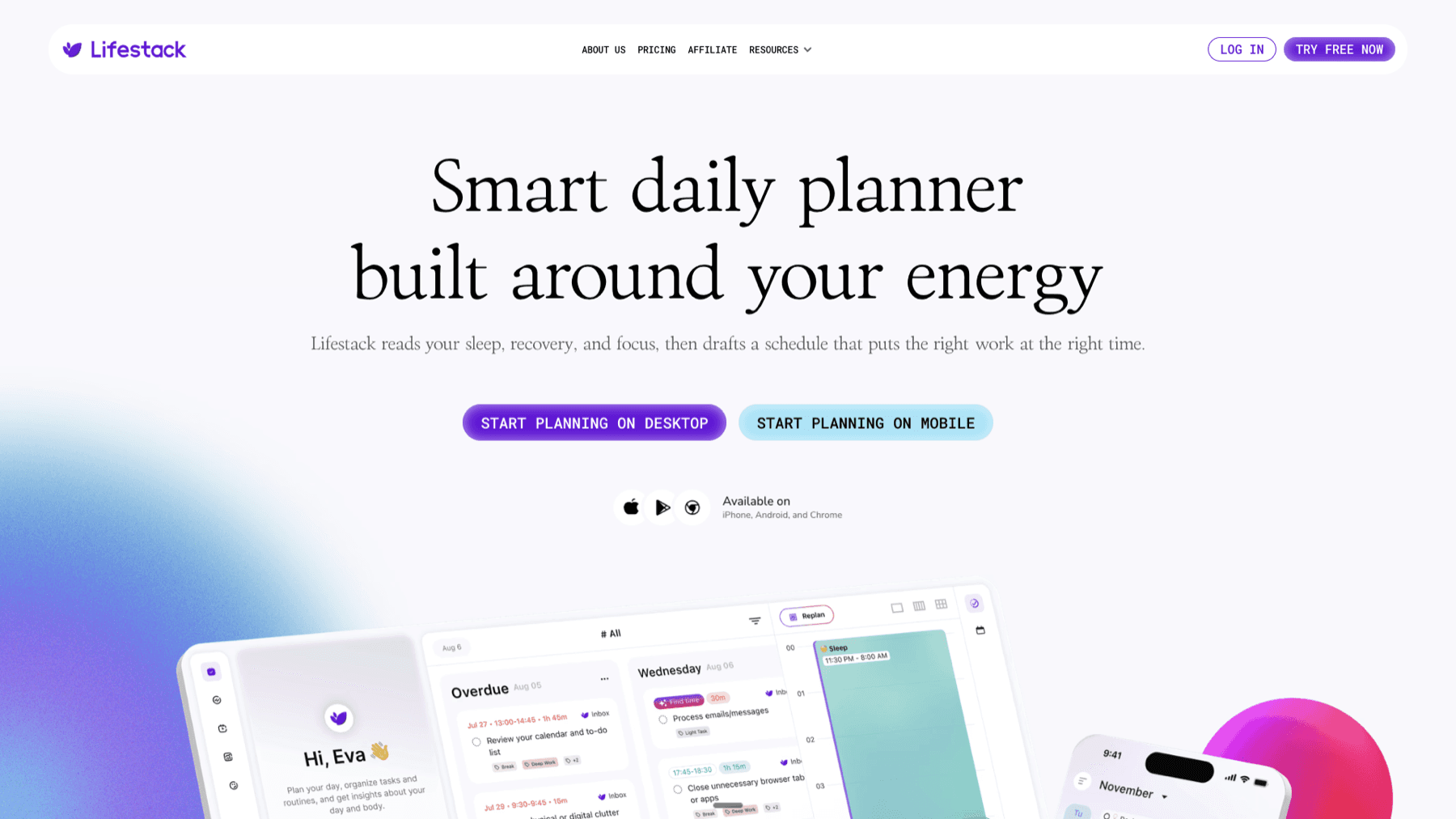
Lifestack does something no other planner on this list does: it reads your Google Calendar events, identifies the open windows in your day, and places tasks into those windows based on your personal energy patterns. A task that requires deep focus goes into your morning peak. Admin work fills the post-lunch dip. Your meetings stay put, and your task work fits around them without manual placement.
The two-way GCal sync means tasks added in Lifestack appear on your Google Calendar with a time slot, not just as reminders. This makes Lifestack the most practical digital planner for anyone who already runs their schedule through Google Calendar and wants their task work integrated rather than parallel.
Two-way Google Calendar sync with automatic task scheduling
Energy-aware task placement based on personal focus patterns
Reads existing GCal events and plans around them
Tasks appear on Google Calendar with time blocks
AI rescheduling when meetings shift or tasks run long
Limitations: Requires more setup than a simple to-do app. The scheduling AI is most useful for users with 3+ tasks per day across varying energy demands.
Pricing: $7/month, $50/year (7-day free trial on annual plan), or $120 lifetime.
Best for: Anyone who lives in Google Calendar and wants their task work automatically scheduled around their existing events and energy levels.
2. Motion: Best for Automatic Task Scheduling
AI that fills your calendar with tasks automatically, no manual scheduling required.
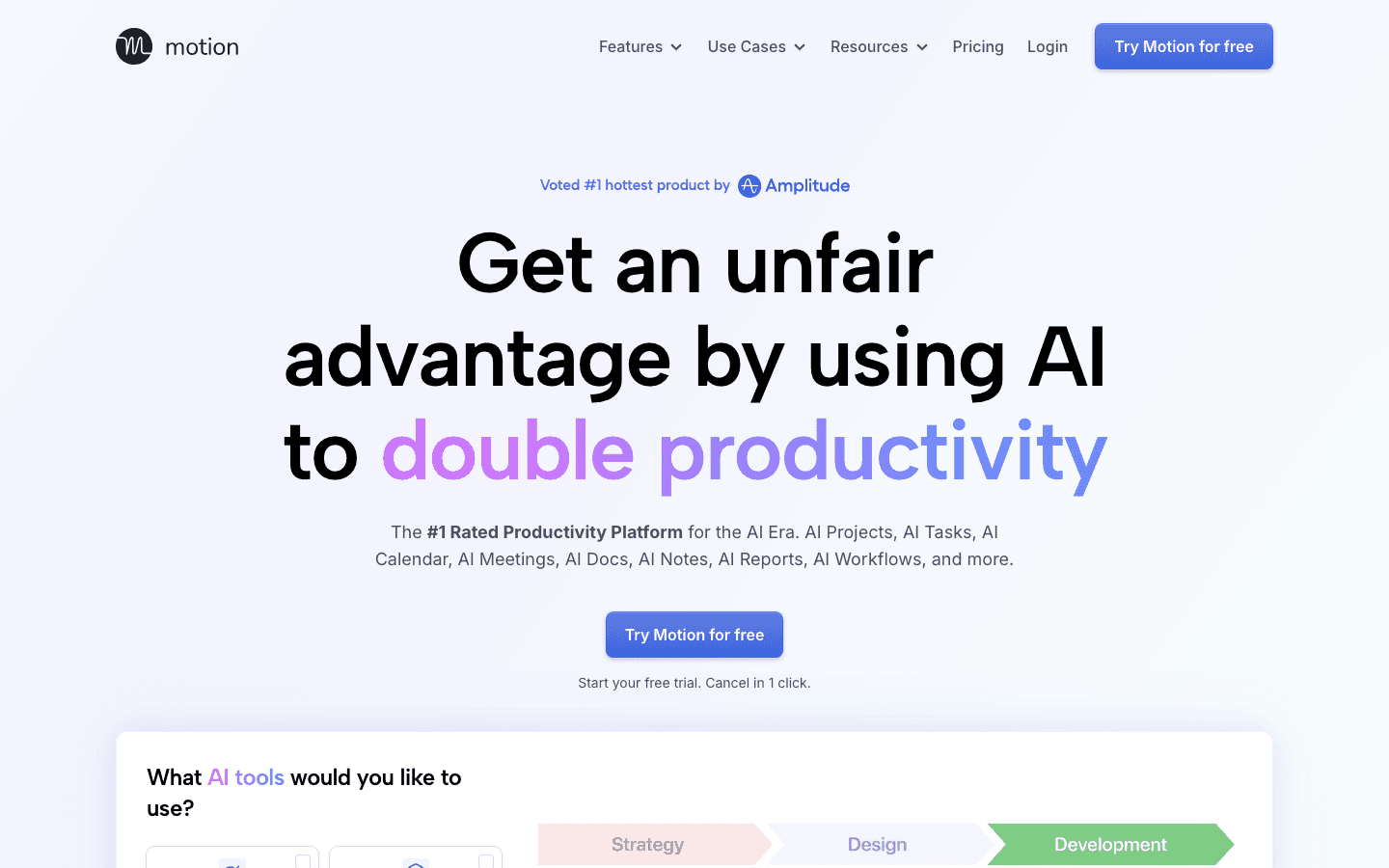
Motion takes a similar approach to Lifestack but focuses more on team scheduling and project deadlines. It pulls your Google Calendar events, identifies free time, and fills those slots with tasks based on priority and due date. When a meeting moves or a task runs long, Motion reschedules everything automatically to keep your day coherent.
For individual contributors managing multiple projects with hard deadlines, Motion's auto-scheduling removes a significant planning burden. The calendar management happens in the background. The tradeoff is price: Motion is the most expensive app on this list by a large margin.
Automatic task scheduling into Google Calendar free slots
Real-time rescheduling when plans change
AI meeting scheduler for external bookings
Project and deadline management with calendar integration
Team scheduling features for shared calendars
Limitations: Expensive for individual users. No energy-awareness: tasks are scheduled by deadline and priority, not by when you're most cognitively available.
Pricing: $19/month billed annually, $49/month billed monthly. 7-day free trial.
Best for: Power users managing multiple projects with strict deadlines who want tasks automatically placed in their Google Calendar.
3. TickTick: Best All-in-One With Calendar View
Tasks, habits, and a calendar overlay in one of the most complete daily planners available.
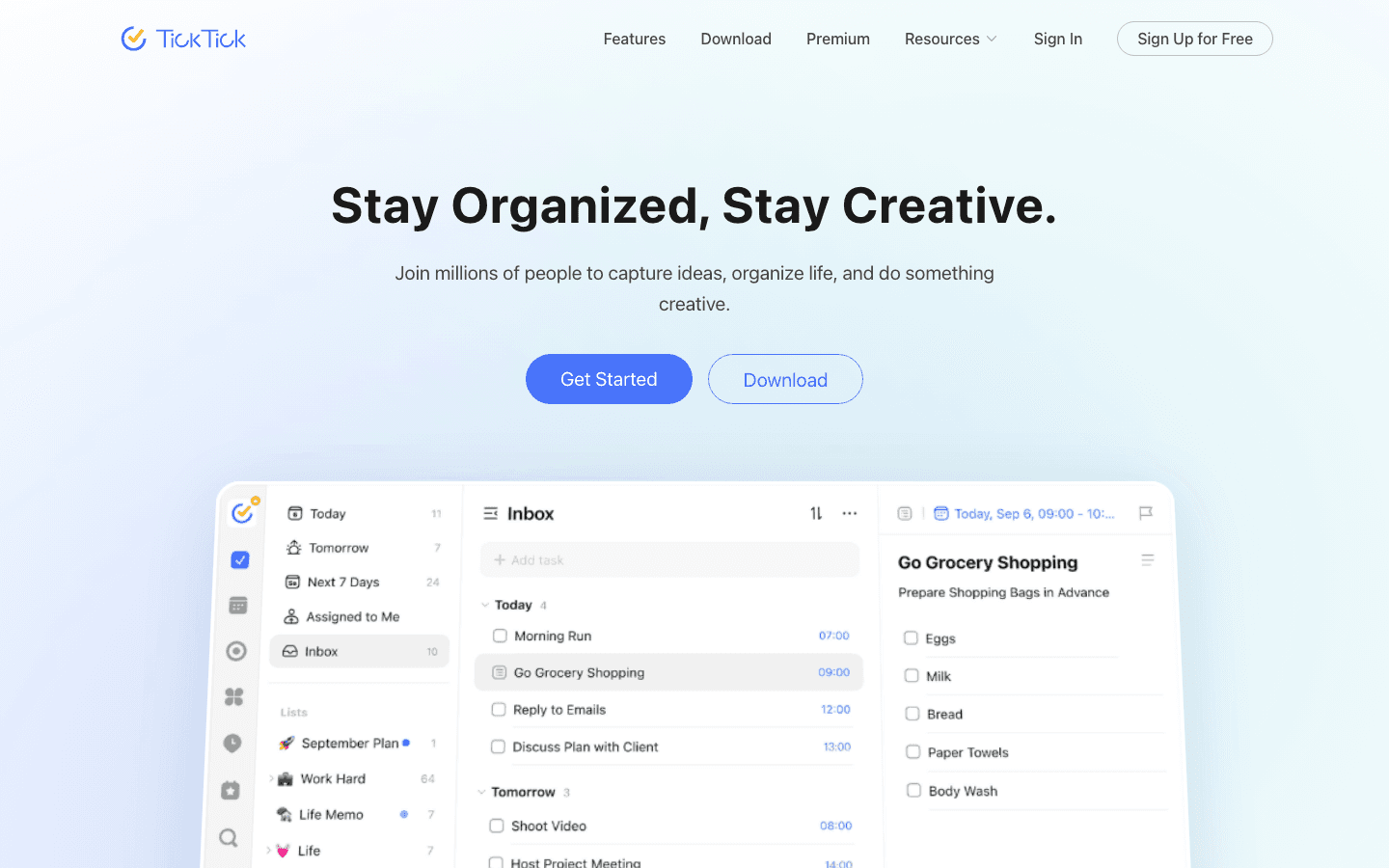
TickTick offers one of the strongest Google Calendar integrations at its price point. The calendar view displays your GCal events alongside your tasks in a single timeline, and the drag-and-drop scheduling lets you place tasks into specific time slots without leaving the app. Habits, recurring reminders, and the Pomodoro timer round out an app that handles most of what a daily planner needs to do.
The Google Calendar sync is primarily one-directional: GCal events appear in TickTick, and subscribed calendar feeds update automatically. Tasks created in TickTick can be sent to Google Calendar but don't auto-schedule into open slots the way Lifestack and Motion do.
Google Calendar event display within the TickTick calendar view
Drag-and-drop task scheduling into time slots
Built-in habit tracking alongside tasks
Pomodoro timer integration
Multiple reminder times per task
Limitations: No auto-scheduling. Calendar sync is primarily read-only from GCal. No energy-aware placement.
Pricing: Free tier available. Premium $2.99/month or $35.99/year.
Best for: Users who want to see their Google Calendar events inside a feature-rich task manager and schedule tasks manually with drag-and-drop.
4. Fantastical: Best Pure Calendar App With Task Support
The most powerful calendar app on any platform, with tasks and Google Calendar integration built in.
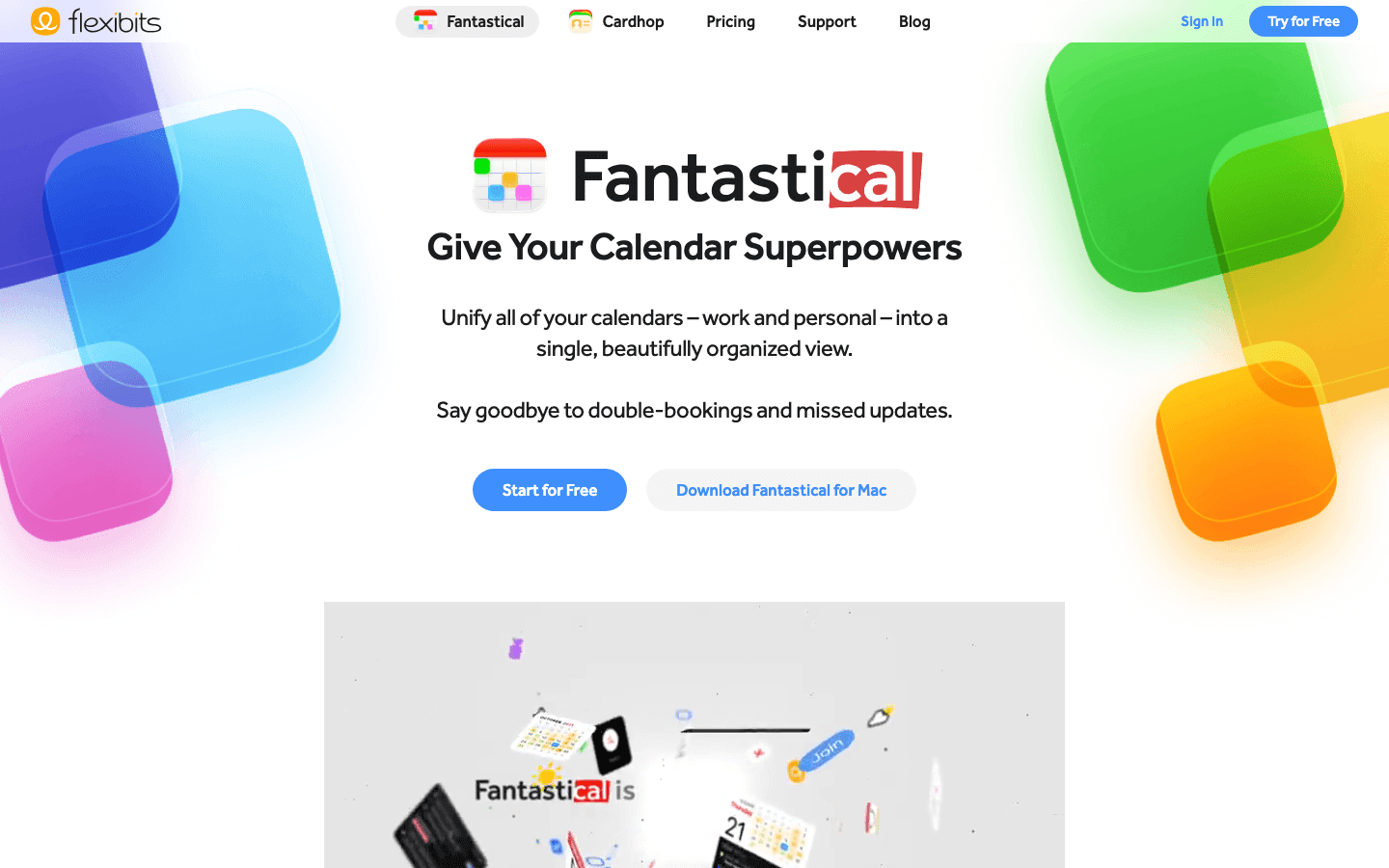
Fantastical is built around Google Calendar rather than alongside it. It displays all your calendars in a unified view with natural language event creation, weather integration, and a UI that handles complex multi-calendar setups better than Google Calendar's own interface. Tasks are supported as a separate layer that appears alongside events in the same timeline.
Where Fantastical falls short relative to Lifestack and Motion is that it doesn't auto-schedule tasks. You see your tasks and your calendar events together, but placing tasks into slots is manual. For users who primarily want a better calendar view and natural language input, Fantastical is excellent. For users who want tasks to schedule themselves, it's not the right tool.
Best-in-class Google Calendar display with natural language input
Unified view of all connected calendars and tasks
Apple Watch, Siri, and widget integration
Weather overlay for scheduling context
Conference call detection and one-tap joining
Limitations: No auto-scheduling. Task management is less developed than Todoist or TickTick. iOS/macOS only (no Android).
Pricing: Free tier (limited features). Premium $4.75/month billed annually or $4.99/month.
Best for: Apple ecosystem users who want the best possible Google Calendar experience with tasks alongside events.
5. Todoist: Best for Power Users Alongside GCal
The most capable task manager on this list, with solid Google Calendar integration.
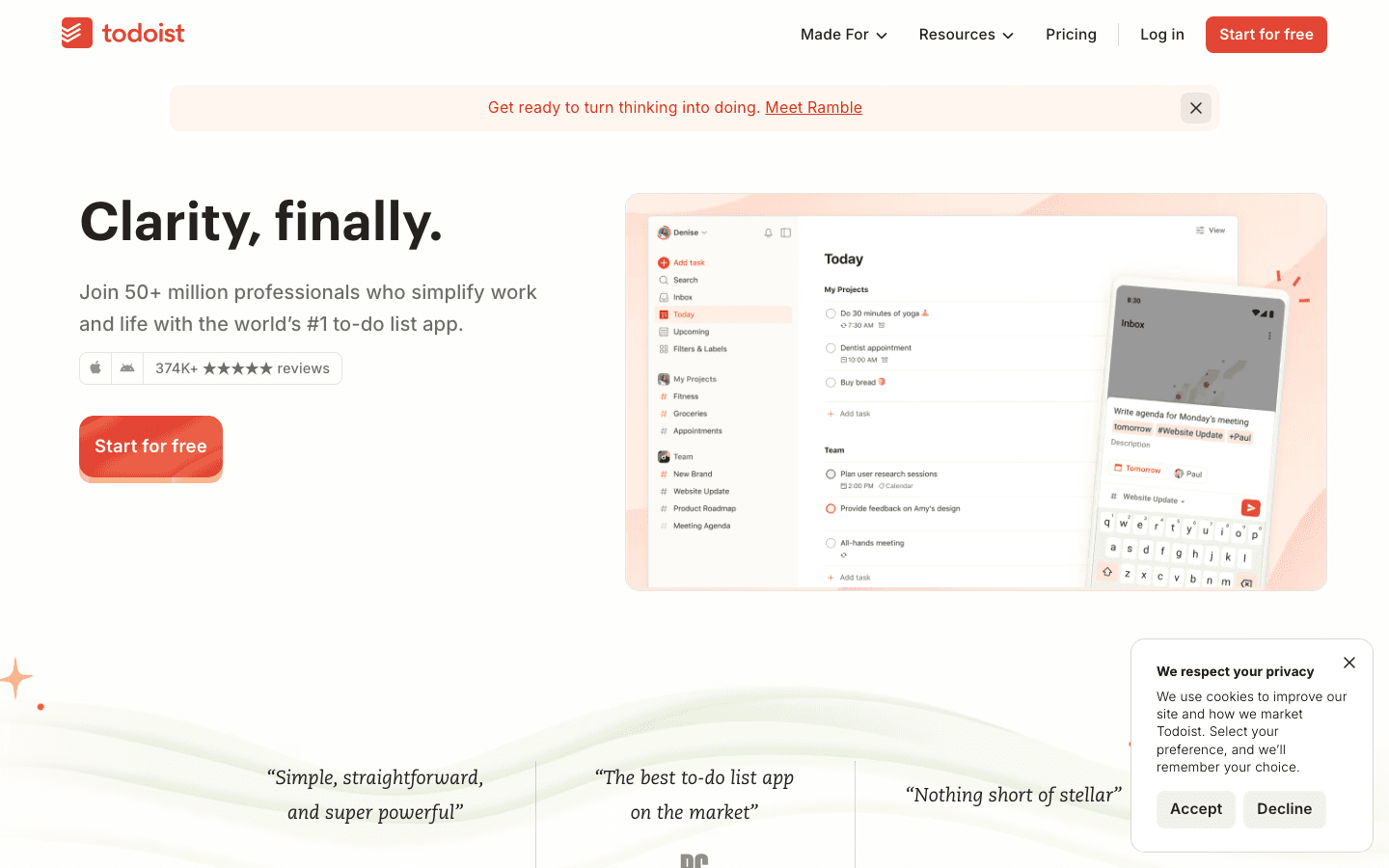
Todoist connects to Google Calendar and creates a calendar event for every task with a due date, which means your tasks appear on your GCal alongside meetings. The integration is one of the cleaner implementations on this list: tasks sync reliably, changes propagate in both directions, and the setup takes under two minutes.
Where Todoist earns its place is in task structure. Its project hierarchy, labels, and filters handle complex workflows that simpler apps can't organize. Combined with Google Tasks and GCal, it functions as the task layer for users with demanding organizational needs. The main limitation: tasks don't auto-schedule into free calendar slots; they appear as all-day events unless you manually set a time.
Reliable two-way Google Calendar sync for dated tasks
Project hierarchy with sub-tasks, sections, and labels
Natural language task entry with date parsing
Priority levels with smart views
Google Assistant integration for hands-free task creation
Limitations: No auto-scheduling into free calendar slots. Reminders require Pro subscription. No energy-aware planning.
Pricing: Free tier (no reminders). Pro $7/month or approximately $5/month billed annually.
Best for: Power users who need sophisticated task structure and want tasks to appear on their Google Calendar as scheduled items.
6. Structured: Best Visual Timeline Daily Planner
A beautiful timeline view for planning your day alongside your Google Calendar events.
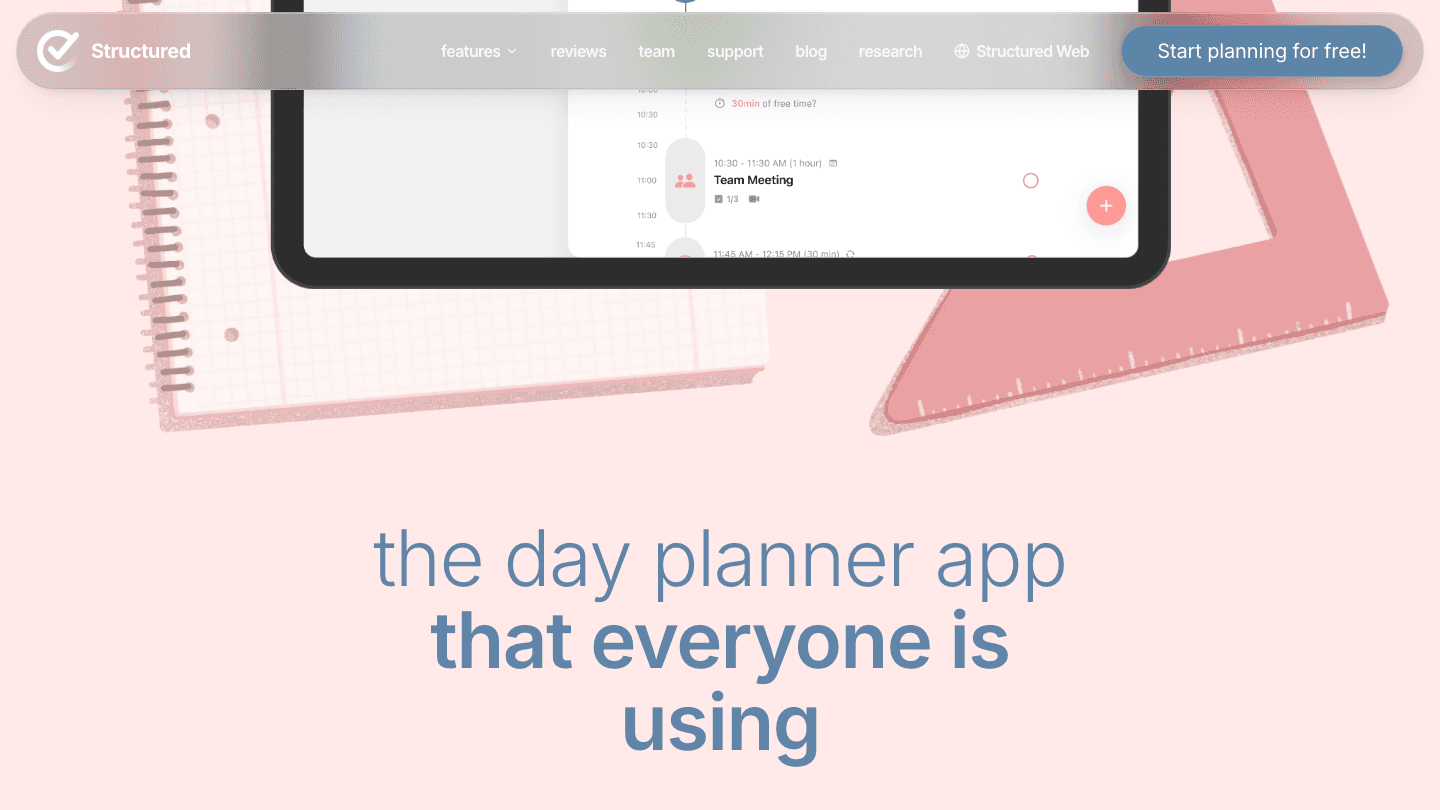
Structured is a timeline-first daily planner. Your day appears as a vertical timeline, with tasks dropped into specific time slots and Google Calendar events appearing in the same view. The visual design is the app's main differentiator: tasks animate into and out of view as you complete them, and the timeline makes it immediately obvious whether your day is realistically planned or overloaded.
The Google Calendar integration imports your events into the timeline. You then plan your task work around them by dragging tasks into open slots. There's no auto-scheduling, but the visual format makes manual planning faster and more intuitive than a standard list-and-calendar split view.
Visual timeline with Google Calendar events imported
Drag-and-drop task placement into the day timeline
Satisfying task completion animations
Widget for home screen daily view
Focus mode that highlights the current task
Limitations: No auto-scheduling. Limited project management features. Works best for day-level planning rather than longer-horizon task management.
Pricing: Free tier available. Pro approximately $4.99/month or $27.99/year.
Best for: Visual planners who want to see their entire day as a timeline with Google Calendar events and manually scheduled tasks side by side.
Which Daily Planner Is Right for You?
Want tasks auto-scheduled around GCal events and your energy: Lifestack
Managing multiple projects with hard deadlines: Motion
Want a free all-in-one with strong GCal display: TickTick
Apple user who wants the best GCal experience: Fantastical
Need complex task structure alongside your calendar: Todoist
Prefer planning your day as a visual timeline: Structured
Frequently Asked Questions
What daily planner works best with Google Calendar?
Lifestack offers the deepest Google Calendar integration: it reads your existing events and automatically schedules tasks into the open time slots based on your energy levels. Motion does something similar but focuses on deadline-driven scheduling. For manual planning, TickTick and Structured both display GCal events clearly within their planning interfaces.
Do daily planner apps sync both ways with Google Calendar?
Most apps offer at least one-way sync (importing GCal events). True two-way sync, where tasks created in the planner appear on Google Calendar as scheduled events, is more limited. Lifestack, Motion, and Todoist all offer two-way sync. TickTick and Structured primarily read from GCal without writing tasks back.
Can a daily planner automatically fill my Google Calendar with tasks?
Yes. Lifestack and Motion both automatically place tasks into your Google Calendar by reading your existing events and finding open time slots. Lifestack adds energy-aware scheduling (tasks go into the slots where you're most cognitively available). Motion prioritizes by deadline and project. Both eliminate the manual step of deciding when to work on each task.
Is there a free daily planner that syncs with Google Calendar?
TickTick's free tier includes Google Calendar sync with event display. Structured's free tier imports GCal events into the timeline. Google Tasks itself is free and built directly into Google Calendar. Lifestack and Motion have free trials but no permanent free tiers.
How is a daily planner different from Google Calendar itself?
Google Calendar is designed for event scheduling: meetings, appointments, and time blocks you've planned manually. A daily planner with energy-aware scheduling adds a task management layer on top: capturing to-dos, prioritizing them, and either auto-scheduling them into your calendar or presenting them alongside your events so you can plan where each task fits. The best planners make this layer invisible by handling the placement logic automatically.
Google Calendar is where most people's actual schedule lives. The problem is that it only shows you what's happening, not what you should be doing when. A daily planner that syncs with Google Calendar bridges that gap: tasks show up alongside meetings, and your work gets a time slot instead of living on a list that grows faster than you clear it.
The six apps below represent the best daily planners with real Google Calendar integration in 2026. Not "export to .ics" integration. Actual two-way sync where your calendar events appear inside the planner and tasks you create show up on your calendar.
We tested each app on sync depth (does it pull events, push tasks, or both?), planning quality, notification reliability, and how well the overall experience works alongside an existing Google Calendar workflow.
All apps tested with Google Calendar sync in June 2026. Pricing verified at time of publication.
Key Takeaways
Lifestack's energy-aware scheduling is the most intelligent use of Google Calendar data: it reads your existing events and schedules tasks around them based on your energy patterns.
Motion and Lifestack both auto-schedule tasks into your calendar, eliminating the manual placement step that other tools require.
Fantastical has the deepest calendar feature set of any planner on this list; TickTick and Structured are the best picks for visual daily timelines.
Quick Guide
Lifestack: Best energy-aware AI planner with deep GCal sync
Motion: Best for automatic task scheduling across calendar and projects
TickTick: Best all-in-one with calendar overlay and habit tracking
Fantastical: Best pure calendar app with task integration
Todoist: Best for power users who want tasks alongside their GCal
Structured: Best visual timeline for daily planning alongside GCal events
How We Evaluated
Google Calendar sync depth: does it read events, write tasks, or both?
Auto-scheduling: does the app place tasks into calendar slots automatically?
Daily planning quality: how clearly does it present your day?
Notification reliability across mobile and desktop
Pricing and free tier scope
1. Lifestack: Best Energy-Aware Daily Planner With GCal Sync
Reads your Google Calendar and schedules tasks around your energy, automatically.
Lifestack does something no other planner on this list does: it reads your Google Calendar events, identifies the open windows in your day, and places tasks into those windows based on your personal energy patterns. A task that requires deep focus goes into your morning peak. Admin work fills the post-lunch dip. Your meetings stay put, and your task work fits around them without manual placement.
The two-way GCal sync means tasks added in Lifestack appear on your Google Calendar with a time slot, not just as reminders. This makes Lifestack the most practical digital planner for anyone who already runs their schedule through Google Calendar and wants their task work integrated rather than parallel.
Two-way Google Calendar sync with automatic task scheduling
Energy-aware task placement based on personal focus patterns
Reads existing GCal events and plans around them
Tasks appear on Google Calendar with time blocks
AI rescheduling when meetings shift or tasks run long
Limitations: Requires more setup than a simple to-do app. The scheduling AI is most useful for users with 3+ tasks per day across varying energy demands.
Pricing: $7/month, $50/year (7-day free trial on annual plan), or $120 lifetime.
Best for: Anyone who lives in Google Calendar and wants their task work automatically scheduled around their existing events and energy levels.
2. Motion: Best for Automatic Task Scheduling
AI that fills your calendar with tasks automatically, no manual scheduling required.
Motion takes a similar approach to Lifestack but focuses more on team scheduling and project deadlines. It pulls your Google Calendar events, identifies free time, and fills those slots with tasks based on priority and due date. When a meeting moves or a task runs long, Motion reschedules everything automatically to keep your day coherent.
For individual contributors managing multiple projects with hard deadlines, Motion's auto-scheduling removes a significant planning burden. The calendar management happens in the background. The tradeoff is price: Motion is the most expensive app on this list by a large margin.
Automatic task scheduling into Google Calendar free slots
Real-time rescheduling when plans change
AI meeting scheduler for external bookings
Project and deadline management with calendar integration
Team scheduling features for shared calendars
Limitations: Expensive for individual users. No energy-awareness: tasks are scheduled by deadline and priority, not by when you're most cognitively available.
Pricing: $19/month billed annually, $49/month billed monthly. 7-day free trial.
Best for: Power users managing multiple projects with strict deadlines who want tasks automatically placed in their Google Calendar.
3. TickTick: Best All-in-One With Calendar View
Tasks, habits, and a calendar overlay in one of the most complete daily planners available.
TickTick offers one of the strongest Google Calendar integrations at its price point. The calendar view displays your GCal events alongside your tasks in a single timeline, and the drag-and-drop scheduling lets you place tasks into specific time slots without leaving the app. Habits, recurring reminders, and the Pomodoro timer round out an app that handles most of what a daily planner needs to do.
The Google Calendar sync is primarily one-directional: GCal events appear in TickTick, and subscribed calendar feeds update automatically. Tasks created in TickTick can be sent to Google Calendar but don't auto-schedule into open slots the way Lifestack and Motion do.
Google Calendar event display within the TickTick calendar view
Drag-and-drop task scheduling into time slots
Built-in habit tracking alongside tasks
Pomodoro timer integration
Multiple reminder times per task
Limitations: No auto-scheduling. Calendar sync is primarily read-only from GCal. No energy-aware placement.
Pricing: Free tier available. Premium $2.99/month or $35.99/year.
Best for: Users who want to see their Google Calendar events inside a feature-rich task manager and schedule tasks manually with drag-and-drop.
4. Fantastical: Best Pure Calendar App With Task Support
The most powerful calendar app on any platform, with tasks and Google Calendar integration built in.
Fantastical is built around Google Calendar rather than alongside it. It displays all your calendars in a unified view with natural language event creation, weather integration, and a UI that handles complex multi-calendar setups better than Google Calendar's own interface. Tasks are supported as a separate layer that appears alongside events in the same timeline.
Where Fantastical falls short relative to Lifestack and Motion is that it doesn't auto-schedule tasks. You see your tasks and your calendar events together, but placing tasks into slots is manual. For users who primarily want a better calendar view and natural language input, Fantastical is excellent. For users who want tasks to schedule themselves, it's not the right tool.
Best-in-class Google Calendar display with natural language input
Unified view of all connected calendars and tasks
Apple Watch, Siri, and widget integration
Weather overlay for scheduling context
Conference call detection and one-tap joining
Limitations: No auto-scheduling. Task management is less developed than Todoist or TickTick. iOS/macOS only (no Android).
Pricing: Free tier (limited features). Premium $4.75/month billed annually or $4.99/month.
Best for: Apple ecosystem users who want the best possible Google Calendar experience with tasks alongside events.
5. Todoist: Best for Power Users Alongside GCal
The most capable task manager on this list, with solid Google Calendar integration.
Todoist connects to Google Calendar and creates a calendar event for every task with a due date, which means your tasks appear on your GCal alongside meetings. The integration is one of the cleaner implementations on this list: tasks sync reliably, changes propagate in both directions, and the setup takes under two minutes.
Where Todoist earns its place is in task structure. Its project hierarchy, labels, and filters handle complex workflows that simpler apps can't organize. Combined with Google Tasks and GCal, it functions as the task layer for users with demanding organizational needs. The main limitation: tasks don't auto-schedule into free calendar slots; they appear as all-day events unless you manually set a time.
Reliable two-way Google Calendar sync for dated tasks
Project hierarchy with sub-tasks, sections, and labels
Natural language task entry with date parsing
Priority levels with smart views
Google Assistant integration for hands-free task creation
Limitations: No auto-scheduling into free calendar slots. Reminders require Pro subscription. No energy-aware planning.
Pricing: Free tier (no reminders). Pro $7/month or approximately $5/month billed annually.
Best for: Power users who need sophisticated task structure and want tasks to appear on their Google Calendar as scheduled items.
6. Structured: Best Visual Timeline Daily Planner
A beautiful timeline view for planning your day alongside your Google Calendar events.
Structured is a timeline-first daily planner. Your day appears as a vertical timeline, with tasks dropped into specific time slots and Google Calendar events appearing in the same view. The visual design is the app's main differentiator: tasks animate into and out of view as you complete them, and the timeline makes it immediately obvious whether your day is realistically planned or overloaded.
The Google Calendar integration imports your events into the timeline. You then plan your task work around them by dragging tasks into open slots. There's no auto-scheduling, but the visual format makes manual planning faster and more intuitive than a standard list-and-calendar split view.
Visual timeline with Google Calendar events imported
Drag-and-drop task placement into the day timeline
Satisfying task completion animations
Widget for home screen daily view
Focus mode that highlights the current task
Limitations: No auto-scheduling. Limited project management features. Works best for day-level planning rather than longer-horizon task management.
Pricing: Free tier available. Pro approximately $4.99/month or $27.99/year.
Best for: Visual planners who want to see their entire day as a timeline with Google Calendar events and manually scheduled tasks side by side.
Which Daily Planner Is Right for You?
Want tasks auto-scheduled around GCal events and your energy: Lifestack
Managing multiple projects with hard deadlines: Motion
Want a free all-in-one with strong GCal display: TickTick
Apple user who wants the best GCal experience: Fantastical
Need complex task structure alongside your calendar: Todoist
Prefer planning your day as a visual timeline: Structured
Frequently Asked Questions
What daily planner works best with Google Calendar?
Lifestack offers the deepest Google Calendar integration: it reads your existing events and automatically schedules tasks into the open time slots based on your energy levels. Motion does something similar but focuses on deadline-driven scheduling. For manual planning, TickTick and Structured both display GCal events clearly within their planning interfaces.
Do daily planner apps sync both ways with Google Calendar?
Most apps offer at least one-way sync (importing GCal events). True two-way sync, where tasks created in the planner appear on Google Calendar as scheduled events, is more limited. Lifestack, Motion, and Todoist all offer two-way sync. TickTick and Structured primarily read from GCal without writing tasks back.
Can a daily planner automatically fill my Google Calendar with tasks?
Yes. Lifestack and Motion both automatically place tasks into your Google Calendar by reading your existing events and finding open time slots. Lifestack adds energy-aware scheduling (tasks go into the slots where you're most cognitively available). Motion prioritizes by deadline and project. Both eliminate the manual step of deciding when to work on each task.
Is there a free daily planner that syncs with Google Calendar?
TickTick's free tier includes Google Calendar sync with event display. Structured's free tier imports GCal events into the timeline. Google Tasks itself is free and built directly into Google Calendar. Lifestack and Motion have free trials but no permanent free tiers.
How is a daily planner different from Google Calendar itself?
Google Calendar is designed for event scheduling: meetings, appointments, and time blocks you've planned manually. A daily planner with energy-aware scheduling adds a task management layer on top: capturing to-dos, prioritizing them, and either auto-scheduling them into your calendar or presenting them alongside your events so you can plan where each task fits. The best planners make this layer invisible by handling the placement logic automatically.

FOLLOW ON
FOLLOW ON
FOLLOW ON


Copyright 2026 © Lifestack. All rights reserved
Copyright 2026 © Lifestack. All rights reserved

