
App
7 Best Applications for Organization in 2026
7 Best Applications for Organization in 2026
Finding the right applications for organization is harder than it sounds. There are task managers, AI schedulers, note apps, project trackers, and kanban boards, each solving a different slice of the problem. Most people download three or four and end up using none of them consistently.
We tested seven of the most popular options across real workflows, including solo professionals, remote teams, and people juggling both personal and work commitments. The result: a clear hierarchy of what actually works, and for whom.
The biggest differentiator we found? Whether the app helps you plan when to do things, or just what to do. Most apps stop at a task list. A few go further and schedule those tasks automatically. Only one adjusts scheduling based on your energy levels throughout the day.
Here is the full breakdown.
Key Takeaways
Lifestack is the only app that schedules tasks around your energy, not just your available time slots
Todoist remains the strongest pure task manager for people who want simplicity without compromises
If you work on a team, Asana or Notion will serve you better than any of the individual-focused options
Quick Guide: Best Applications for Organization
Lifestack: Best for energy-aware AI scheduling
Todoist: Best pure task manager
Notion: Best all-in-one workspace
Trello: Best for visual, kanban-style tracking
Asana: Best for team project management
Google Calendar: Best for calendar-first organizers
Motion: Best AI scheduling for professionals
How We Evaluated These Organization Apps
Ease of setup and day-to-day use
Mobile app quality on iOS and Android
AI and automation depth
Cross-app integrations
Pricing and what the free tier actually gives you
Consistency of use after 30 days in real workflows
1. Lifestack: Best for Energy-Aware AI Scheduling
The AI scheduler that works with your body, not against it.
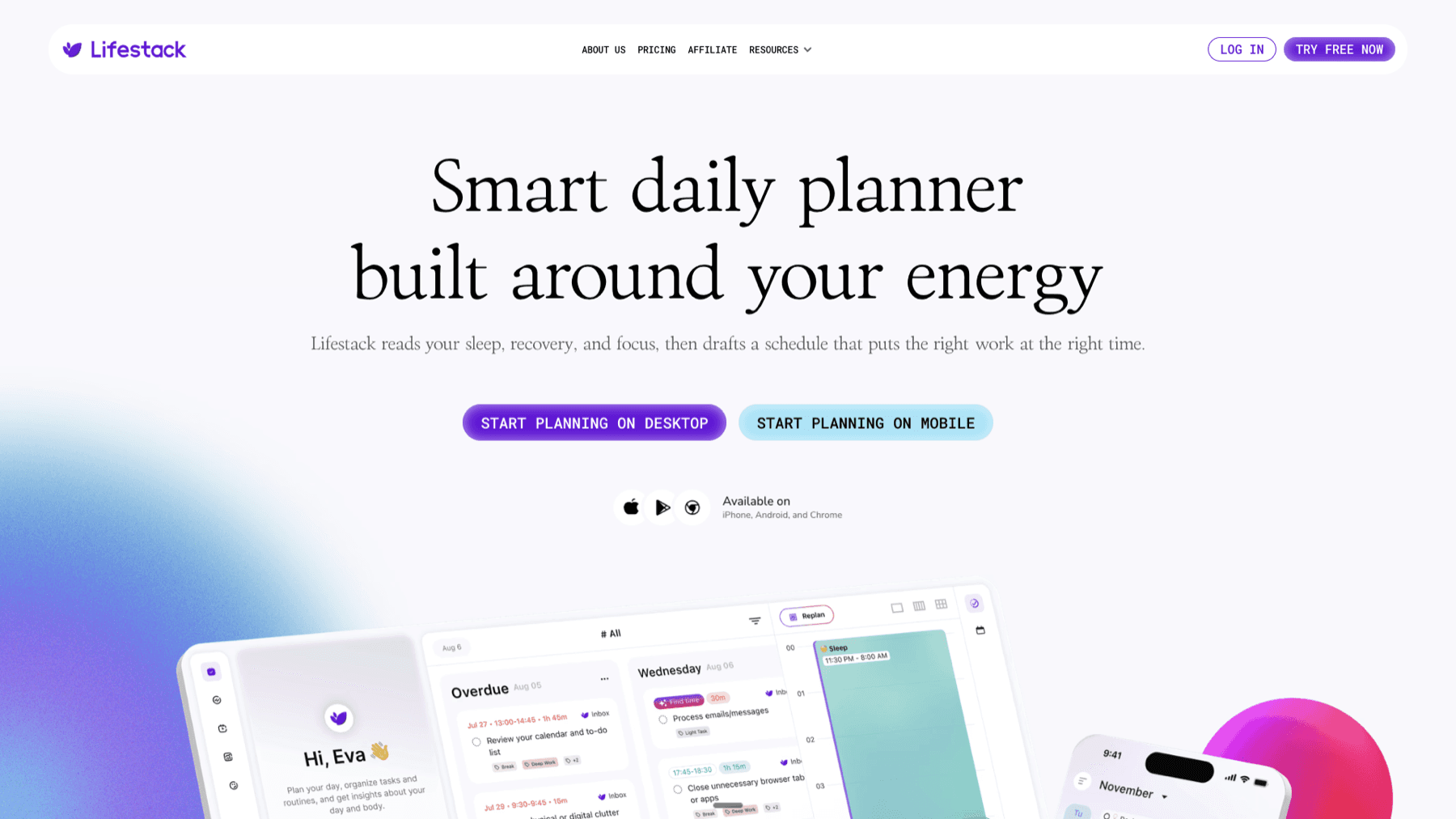
Most applications for organization let you add tasks and move them around a calendar. Lifestack does something different: it syncs with your wearable device (Oura Ring, Garmin, Apple Watch, Fitbit, Whoop, or Ultrahuman) and places tasks in the time windows where your energy data says you are most capable of doing them. Focus work lands during your peak hours. Admin tasks and low-stakes items fill the recovery windows automatically.
The difference shows up in your follow-through rate. When tasks are scheduled in slots where you can genuinely do them well, you actually do them. This is the core principle behind energy-based planning, and Lifestack is the only app that puts it into practice using real biometric data. It integrates directly with Todoist for task capture, meaning you do not have to abandon your existing workflow to try it.
Key Features
AI scheduling driven by wearable energy and recovery data
Works with Oura, Garmin, Apple Watch, Fitbit, Whoop, and Ultrahuman
iOS and Android apps with a Chrome extension
Native integration with Google Calendar and Todoist
Learns your patterns over time to improve scheduling accuracy
What Works
Energy-aware time blocking surfaces the right task at the right moment
Tight calendar sync means tasks don't sit in a separate silo from your actual day
The mobile app is clean and fast for checking your schedule on the go
Limitations
No free tier (7-day trial, then paid)
Less useful without a wearable device
No built-in project management or kanban views
Pricing: $7/month or $50/year. 7-day free trial included.
Best for: Individuals who track health or fitness data and want their schedule to match their actual energy.
2. Todoist: Best Pure Task Manager
The to-do list that has been done right since 2007.
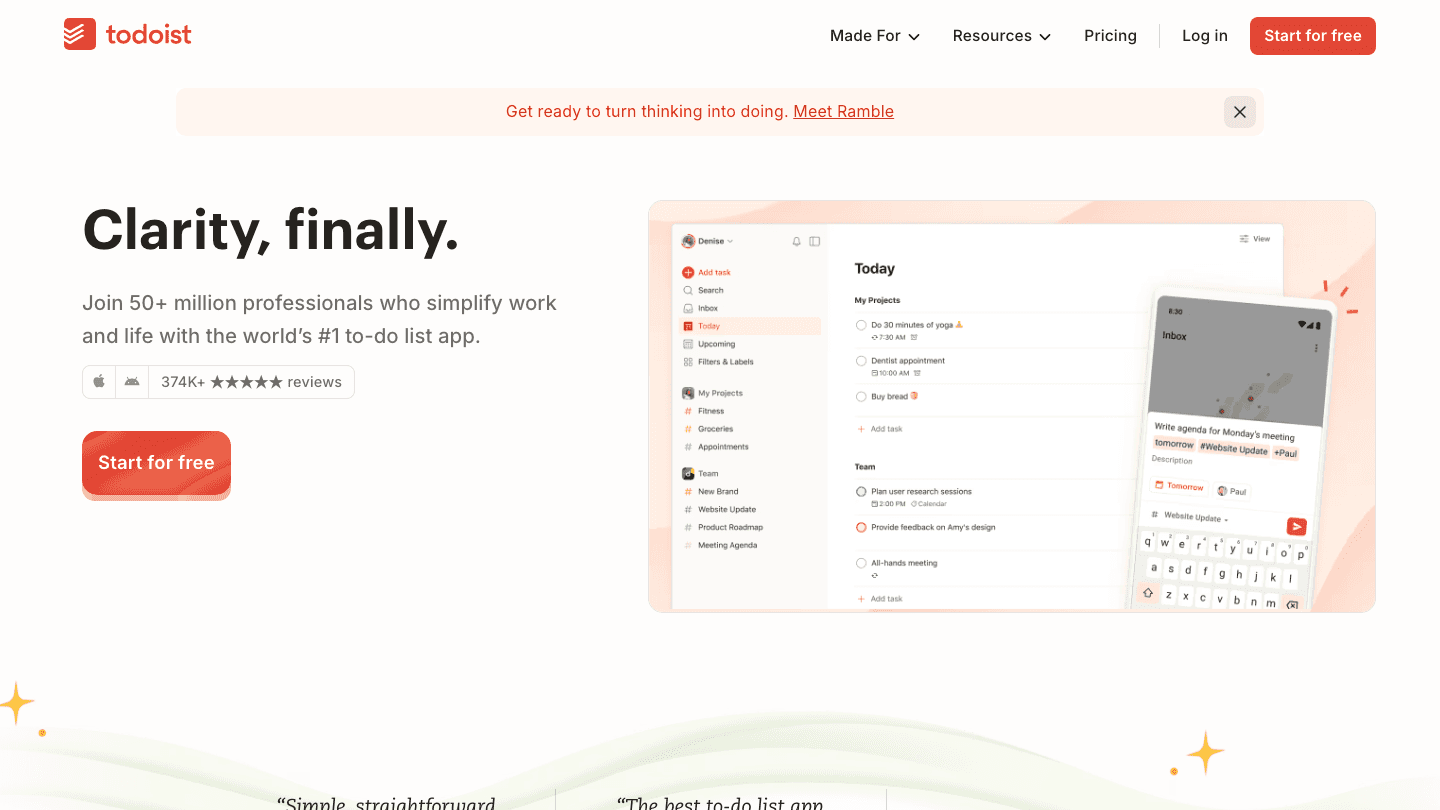
Todoist is the task manager most productivity-focused people eventually land on. The natural language input is excellent. Type "call dentist next Tuesday at 10am" and it parses correctly without any extra tapping. The cross-platform support is solid across every OS, browser, and mobile platform. And after 17 years of iteration, the interface has no rough edges left.
For people who primarily want a single reliable place to capture and organize tasks, without the overhead of a full project suite, Todoist is the answer. It won't schedule your day for you, but it pairs well with Lifestack to cover that gap. See how to use Todoist with Lifestack for smarter daily planning.
Key Features
Natural language task and date entry
Projects, sub-tasks, labels, and four priority levels
Recurring tasks and deadline reminders
Productivity reporting and streaks (Karma score)
Integrates with 60+ tools including Lifestack, Slack, and Google Calendar
What Works
One of the best mobile apps in any productivity category
Quick-entry flow reduces the friction of capturing tasks in the moment
The gamified streak system genuinely helps with daily review habits
Limitations
Calendar view is Pro-only
No built-in scheduling or time blocking
No energy awareness; you decide when to do tasks
Pricing: Free tier available. Pro from ~$4/month billed annually.
Best for: Anyone who wants a clean, reliable task manager without a steep learning curve.
3. Notion: Best All-in-One Workspace
A blank canvas that becomes whatever organization system you build.
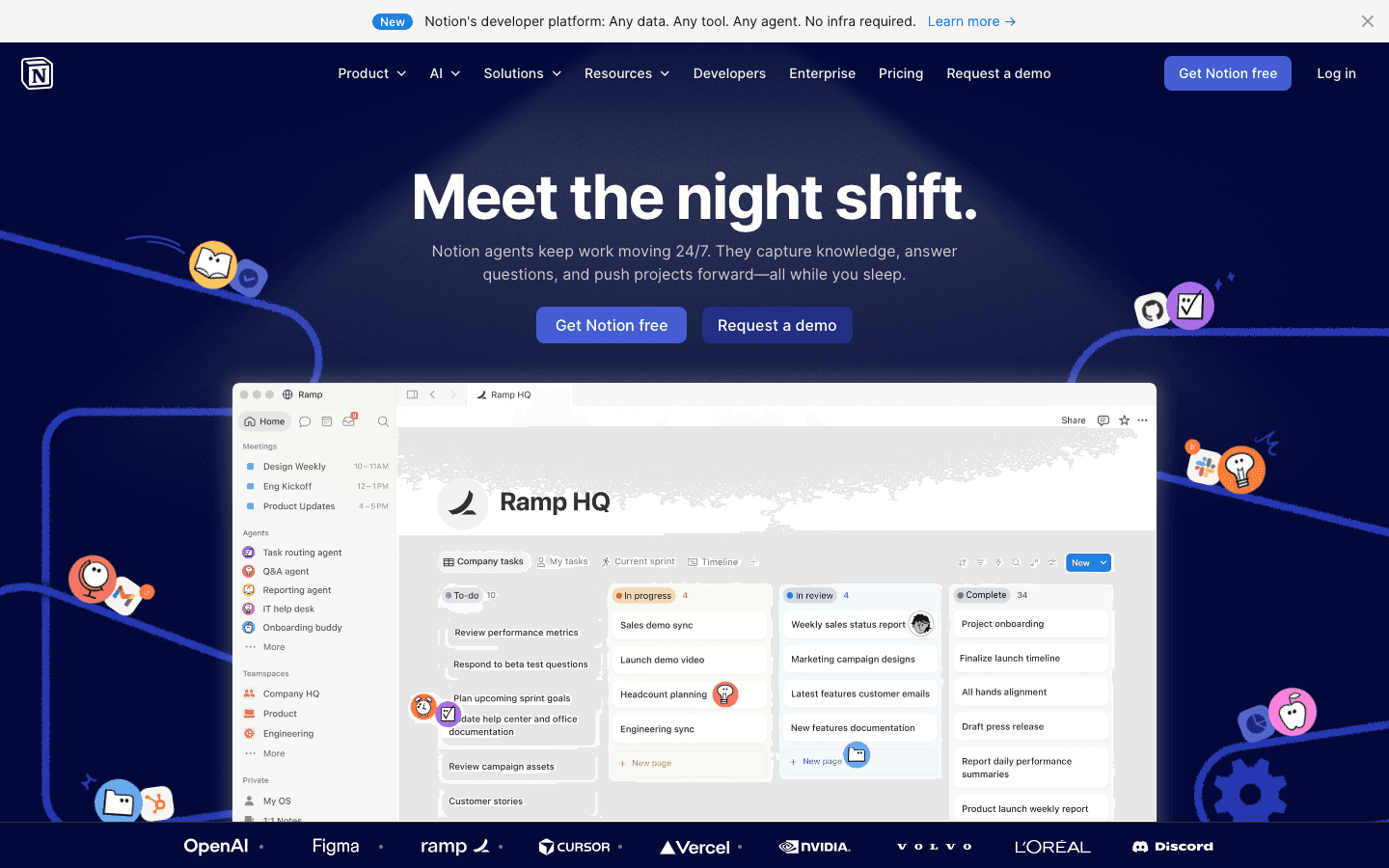
Notion is not one app. It is a platform you turn into an app. You can build a task manager, a personal CRM, a knowledge base, a project tracker, a team wiki, or all of the above inside the same workspace. That flexibility is both its biggest strength and its most common frustration.
Getting real value from Notion requires upfront investment. You'll spend time building your system before you can use it. For people who enjoy that kind of structure design, Notion is deeply satisfying. For people who want to open an app on day one and immediately get organized, the learning curve is steep. The AI features (drafting, summarizing, answering questions about your documents) are increasingly useful once the system is in place.
Key Features
Pages, databases, kanban boards, calendars, timelines, and forms
Notion AI for drafting, summarizing, and automating inside your workspace
Notion Calendar (free, standalone app) syncs with Google Calendar
Team collaboration with comments, mentions, and permission controls
What Works
Relational databases beat spreadsheets for most knowledge management use cases
AI is genuinely useful for summarizing long documents and filling in templates
One workspace can replace notes, tasks, and project tracking if set up well
Limitations
Significant setup time before it becomes useful
Can become cluttered quickly without system discipline
No energy awareness or automatic task scheduling
Pricing: Free tier available. Plus plan from $10/member/month.
Best for: People who want a fully customizable workspace and don't mind investing time in system design.
4. Trello: Best for Visual, Kanban-Style Tracking
Drag-and-drop task tracking that gets out of your way.
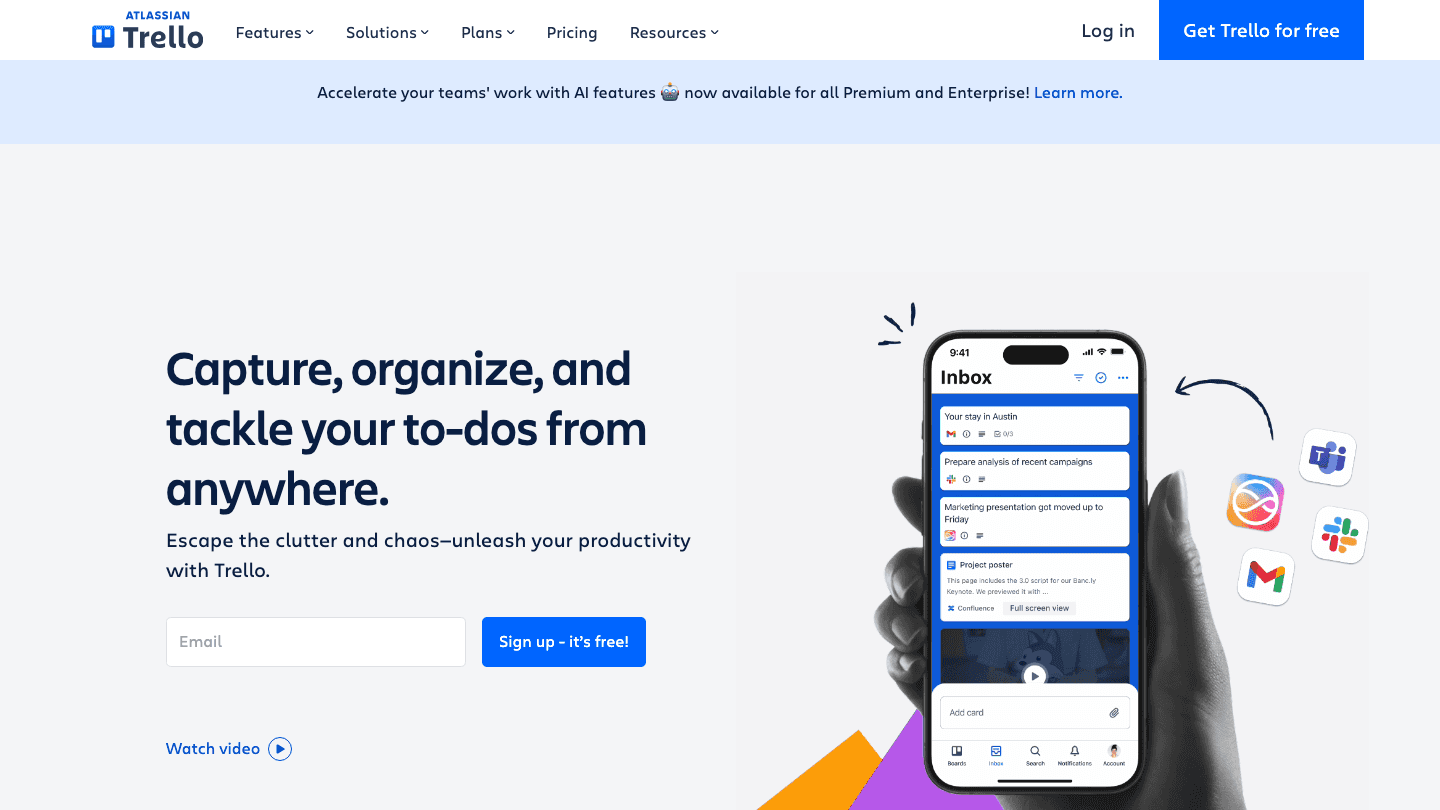
Trello's kanban boards are one of the most intuitive interfaces in productivity software. Cards, lists, drag-and-drop. If you think visually and prefer seeing work move from "To Do" through "In Progress" to "Done", Trello is the fastest way to get that setup. Most users are productive within minutes of signing up.
The limitation is depth. Trello works well for simple workflows but strains under complex projects with dependencies, deadlines, and multiple contributors. Atlassian has added timeline views, automations, and AI features at higher paid tiers, but at its core Trello remains a kanban tool. That is a feature for some users and a ceiling for others.
Key Features
Drag-and-drop kanban boards with cards, checklists, and due dates
Power-Ups for integrating Slack, Google Drive, Jira, and more
Butler automation for rule-based card actions
AI-assisted card creation at Premium and Enterprise tiers
What Works
Zero learning curve for the basic kanban view
Free tier is genuinely useful (unlimited cards, 10 boards)
Great for freelancers managing client project stages visually
Limitations
Complex projects with dependencies outgrow it quickly
Timeline and Gantt views are Premium-only
No AI scheduling or energy awareness
Pricing: Free tier available. Standard from $5/user/month billed annually.
Best for: Visual thinkers and freelancers who want simple kanban-style project tracking with minimal setup.
5. Asana: Best for Team Project Management
The team organization app that scales from two people to two thousand.
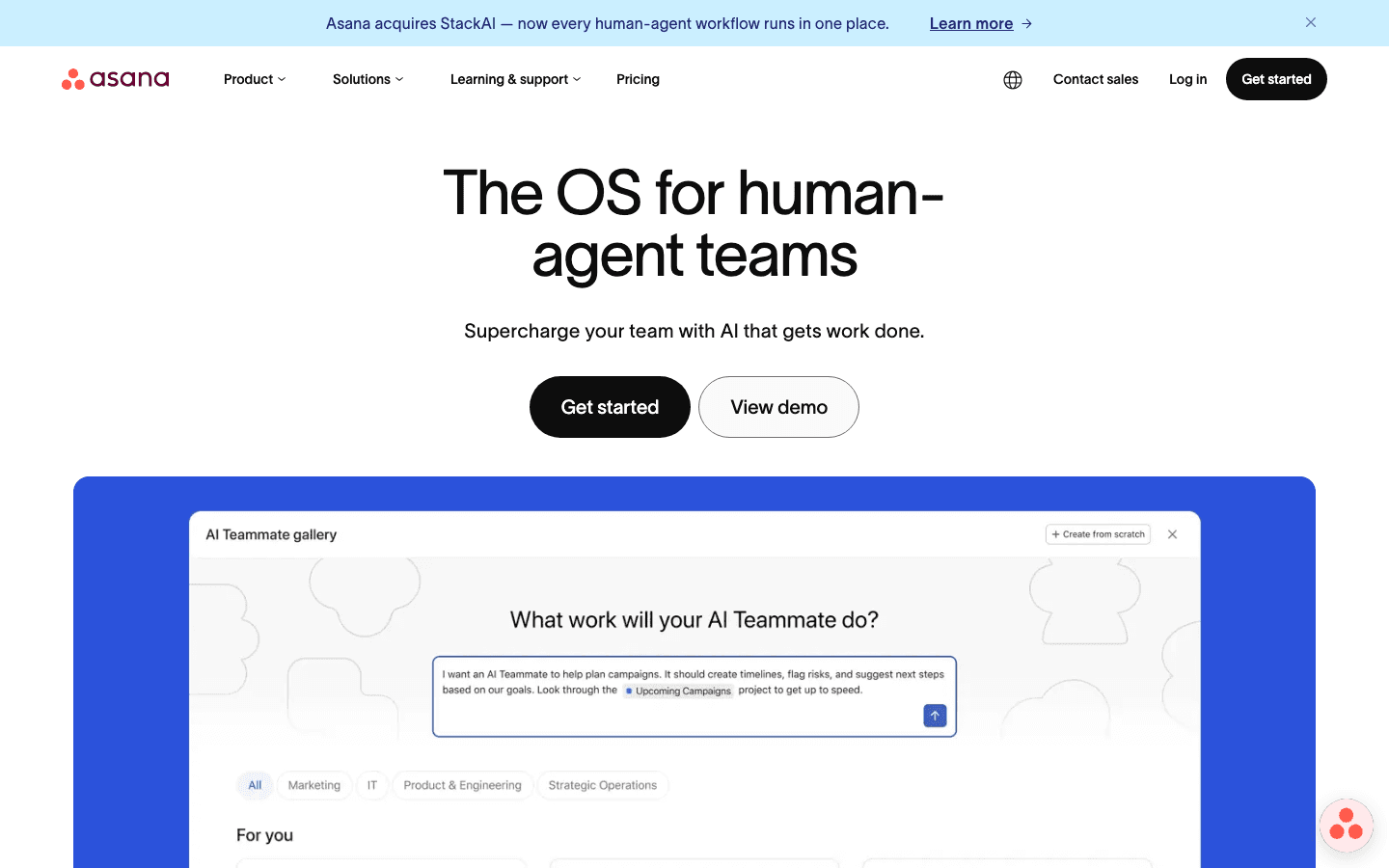
Asana is built for teams. While you can use it solo, the features that differentiate it from simpler apps (portfolios, workload views, goal tracking, team timelines) that make sense when multiple people are working on shared projects. For teams that have outgrown shared spreadsheets and group chats but aren't ready for an enterprise tool, Asana is a reliable option.
The interface is cleaner than most competitors in this space, and AI Studio (Starter tier and above) is useful for automating project setup and generating status updates. Asana is also one of the best-integrated apps in this list, connecting cleanly with Slack, Google Workspace, Microsoft Teams, and Salesforce. For teams managing cross-functional work, it is worth a look alongside our broader guide to AI project management tools.
Key Features
Tasks, subtasks, projects, and cross-project portfolios
Timeline (Gantt) and workload views for planning and capacity
Goal tracking with progress reporting
AI Studio for automating intake forms, status updates, and workflows
200+ integrations including Slack, Teams, Salesforce, and Jira
What Works
Workload view prevents over-assigning team members at a glance
Timeline view makes task dependencies clear for project planning
AI automation genuinely saves time on recurring project setup
Limitations
Free tier is limited to 2 users (not practical for most teams
Feels heavy for solo use
No personal energy scheduling
Pricing: Free tier (up to 2 users). Starter from $10.99/user/month billed annually.
Best for: Small to mid-size teams that need shared project tracking, accountability, and cross-functional visibility.
6. Google Calendar: Best for Calendar-First Organizers
The scheduling backbone most people already have.
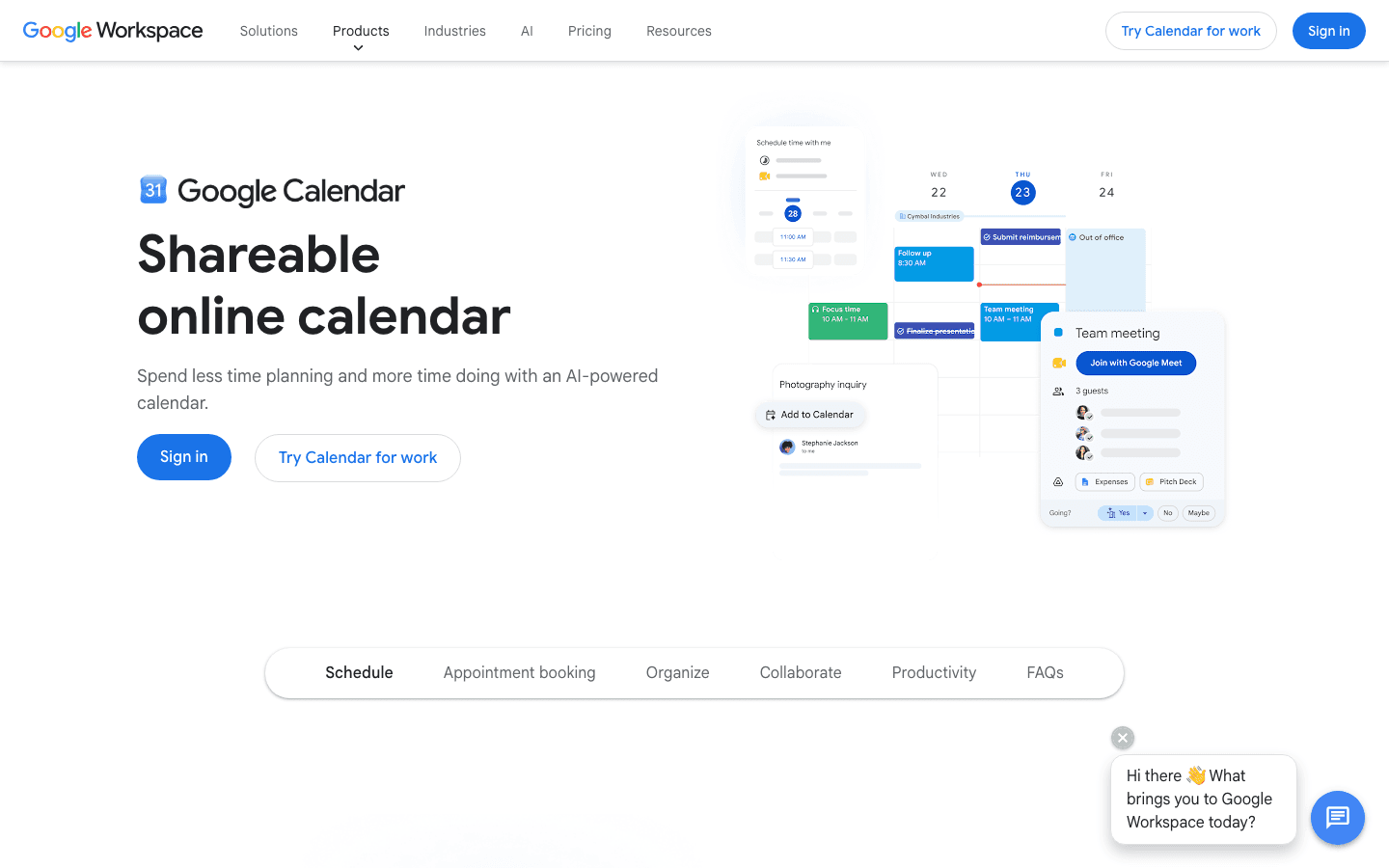
Google Calendar is not a task manager. It is a scheduling and time-blocking tool, and it's the one most people already use for meetings. Used deliberately, with named time blocks for different work types, recurring blocks for deep work, and shared calendars for team visibility, it becomes a real organizational system without requiring any new tools.
The integrations are unmatched. Virtually every app on this list can push events into Google Calendar. It is often the connective layer that holds a multi-tool productivity stack together. If you are building on top of a calendar management approach, see our guide to calendar management tools for how to get more from it.
Key Features
Shareable calendars and event invites across Google accounts
Google Meet integration for video calls directly from events
Appointment booking pages (Google Workspace)
Works with virtually every productivity app on the market
What Works
Zero onboarding; most users already have an account
Shared family or team calendars simplify coordination significantly
Strong mobile apps on both iOS and Android
Limitations
Not a task manager; complex to-do lists do not belong here
No AI scheduling or energy awareness
Full features (appointment booking, extra storage) require Workspace at $7+/user/month
Pricing: Free for personal use. Google Workspace from $7/user/month.
Best for: Calendar-first organizers who want visibility across work and personal commitments, and want every other app to plug into one central view.
7. Motion: Best AI Scheduling for Professionals
Auto-scheduling for people with packed calendars and no time to plan manually.
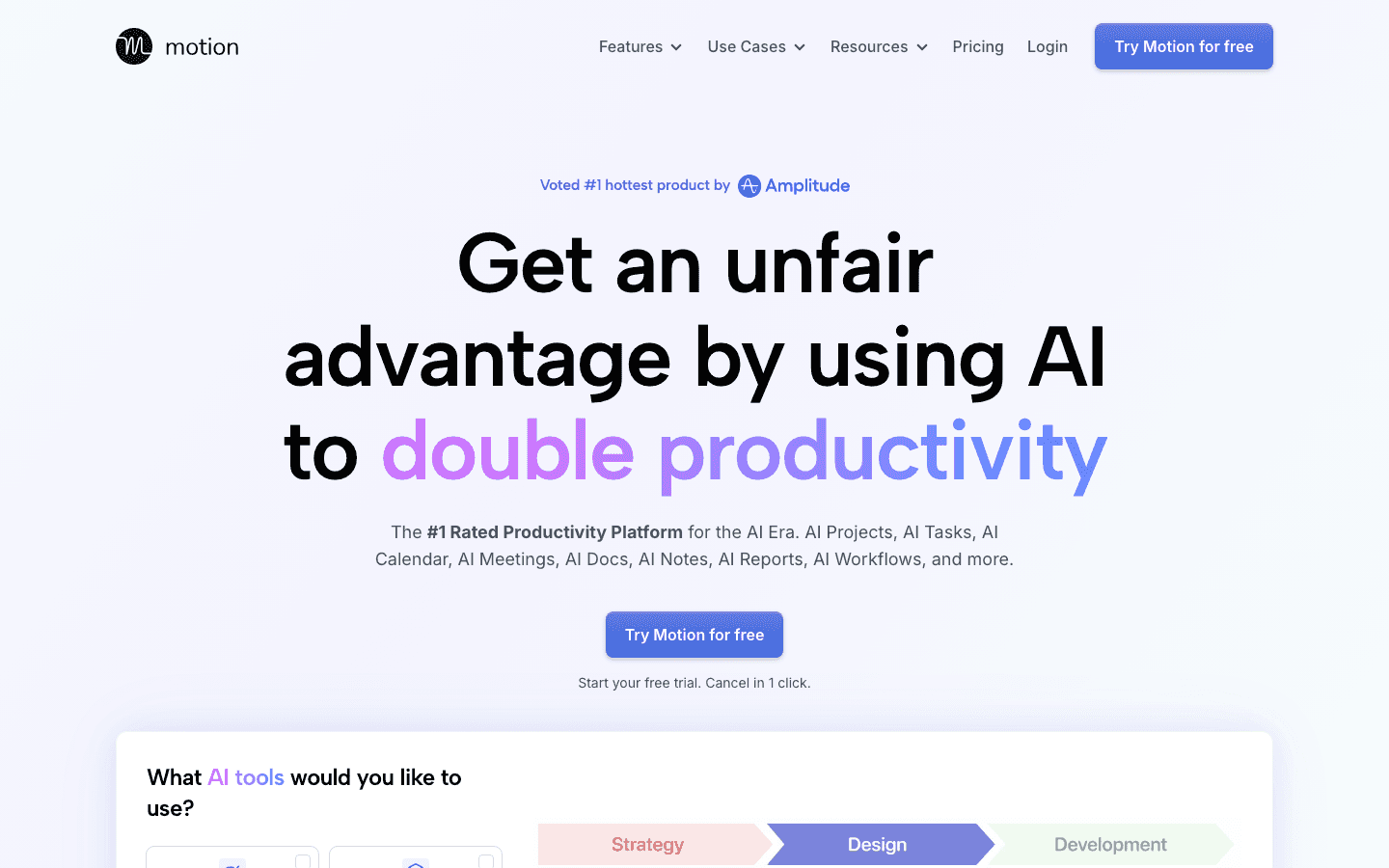
Motion targets a similar problem to Lifestack (when do I actually do this work?) but approaches it differently. Rather than using wearable energy data, Motion uses deadline urgency, meeting slots, and priority scores to auto-schedule tasks into available calendar gaps. It's a strong option for professionals managing heavy meeting loads who want tasks to stop falling through the cracks.
The main friction points: there's no free tier, the price is higher than most alternatives on this list, and the team-oriented features add complexity that solo users rarely need. For individuals, Lifestack delivers similar scheduling outcomes at a lower cost with the added benefit of energy-aware task placement. Motion's strength is when calendar complexity and meeting density are the core problem, not personal energy management.
Key Features
AI auto-scheduling based on deadlines, priorities, and meeting gaps
Meeting scheduling with automatic buffer time management
Team scheduling and capacity planning (Business tier)
AI documents, notes, and daily planner output
What Works
Removes the daily "where does this task go" decision for busy calendars
Meeting scheduling features are among the best available
Works well for professionals who run their entire day from a calendar
Limitations
No free tier (14-day trial only)
More expensive than most tools on this list
No wearable integration or energy-based scheduling
Pricing: Pro AI from $19/month or ~$12.76/month billed annually.
Best for: Professionals with heavy meeting loads who want AI to handle task scheduling automatically without manual planning.
Which Application for Organization Is Right for You?
You use a wearable and want scheduling that matches your energy: Lifestack
You want a clean, reliable task list without any complexity: Todoist
You want to build a fully custom personal system: Notion
You work on a team and need shared project tracking: Asana
You think in kanban and want instant visual setup: Trello
You just need to manage meetings and block calendar time: Google Calendar
You're a professional with a packed schedule and need AI scheduling: Motion
FAQ: Applications for Organization
What is the best application for organization overall?
Lifestack is the best for individuals who want their schedule to adapt to their energy levels. If you track sleep or fitness data with a wearable, Lifestack can use that data to slot tasks when you're most capable of completing them. For pure task management, Todoist is the strongest option. Our full guide to daily planner apps covers how to combine the two.
Are there free applications for organization?
Yes. Todoist, Notion, Trello, and Asana all offer free tiers with meaningful functionality. Google Calendar is free for personal use. Lifestack and Motion do not have permanent free tiers but both offer trials: Lifestack gives you 7 days, Motion gives you 14.
Which organization app is best for ADHD?
Lifestack is particularly well-suited for ADHD users because it removes the daily planning overhead. Instead of deciding when to do each task (a friction point for many ADHD brains), the app places tasks in windows where your energy data is highest. Todoist pairs well as a frictionless capture tool. Our roundup of ADHD time management apps has the full breakdown.
Can I use multiple organization apps together?
Yes, and most people who use these tools well do combine them. A common personal stack: Todoist for task capture, Lifestack for scheduling (it connects directly with Todoist), and Google Calendar for meetings. This gives you clean input, smart scheduling, and shared visibility without overlap.
Is Notion good for organization?
Notion can be excellent for organization, but it requires building your own system first. Out of the box it's a blank page. If you're willing to invest setup time (or start from a community template), it can replace multiple other apps. If you want something that works immediately, Todoist or Lifestack is a better starting point. You can also see our comparison of how to improve organizational skills for context on choosing the right tool for your working style.
How is AI changing organization apps?
The biggest shift is from apps that store tasks to apps that schedule them. Tools like Lifestack and Motion use AI to auto-schedule your tasks into available calendar time, removing the daily planning overhead. A newer layer is energy-aware scheduling (Lifestack's approach) where the AI factors in biometric recovery data to schedule demanding work during high-energy windows. For a deeper look at this shift, see our overview of the best AI planner apps available today.
Finding the right applications for organization is harder than it sounds. There are task managers, AI schedulers, note apps, project trackers, and kanban boards, each solving a different slice of the problem. Most people download three or four and end up using none of them consistently.
We tested seven of the most popular options across real workflows, including solo professionals, remote teams, and people juggling both personal and work commitments. The result: a clear hierarchy of what actually works, and for whom.
The biggest differentiator we found? Whether the app helps you plan when to do things, or just what to do. Most apps stop at a task list. A few go further and schedule those tasks automatically. Only one adjusts scheduling based on your energy levels throughout the day.
Here is the full breakdown.
Key Takeaways
Lifestack is the only app that schedules tasks around your energy, not just your available time slots
Todoist remains the strongest pure task manager for people who want simplicity without compromises
If you work on a team, Asana or Notion will serve you better than any of the individual-focused options
Quick Guide: Best Applications for Organization
Lifestack: Best for energy-aware AI scheduling
Todoist: Best pure task manager
Notion: Best all-in-one workspace
Trello: Best for visual, kanban-style tracking
Asana: Best for team project management
Google Calendar: Best for calendar-first organizers
Motion: Best AI scheduling for professionals
How We Evaluated These Organization Apps
Ease of setup and day-to-day use
Mobile app quality on iOS and Android
AI and automation depth
Cross-app integrations
Pricing and what the free tier actually gives you
Consistency of use after 30 days in real workflows
1. Lifestack: Best for Energy-Aware AI Scheduling
The AI scheduler that works with your body, not against it.
Most applications for organization let you add tasks and move them around a calendar. Lifestack does something different: it syncs with your wearable device (Oura Ring, Garmin, Apple Watch, Fitbit, Whoop, or Ultrahuman) and places tasks in the time windows where your energy data says you are most capable of doing them. Focus work lands during your peak hours. Admin tasks and low-stakes items fill the recovery windows automatically.
The difference shows up in your follow-through rate. When tasks are scheduled in slots where you can genuinely do them well, you actually do them. This is the core principle behind energy-based planning, and Lifestack is the only app that puts it into practice using real biometric data. It integrates directly with Todoist for task capture, meaning you do not have to abandon your existing workflow to try it.
Key Features
AI scheduling driven by wearable energy and recovery data
Works with Oura, Garmin, Apple Watch, Fitbit, Whoop, and Ultrahuman
iOS and Android apps with a Chrome extension
Native integration with Google Calendar and Todoist
Learns your patterns over time to improve scheduling accuracy
What Works
Energy-aware time blocking surfaces the right task at the right moment
Tight calendar sync means tasks don't sit in a separate silo from your actual day
The mobile app is clean and fast for checking your schedule on the go
Limitations
No free tier (7-day trial, then paid)
Less useful without a wearable device
No built-in project management or kanban views
Pricing: $7/month or $50/year. 7-day free trial included.
Best for: Individuals who track health or fitness data and want their schedule to match their actual energy.
2. Todoist: Best Pure Task Manager
The to-do list that has been done right since 2007.
Todoist is the task manager most productivity-focused people eventually land on. The natural language input is excellent. Type "call dentist next Tuesday at 10am" and it parses correctly without any extra tapping. The cross-platform support is solid across every OS, browser, and mobile platform. And after 17 years of iteration, the interface has no rough edges left.
For people who primarily want a single reliable place to capture and organize tasks, without the overhead of a full project suite, Todoist is the answer. It won't schedule your day for you, but it pairs well with Lifestack to cover that gap. See how to use Todoist with Lifestack for smarter daily planning.
Key Features
Natural language task and date entry
Projects, sub-tasks, labels, and four priority levels
Recurring tasks and deadline reminders
Productivity reporting and streaks (Karma score)
Integrates with 60+ tools including Lifestack, Slack, and Google Calendar
What Works
One of the best mobile apps in any productivity category
Quick-entry flow reduces the friction of capturing tasks in the moment
The gamified streak system genuinely helps with daily review habits
Limitations
Calendar view is Pro-only
No built-in scheduling or time blocking
No energy awareness; you decide when to do tasks
Pricing: Free tier available. Pro from ~$4/month billed annually.
Best for: Anyone who wants a clean, reliable task manager without a steep learning curve.
3. Notion: Best All-in-One Workspace
A blank canvas that becomes whatever organization system you build.
Notion is not one app. It is a platform you turn into an app. You can build a task manager, a personal CRM, a knowledge base, a project tracker, a team wiki, or all of the above inside the same workspace. That flexibility is both its biggest strength and its most common frustration.
Getting real value from Notion requires upfront investment. You'll spend time building your system before you can use it. For people who enjoy that kind of structure design, Notion is deeply satisfying. For people who want to open an app on day one and immediately get organized, the learning curve is steep. The AI features (drafting, summarizing, answering questions about your documents) are increasingly useful once the system is in place.
Key Features
Pages, databases, kanban boards, calendars, timelines, and forms
Notion AI for drafting, summarizing, and automating inside your workspace
Notion Calendar (free, standalone app) syncs with Google Calendar
Team collaboration with comments, mentions, and permission controls
What Works
Relational databases beat spreadsheets for most knowledge management use cases
AI is genuinely useful for summarizing long documents and filling in templates
One workspace can replace notes, tasks, and project tracking if set up well
Limitations
Significant setup time before it becomes useful
Can become cluttered quickly without system discipline
No energy awareness or automatic task scheduling
Pricing: Free tier available. Plus plan from $10/member/month.
Best for: People who want a fully customizable workspace and don't mind investing time in system design.
4. Trello: Best for Visual, Kanban-Style Tracking
Drag-and-drop task tracking that gets out of your way.
Trello's kanban boards are one of the most intuitive interfaces in productivity software. Cards, lists, drag-and-drop. If you think visually and prefer seeing work move from "To Do" through "In Progress" to "Done", Trello is the fastest way to get that setup. Most users are productive within minutes of signing up.
The limitation is depth. Trello works well for simple workflows but strains under complex projects with dependencies, deadlines, and multiple contributors. Atlassian has added timeline views, automations, and AI features at higher paid tiers, but at its core Trello remains a kanban tool. That is a feature for some users and a ceiling for others.
Key Features
Drag-and-drop kanban boards with cards, checklists, and due dates
Power-Ups for integrating Slack, Google Drive, Jira, and more
Butler automation for rule-based card actions
AI-assisted card creation at Premium and Enterprise tiers
What Works
Zero learning curve for the basic kanban view
Free tier is genuinely useful (unlimited cards, 10 boards)
Great for freelancers managing client project stages visually
Limitations
Complex projects with dependencies outgrow it quickly
Timeline and Gantt views are Premium-only
No AI scheduling or energy awareness
Pricing: Free tier available. Standard from $5/user/month billed annually.
Best for: Visual thinkers and freelancers who want simple kanban-style project tracking with minimal setup.
5. Asana: Best for Team Project Management
The team organization app that scales from two people to two thousand.
Asana is built for teams. While you can use it solo, the features that differentiate it from simpler apps (portfolios, workload views, goal tracking, team timelines) that make sense when multiple people are working on shared projects. For teams that have outgrown shared spreadsheets and group chats but aren't ready for an enterprise tool, Asana is a reliable option.
The interface is cleaner than most competitors in this space, and AI Studio (Starter tier and above) is useful for automating project setup and generating status updates. Asana is also one of the best-integrated apps in this list, connecting cleanly with Slack, Google Workspace, Microsoft Teams, and Salesforce. For teams managing cross-functional work, it is worth a look alongside our broader guide to AI project management tools.
Key Features
Tasks, subtasks, projects, and cross-project portfolios
Timeline (Gantt) and workload views for planning and capacity
Goal tracking with progress reporting
AI Studio for automating intake forms, status updates, and workflows
200+ integrations including Slack, Teams, Salesforce, and Jira
What Works
Workload view prevents over-assigning team members at a glance
Timeline view makes task dependencies clear for project planning
AI automation genuinely saves time on recurring project setup
Limitations
Free tier is limited to 2 users (not practical for most teams
Feels heavy for solo use
No personal energy scheduling
Pricing: Free tier (up to 2 users). Starter from $10.99/user/month billed annually.
Best for: Small to mid-size teams that need shared project tracking, accountability, and cross-functional visibility.
6. Google Calendar: Best for Calendar-First Organizers
The scheduling backbone most people already have.
Google Calendar is not a task manager. It is a scheduling and time-blocking tool, and it's the one most people already use for meetings. Used deliberately, with named time blocks for different work types, recurring blocks for deep work, and shared calendars for team visibility, it becomes a real organizational system without requiring any new tools.
The integrations are unmatched. Virtually every app on this list can push events into Google Calendar. It is often the connective layer that holds a multi-tool productivity stack together. If you are building on top of a calendar management approach, see our guide to calendar management tools for how to get more from it.
Key Features
Shareable calendars and event invites across Google accounts
Google Meet integration for video calls directly from events
Appointment booking pages (Google Workspace)
Works with virtually every productivity app on the market
What Works
Zero onboarding; most users already have an account
Shared family or team calendars simplify coordination significantly
Strong mobile apps on both iOS and Android
Limitations
Not a task manager; complex to-do lists do not belong here
No AI scheduling or energy awareness
Full features (appointment booking, extra storage) require Workspace at $7+/user/month
Pricing: Free for personal use. Google Workspace from $7/user/month.
Best for: Calendar-first organizers who want visibility across work and personal commitments, and want every other app to plug into one central view.
7. Motion: Best AI Scheduling for Professionals
Auto-scheduling for people with packed calendars and no time to plan manually.
Motion targets a similar problem to Lifestack (when do I actually do this work?) but approaches it differently. Rather than using wearable energy data, Motion uses deadline urgency, meeting slots, and priority scores to auto-schedule tasks into available calendar gaps. It's a strong option for professionals managing heavy meeting loads who want tasks to stop falling through the cracks.
The main friction points: there's no free tier, the price is higher than most alternatives on this list, and the team-oriented features add complexity that solo users rarely need. For individuals, Lifestack delivers similar scheduling outcomes at a lower cost with the added benefit of energy-aware task placement. Motion's strength is when calendar complexity and meeting density are the core problem, not personal energy management.
Key Features
AI auto-scheduling based on deadlines, priorities, and meeting gaps
Meeting scheduling with automatic buffer time management
Team scheduling and capacity planning (Business tier)
AI documents, notes, and daily planner output
What Works
Removes the daily "where does this task go" decision for busy calendars
Meeting scheduling features are among the best available
Works well for professionals who run their entire day from a calendar
Limitations
No free tier (14-day trial only)
More expensive than most tools on this list
No wearable integration or energy-based scheduling
Pricing: Pro AI from $19/month or ~$12.76/month billed annually.
Best for: Professionals with heavy meeting loads who want AI to handle task scheduling automatically without manual planning.
Which Application for Organization Is Right for You?
You use a wearable and want scheduling that matches your energy: Lifestack
You want a clean, reliable task list without any complexity: Todoist
You want to build a fully custom personal system: Notion
You work on a team and need shared project tracking: Asana
You think in kanban and want instant visual setup: Trello
You just need to manage meetings and block calendar time: Google Calendar
You're a professional with a packed schedule and need AI scheduling: Motion
FAQ: Applications for Organization
What is the best application for organization overall?
Lifestack is the best for individuals who want their schedule to adapt to their energy levels. If you track sleep or fitness data with a wearable, Lifestack can use that data to slot tasks when you're most capable of completing them. For pure task management, Todoist is the strongest option. Our full guide to daily planner apps covers how to combine the two.
Are there free applications for organization?
Yes. Todoist, Notion, Trello, and Asana all offer free tiers with meaningful functionality. Google Calendar is free for personal use. Lifestack and Motion do not have permanent free tiers but both offer trials: Lifestack gives you 7 days, Motion gives you 14.
Which organization app is best for ADHD?
Lifestack is particularly well-suited for ADHD users because it removes the daily planning overhead. Instead of deciding when to do each task (a friction point for many ADHD brains), the app places tasks in windows where your energy data is highest. Todoist pairs well as a frictionless capture tool. Our roundup of ADHD time management apps has the full breakdown.
Can I use multiple organization apps together?
Yes, and most people who use these tools well do combine them. A common personal stack: Todoist for task capture, Lifestack for scheduling (it connects directly with Todoist), and Google Calendar for meetings. This gives you clean input, smart scheduling, and shared visibility without overlap.
Is Notion good for organization?
Notion can be excellent for organization, but it requires building your own system first. Out of the box it's a blank page. If you're willing to invest setup time (or start from a community template), it can replace multiple other apps. If you want something that works immediately, Todoist or Lifestack is a better starting point. You can also see our comparison of how to improve organizational skills for context on choosing the right tool for your working style.
How is AI changing organization apps?
The biggest shift is from apps that store tasks to apps that schedule them. Tools like Lifestack and Motion use AI to auto-schedule your tasks into available calendar time, removing the daily planning overhead. A newer layer is energy-aware scheduling (Lifestack's approach) where the AI factors in biometric recovery data to schedule demanding work during high-energy windows. For a deeper look at this shift, see our overview of the best AI planner apps available today.

FOLLOW ON
FOLLOW ON
FOLLOW ON


Copyright 2026 © Lifestack. All rights reserved
Copyright 2026 © Lifestack. All rights reserved

