
App
6 Best Team Calendar Apps in 2026
6 Best Team Calendar Apps in 2026

A shared calendar is the nervous system of any team. When it's accurate, people know where to be and when. When it's cluttered, outdated, or missing key context, meetings get missed and planning breaks down. The best team calendar apps don't just show schedules: they help coordinate them, reduce the back-and-forth of scheduling, and give everyone visibility into how time is actually being used.
The options have expanded significantly in recent years. There are traditional shared calendars, AI-powered schedulers that fill your week automatically, and meeting-specific tools built around external booking. Which one is right for your team depends heavily on whether your main problem is visibility, coordination, or execution.
We tested the leading options to see how well they solve each of these problems. Here's what we found.
Key Takeaways
Lifestack is the best team calendar for energy-aware scheduling that helps individuals and small teams protect focused work time alongside meetings
Google Calendar is the best all-around free team calendar for visibility and coordination across organizations
Calendly is the best tool specifically for reducing the back-and-forth of external meeting scheduling
Quick Guide: Best Team Calendar Apps
1. Lifestack: best for energy-aware scheduling and focused work protection
2. Google Calendar: best free team calendar with broad integrations
3. Microsoft Outlook Calendar: best for Microsoft 365 organizations
4. Motion: best AI scheduling for busy teams with many tasks
5. Calendly: best for external meeting scheduling and booking
6. Akiflow: best for task-and-calendar integration in one inbox
How We Evaluated These Apps
Shared calendar and visibility features for teams
AI or auto-scheduling capabilities
Integration with common tools (Slack, Google, Microsoft 365)
Mobile app quality and accessibility
Price per seat relative to the value provided
1. Lifestack: Best for Energy-Aware Team Scheduling
The only team calendar that schedules around when people actually work best
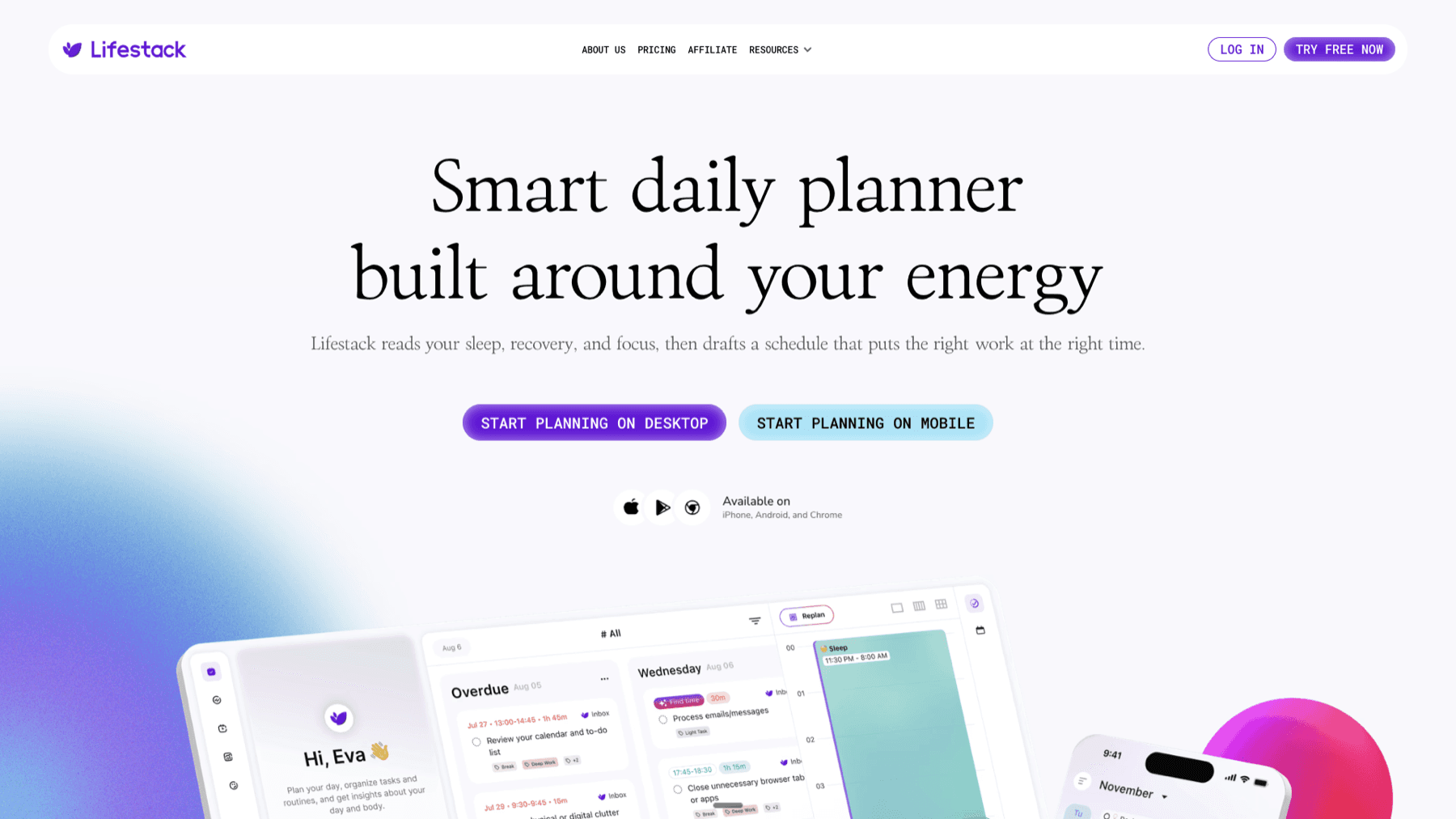
Most team calendars show you when people are free. Lifestack goes further: it shows you when people are free and when they're in their best mental state for different types of work. Its energy-aware scheduling engine learns each user's natural energy pattern across the day, then auto-schedules tasks into high-energy windows so that deep work and strategic thinking don't get pushed into afternoon dips by meeting sprawl.
For teams, this means fewer scheduling conflicts where someone's most productive hour gets swallowed by a low-stakes check-in. The AI planner auto-reschedules around meetings in real time, so individuals can maintain a productive week structure even as the calendar shifts. It connects to Google Calendar, Outlook, and iOS Reminders, runs on iOS, Android, and Chrome, and is particularly effective for teams with a mix of deep focus work and recurring meetings.
Energy-aware AI scheduling that routes tasks to high-focus windows
Auto-rescheduling when meetings move or priorities change
Google Calendar and Outlook integration
iOS, Android, and Chrome extension
Unique energy-matching that most team calendars don't offer
Individual productivity improves alongside team coordination
Reschedules automatically without manual calendar surgery
No dedicated team admin or shared calendar view (yet)
Better for small teams and individual contributors than large enterprise
No free tier (7-day trial on annual plan)
Pricing: $7/month or $50/year (7-day free trial on annual plan)
Best for: Teams where individuals own their schedules and want to protect focused work alongside meeting coordination. The energy calendar guide explains the framework in depth.
2. Google Calendar: Best Free Team Calendar
The default for a reason: free, flexible, and integrates with everything
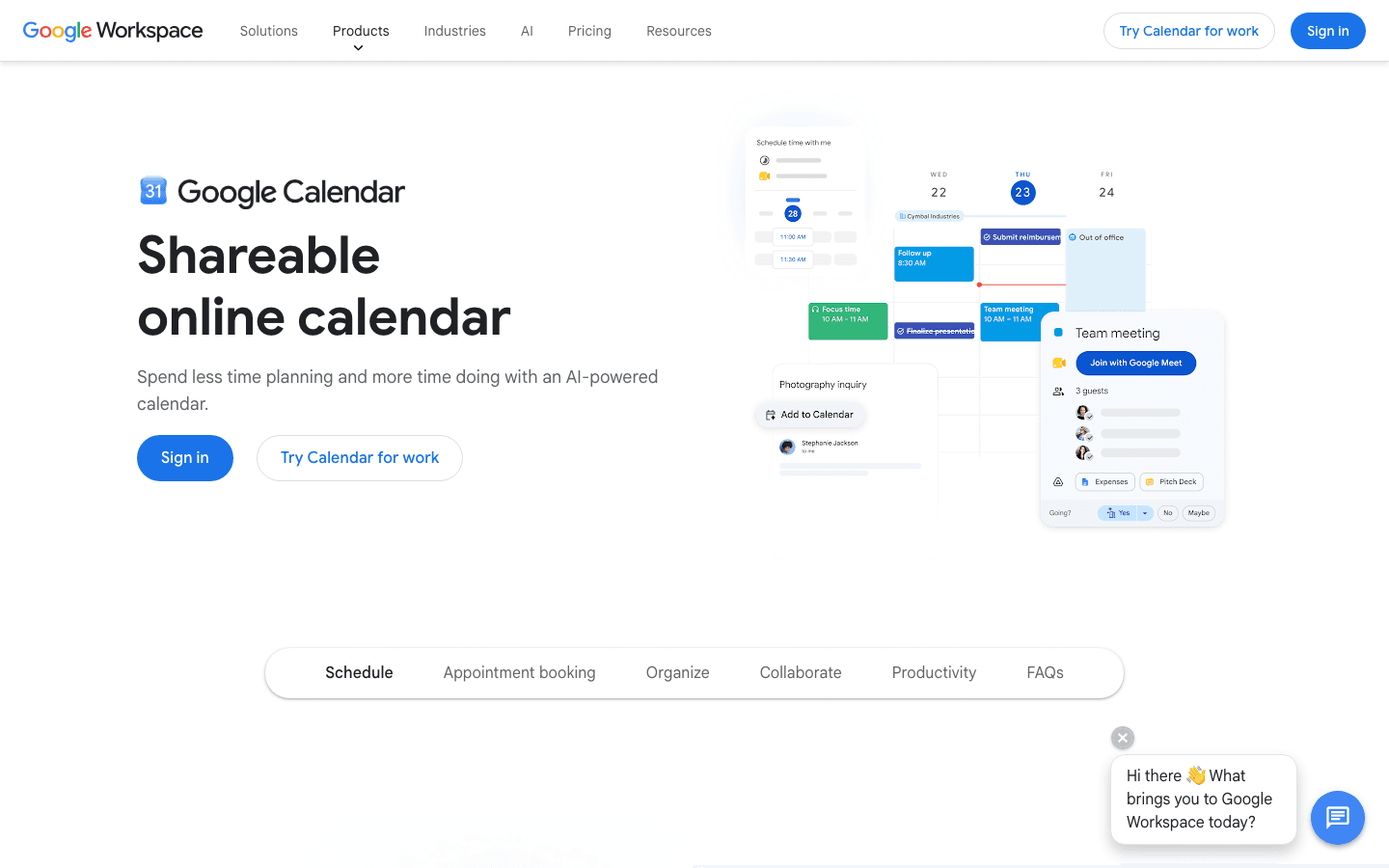
Google Calendar is the most widely adopted team calendar because it solves the core problem well: everyone can see everyone else's availability, scheduling is easy, and it integrates with virtually every other tool your team uses. The free plan covers everything most small teams need. Google Workspace upgrades add admin controls, larger meeting rooms, and advanced booking features.
Its scheduling intelligence is basic compared to AI-powered tools, but the breadth of integrations is unmatched. Google Meet links generate automatically in calendar invites. Slack, Notion, Linear, Asana, and most other tools connect directly. For teams already in the Google ecosystem, it's the path of least resistance and does the job reliably. For apps that extend what Google Calendar can do, our Google Calendar integrations guide covers the best options.
Free shared calendar with unlimited events and invites
Integrates with virtually every third-party tool
Automatic Google Meet link generation
Google Workspace admin controls for organizations
Free for personal use; affordable for teams via Google Workspace
Works well as the foundation that other calendar tools build on
Most people already know it, so there's no onboarding friction
No AI scheduling or auto-task placement
Basic scheduling intelligence compared to newer tools
Visibility into colleagues' schedules requires organization-level setup
Pricing: Free for personal use; Google Workspace from $6/user/month (Business Starter)
Best for: Teams that want broad compatibility and zero cost to get started. The foundation that most other tools integrate with. If you're considering moving away, see our Google Calendar alternative guide.
3. Microsoft Outlook Calendar: Best for Microsoft 365 Teams
Deep integration with the Microsoft stack makes it the obvious choice for enterprise
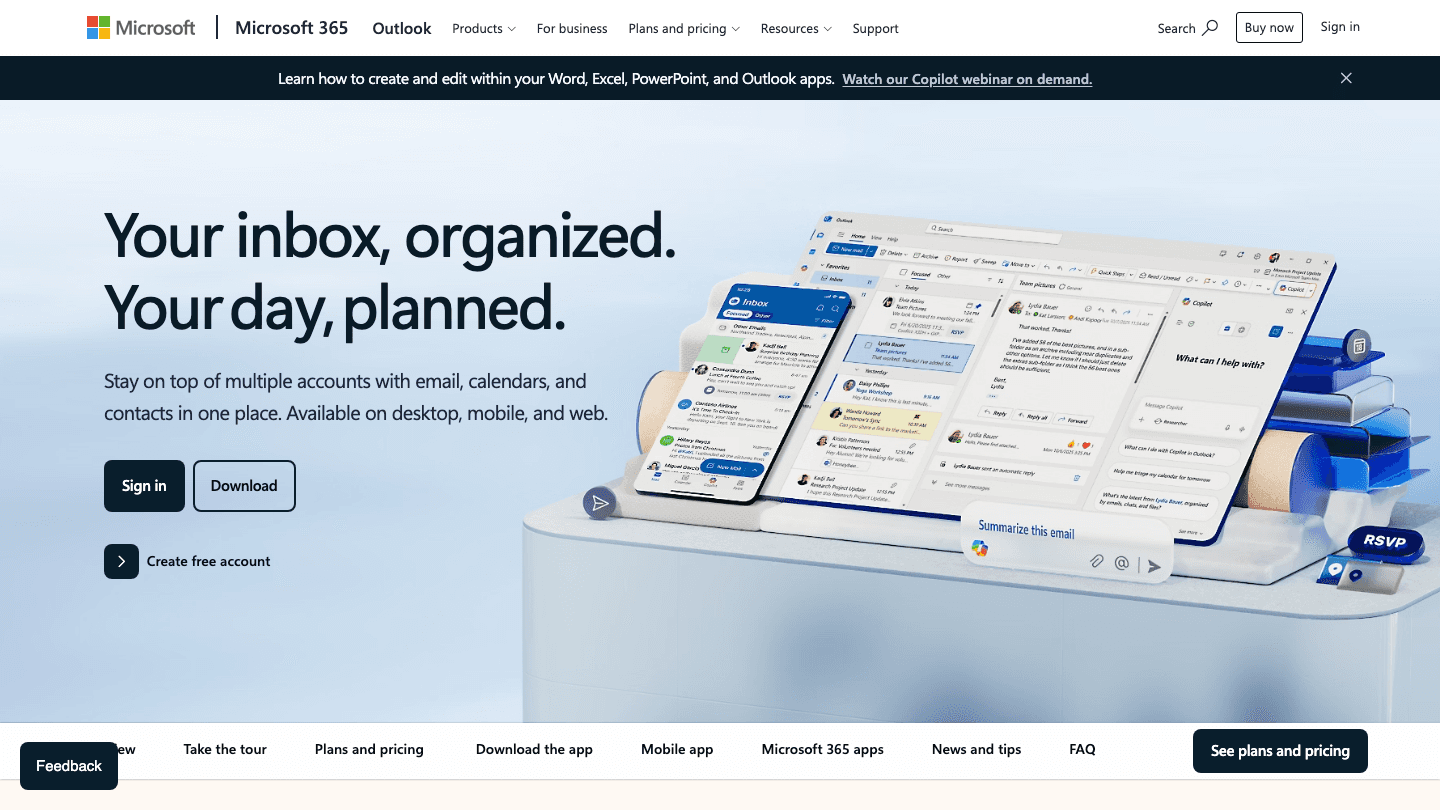
Microsoft Outlook Calendar is the calendar of record for organizations that run on Microsoft 365. It integrates tightly with Teams, SharePoint, Exchange, and the rest of the Microsoft ecosystem. Shared calendar visibility, room booking, and resource scheduling are deeply built in, making it strong for larger organizations that need enterprise-grade calendar management.
The scheduling intelligence has improved in recent years with Copilot integration, which can suggest meeting times, summarize availability across teams, and help draft meeting agendas. For teams already paying for Microsoft 365, Outlook Calendar is included and worth using rather than adding a separate calendar tool.
Deep integration with Microsoft Teams, SharePoint, and Exchange
Room and resource booking for enterprise
Microsoft Copilot AI scheduling assistance
Included with Microsoft 365 subscriptions
Best calendar for organizations already on Microsoft 365
Strong room and resource management features
AI scheduling via Copilot on supported plans
Heavier interface compared to consumer calendar apps
Less useful outside the Microsoft ecosystem
AI features require higher-tier Microsoft 365 plans
Pricing: Included with Microsoft 365 (from $6/user/month for Business Basic)
Best for: Organizations running Microsoft 365 who want calendar, email, and scheduling in one place without adding a separate tool. Also see our administrative calendar guide for related tools.
4. Motion: Best AI Scheduling for Busy Teams
Auto-scheduling that fills your week from a task list and defends it as priorities shift
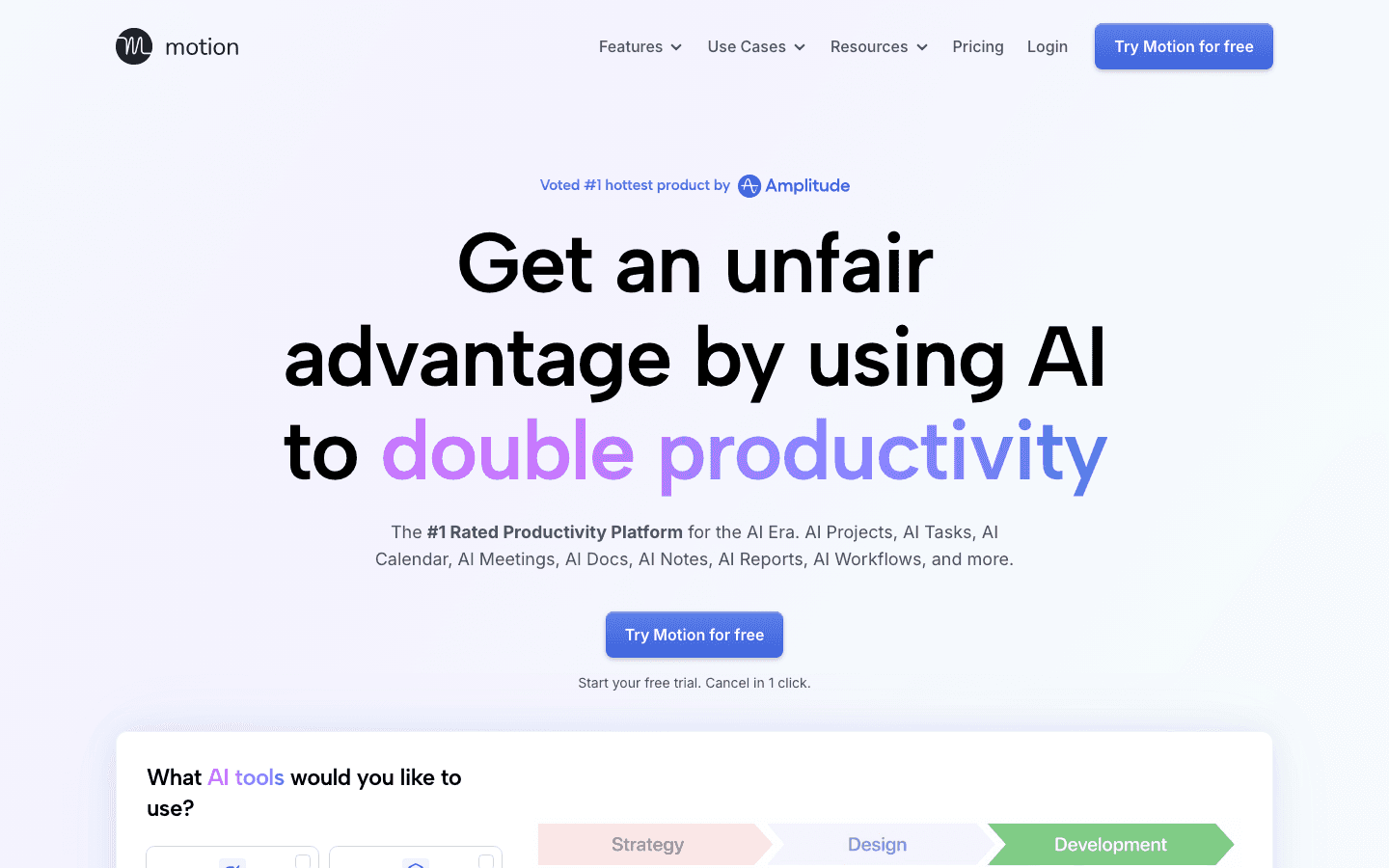
Motion takes a different approach to team calendaring: rather than just showing availability, it actively builds your schedule from your task list. Add tasks with deadlines and priorities; Motion fits them into your calendar around meetings, automatically. When something runs over or a meeting lands, it reshuffles the plan in real time without you touching anything.
The team tier adds capacity planning and project management features, making it useful for small teams where multiple people's schedules need to stay in sync around shared deliverables. It's not a pure shared calendar in the traditional sense, but for teams where task execution and calendar coordination need to work together, it covers both. See how it stacks up in our best AI task manager guide.
AI auto-scheduling from task list with real-time rescheduling
Team capacity planning and project timelines (Business AI)
AI Docs and notes workspace
Integrates with Google Calendar and Outlook
Handles both task scheduling and calendar coordination in one tool
Strong for teams with dense task loads and frequent priority changes
Minimal setup required to get a working weekly plan
$19/month per seat is on the expensive side for smaller teams
No energy awareness across the day
Can over-schedule if task priorities aren't set carefully
Pricing: $19/month (Pro AI), annual plans save 33%; free trial available
Best for: Teams that need AI scheduling and task management in one place and are willing to pay for the automation it provides.
5. Calendly: Best for External Meeting Scheduling
Eliminates the back-and-forth of scheduling meetings with people outside your organization
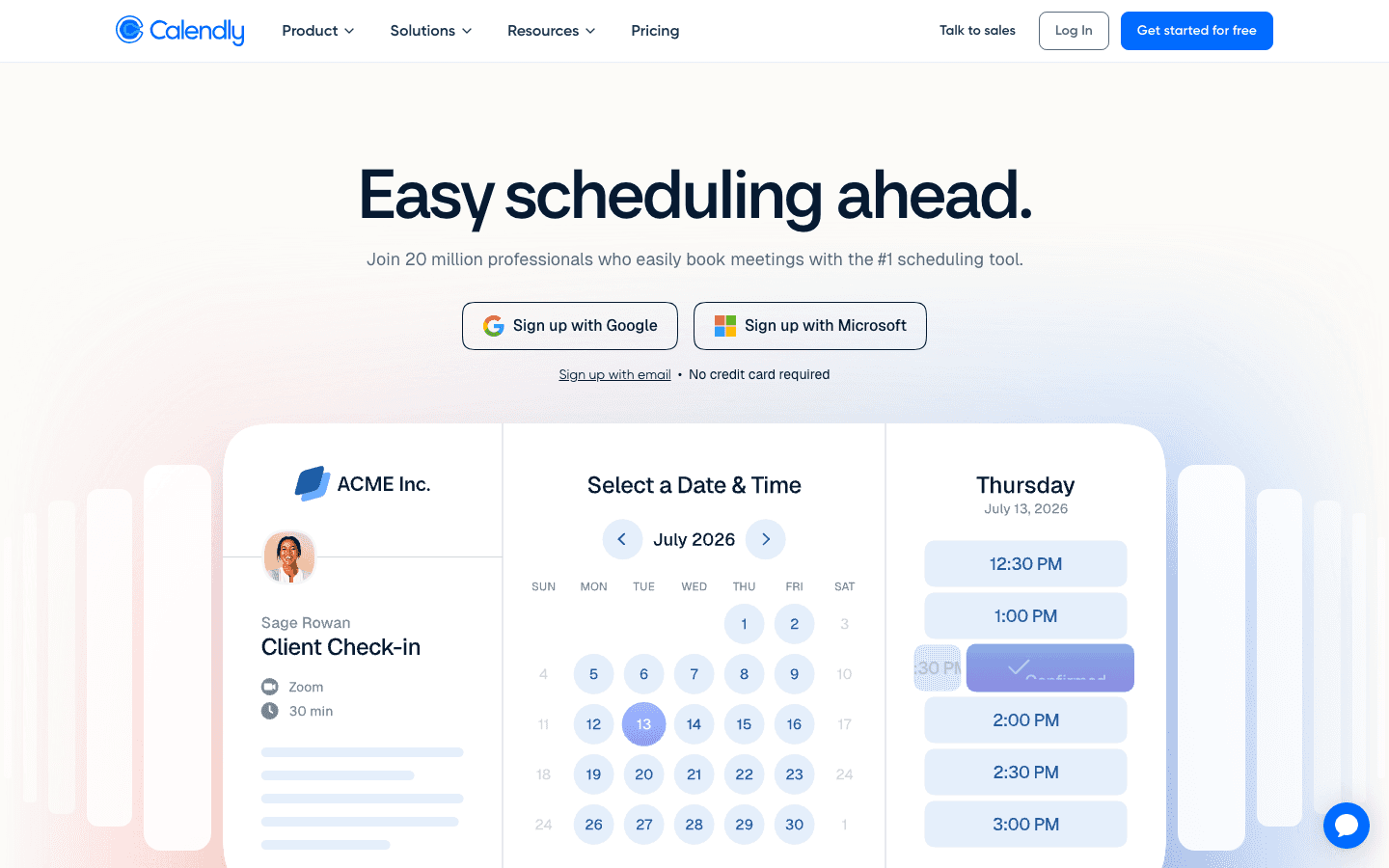
Calendly solves a specific problem very well: scheduling meetings with external parties without the email back-and-forth. You set your availability, share a link, and the other person picks a time that works. Calendly syncs with your calendar, checks real-time availability, and sends confirmation emails automatically. For sales teams, consultants, recruiters, and anyone who regularly schedules with external contacts, it's a significant time saver.
The Teams plan adds round-robin routing (automatically assigning meetings to available team members), collective scheduling (all attendees must be free), and Salesforce integration. It's less useful as a day-to-day team calendar and more useful as a booking layer on top of whatever calendar your team already uses.
Shareable booking links that show real-time availability
Integrates with Google Calendar, Outlook, and major video platforms
Round-robin and collective meeting types on team plans
Free tier with one event type available indefinitely
Removes scheduling friction for external meetings almost entirely
Free plan is genuinely useful for light use
Strong integrations with CRMs and video conferencing tools
Not a full team calendar; best used alongside one
$16/seat/month for Teams tier adds up for larger groups
Less useful for internal scheduling where everyone uses the same calendar
Pricing: Free (1 event type); Standard $10/seat/month; Teams $16/seat/month (annual rates)
Best for: Teams that frequently schedule with external contacts and want to eliminate the scheduling email chain.
6. Akiflow: Best for Task-and-Calendar Unification
One inbox for every task source, with smart scheduling built in for individuals and teams
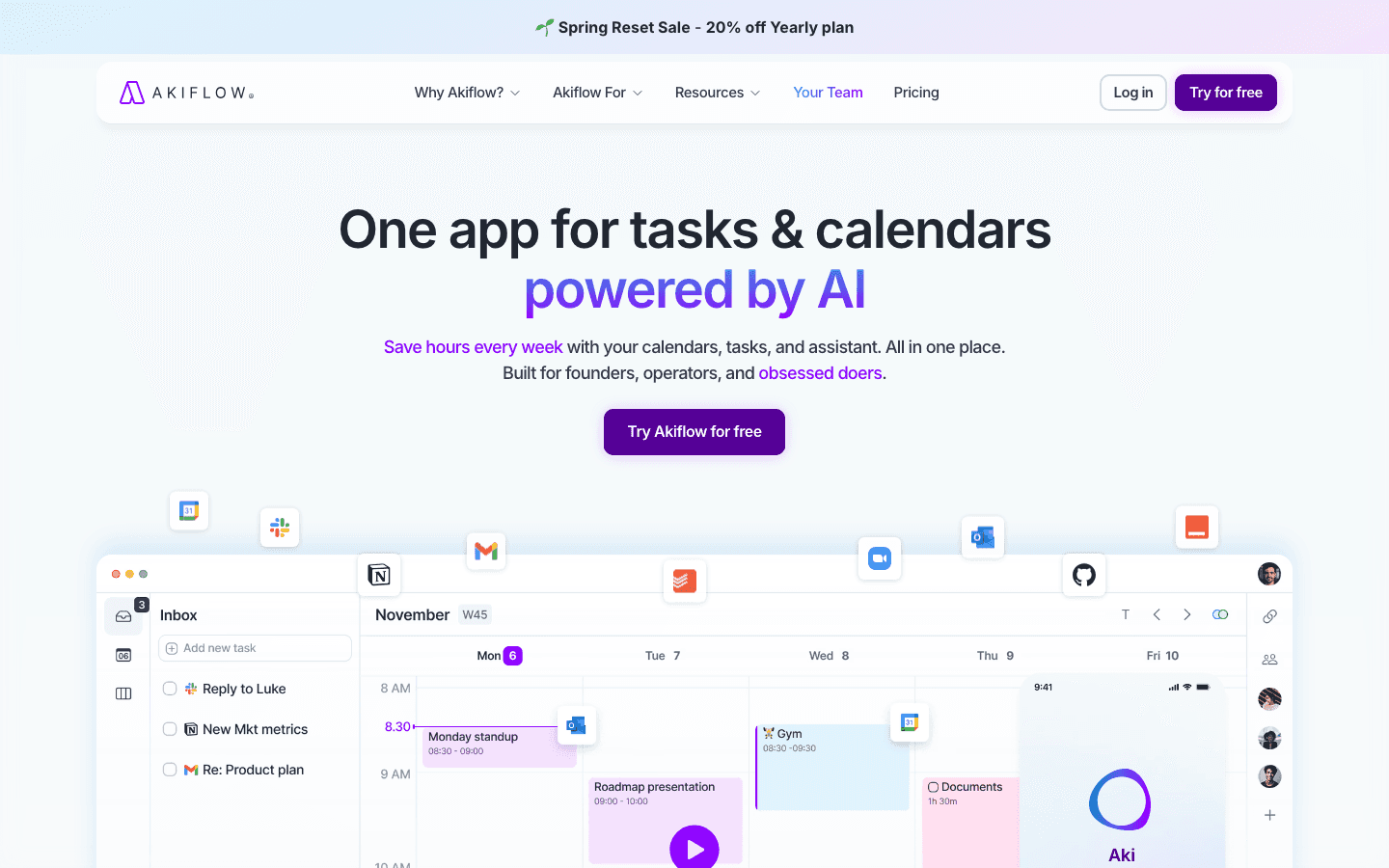
Akiflow approaches the team calendar problem from the task side. It pulls tasks from 30+ integrations, including Notion, Asana, GitHub, Gmail, and Slack, into a single planning inbox. From there, you schedule tasks onto your calendar using keyboard shortcuts and AI suggestions. Team features include shared project views and a unified workspace for aligning task priorities with calendar availability.
It's best suited for teams that struggle with tasks and calendar existing in separate siloes rather than teams that primarily need shared visibility. The daily planning workflow is fast once you learn the keyboard shortcuts, and the breadth of integrations is best-in-class. See how it compares to alternatives in our time blocking app guide.
30+ integrations pulling tasks into a single inbox
AI assistant (Aki) for scheduling suggestions
Keyboard-driven daily planning workflow
Team task and calendar coordination features
Best integrations of any tool on this list
Good for power users who live across many task and communication tools
Fast once you learn the keyboard-first workflow
Steeper learning curve than most calendar apps
$34/month is expensive for monthly billing; $19/month annual is more reasonable
Less useful for teams that primarily need shared calendar visibility
Pricing: $34/month or $19/month billed annually; 7-day free trial
Best for: Teams that use many different task tools and want one place to consolidate and plan their work alongside their calendar. See our daily planner guide for related options.
Which Team Calendar Is Right for You?
If you want energy-aware scheduling that protects deep work: Lifestack
If you want a free, compatible, no-friction team calendar: Google Calendar
If your organization runs on Microsoft 365: Outlook Calendar
If your team needs AI scheduling and task management together: Motion
If you frequently schedule with external contacts: Calendly
If your tasks are scattered across many tools: Akiflow
Frequently Asked Questions
What is a team calendar app?
A team calendar app is software that lets multiple people view and coordinate schedules in a shared environment. At minimum, it shows each team member's availability to make scheduling meetings straightforward. More advanced tools add AI scheduling, shared project timelines, external booking, and integration with task management systems.
Is Google Calendar good for teams?
Yes, especially for small teams and organizations in the Google ecosystem. It's free, integrates with nearly everything, and gives teams shared visibility into availability. Google Workspace adds admin controls and larger shared resources for organizations that need them. Its main limitation is that it doesn't do any of the scheduling thinking for you.
What's the best free team calendar?
Google Calendar is the best free team calendar for most teams. Calendly also has a genuinely functional free tier for meeting booking. Microsoft Outlook Calendar is included with Microsoft 365 subscriptions if your team already pays for those. Most other AI scheduling tools on this list offer free trials but no permanent free plan.
Can a team calendar help with time blocking?
Yes. A team calendar shows when people are free, which is the prerequisite for time blocking work sessions around meetings. Tools like Lifestack and Motion go further: they auto-schedule work blocks into available time automatically, so individuals don't have to do the calendar math themselves. The time blocking app guide covers these options in detail.
What team calendar works best with Slack?
Google Calendar has the strongest native Slack integration, with automatic notifications and the ability to create or view events without leaving Slack. Akiflow also integrates with Slack for task capture. Motion and Lifestack connect via Google Calendar or Outlook, which then feeds into Slack through the standard calendar integration.
A shared calendar is the nervous system of any team. When it's accurate, people know where to be and when. When it's cluttered, outdated, or missing key context, meetings get missed and planning breaks down. The best team calendar apps don't just show schedules: they help coordinate them, reduce the back-and-forth of scheduling, and give everyone visibility into how time is actually being used.
The options have expanded significantly in recent years. There are traditional shared calendars, AI-powered schedulers that fill your week automatically, and meeting-specific tools built around external booking. Which one is right for your team depends heavily on whether your main problem is visibility, coordination, or execution.
We tested the leading options to see how well they solve each of these problems. Here's what we found.
Key Takeaways
Lifestack is the best team calendar for energy-aware scheduling that helps individuals and small teams protect focused work time alongside meetings
Google Calendar is the best all-around free team calendar for visibility and coordination across organizations
Calendly is the best tool specifically for reducing the back-and-forth of external meeting scheduling
Quick Guide: Best Team Calendar Apps
1. Lifestack: best for energy-aware scheduling and focused work protection
2. Google Calendar: best free team calendar with broad integrations
3. Microsoft Outlook Calendar: best for Microsoft 365 organizations
4. Motion: best AI scheduling for busy teams with many tasks
5. Calendly: best for external meeting scheduling and booking
6. Akiflow: best for task-and-calendar integration in one inbox
How We Evaluated These Apps
Shared calendar and visibility features for teams
AI or auto-scheduling capabilities
Integration with common tools (Slack, Google, Microsoft 365)
Mobile app quality and accessibility
Price per seat relative to the value provided
1. Lifestack: Best for Energy-Aware Team Scheduling
The only team calendar that schedules around when people actually work best
Most team calendars show you when people are free. Lifestack goes further: it shows you when people are free and when they're in their best mental state for different types of work. Its energy-aware scheduling engine learns each user's natural energy pattern across the day, then auto-schedules tasks into high-energy windows so that deep work and strategic thinking don't get pushed into afternoon dips by meeting sprawl.
For teams, this means fewer scheduling conflicts where someone's most productive hour gets swallowed by a low-stakes check-in. The AI planner auto-reschedules around meetings in real time, so individuals can maintain a productive week structure even as the calendar shifts. It connects to Google Calendar, Outlook, and iOS Reminders, runs on iOS, Android, and Chrome, and is particularly effective for teams with a mix of deep focus work and recurring meetings.
Energy-aware AI scheduling that routes tasks to high-focus windows
Auto-rescheduling when meetings move or priorities change
Google Calendar and Outlook integration
iOS, Android, and Chrome extension
Unique energy-matching that most team calendars don't offer
Individual productivity improves alongside team coordination
Reschedules automatically without manual calendar surgery
No dedicated team admin or shared calendar view (yet)
Better for small teams and individual contributors than large enterprise
No free tier (7-day trial on annual plan)
Pricing: $7/month or $50/year (7-day free trial on annual plan)
Best for: Teams where individuals own their schedules and want to protect focused work alongside meeting coordination. The energy calendar guide explains the framework in depth.
2. Google Calendar: Best Free Team Calendar
The default for a reason: free, flexible, and integrates with everything
Google Calendar is the most widely adopted team calendar because it solves the core problem well: everyone can see everyone else's availability, scheduling is easy, and it integrates with virtually every other tool your team uses. The free plan covers everything most small teams need. Google Workspace upgrades add admin controls, larger meeting rooms, and advanced booking features.
Its scheduling intelligence is basic compared to AI-powered tools, but the breadth of integrations is unmatched. Google Meet links generate automatically in calendar invites. Slack, Notion, Linear, Asana, and most other tools connect directly. For teams already in the Google ecosystem, it's the path of least resistance and does the job reliably. For apps that extend what Google Calendar can do, our Google Calendar integrations guide covers the best options.
Free shared calendar with unlimited events and invites
Integrates with virtually every third-party tool
Automatic Google Meet link generation
Google Workspace admin controls for organizations
Free for personal use; affordable for teams via Google Workspace
Works well as the foundation that other calendar tools build on
Most people already know it, so there's no onboarding friction
No AI scheduling or auto-task placement
Basic scheduling intelligence compared to newer tools
Visibility into colleagues' schedules requires organization-level setup
Pricing: Free for personal use; Google Workspace from $6/user/month (Business Starter)
Best for: Teams that want broad compatibility and zero cost to get started. The foundation that most other tools integrate with. If you're considering moving away, see our Google Calendar alternative guide.
3. Microsoft Outlook Calendar: Best for Microsoft 365 Teams
Deep integration with the Microsoft stack makes it the obvious choice for enterprise
Microsoft Outlook Calendar is the calendar of record for organizations that run on Microsoft 365. It integrates tightly with Teams, SharePoint, Exchange, and the rest of the Microsoft ecosystem. Shared calendar visibility, room booking, and resource scheduling are deeply built in, making it strong for larger organizations that need enterprise-grade calendar management.
The scheduling intelligence has improved in recent years with Copilot integration, which can suggest meeting times, summarize availability across teams, and help draft meeting agendas. For teams already paying for Microsoft 365, Outlook Calendar is included and worth using rather than adding a separate calendar tool.
Deep integration with Microsoft Teams, SharePoint, and Exchange
Room and resource booking for enterprise
Microsoft Copilot AI scheduling assistance
Included with Microsoft 365 subscriptions
Best calendar for organizations already on Microsoft 365
Strong room and resource management features
AI scheduling via Copilot on supported plans
Heavier interface compared to consumer calendar apps
Less useful outside the Microsoft ecosystem
AI features require higher-tier Microsoft 365 plans
Pricing: Included with Microsoft 365 (from $6/user/month for Business Basic)
Best for: Organizations running Microsoft 365 who want calendar, email, and scheduling in one place without adding a separate tool. Also see our administrative calendar guide for related tools.
4. Motion: Best AI Scheduling for Busy Teams
Auto-scheduling that fills your week from a task list and defends it as priorities shift
Motion takes a different approach to team calendaring: rather than just showing availability, it actively builds your schedule from your task list. Add tasks with deadlines and priorities; Motion fits them into your calendar around meetings, automatically. When something runs over or a meeting lands, it reshuffles the plan in real time without you touching anything.
The team tier adds capacity planning and project management features, making it useful for small teams where multiple people's schedules need to stay in sync around shared deliverables. It's not a pure shared calendar in the traditional sense, but for teams where task execution and calendar coordination need to work together, it covers both. See how it stacks up in our best AI task manager guide.
AI auto-scheduling from task list with real-time rescheduling
Team capacity planning and project timelines (Business AI)
AI Docs and notes workspace
Integrates with Google Calendar and Outlook
Handles both task scheduling and calendar coordination in one tool
Strong for teams with dense task loads and frequent priority changes
Minimal setup required to get a working weekly plan
$19/month per seat is on the expensive side for smaller teams
No energy awareness across the day
Can over-schedule if task priorities aren't set carefully
Pricing: $19/month (Pro AI), annual plans save 33%; free trial available
Best for: Teams that need AI scheduling and task management in one place and are willing to pay for the automation it provides.
5. Calendly: Best for External Meeting Scheduling
Eliminates the back-and-forth of scheduling meetings with people outside your organization
Calendly solves a specific problem very well: scheduling meetings with external parties without the email back-and-forth. You set your availability, share a link, and the other person picks a time that works. Calendly syncs with your calendar, checks real-time availability, and sends confirmation emails automatically. For sales teams, consultants, recruiters, and anyone who regularly schedules with external contacts, it's a significant time saver.
The Teams plan adds round-robin routing (automatically assigning meetings to available team members), collective scheduling (all attendees must be free), and Salesforce integration. It's less useful as a day-to-day team calendar and more useful as a booking layer on top of whatever calendar your team already uses.
Shareable booking links that show real-time availability
Integrates with Google Calendar, Outlook, and major video platforms
Round-robin and collective meeting types on team plans
Free tier with one event type available indefinitely
Removes scheduling friction for external meetings almost entirely
Free plan is genuinely useful for light use
Strong integrations with CRMs and video conferencing tools
Not a full team calendar; best used alongside one
$16/seat/month for Teams tier adds up for larger groups
Less useful for internal scheduling where everyone uses the same calendar
Pricing: Free (1 event type); Standard $10/seat/month; Teams $16/seat/month (annual rates)
Best for: Teams that frequently schedule with external contacts and want to eliminate the scheduling email chain.
6. Akiflow: Best for Task-and-Calendar Unification
One inbox for every task source, with smart scheduling built in for individuals and teams
Akiflow approaches the team calendar problem from the task side. It pulls tasks from 30+ integrations, including Notion, Asana, GitHub, Gmail, and Slack, into a single planning inbox. From there, you schedule tasks onto your calendar using keyboard shortcuts and AI suggestions. Team features include shared project views and a unified workspace for aligning task priorities with calendar availability.
It's best suited for teams that struggle with tasks and calendar existing in separate siloes rather than teams that primarily need shared visibility. The daily planning workflow is fast once you learn the keyboard shortcuts, and the breadth of integrations is best-in-class. See how it compares to alternatives in our time blocking app guide.
30+ integrations pulling tasks into a single inbox
AI assistant (Aki) for scheduling suggestions
Keyboard-driven daily planning workflow
Team task and calendar coordination features
Best integrations of any tool on this list
Good for power users who live across many task and communication tools
Fast once you learn the keyboard-first workflow
Steeper learning curve than most calendar apps
$34/month is expensive for monthly billing; $19/month annual is more reasonable
Less useful for teams that primarily need shared calendar visibility
Pricing: $34/month or $19/month billed annually; 7-day free trial
Best for: Teams that use many different task tools and want one place to consolidate and plan their work alongside their calendar. See our daily planner guide for related options.
Which Team Calendar Is Right for You?
If you want energy-aware scheduling that protects deep work: Lifestack
If you want a free, compatible, no-friction team calendar: Google Calendar
If your organization runs on Microsoft 365: Outlook Calendar
If your team needs AI scheduling and task management together: Motion
If you frequently schedule with external contacts: Calendly
If your tasks are scattered across many tools: Akiflow
Frequently Asked Questions
What is a team calendar app?
A team calendar app is software that lets multiple people view and coordinate schedules in a shared environment. At minimum, it shows each team member's availability to make scheduling meetings straightforward. More advanced tools add AI scheduling, shared project timelines, external booking, and integration with task management systems.
Is Google Calendar good for teams?
Yes, especially for small teams and organizations in the Google ecosystem. It's free, integrates with nearly everything, and gives teams shared visibility into availability. Google Workspace adds admin controls and larger shared resources for organizations that need them. Its main limitation is that it doesn't do any of the scheduling thinking for you.
What's the best free team calendar?
Google Calendar is the best free team calendar for most teams. Calendly also has a genuinely functional free tier for meeting booking. Microsoft Outlook Calendar is included with Microsoft 365 subscriptions if your team already pays for those. Most other AI scheduling tools on this list offer free trials but no permanent free plan.
Can a team calendar help with time blocking?
Yes. A team calendar shows when people are free, which is the prerequisite for time blocking work sessions around meetings. Tools like Lifestack and Motion go further: they auto-schedule work blocks into available time automatically, so individuals don't have to do the calendar math themselves. The time blocking app guide covers these options in detail.
What team calendar works best with Slack?
Google Calendar has the strongest native Slack integration, with automatic notifications and the ability to create or view events without leaving Slack. Akiflow also integrates with Slack for task capture. Motion and Lifestack connect via Google Calendar or Outlook, which then feeds into Slack through the standard calendar integration.

FOLLOW ON
FOLLOW ON
FOLLOW ON


Copyright 2026 © Lifestack. All rights reserved
Copyright 2026 © Lifestack. All rights reserved

