
Tips
CalendarBridge Review: Features, Pricing & More
CalendarBridge Review: Features, Pricing & More

If you work across multiple organizations, juggle a personal and work calendar, or manage bookings across Google and Outlook accounts, you know the problem well. You accept a meeting on one calendar, and the conflict doesn't show up on the other until you've already double-booked yourself. CalendarBridge is one of the tools built specifically to fix that.
This review covers what CalendarBridge does, how its pricing stacks up, and where it falls short, so you can decide whether it fits your setup before you start a trial.
Key Takeaways
CalendarBridge syncs events across Google, Outlook, Microsoft 365, and iCloud calendars in real time, preventing double-booking across accounts.
Pricing starts at $4/month (billed annually) and scales with the number of connected calendars.
CalendarBridge handles sync and scheduling pages well, but it doesn't plan your day or help you decide when to work on what.
What CalendarBridge Does
CalendarBridge solves a structural problem in calendar management: most calendars live in silos. If you have a Google Calendar for personal use and an Outlook calendar for work, they don't talk to each other. You can end up accepting a dentist appointment on your personal calendar while your work calendar shows that slot as available, which leads to the kind of conflict you only discover when it's too late.
CalendarBridge creates real-time, bidirectional sync between your calendars. When you create or update an event on one, the platform mirrors it on the others within seconds. You can configure what information gets shared, so work events can show up on your personal calendar as "Busy" without exposing the meeting title or attendees.
Beyond sync, CalendarBridge also offers scheduling pages. These are shareable links that check availability across all your connected calendars at once, which removes the awkward back-and-forth of "are you free Thursday?" when your availability lives across three different accounts.
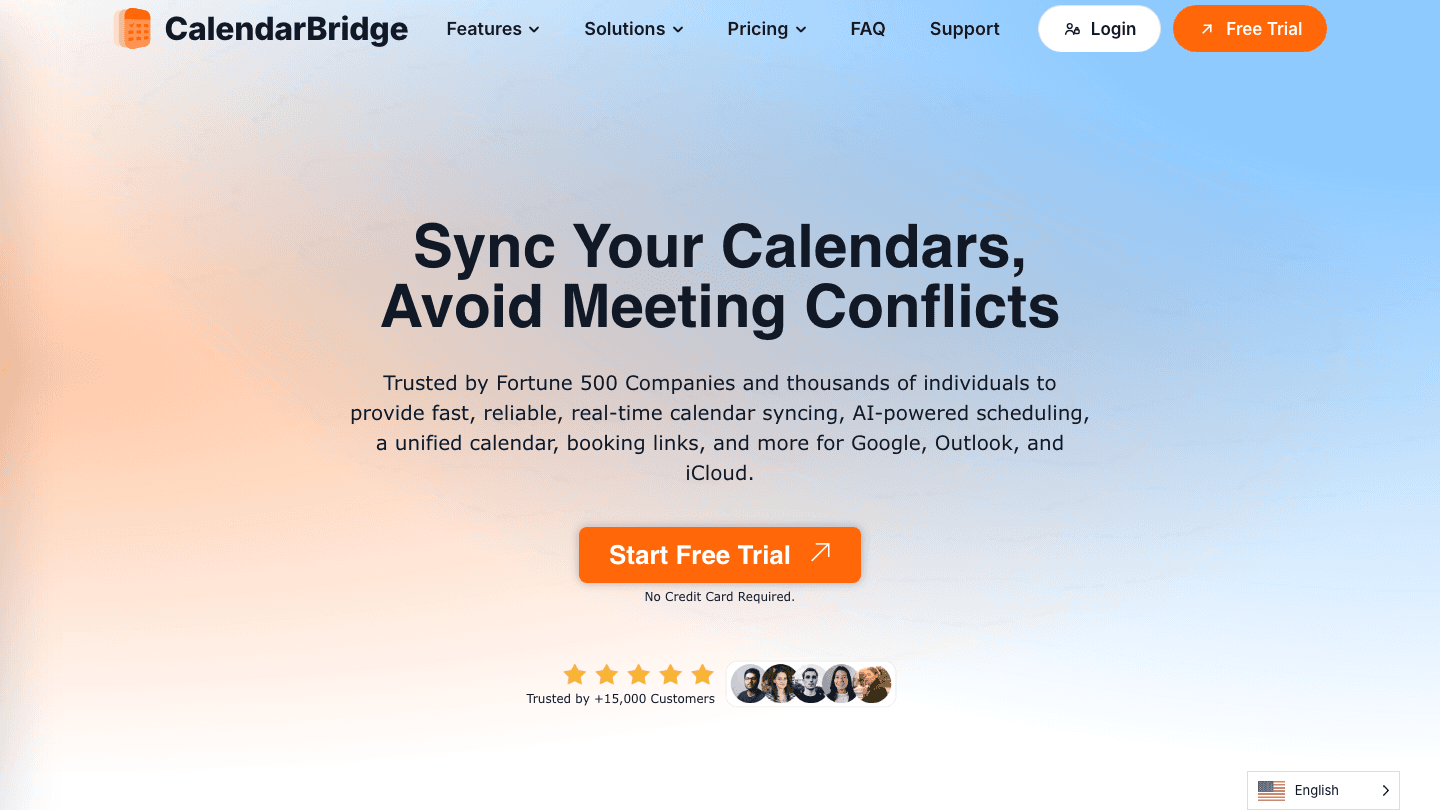
CalendarBridge Key Features
Real-Time Calendar Sync
The core feature. CalendarBridge connects Google Calendar, Outlook, Microsoft 365, and iCloud. Sync is bidirectional and real-time. You can configure privacy settings so event details are masked when synced between personal and professional accounts.
Scheduling Pages
Similar to Calendly, CalendarBridge lets you create availability links that check across all connected calendars simultaneously. All plans include up to 10 scheduling pages, which is enough for most individual users. The AI scheduling assistant on Premium and Pro plans can be CC'd on emails to propose meeting times automatically.
Unified Calendar View
CalendarBridge includes a web app that displays all your connected calendars in one view. The number of calendars visible in the unified view varies by plan: 4 on Basic, 12 on Premium, 24 on Pro. This is separate from the number of calendars you can sync, which is 2, 5, and 8 respectively.
Privacy Controls
A feature that sets CalendarBridge apart from simpler sync tools. You can sync events as "Busy" only, hiding titles and details from the destination calendar. Useful for anyone whose personal and professional worlds need to coexist without full visibility in both directions.
CalendarBridge Pricing
CalendarBridge offers three plans on both monthly and annual billing.
Basic: $5/month (monthly) or $4/month (billed annually). Syncs 2 calendars, 4 calendars in unified view, 10 scheduling pages.
Premium: $10/month (monthly) or $8/month (annually). Syncs 5 calendars, 12 in unified view, AI scheduling assistant.
Pro: $40/month (monthly) or $32/month (annually). Syncs 8 calendars, 24 in unified view, full AI assistant.
There's no free tier beyond a trial. For individuals syncing two calendars, the Basic plan at $4/month is likely all you need. The price jump to Pro ($32-40/month) is steep and will make more sense for teams than individuals.
Limitations of CalendarBridge
CalendarBridge does one thing well: it keeps multiple calendars in sync. That focus is a strength for users who genuinely need cross-platform sync. But it leaves a gap that most productivity setups eventually hit.
It doesn't help you plan your day. Having your calendars synced tells you what's scheduled. It doesn't help you figure out when to work on your most important task, or whether 10 a.m. on a given day is a good time for deep work versus admin. That layer of daily planning is entirely separate from what CalendarBridge offers.
No mobile app for the unified view. CalendarBridge's unified calendar is web-only. If you primarily live on your phone, you'll still need to use individual calendar apps for day-to-day viewing.
The AI assistant is limited. On Premium and Pro plans, the AI assistant can be CC'd on emails to propose meeting times. That's useful but narrow compared to tools that do full AI-driven daily scheduling.
What to Use Alongside CalendarBridge
CalendarBridge is great at keeping your calendars in sync, but once your calendar reflects your actual availability, you still need something to help you use that time well. That's where Lifestack comes in.
Lifestack is a daily planning app that reads your wearable data (sleep, recovery, energy) and uses it to schedule your tasks at the right time of day. It connects to your calendar and fills your available time with tasks in priority order, weighted by your energy levels that day. The two tools work well together: CalendarBridge makes sure your full schedule is visible in one place, and Lifestack builds your day around that schedule based on how you're actually feeling.

If your current problem is calendars not syncing, CalendarBridge solves it. If your problem is knowing what to work on and when, energy-based planning with Lifestack is the next layer. Lifestack is $7/month or $50/year, with a lifetime option at $120.
FAQ
What does CalendarBridge do?
CalendarBridge syncs events across multiple calendar accounts in real time, preventing double-booking across Google, Outlook, Microsoft 365, and iCloud. It also offers scheduling pages and a unified calendar view.
Is CalendarBridge free?
CalendarBridge offers a free trial but no ongoing free tier. Paid plans start at $4/month (billed annually) for the Basic plan, which syncs two calendars.
How is CalendarBridge different from Zapier for calendar sync?
CalendarBridge is purpose-built for calendar sync and is real-time and bidirectional out of the box. Zapier requires manual workflow setup and typically syncs in one direction with a delay. CalendarBridge is simpler to configure and more reliable for calendar-specific use cases.
Does CalendarBridge work with Apple Calendar?
Yes. CalendarBridge supports iCloud, which powers Apple Calendar. You can sync iCloud events with Google or Outlook in real time using any CalendarBridge plan.
What is the best alternative to CalendarBridge?
OneCal is one of the closest direct alternatives, also built specifically for calendar sync across providers. The right choice depends on how many calendars you need to sync and whether you need scheduling page features.
If you work across multiple organizations, juggle a personal and work calendar, or manage bookings across Google and Outlook accounts, you know the problem well. You accept a meeting on one calendar, and the conflict doesn't show up on the other until you've already double-booked yourself. CalendarBridge is one of the tools built specifically to fix that.
This review covers what CalendarBridge does, how its pricing stacks up, and where it falls short, so you can decide whether it fits your setup before you start a trial.
Key Takeaways
CalendarBridge syncs events across Google, Outlook, Microsoft 365, and iCloud calendars in real time, preventing double-booking across accounts.
Pricing starts at $4/month (billed annually) and scales with the number of connected calendars.
CalendarBridge handles sync and scheduling pages well, but it doesn't plan your day or help you decide when to work on what.
What CalendarBridge Does
CalendarBridge solves a structural problem in calendar management: most calendars live in silos. If you have a Google Calendar for personal use and an Outlook calendar for work, they don't talk to each other. You can end up accepting a dentist appointment on your personal calendar while your work calendar shows that slot as available, which leads to the kind of conflict you only discover when it's too late.
CalendarBridge creates real-time, bidirectional sync between your calendars. When you create or update an event on one, the platform mirrors it on the others within seconds. You can configure what information gets shared, so work events can show up on your personal calendar as "Busy" without exposing the meeting title or attendees.
Beyond sync, CalendarBridge also offers scheduling pages. These are shareable links that check availability across all your connected calendars at once, which removes the awkward back-and-forth of "are you free Thursday?" when your availability lives across three different accounts.
CalendarBridge Key Features
Real-Time Calendar Sync
The core feature. CalendarBridge connects Google Calendar, Outlook, Microsoft 365, and iCloud. Sync is bidirectional and real-time. You can configure privacy settings so event details are masked when synced between personal and professional accounts.
Scheduling Pages
Similar to Calendly, CalendarBridge lets you create availability links that check across all connected calendars simultaneously. All plans include up to 10 scheduling pages, which is enough for most individual users. The AI scheduling assistant on Premium and Pro plans can be CC'd on emails to propose meeting times automatically.
Unified Calendar View
CalendarBridge includes a web app that displays all your connected calendars in one view. The number of calendars visible in the unified view varies by plan: 4 on Basic, 12 on Premium, 24 on Pro. This is separate from the number of calendars you can sync, which is 2, 5, and 8 respectively.
Privacy Controls
A feature that sets CalendarBridge apart from simpler sync tools. You can sync events as "Busy" only, hiding titles and details from the destination calendar. Useful for anyone whose personal and professional worlds need to coexist without full visibility in both directions.
CalendarBridge Pricing
CalendarBridge offers three plans on both monthly and annual billing.
Basic: $5/month (monthly) or $4/month (billed annually). Syncs 2 calendars, 4 calendars in unified view, 10 scheduling pages.
Premium: $10/month (monthly) or $8/month (annually). Syncs 5 calendars, 12 in unified view, AI scheduling assistant.
Pro: $40/month (monthly) or $32/month (annually). Syncs 8 calendars, 24 in unified view, full AI assistant.
There's no free tier beyond a trial. For individuals syncing two calendars, the Basic plan at $4/month is likely all you need. The price jump to Pro ($32-40/month) is steep and will make more sense for teams than individuals.
Limitations of CalendarBridge
CalendarBridge does one thing well: it keeps multiple calendars in sync. That focus is a strength for users who genuinely need cross-platform sync. But it leaves a gap that most productivity setups eventually hit.
It doesn't help you plan your day. Having your calendars synced tells you what's scheduled. It doesn't help you figure out when to work on your most important task, or whether 10 a.m. on a given day is a good time for deep work versus admin. That layer of daily planning is entirely separate from what CalendarBridge offers.
No mobile app for the unified view. CalendarBridge's unified calendar is web-only. If you primarily live on your phone, you'll still need to use individual calendar apps for day-to-day viewing.
The AI assistant is limited. On Premium and Pro plans, the AI assistant can be CC'd on emails to propose meeting times. That's useful but narrow compared to tools that do full AI-driven daily scheduling.
What to Use Alongside CalendarBridge
CalendarBridge is great at keeping your calendars in sync, but once your calendar reflects your actual availability, you still need something to help you use that time well. That's where Lifestack comes in.
Lifestack is a daily planning app that reads your wearable data (sleep, recovery, energy) and uses it to schedule your tasks at the right time of day. It connects to your calendar and fills your available time with tasks in priority order, weighted by your energy levels that day. The two tools work well together: CalendarBridge makes sure your full schedule is visible in one place, and Lifestack builds your day around that schedule based on how you're actually feeling.
If your current problem is calendars not syncing, CalendarBridge solves it. If your problem is knowing what to work on and when, energy-based planning with Lifestack is the next layer. Lifestack is $7/month or $50/year, with a lifetime option at $120.
FAQ
What does CalendarBridge do?
CalendarBridge syncs events across multiple calendar accounts in real time, preventing double-booking across Google, Outlook, Microsoft 365, and iCloud. It also offers scheduling pages and a unified calendar view.
Is CalendarBridge free?
CalendarBridge offers a free trial but no ongoing free tier. Paid plans start at $4/month (billed annually) for the Basic plan, which syncs two calendars.
How is CalendarBridge different from Zapier for calendar sync?
CalendarBridge is purpose-built for calendar sync and is real-time and bidirectional out of the box. Zapier requires manual workflow setup and typically syncs in one direction with a delay. CalendarBridge is simpler to configure and more reliable for calendar-specific use cases.
Does CalendarBridge work with Apple Calendar?
Yes. CalendarBridge supports iCloud, which powers Apple Calendar. You can sync iCloud events with Google or Outlook in real time using any CalendarBridge plan.
What is the best alternative to CalendarBridge?
OneCal is one of the closest direct alternatives, also built specifically for calendar sync across providers. The right choice depends on how many calendars you need to sync and whether you need scheduling page features.



FOLLOW ON
FOLLOW ON
FOLLOW ON



Copyright 2026 © Lifestack. All rights reserved
Copyright 2026 © Lifestack. All rights reserved

