
App
Best Apps to Use With Outlook Calendar in 2026
Best Apps to Use With Outlook Calendar in 2026
The Best Apps to Use With Outlook Calendar
Outlook Calendar handles the basics well. Events, invites, and meeting scheduling inside the Microsoft 365 ecosystem are where it earns its keep. But like most calendar apps, it doesn't help you plan your day, schedule tasks intelligently, or make better decisions about when to do focused work.
The apps below all integrate with Outlook Calendar and add a meaningful layer on top. Some add task management that syncs to your calendar. Some add AI scheduling that books work into your open slots. One builds an energy-aware daily plan around your Outlook events and helps you actually get things done between meetings.
For a parallel look at apps that pair with other calendars, see our guides on apps to use with Apple Calendar and apps to use with Google Calendar. For Outlook-specific scheduling features, the Outlook scheduling assistant guide has more detail on built-in options.
Key Takeaways
Lifestack is the only app in this list that schedules tasks around your Outlook Calendar events based on your energy levels, not just open time slots
Microsoft To Do is the native choice for Outlook users who want task management without leaving the Microsoft ecosystem
Morgen and Akiflow both offer strong Outlook integration for people who need a more powerful planning interface
Quick Guide: Apps to Use With Outlook Calendar
1. Lifestack - AI energy-aware planner that reads Outlook Calendar and schedules tasks around your meetings
2. Microsoft To Do - Native Microsoft task manager with deep Outlook and Microsoft 365 integration
3. Todoist - Cross-platform task manager with Outlook Calendar sync
4. Morgen - Cross-platform AI planner that aggregates Outlook alongside other calendars
5. Motion - AI auto-scheduler that books tasks into open Outlook Calendar slots
6. Akiflow - Task and calendar command center with Outlook integration and deep integrations
How We Evaluated These Apps
Quality of Outlook Calendar read/write integration
What planning layer they add beyond basic calendar display
Cross-platform support (Windows, Mac, iOS, Android)
Pricing vs. the value of the features added
1. Lifestack - Best AI Planner to Pair With Outlook Calendar
Reads your Outlook events and builds an energy-aware daily plan around them
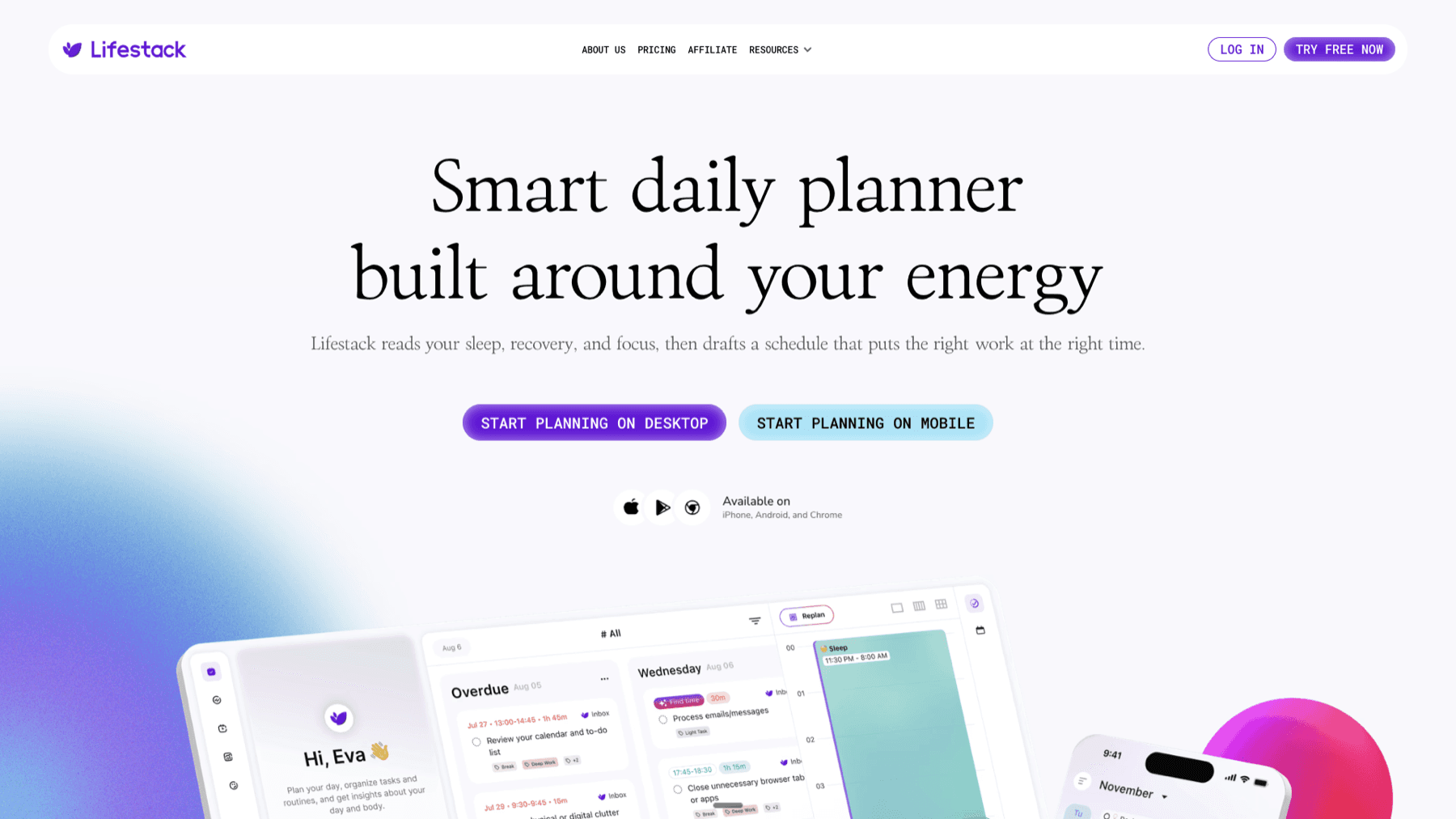
Lifestack syncs with Outlook Calendar, reads your existing meetings and events, and uses your energy data to build a complete daily schedule. Your Outlook meetings are fixed. Lifestack fills the gaps with your tasks, scheduled at the times of day when you're best equipped to do them. If you have a draining Tuesday with back-to-back meetings, Lifestack won't schedule your hardest thinking tasks in the 20-minute gaps between them. It saves that work for Wednesday morning.
This energy-based scheduling approach is what no native Microsoft tool offers, and it's what makes Lifestack genuinely different from an Outlook upgrade or a smart to-do list. The integration works through calendar sync, so your Outlook events stay in Outlook and Lifestack operates on top of them. Read about the energy-first approach behind Lifestack if you want to understand the product more deeply.
Key Features
Outlook Calendar sync with energy-aware task scheduling
AI daily plan built each morning based on meetings, tasks, and energy patterns
Integrates with Microsoft To Do, Todoist, Notion, and other task managers
iOS, Android, and Chrome extension
What Works
Removes the planning overhead from your plate each morning
Respects existing Outlook meetings without rescheduling them
Works well as a layer on top of your full Microsoft 365 stack
Limitations
Not a calendar viewer or inbox replacement. It's a planning tool built on top of your calendar
Less useful if your primary need is scheduling meetings for others
Pricing: $7/month or $50/year (7-day free trial on annual plan)
Best for: Outlook users who want AI daily planning built around their existing meetings and energy levels
2. Microsoft To Do - Best Native Task Manager for Outlook Users
Outlook's built-in task layer, now significantly more capable
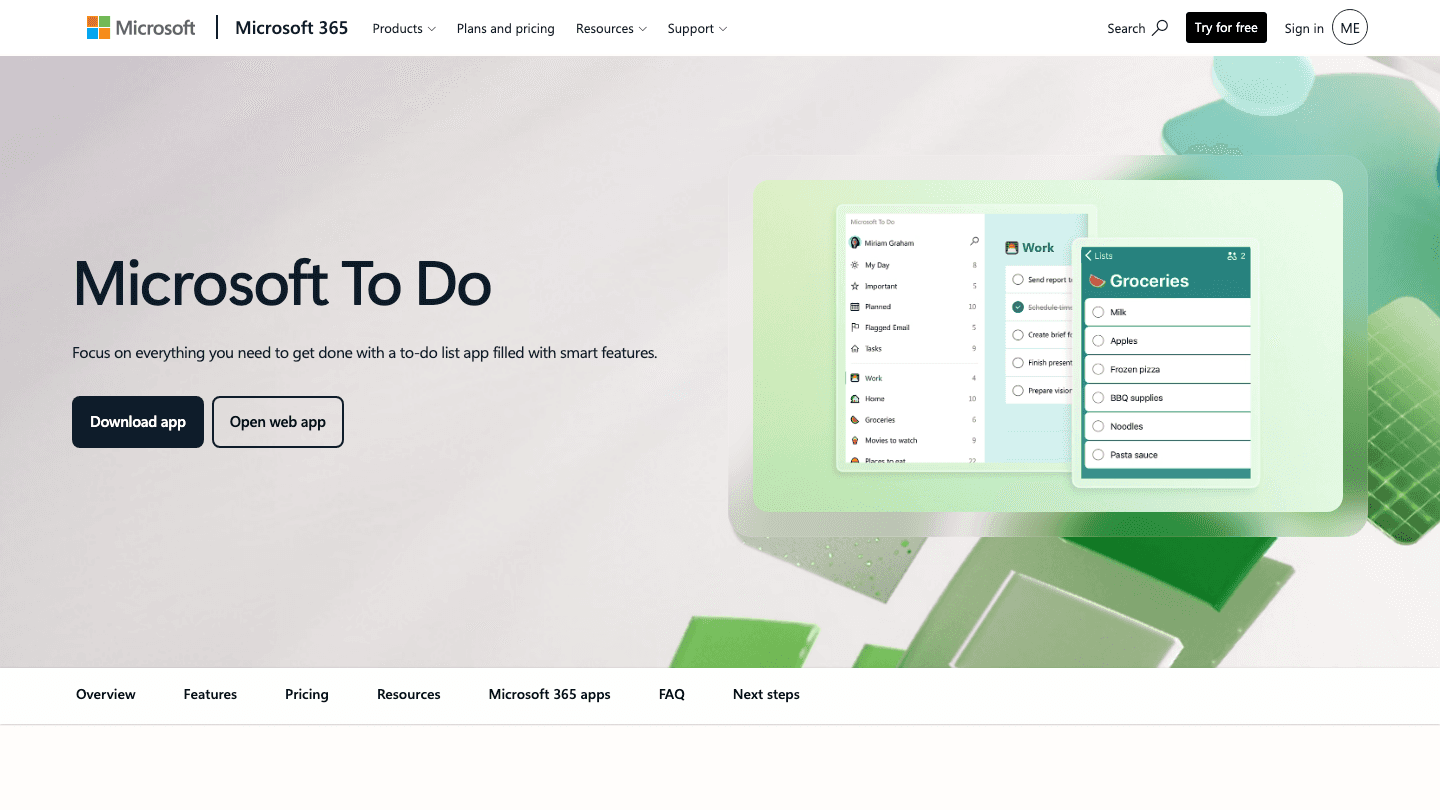
Microsoft To Do is the task management app built into the Microsoft 365 ecosystem. It syncs with Outlook Tasks, appears natively in Outlook's sidebar, and integrates with Teams through the same Microsoft account you already use. Flagged emails in Outlook automatically appear as tasks in Microsoft To Do. For anyone already in the Microsoft stack, the zero-setup integration is the main reason to use it.
My Day is the app's standout feature: a daily planning view where you pull tasks into a focused list for the day. It won't schedule your tasks into Outlook automatically, but the Outlook sidebar integration means you can plan your day without leaving your email. Free with any Microsoft 365 account, which makes it the lowest-friction Outlook companion available.
What Works
Flagged emails in Outlook become tasks with zero effort
My Day view creates a simple daily focus list
Free with Microsoft 365 and requires no additional setup
Limitations
No AI scheduling or energy awareness
Task scheduling into Outlook Calendar is manual
Less powerful than Todoist or Akiflow for complex project management
Pricing: Free with Microsoft 365
Best for: Microsoft 365 users who want task management that works natively with Outlook without adding another subscription
3. Todoist - Best Third-Party Task Manager for Outlook Calendar
Powerful task management that syncs tasks to Outlook as calendar events
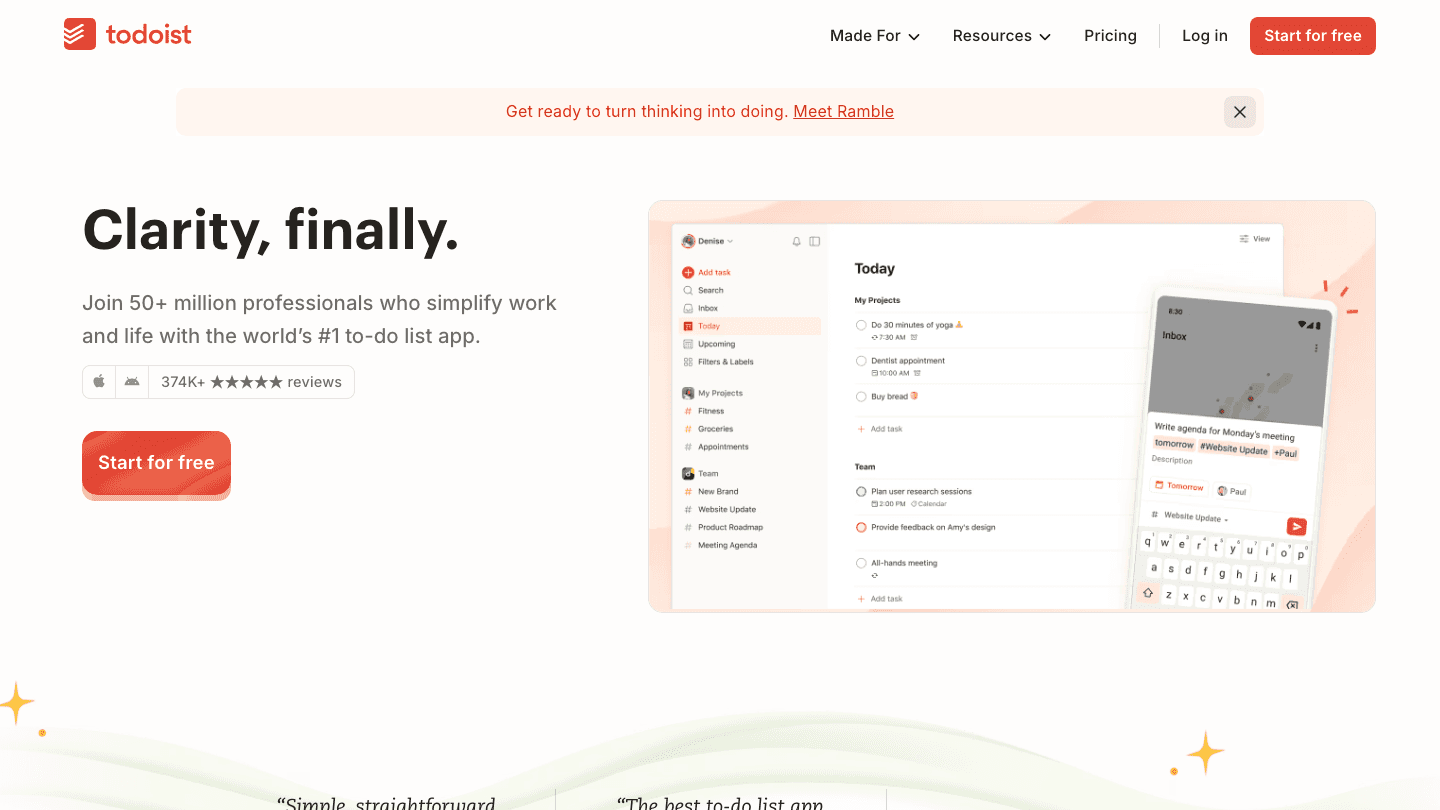
Todoist connects to Outlook Calendar and pushes scheduled tasks as calendar events, making them visible in your Outlook calendar view alongside meetings. This one-directional sync is useful: tasks you've scheduled for a specific time show up in Outlook, so you can see your planned work and meetings in the same place without switching apps.
Todoist is the better choice when you need more project structure than Microsoft To Do offers. Sections, sub-tasks, priority levels, and labels make it viable for managing complex work across multiple projects. The free tier covers most personal use cases. For a broader look at calendar management tools, Todoist's calendar integration approach fits the "tasks-first" planning style well.
What Works
Scheduled tasks appear as Outlook Calendar events for a unified view
Better project management than Microsoft To Do
Works on Windows, Mac, iOS, Android, and browser
Limitations
Calendar sync is one-directional (Todoist to Outlook, not back)
No energy awareness or AI scheduling
Pricing: Free tier available; Pro subscription for advanced features
Best for: Outlook users who need more project management than Microsoft To Do and want tasks to show up in their calendar
4. Morgen - Best Cross-Platform Planner for Outlook Users
Aggregates Outlook alongside other calendars with AI task scheduling
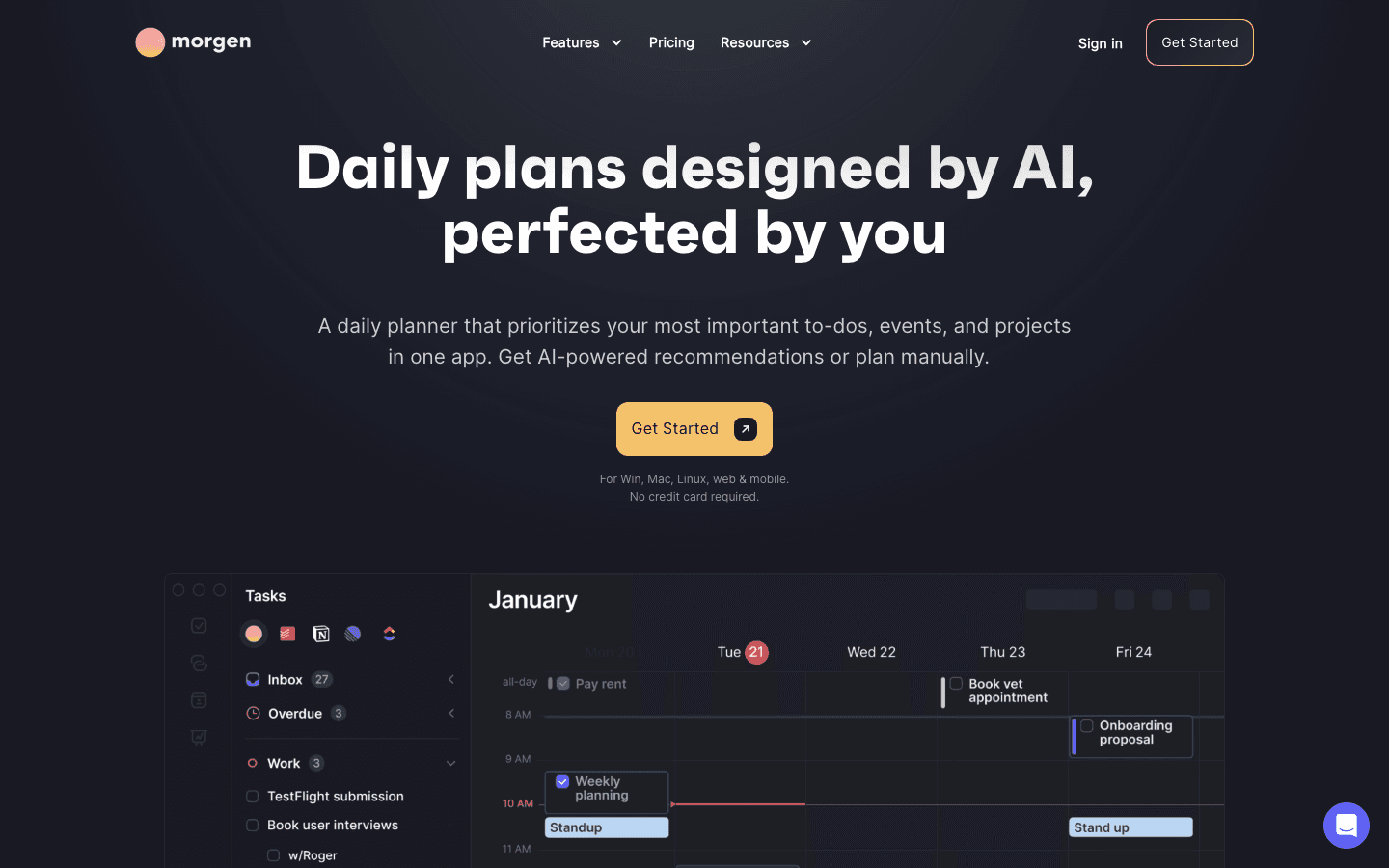
Morgen is especially useful for people who have Outlook at work and another calendar (Google, iCloud) personally. It pulls both into a unified view and lets you plan across all of them from one interface. The AI assistant suggests when to schedule tasks based on your calendar availability across all connected accounts, which is harder to do when you're switching between separate calendar apps.
It's also the strongest cross-platform option on this list, with native apps for Windows, Mac, Linux, iOS, and Android. For Windows users specifically, that's a significant advantage since several other planning apps are Mac-first. Compare it against other options in the Morgen alternatives guide or the broader best scheduling app roundup.
What Works
Best multi-calendar aggregation of any app on this list
Native Windows app (most planning apps are Mac-first)
AI scheduling suggestions based on availability across all calendars
Limitations
No energy awareness
$15/month (annually) is on the higher end for a planner
Pricing: $15/month billed annually, or $30/month monthly. 14-day free trial.
Best for: Outlook users who also have other calendars and want a unified cross-platform planning view
5. Motion - Best AI Auto-Scheduler for Outlook Calendar
Automatically books tasks into open slots in your Outlook Calendar
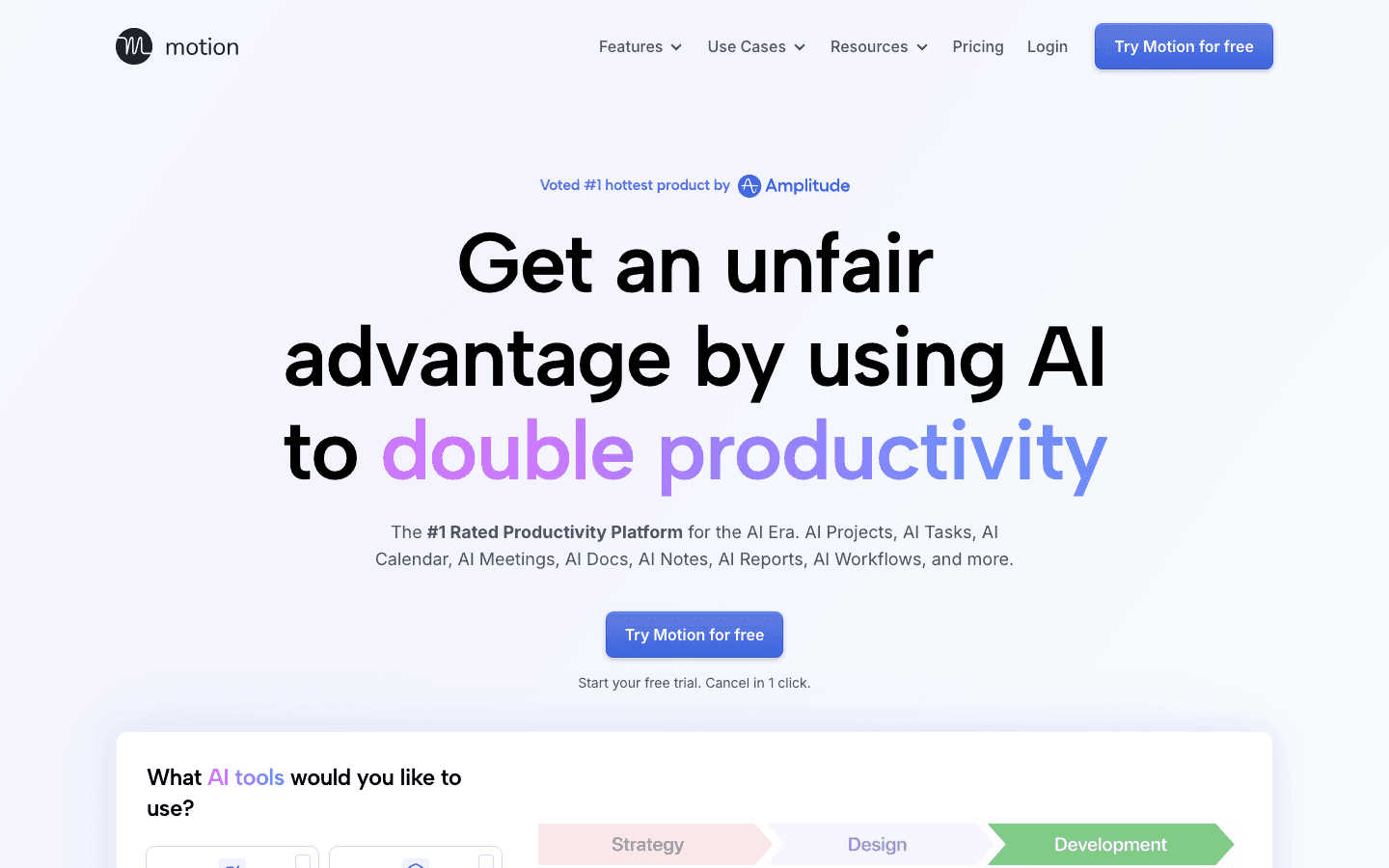
Motion reads your Outlook Calendar and books tasks automatically into available time slots based on deadlines and priority. Add a task, set a deadline, and Motion figures out when in your week it should happen. When a meeting moves or a new task arrives, it reschedules automatically. For people who hate manual time-blocking but need their tasks to actually appear in calendar time, Motion solves the problem directly.
The limitation compared to Lifestack is that Motion schedules by available time, not by energy. A demanding task might get slotted into a post-lunch energy slump because that's when the calendar was open. It's still a meaningful upgrade over manually scheduling tasks, but the optimization is cruder than an energy-aware approach.
What Works
Fully automatic task scheduling into calendar slots
Handles rescheduling automatically when priorities change
Works well for deadline-driven task environments
Limitations
Schedules by time availability only (no energy awareness)
$19/month is expensive compared to other tools
Pricing: $19/month (monthly), or approximately $12.73/month billed annually. Free trial available.
Best for: Outlook users with many competing tasks and deadlines who want automatic time-blocking without manual scheduling
6. Akiflow - Best for Power Users Managing Heavy Workloads
A unified task inbox and calendar for professionals with complex schedules
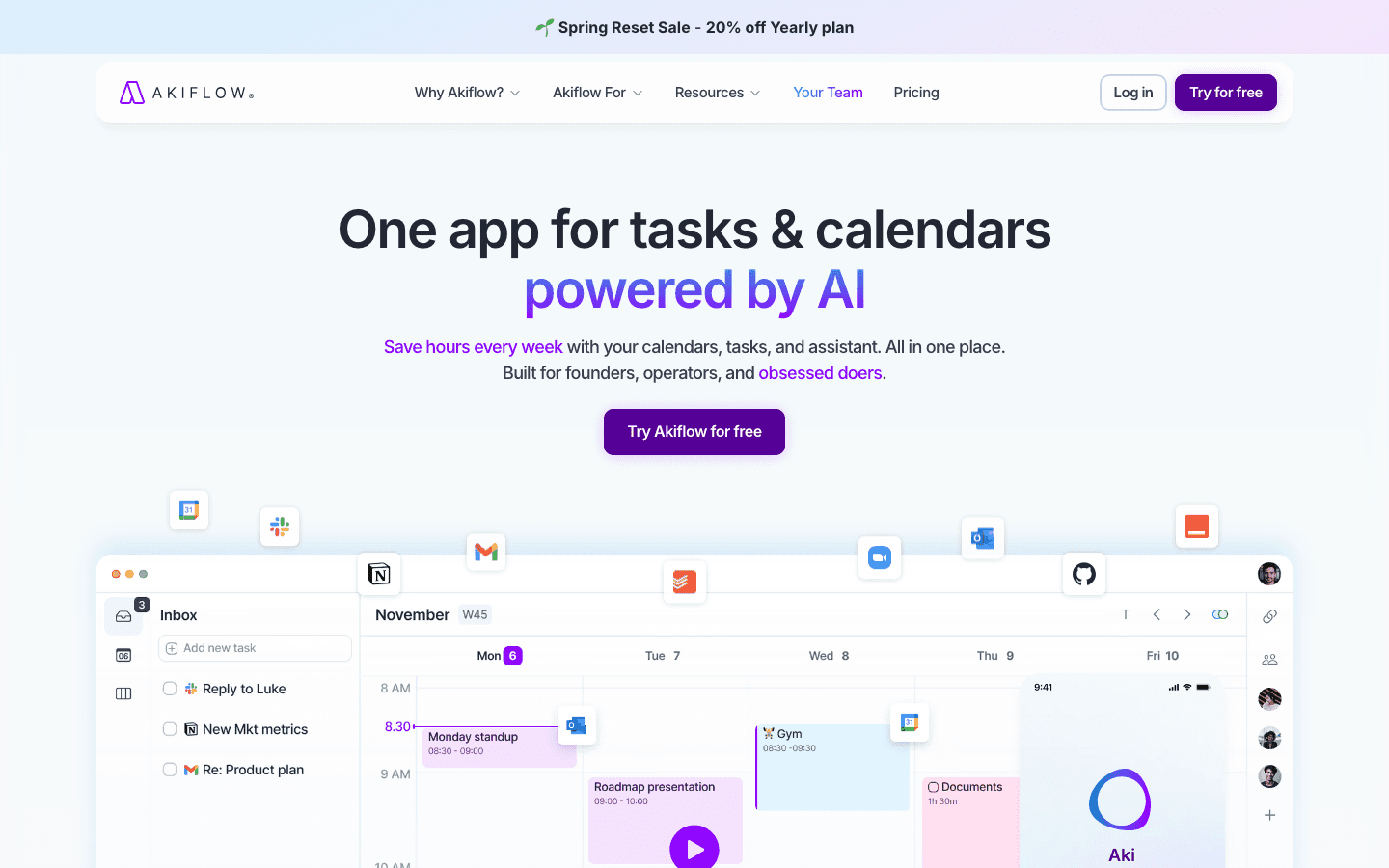
Akiflow pulls tasks from Outlook Calendar alongside Asana, Linear, Notion, Slack, and a dozen other tools into a unified inbox. You plan your day by dragging tasks into your Outlook time slots, seeing tasks and meetings together in a single calendar view. For people managing high-volume work across many tools, Akiflow removes the need to check multiple apps for what needs scheduling.
The keyboard-shortcut-heavy interface is built for speed. Experienced users can capture, schedule, and organize tasks faster than any other app in this category. The tradeoff is a steeper learning curve and a higher price. For alternatives at different price points, see the Akiflow alternatives guide. And for a look at AI tools more broadly, the AI productivity tools guide covers the wider landscape.
What Works
Widest integration library, pulling tasks from Outlook and 15+ other tools
Fast keyboard-driven interface for scheduling and capturing
Unified view of tasks and Outlook Calendar events
Limitations
No energy awareness
$19/month (annually) is steep for individuals
Steeper learning curve than other apps on this list
Pricing: $19/month billed annually, or $34/month monthly. 7-day free trial.
Best for: Power users managing tasks from many tools who need to see everything in one Outlook-connected view
Which App to Use With Outlook Calendar?
You want AI planning built around your energy and meetings: Lifestack
You want native Microsoft integration with no extra cost: Microsoft To Do
You need structured project management linked to Outlook: Todoist
You have Outlook plus other calendars and need a unified view: Morgen
You want tasks automatically scheduled into calendar slots: Motion
You manage tasks from 10+ tools and need a command center: Akiflow
The simplest starting stack for most Outlook users: Microsoft To Do for task capture (it's free and native) plus Lifestack for daily planning (it reads your Outlook events and schedules your tasks around them with energy awareness). Those two tools cover the planning gap that Outlook alone can't fill, without adding much overhead.
Frequently Asked Questions
What apps work best with Outlook Calendar?
The best apps to use with Outlook Calendar depend on what's missing in your workflow. For native task integration at no extra cost: Microsoft To Do. For AI energy-aware daily planning: Lifestack. For automatic task scheduling into calendar slots: Motion. For cross-platform planning across multiple calendars: Morgen. For a power-user task and calendar command center: Akiflow.
Does Lifestack integrate with Outlook Calendar?
Yes. Lifestack syncs with Outlook Calendar, reads your events, and builds a daily plan around them using energy-aware AI scheduling. Your Outlook events stay in Outlook. Lifestack adds a scheduling layer that puts your tasks in the right time slots based on when you're most productive throughout the day.
Is Microsoft To Do a good Outlook Calendar companion?
For straightforward task management within the Microsoft ecosystem, yes. Flagged Outlook emails become tasks automatically. The My Day view gives you a daily focus list. It's free with Microsoft 365 and requires no setup. The limitation is that it won't schedule tasks into your calendar automatically or apply any AI to your planning. It's a solid task list, not an intelligent planner.
What is the best AI scheduling app for Outlook users?
Lifestack and Motion are the two strongest AI scheduling options for Outlook Calendar. Lifestack builds a daily plan based on your energy patterns and existing Outlook meetings, prioritizing your best hours for demanding work. Motion automatically books tasks into open calendar slots based on deadlines and priority. Lifestack is more opinionated about when to schedule things; Motion is more automated about filling available time.
Can I use Todoist with Outlook Calendar?
Yes. Todoist connects to Outlook Calendar and pushes scheduled tasks as calendar events. Tasks you've assigned a date and time appear in your Outlook calendar view alongside meetings. The integration is one-directional (Todoist pushes to Outlook, not the reverse), but it's enough to see planned work and meetings in the same view without switching apps constantly.
What apps support both Outlook Calendar and Windows?
Morgen is the strongest Windows-native option, with full desktop apps across Windows, Mac, and Linux. Microsoft To Do has a strong Windows app. Akiflow and Todoist both have Windows apps. Lifestack runs in browser (Chrome extension) on Windows alongside its iOS and Android apps, so it works across platforms even without a dedicated Windows desktop app.
The Best Apps to Use With Outlook Calendar
Outlook Calendar handles the basics well. Events, invites, and meeting scheduling inside the Microsoft 365 ecosystem are where it earns its keep. But like most calendar apps, it doesn't help you plan your day, schedule tasks intelligently, or make better decisions about when to do focused work.
The apps below all integrate with Outlook Calendar and add a meaningful layer on top. Some add task management that syncs to your calendar. Some add AI scheduling that books work into your open slots. One builds an energy-aware daily plan around your Outlook events and helps you actually get things done between meetings.
For a parallel look at apps that pair with other calendars, see our guides on apps to use with Apple Calendar and apps to use with Google Calendar. For Outlook-specific scheduling features, the Outlook scheduling assistant guide has more detail on built-in options.
Key Takeaways
Lifestack is the only app in this list that schedules tasks around your Outlook Calendar events based on your energy levels, not just open time slots
Microsoft To Do is the native choice for Outlook users who want task management without leaving the Microsoft ecosystem
Morgen and Akiflow both offer strong Outlook integration for people who need a more powerful planning interface
Quick Guide: Apps to Use With Outlook Calendar
1. Lifestack - AI energy-aware planner that reads Outlook Calendar and schedules tasks around your meetings
2. Microsoft To Do - Native Microsoft task manager with deep Outlook and Microsoft 365 integration
3. Todoist - Cross-platform task manager with Outlook Calendar sync
4. Morgen - Cross-platform AI planner that aggregates Outlook alongside other calendars
5. Motion - AI auto-scheduler that books tasks into open Outlook Calendar slots
6. Akiflow - Task and calendar command center with Outlook integration and deep integrations
How We Evaluated These Apps
Quality of Outlook Calendar read/write integration
What planning layer they add beyond basic calendar display
Cross-platform support (Windows, Mac, iOS, Android)
Pricing vs. the value of the features added
1. Lifestack - Best AI Planner to Pair With Outlook Calendar
Reads your Outlook events and builds an energy-aware daily plan around them
Lifestack syncs with Outlook Calendar, reads your existing meetings and events, and uses your energy data to build a complete daily schedule. Your Outlook meetings are fixed. Lifestack fills the gaps with your tasks, scheduled at the times of day when you're best equipped to do them. If you have a draining Tuesday with back-to-back meetings, Lifestack won't schedule your hardest thinking tasks in the 20-minute gaps between them. It saves that work for Wednesday morning.
This energy-based scheduling approach is what no native Microsoft tool offers, and it's what makes Lifestack genuinely different from an Outlook upgrade or a smart to-do list. The integration works through calendar sync, so your Outlook events stay in Outlook and Lifestack operates on top of them. Read about the energy-first approach behind Lifestack if you want to understand the product more deeply.
Key Features
Outlook Calendar sync with energy-aware task scheduling
AI daily plan built each morning based on meetings, tasks, and energy patterns
Integrates with Microsoft To Do, Todoist, Notion, and other task managers
iOS, Android, and Chrome extension
What Works
Removes the planning overhead from your plate each morning
Respects existing Outlook meetings without rescheduling them
Works well as a layer on top of your full Microsoft 365 stack
Limitations
Not a calendar viewer or inbox replacement. It's a planning tool built on top of your calendar
Less useful if your primary need is scheduling meetings for others
Pricing: $7/month or $50/year (7-day free trial on annual plan)
Best for: Outlook users who want AI daily planning built around their existing meetings and energy levels
2. Microsoft To Do - Best Native Task Manager for Outlook Users
Outlook's built-in task layer, now significantly more capable
Microsoft To Do is the task management app built into the Microsoft 365 ecosystem. It syncs with Outlook Tasks, appears natively in Outlook's sidebar, and integrates with Teams through the same Microsoft account you already use. Flagged emails in Outlook automatically appear as tasks in Microsoft To Do. For anyone already in the Microsoft stack, the zero-setup integration is the main reason to use it.
My Day is the app's standout feature: a daily planning view where you pull tasks into a focused list for the day. It won't schedule your tasks into Outlook automatically, but the Outlook sidebar integration means you can plan your day without leaving your email. Free with any Microsoft 365 account, which makes it the lowest-friction Outlook companion available.
What Works
Flagged emails in Outlook become tasks with zero effort
My Day view creates a simple daily focus list
Free with Microsoft 365 and requires no additional setup
Limitations
No AI scheduling or energy awareness
Task scheduling into Outlook Calendar is manual
Less powerful than Todoist or Akiflow for complex project management
Pricing: Free with Microsoft 365
Best for: Microsoft 365 users who want task management that works natively with Outlook without adding another subscription
3. Todoist - Best Third-Party Task Manager for Outlook Calendar
Powerful task management that syncs tasks to Outlook as calendar events
Todoist connects to Outlook Calendar and pushes scheduled tasks as calendar events, making them visible in your Outlook calendar view alongside meetings. This one-directional sync is useful: tasks you've scheduled for a specific time show up in Outlook, so you can see your planned work and meetings in the same place without switching apps.
Todoist is the better choice when you need more project structure than Microsoft To Do offers. Sections, sub-tasks, priority levels, and labels make it viable for managing complex work across multiple projects. The free tier covers most personal use cases. For a broader look at calendar management tools, Todoist's calendar integration approach fits the "tasks-first" planning style well.
What Works
Scheduled tasks appear as Outlook Calendar events for a unified view
Better project management than Microsoft To Do
Works on Windows, Mac, iOS, Android, and browser
Limitations
Calendar sync is one-directional (Todoist to Outlook, not back)
No energy awareness or AI scheduling
Pricing: Free tier available; Pro subscription for advanced features
Best for: Outlook users who need more project management than Microsoft To Do and want tasks to show up in their calendar
4. Morgen - Best Cross-Platform Planner for Outlook Users
Aggregates Outlook alongside other calendars with AI task scheduling
Morgen is especially useful for people who have Outlook at work and another calendar (Google, iCloud) personally. It pulls both into a unified view and lets you plan across all of them from one interface. The AI assistant suggests when to schedule tasks based on your calendar availability across all connected accounts, which is harder to do when you're switching between separate calendar apps.
It's also the strongest cross-platform option on this list, with native apps for Windows, Mac, Linux, iOS, and Android. For Windows users specifically, that's a significant advantage since several other planning apps are Mac-first. Compare it against other options in the Morgen alternatives guide or the broader best scheduling app roundup.
What Works
Best multi-calendar aggregation of any app on this list
Native Windows app (most planning apps are Mac-first)
AI scheduling suggestions based on availability across all calendars
Limitations
No energy awareness
$15/month (annually) is on the higher end for a planner
Pricing: $15/month billed annually, or $30/month monthly. 14-day free trial.
Best for: Outlook users who also have other calendars and want a unified cross-platform planning view
5. Motion - Best AI Auto-Scheduler for Outlook Calendar
Automatically books tasks into open slots in your Outlook Calendar
Motion reads your Outlook Calendar and books tasks automatically into available time slots based on deadlines and priority. Add a task, set a deadline, and Motion figures out when in your week it should happen. When a meeting moves or a new task arrives, it reschedules automatically. For people who hate manual time-blocking but need their tasks to actually appear in calendar time, Motion solves the problem directly.
The limitation compared to Lifestack is that Motion schedules by available time, not by energy. A demanding task might get slotted into a post-lunch energy slump because that's when the calendar was open. It's still a meaningful upgrade over manually scheduling tasks, but the optimization is cruder than an energy-aware approach.
What Works
Fully automatic task scheduling into calendar slots
Handles rescheduling automatically when priorities change
Works well for deadline-driven task environments
Limitations
Schedules by time availability only (no energy awareness)
$19/month is expensive compared to other tools
Pricing: $19/month (monthly), or approximately $12.73/month billed annually. Free trial available.
Best for: Outlook users with many competing tasks and deadlines who want automatic time-blocking without manual scheduling
6. Akiflow - Best for Power Users Managing Heavy Workloads
A unified task inbox and calendar for professionals with complex schedules
Akiflow pulls tasks from Outlook Calendar alongside Asana, Linear, Notion, Slack, and a dozen other tools into a unified inbox. You plan your day by dragging tasks into your Outlook time slots, seeing tasks and meetings together in a single calendar view. For people managing high-volume work across many tools, Akiflow removes the need to check multiple apps for what needs scheduling.
The keyboard-shortcut-heavy interface is built for speed. Experienced users can capture, schedule, and organize tasks faster than any other app in this category. The tradeoff is a steeper learning curve and a higher price. For alternatives at different price points, see the Akiflow alternatives guide. And for a look at AI tools more broadly, the AI productivity tools guide covers the wider landscape.
What Works
Widest integration library, pulling tasks from Outlook and 15+ other tools
Fast keyboard-driven interface for scheduling and capturing
Unified view of tasks and Outlook Calendar events
Limitations
No energy awareness
$19/month (annually) is steep for individuals
Steeper learning curve than other apps on this list
Pricing: $19/month billed annually, or $34/month monthly. 7-day free trial.
Best for: Power users managing tasks from many tools who need to see everything in one Outlook-connected view
Which App to Use With Outlook Calendar?
You want AI planning built around your energy and meetings: Lifestack
You want native Microsoft integration with no extra cost: Microsoft To Do
You need structured project management linked to Outlook: Todoist
You have Outlook plus other calendars and need a unified view: Morgen
You want tasks automatically scheduled into calendar slots: Motion
You manage tasks from 10+ tools and need a command center: Akiflow
The simplest starting stack for most Outlook users: Microsoft To Do for task capture (it's free and native) plus Lifestack for daily planning (it reads your Outlook events and schedules your tasks around them with energy awareness). Those two tools cover the planning gap that Outlook alone can't fill, without adding much overhead.
Frequently Asked Questions
What apps work best with Outlook Calendar?
The best apps to use with Outlook Calendar depend on what's missing in your workflow. For native task integration at no extra cost: Microsoft To Do. For AI energy-aware daily planning: Lifestack. For automatic task scheduling into calendar slots: Motion. For cross-platform planning across multiple calendars: Morgen. For a power-user task and calendar command center: Akiflow.
Does Lifestack integrate with Outlook Calendar?
Yes. Lifestack syncs with Outlook Calendar, reads your events, and builds a daily plan around them using energy-aware AI scheduling. Your Outlook events stay in Outlook. Lifestack adds a scheduling layer that puts your tasks in the right time slots based on when you're most productive throughout the day.
Is Microsoft To Do a good Outlook Calendar companion?
For straightforward task management within the Microsoft ecosystem, yes. Flagged Outlook emails become tasks automatically. The My Day view gives you a daily focus list. It's free with Microsoft 365 and requires no setup. The limitation is that it won't schedule tasks into your calendar automatically or apply any AI to your planning. It's a solid task list, not an intelligent planner.
What is the best AI scheduling app for Outlook users?
Lifestack and Motion are the two strongest AI scheduling options for Outlook Calendar. Lifestack builds a daily plan based on your energy patterns and existing Outlook meetings, prioritizing your best hours for demanding work. Motion automatically books tasks into open calendar slots based on deadlines and priority. Lifestack is more opinionated about when to schedule things; Motion is more automated about filling available time.
Can I use Todoist with Outlook Calendar?
Yes. Todoist connects to Outlook Calendar and pushes scheduled tasks as calendar events. Tasks you've assigned a date and time appear in your Outlook calendar view alongside meetings. The integration is one-directional (Todoist pushes to Outlook, not the reverse), but it's enough to see planned work and meetings in the same view without switching apps constantly.
What apps support both Outlook Calendar and Windows?
Morgen is the strongest Windows-native option, with full desktop apps across Windows, Mac, and Linux. Microsoft To Do has a strong Windows app. Akiflow and Todoist both have Windows apps. Lifestack runs in browser (Chrome extension) on Windows alongside its iOS and Android apps, so it works across platforms even without a dedicated Windows desktop app.


FOLLOW ON
FOLLOW ON
FOLLOW ON


Copyright 2026 © Lifestack. All rights reserved
Copyright 2026 © Lifestack. All rights reserved

